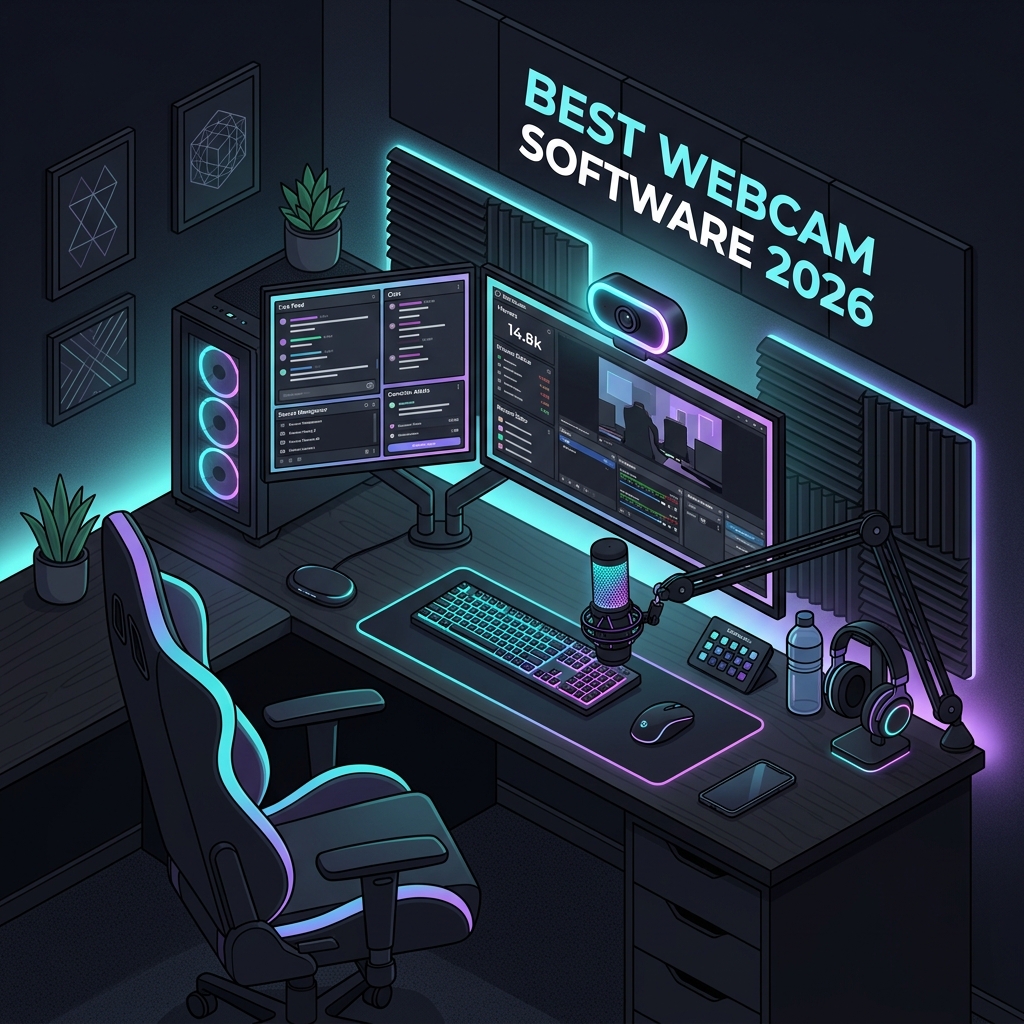
Your camera is the single most important pixel-pusher on your stream — and yet most creators leave its potential locked behind generic drivers and default settings. A great lens means little if the software driving it cannot expose, color-correct, or composite the way modern audiences expect. That gap is exactly where the right webcam software changes everything.
Choosing the best webcam software for streamers and content creators in 2026 is no longer a matter of “which one looks prettiest.” It is a workflow decision that affects latency, CPU load, virtual camera output, AI background handling, multi-scene production, and how cleanly your face lands in OBS, Streamlabs, Zoom, Riverside, or your NLE. This guide breaks down the strongest options available today, what they actually do well, and how to wire them into a creator stack that scales.
What Webcam Software Actually Does (and Why It Matters in 2026)
Webcam software is any application that captures, processes, or virtualizes a camera feed before it reaches your streaming or recording app. It sits between the physical sensor (or DSLR/mirrorless via a capture card) and tools like OBS, vMix, Zoom, Google Meet, or your browser. In 2026, the best tools also handle AI-driven framing, denoising, HDR tone mapping, virtual backgrounds, and color grading in real time on either GPU or NPU silicon.
The reason this category matters more than ever: native operating system drivers are conservative. Windows and macOS will give you a usable feed, but they will not push your hardware to its limits. Dedicated software unlocks higher bitrates, manual exposure, white balance lock, custom LUTs, and — critically — a virtual camera output that downstream apps can consume as if it were a normal webcam.
What to Look for in Modern Webcam Software
Before you compare names, calibrate your priorities. Streamers, podcasters, and short-form creators have wildly different needs, and a tool that excels at one workflow can throttle another.
- Latency: Sub-100ms glass-to-encoder latency keeps your audio and lip-sync tight.
- Resolution and frame rate: 1080p60 is the floor in 2026; 4K30 or 1440p60 is becoming standard for premium creators.
- AI features: Subject tracking, gaze correction, low-light denoise, and background removal that runs without a green screen.
- Color pipeline: Support for LUTs, exposure compensation, white balance lock, and HDR pass-through.
- Virtual camera output: Clean integration with OBS, Streamlabs, Zoom, Meet, Teams, Riverside, Restream, and Discord.
- Resource usage: NPU/GPU acceleration so your CPU is free for encoding and game capture.
- Multi-cam support: Switching, PiP, and synchronized recording across two or more cameras.
The Best Webcam Software for Streamers and Content Creators in 2026
Below is a curated, opinionated shortlist. Each entry includes who it is actually built for, what it does better than its peers, and where it falls short. No tool is universally “best” — fit matters more than rank.
1. OBS Studio (with Camera Plugins)
OBS Studio remains the open-source backbone of modern streaming. It is technically a broadcasting suite, but with plugins like Camera Hue, StreamFX, and the built-in Video Capture Device filters, it doubles as serious webcam software. Color correction, sharpening, chroma key, scaling, and LUT application all happen in real time.
OBS is the right choice if you want zero recurring cost, full control over your pipeline, and a virtual camera output that almost every app on the planet accepts.
OBS’s virtual camera is a quiet superpower: composite a multi-scene production in OBS, then output the whole thing as a single “webcam” feed into Zoom, Meet, or any browser-based studio.
2. Logitech G HUB and Logi Tune
If you are running a Logitech Brio, MX Brio, or StreamCam, G HUB (for gaming-tier cameras) and Logi Tune (for business-tier cameras) give you the deepest hardware control. RightSight auto-framing, HDR toggles, field-of-view presets, and exposure locks live here, not in your OS.
The trade-off: it only manages Logitech hardware. But if you own that hardware, skipping these utilities means leaving sensor performance on the table.
3. NVIDIA Broadcast
NVIDIA Broadcast is the gold standard for AI-driven webcam processing — provided you own an RTX GPU. It handles background removal, background blur, eye contact correction, auto-frame, and video noise reduction entirely on your GPU’s Tensor cores, leaving your CPU untouched.
Pair it with any USB webcam to instantly upgrade your visual quality. The eye-contact feature in particular is uncanny: it subtly redirects your gaze toward the lens even when you are reading notes off-screen.
4. Elgato Camera Hub
Elgato’s Camera Hub drives their Facecam and Facecam Pro lines, exposing manual ISO, shutter speed, white balance, and contrast controls that feel more like a mirrorless camera menu than a webcam app. Saved profiles let you switch between “podcast,” “stream,” and “meeting” looks in one click.
If you are serious about a cinematic webcam look without buying a DSLR, this is the cleanest path.
5. mmhmm and Ecamm Live (macOS-First Creators)
For Apple-centric podcasters and educators, mmhmm and Ecamm Live are purpose-built for talking-head content. They handle slide overlays, lower thirds, multi-cam switching, and direct streaming to YouTube and Facebook without ever opening OBS. Ecamm in particular has become the de facto choice for solo podcast video.
6. XSplit VCam
XSplit VCam focuses on one job: AI background replacement and blur without a green screen, on any webcam, with very low overhead. It is a great companion app rather than a standalone studio — pair it with OBS or Zoom for a clean background on any machine.
7. Snap Camera Alternatives (Snap Camera was discontinued)
Snap Camera shut down in early 2023. The 2026 successors worth knowing are Loola and YouCam Perfect for Desktop, both of which offer real-time filters and AR effects with a clean virtual camera output for streamers who want personality without sacrificing legibility.
Comparison Table: At-a-Glance Pick Guide
| Software | Best For | OS | Price | Virtual Camera |
|---|---|---|---|---|
| OBS Studio | Full broadcast control | Win / macOS / Linux | Free | Yes |
| NVIDIA Broadcast | AI effects on RTX GPUs | Windows | Free | Yes |
| Logitech G HUB / Logi Tune | Logitech camera owners | Win / macOS | Free | Indirect |
| Elgato Camera Hub | Cinematic manual control | Win / macOS | Free | Indirect |
| Ecamm Live | Mac podcasters | macOS | Subscription | Yes |
| XSplit VCam | Background removal | Windows | Free / Paid | Yes |
| mmhmm | Presentation-style video | Win / macOS | Freemium | Yes |
Setting Up a Pro-Grade Webcam Pipeline
The strongest creator setups in 2026 do not rely on a single tool — they chain several together. Here is a battle-tested stack you can replicate.
- Capture layer: Your physical webcam or DSLR feeds raw frames into the OS.
- Enhancement layer: NVIDIA Broadcast (or XSplit VCam on non-RTX rigs) applies AI denoise, background blur, and gaze correction.
- Hardware-tuning layer: Logitech G HUB or Elgato Camera Hub locks exposure, white balance, and color profile.
- Composition layer: OBS Studio receives the processed feed, composites it with overlays, alerts, and gameplay.
- Output layer: OBS streams to Twitch / YouTube, or outputs a virtual camera into Zoom / Riverside for podcasts.
Example: Wiring NVIDIA Broadcast into OBS
Below is a minimal OBS scene configuration written as JSON. You can paste this into OBS’s scene collection import flow as a starting template.
{
  "scene": "Main Camera",
  "sources": [
    {
      "name": "Webcam",
      "type": "dshow_input",
      "settings": {
        "video_device_id": "NVIDIA Broadcast Camera",
        "resolution": "1920x1080",
        "frame_rate": 60,
        "color_space": "709",
        "color_range": "full"
      },
      "filters": [
        { "type": "sharpness_filter", "amount": 0.15 },
        { "type": "color_correction_filter", "saturation": 0.05, "contrast": 0.05 }
      ]
    }
  ]
}
This configuration tells OBS to consume the NVIDIA Broadcast virtual camera at 1080p60 with Rec. 709 color space, then apply a light sharpness and contrast pass. The result is a clean, slightly punchy feed that holds up under streaming bitrates without looking over-processed.
Example: A Lightweight Python Watcher for Auto-Starting Your Stack
If you launch the same apps every stream, automate it. This script checks for OBS and your camera utility and starts them in the right order on Windows.
import subprocess
import time
import psutil

APPS = [
    r"C:\Program Files\NVIDIA Corporation\NVIDIA Broadcast\NVIDIA Broadcast.exe",
    r"C:\Program Files\Elgato\CameraHub\CameraHub.exe",
    r"C:\Program Files\obs-studio\bin\64bit\obs64.exe",
]

def is_running(name: str) -> bool:
    # Check if a process with the given executable name is alive
    return any(p.name().lower() == name.lower() for p in psutil.process_iter(["name"]))

for path in APPS:
    exe = path.split("\\")[-1]
    if not is_running(exe):
        subprocess.Popen([path])
        time.sleep(3)  # let each app initialize before launching the next
    else:
        print(f"{exe} already running, skipping")
The script walks through your stack in a predictable order, waits three seconds between launches so virtual cameras register cleanly, and skips any app already running. Map it to a Stream Deck button or a Windows shortcut for one-click setup.
Performance Tips That Most Creators Skip
Even the best webcam software for streamers can stutter or look soft if your settings work against you. These tweaks consistently produce visible improvements.
- Lock your exposure and white balance. Auto-exposure makes your face pulse when you move or when overlays change brightness. Manual lock keeps the image steady.
- Match frame rates end-to-end. If your camera captures at 60fps but OBS is set to 30fps output, you waste GPU cycles and introduce judder. Pick one cadence and align everything.
- Use NV12 or I420 color formats. They are dramatically lighter on CPU than MJPEG decode, especially at 1080p60 and above.
- Offload AI to the GPU/NPU. Tools that run inference on a CPU will tank your encode quality during busy scenes. Verify acceleration is enabled in settings.
- Apply a LUT for color consistency. A subtle 3D LUT in OBS or your camera utility unifies the look across multiple cameras and lighting conditions.
Common Pitfalls to Avoid
Most webcam issues are not hardware problems — they are configuration problems. Watch out for these.
- Stacking multiple AI background tools. Running NVIDIA Broadcast and XSplit VCam at once is a recipe for soft edges and wasted compute. Pick one.
- Forgetting USB bandwidth limits. A 4K60 webcam on the same USB hub as your audio interface and capture card will drop frames. Spread devices across separate controllers.
- Ignoring driver updates. Webcam firmware updates in 2025–2026 dramatically improved low-light performance on Logitech Brio, MX Brio, and Insta360 Link models. Check monthly.
- Over-sharpening. A sharpness value above 0.3 in OBS creates halos around your face that compress badly on Twitch and YouTube.
- Skipping a privacy review. AI background removal can sometimes flicker and briefly reveal what is behind you. Use a physical backdrop for sensitive recordings.
Webcam Software for Different Creator Profiles
For Twitch Game Streamers
OBS Studio plus NVIDIA Broadcast is the safest pick. You get composition flexibility, AI background removal without a green screen, and almost zero CPU overhead so your game’s frame rate stays intact.
For YouTube Educators and Tutorial Creators
Pair Elgato Camera Hub or Logi Tune with OBS. Manual exposure locks ensure your face looks identical across multi-take recordings, which dramatically reduces color-grading time in your editor.
For Podcasters Using Remote Recording Platforms
Use NVIDIA Broadcast or XSplit VCam as a virtual camera input into Riverside, Squadcast, or Zencastr. Avoid OBS Virtual Camera here — remote platforms sometimes choke on multi-scene feeds.
For Hybrid Meeting and Stream Workflows
Logi Tune plus NVIDIA Broadcast covers both worlds. You get professional-grade meeting framing during work hours and stream-ready AI effects after.
Frequently Asked Questions
Do I really need dedicated webcam software, or is OBS enough?
OBS handles capture and composition brilliantly, but it does not replace hardware-tuning utilities or AI effect engines. If you own a premium webcam, the manufacturer’s app unlocks sensor capabilities OBS cannot reach. If you own an RTX GPU, NVIDIA Broadcast gives you effects OBS would otherwise need plugins to approximate.
What is the best free webcam software for streamers?
For most creators, the best free combination in 2026 is OBS Studio for composition plus NVIDIA Broadcast (RTX GPUs) or XSplit VCam (non-RTX) for AI effects. This stack rivals paid alternatives in quality while costing nothing.
Can I use a DSLR or mirrorless camera as a webcam?
Yes. Most modern Sony, Canon, Nikon, and Fujifilm bodies ship with official webcam utilities (Imaging Edge, EOS Webcam Utility, Webcam Utility, X Webcam) that present your camera as a UVC device. For lower latency and uncompressed feeds, pair the camera with a capture card like an Elgato Cam Link 4K or a Magewell HDMI-to-USB.
How do I reduce CPU usage from my webcam in OBS?
Switch the source’s resolution and frame rate to match your stream output, set the color format to NV12 or I420, and disable any duplicate AI processing you have running upstream. If you use NVIDIA Broadcast, let it handle effects and turn off OBS’s chroma key and blur filters.
Is NVIDIA Broadcast worth it without a green screen?
Absolutely. Its AI background removal is the closest thing to a real green-screen key without buying one. Edges around hair and glasses still occasionally shimmer, but for 95% of streams and meetings, the result looks professional.
Which webcam software works best on macOS?
Mac creators get the most mileage from Ecamm Live for broadcast-style work, mmhmm for presentations, and OBS Studio for general-purpose streaming. Apple’s own Continuity Camera and Center Stage features have also matured significantly and now rival third-party AI framing.
Conclusion
The best webcam software for streamers and content creators in 2026 is not a single product — it is a layered stack. OBS Studio handles composition, NVIDIA Broadcast or XSplit VCam adds AI polish, and your camera’s first-party utility unlocks the sensor’s real potential. Stitch those layers together with intention and your output will look measurably better than 90% of creators relying on default drivers.
Start with the simplest setup that solves your biggest current pain — background, lighting, or framing — then add tools only as new bottlenecks appear. The goal is a pipeline that fades into the background so your content can take center stage. Audit it every quarter, keep firmware current, and you will quietly outpace creators chasing the next hardware upgrade.