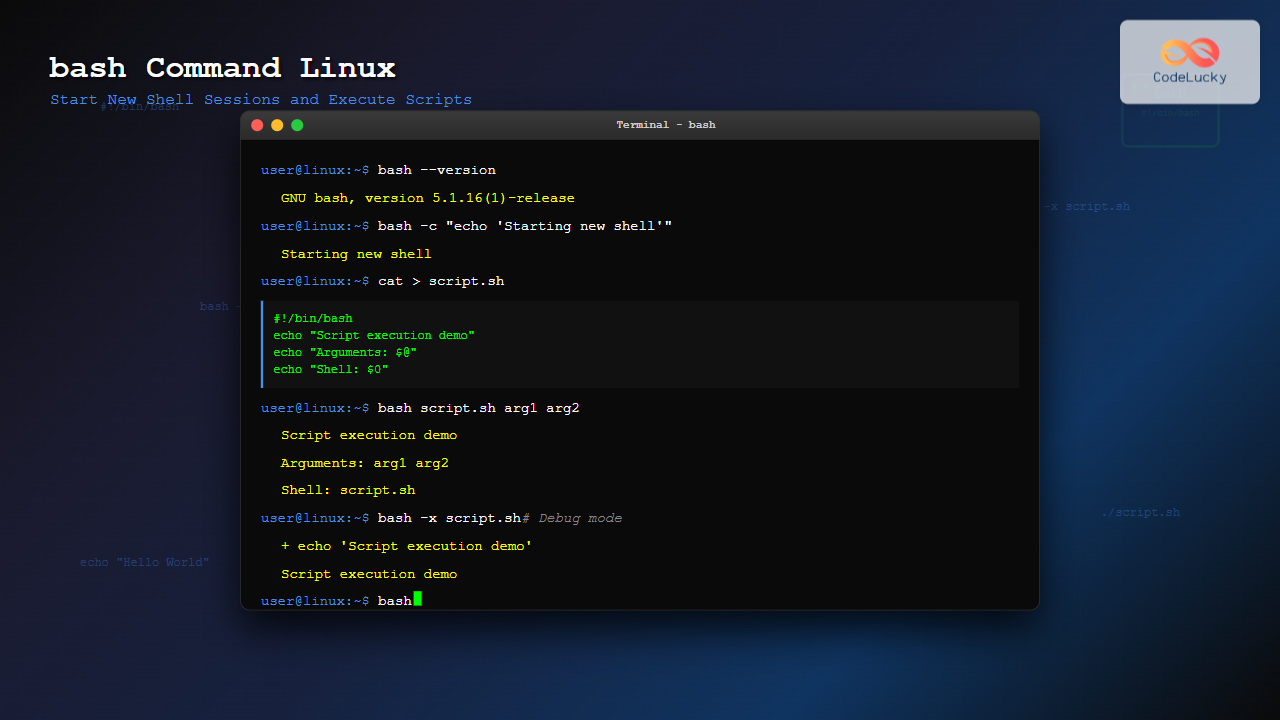
The bash command is one of the most fundamental tools in Linux systems, serving as both a command-line interpreter and a powerful scripting language. As the default shell for most Linux distributions, understanding how to effectively use the bash command is essential for system administrators, developers, and power users alike.
What is the bash Command?
Bash (Bourne Again SHell) is a command processor that typically runs in a text window where users type commands that cause actions. It can also read and execute commands from a file, called a shell script. The bash command allows you to:
- Start new shell sessions
- Execute shell scripts
- Run commands in different environments
- Test shell configurations
- Debug shell scripts
Basic Syntax and Usage
The basic syntax of the bash command is:
bash [options] [script-file] [arguments]When used without any arguments, bash starts a new interactive shell session:
$ bash
bash-5.1$ echo "New shell session started"
New shell session started
bash-5.1$ exit
exit
$
Common bash Command Options
Interactive Mode Options
-i (Interactive Mode)
Forces bash to run in interactive mode, even when reading from a script:
$ bash -i
bash-5.1$ PS1="MyShell> "
MyShell> echo "Interactive mode active"
Interactive mode active
-l (Login Shell)
Makes bash act as if it were invoked as a login shell:
$ bash -l
$ echo $0
-bash
Script Execution Options
-c (Command String)
Executes commands from a string instead of from a file:
$ bash -c "echo 'Hello from bash command'; date"
Hello from bash command
Mon Aug 25 02:33:15 IST 2025
-s (Read from Standard Input)
Reads commands from standard input:
$ echo "echo 'Reading from stdin'" | bash -s
Reading from stdin
Debugging and Development Options
-x (Debug Mode)
Enables debug mode, showing each command before execution:
$ bash -x -c "var='test'; echo \$var"
+ var=test
+ echo test
test
-n (Syntax Check)
Checks syntax without executing commands:
$ echo 'echo "valid syntax"' | bash -n
$ echo $?
0

$ echo 'echo "invalid syntax' | bash -n
bash: line 1: unexpected EOF while looking for matching `"'
bash: line 2: syntax error: unexpected end of file
-v (Verbose Mode)
Prints shell input lines as they are read:
$ bash -v -c "echo 'Verbose mode demo'"
echo 'Verbose mode demo'
Verbose mode demo
Running Shell Scripts with bash
Create a sample script to demonstrate various execution methods:
$ cat > sample_script.sh << 'EOF'
#!/bin/bash
echo "Script name: $0"
echo "First argument: $1"
echo "All arguments: $@"
echo "Number of arguments: $#"
echo "Current user: $(whoami)"
echo "Current directory: $(pwd)"
EOF
Direct Script Execution
$ bash sample_script.sh arg1 arg2 arg3
Script name: sample_script.sh
First argument: arg1
All arguments: arg1 arg2 arg3
Number of arguments: 3
Current user: codeuser
Current directory: /home/codeuser
Script Execution with Options
Debug the script execution:
$ bash -x sample_script.sh debug_arg
+ echo 'Script name: sample_script.sh'
Script name: sample_script.sh
+ echo 'First argument: debug_arg'
First argument: debug_arg
++ whoami
+ echo 'Current user: codeuser'
Current user: codeuser
++ pwd
+ echo 'Current directory: /home/codeuser'
Current directory: /home/codeuser
Working with Different Shell Environments
Starting bash with Custom Environment
$ env -i bash -c 'echo "PATH: $PATH"; echo "USER: $USER"'
PATH:
USER:

$ env PATH=/bin:/usr/bin USER=customuser bash -c 'echo "PATH: $PATH"; echo "USER: $USER"'
PATH: /bin:/usr/bin
USER: customuser
Running bash with Different Configuration
Create a custom bashrc file:
$ cat > custom_bashrc << 'EOF'
PS1="CustomShell> "
alias ll='ls -la'
export CUSTOM_VAR="Hello from custom config"
echo "Custom bashrc loaded"
EOF
Start bash with the custom configuration:
$ bash --rcfile custom_bashrc
Custom bashrc loaded
CustomShell> echo $CUSTOM_VAR
Hello from custom config
CustomShell> ll
total 16
drwxr-xr-x 2 user user 4096 Aug 25 02:33 .
drwxr-xr-x 3 user user 4096 Aug 25 02:33 ..
-rw-r--r-- 1 user user  123 Aug 25 02:33 custom_bashrc
-rw-r--r-- 1 user user  456 Aug 25 02:33 sample_script.sh
Advanced bash Command Usage
Combining Multiple Options
$ bash -xvs << 'EOF'
echo "Testing multiple options"
var="test_value"
echo "Variable: $var"
EOF
echo "Testing multiple options"
+ echo 'Testing multiple options'
Testing multiple options
var="test_value"
+ var=test_value
echo "Variable: $var"
+ echo 'Variable: test_value'
Variable: test_value
Using bash for One-liner Scripts
Process files with bash one-liners:
$ bash -c 'for file in *.sh; do echo "Processing: $file"; wc -l "$file"; done'
Processing: sample_script.sh
8 sample_script.sh
Error Handling in bash Commands
Use -e option to exit on first error:
$ bash -e -c 'echo "Start"; false; echo "This will not print"'
Start

$ bash -c 'echo "Start"; false; echo "This will print"'
Start
This will print
Practical Examples and Use Cases
System Administration Tasks
Create a system monitoring script:
$ cat > system_monitor.sh << 'EOF'
#!/bin/bash
echo "=== System Monitor ==="
echo "Date: $(date)"
echo "Uptime: $(uptime -p)"
echo "Memory Usage:"
free -h | head -2
echo "Disk Usage:"
df -h / | tail -1
echo "Top 3 Processes by CPU:"
ps aux --sort=-%cpu | head -4
EOF
Run with bash:
$ bash system_monitor.sh
=== System Monitor ===
Date: Mon Aug 25 02:33:15 IST 2025
Uptime: up 2 hours, 15 minutes
Memory Usage:
              total        used        free      shared  buff/cache   available
Mem:           7.7G        2.1G        3.2G        234M        2.4G        5.1G
Disk Usage:
/dev/sda1       50G   15G   33G  32% /
Top 3 Processes by CPU:
USER         PID %CPU %MEM    VSZ   RSS TTY      STAT START   TIME COMMAND
root        1234  2.1  0.5 123456  7890 ?        Ssl  00:18   0:02 systemd
Development Workflow Automation
$ cat > deploy_script.sh << 'EOF'
#!/bin/bash
set -e  # Exit on any error

echo "Starting deployment process..."
echo "1. Running tests..."
# npm test

echo "2. Building application..."
# npm run build

echo "3. Deploying to server..."
# rsync -av build/ user@server:/var/www/

echo "Deployment completed successfully!"
EOF
Execute with verbose debugging:
$ bash -xv deploy_script.sh
#!/bin/bash
set -e  # Exit on any error
+ set -e

echo "Starting deployment process..."
+ echo 'Starting deployment process...'
Starting deployment process...
echo "1. Running tests..."
+ echo '1. Running tests...'
1. Running tests...
Interactive bash Sessions
Creating Nested Shell Sessions
$ echo $SHLVL
1
$ bash
$ echo $SHLVL
2
$ bash
$ echo $SHLVL
3
$ exit
exit
$ exit
exit
$ echo $SHLVL
1
Testing Shell Configurations
$ bash --norc --noprofile
bash-5.1$ echo "Clean shell environment"
Clean shell environment
bash-5.1$ echo $PS1
\s-\v\$
bash-5.1$ exit
Best Practices and Tips
Script Execution Security
Always validate scripts before execution:
$ bash -n suspicious_script.sh
$ echo $?
0
$ bash suspicious_script.sh  # Only run if syntax check passes
Error Handling and Debugging
Use combination of options for thorough debugging:
$ bash -xeu script.sh # Debug, exit on error, treat unset variables as errorEnvironment Isolation
Run scripts in clean environments:
$ env -i PATH=/bin:/usr/bin bash -c 'your_command_here'Troubleshooting Common Issues
Permission Denied Errors
When you can’t execute a script directly:
$ ./script.sh
bash: ./script.sh: Permission denied

$ bash script.sh  # This works even without execute permission
Script executed successfully
Shebang Line Issues
Force bash interpretation regardless of shebang:
$ head -1 script_with_wrong_shebang.sh
#!/bin/sh  # Wrong shebang

$ bash script_with_wrong_shebang.sh  # Forces bash execution
Performance Considerations
For large scripts or frequent execution, consider:
- Using
bash -cfor simple commands instead of creating temporary files - Minimizing subshell creation with proper variable handling
- Using built-in commands when possible instead of external utilities
$ time bash -c 'for i in {1..1000}; do echo $i > /dev/null; done'
real    0m0.045s
user    0m0.032s
sys     0m0.013s
Conclusion
The bash command is a versatile tool that goes far beyond simple script execution. Whether you’re starting new shell sessions, debugging scripts, or managing different environments, mastering the various options and use cases of the bash command will significantly enhance your Linux command-line proficiency.
From basic script execution to advanced debugging and environment management, the bash command provides the flexibility and power needed for both simple tasks and complex system administration workflows. Practice these examples and incorporate them into your daily Linux workflow to become more efficient and effective in your command-line operations.
Related Posts
sh Command Linux: Complete Guide to Shell Script Execution and Commands
The sh command is one of the most fundamental tools in Linux and Unix-like systems, serving as the standard shell...

Linux Commands Tutorial: Complete Beginner’s Guide to Terminal Basics
The Linux terminal is a powerful command-line interface that gives you direct control over your operating system. While it might...

echo Command in Linux: Complete Guide to Print Text and Variables in Terminal
The echo command is one of the most fundamental and frequently used commands in Linux and Unix-like operating systems. It...
source Command Linux: Execute Scripts and Load Functions Efficiently
The source command in Linux is a powerful built-in shell command that executes commands from a file within the current...
read Command Linux: Complete Guide to Reading User Input in Shell Scripts
The read command is one of the most fundamental tools in Linux shell scripting for creating interactive programs that capture...
history Command Linux: Complete Guide to View and Manage Your Command History
The history command in Linux is one of the most powerful tools for managing and navigating your command line experience....
type Command Linux: Complete Guide to Display Command Type and Location
The type command is an essential Linux utility that helps you identify the nature and location of commands in your...
set Command Linux: Display and Configure Shell Options for Advanced Terminal Control
The set command is one of the most powerful built-in commands in Linux shells, allowing you to display and modify...
export Command Linux: Complete Guide to Environment Variables Management
The export command is one of the most fundamental tools in Linux for managing environment variables. Whether you're a system...
ruby Command Linux: Complete Guide to Running Ruby Scripts and Programs
The ruby command is a powerful tool for executing Ruby scripts and programs directly from the Linux command line. Whether...
python Command Linux: Complete Guide to Running Python Scripts and Interactive Sessions
The python command is one of the most essential tools for developers working with Python on Linux systems. Whether you're...
jobs Command Linux: Complete Guide to Managing Background Jobs in Terminal
The jobs command is an essential tool for Linux users who need to manage multiple processes running in the background....