
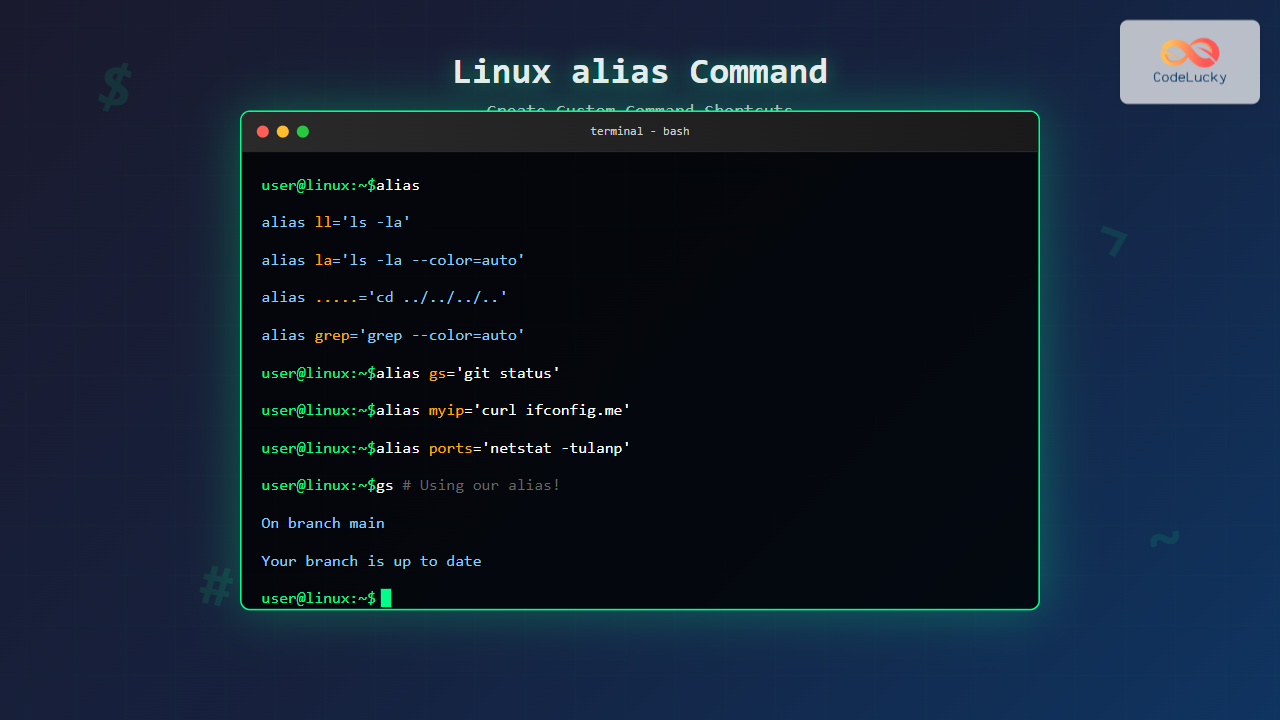
The alias command in Linux is a powerful tool that allows you to create custom shortcuts for frequently used commands, making your command-line experience more efficient and personalized. Whether you’re a system administrator managing multiple servers or a developer working with complex commands daily, mastering aliases can significantly boost your productivity.
What is the alias Command?
An alias is a custom name or shortcut that you can assign to a command or a series of commands. Think of it as creating your own personalized command vocabulary. Instead of typing long, complex commands repeatedly, you can create short, memorable aliases that execute the same functionality.
The alias command operates at the shell level, meaning it works with various shells like Bash, Zsh, and others. When you create an alias, the shell replaces the alias name with the actual command before execution.
Basic Syntax and Usage
The basic syntax for creating an alias is straightforward:
alias alias_name='command_to_execute'Here are the fundamental ways to use the alias command:
Viewing Existing Aliases
To see all currently defined aliases in your system:
aliasExpected Output:
alias l.='ls -d .* --color=auto'
alias ll='ls -alF'
alias ls='ls --color=auto'
alias vi='vim'
alias which='alias | /usr/bin/which --tty-only --read-alias --show-dot --show-tilde'
To view a specific alias:
alias llOutput:
alias ll='ls -alF'Creating Your First Aliases
Simple Command Shortcuts
Let’s start with basic examples that demonstrate the power of aliases:
# Create a shortcut for listing files with details
alias ll='ls -la'

# Quick navigation to home directory
alias home='cd ~'

# Clear screen shortcut
alias c='clear'
After creating these aliases, you can use them immediately:
$ ll
total 24
drwxr-xr-x  3 user user 4096 Aug 25 01:57 .
drwxr-xr-x 15 user user 4096 Aug 25 01:50 ..
-rw-r--r--  1 user user  220 Aug 25 01:50 .bash_logout
-rw-r--r--  1 user user 3771 Aug 25 01:50 .bashrc
Advanced Command Combinations
Aliases can combine multiple commands and include complex options:
# Create a comprehensive system information alias
alias sysinfo='echo "=== System Information ===" && uname -a && echo && echo "=== Memory Usage ===" && free -h && echo && echo "=== Disk Usage ===" && df -h'

# Network information shortcut
alias myip='curl -s ifconfig.me && echo'

# Process monitoring
alias psmem='ps auxf | sort -nr -k 4 | head -10'
Practical Examples for Daily Use
File Operations
# Safe file operations with confirmation
alias rm='rm -i'
alias cp='cp -i'
alias mv='mv -i'

# Enhanced listing commands
alias la='ls -la'
alias l='ls -CF'
alias lh='ls -lah'

# Directory operations
alias mkdir='mkdir -pv'
Git Shortcuts
For developers, Git aliases can save significant time:
# Basic git operations
alias gs='git status'
alias ga='git add'
alias gc='git commit'
alias gp='git push'
alias gl='git pull'

# Advanced git aliases
alias glog='git log --oneline --graph --decorate --all'
alias gdiff='git diff --color-words'
alias gstash='git stash save'
System Monitoring
# Process monitoring
alias top10mem='ps auxf | sort -nr -k 4 | head -10'
alias top10cpu='ps auxf | sort -nr -k 3 | head -10'

# Network monitoring
alias ports='netstat -tulanp'
alias listening='lsof -i -P | grep LISTEN'

# System resources
alias diskusage='du -sh * | sort -hr'
alias meminfo='free -h -l -t'
Working with Parameters in Aliases
While basic aliases work well for fixed commands, sometimes you need more flexibility. Here’s how to handle parameters:
Using Functions Instead of Aliases
For complex operations that require parameters, shell functions work better than aliases:
# Function to search for files
findfile() {
    find . -name "*$1*" -type f
}

# Function to extract various archive formats
extract() {
    case $1 in
        *.tar.bz2) tar xjf $1 ;;
        *.tar.gz)  tar xzf $1 ;;
        *.bz2)     bunzip2 $1 ;;
        *.rar)     unrar x $1 ;;
        *.gz)      gunzip $1 ;;
        *.tar)     tar xf $1 ;;
        *.tbz2)    tar xjf $1 ;;
        *.tgz)     tar xzf $1 ;;
        *.zip)     unzip $1 ;;
        *.Z)       uncompress $1 ;;
        *.7z)      7z x $1 ;;
        *)         echo "Unknown archive format" ;;
    esac
}
Making Aliases Permanent
By default, aliases created in the terminal are temporary and disappear when you close the session. To make them permanent, you need to add them to shell configuration files.
For Bash Users
Add your aliases to ~/.bashrc or ~/.bash_aliases:
# Edit your .bashrc file
nano ~/.bashrc

# Add your aliases at the end
alias ll='ls -la'
alias home='cd ~'
alias ..='cd ..'

# Reload the configuration
source ~/.bashrc
For Zsh Users
Add aliases to ~/.zshrc:
# Edit your .zshrc file
nano ~/.zshrc

# Add aliases
alias ll='ls -la'
alias zshconfig='nano ~/.zshrc'

# Apply changes
source ~/.zshrc
System-wide Aliases
To create aliases for all users, add them to /etc/bash.bashrc or create files in /etc/profile.d/:
# Create a system-wide alias file
sudo nano /etc/profile.d/custom-aliases.sh

# Add your aliases
alias ll='ls -la'
alias l='ls -CF'
Managing and Organizing Aliases
Removing Aliases
To remove a temporary alias from the current session:
unalias alias_nameTo remove all aliases:
unalias -aCreating an Alias Management System
For better organization, create separate files for different types of aliases:
# Create separate alias files
touch ~/.aliases_git
touch ~/.aliases_system
touch ~/.aliases_custom

# In your .bashrc, source these files
if [ -f ~/.aliases_git ]; then
    . ~/.aliases_git
fi

if [ -f ~/.aliases_system ]; then
    . ~/.aliases_system
fi

if [ -f ~/.aliases_custom ]; then
    . ~/.aliases_custom
fi
Best Practices and Tips
Naming Conventions
- Keep it short and memorable: Use intuitive abbreviations
- Avoid conflicts: Don’t override important system commands
- Use consistent patterns: Develop your own naming scheme
- Group related aliases: Use prefixes for related commands (e.g., git aliases with ‘g’)
Safety Considerations
# Always use confirmation for destructive operations
alias rm='rm -i'
alias cp='cp -i'
alias mv='mv -i'

# Be careful not to override system commands
alias ls='ls --color=auto'  # Good
alias ls='rm -rf /'         # Very bad!
Interactive Aliases
Create aliases that provide interactive menus or confirmations:
# Interactive file deletion with confirmation
alias saferm='echo "Files to delete:" && ls -la && read -p "Proceed? (y/N): " && [ "$REPLY" = "y" ] && rm'

# Menu-driven system information
alias sysmenu='echo "1. Memory Usage" && echo "2. Disk Usage" && echo "3. Network Info" && read -p "Choose option: " opt && case $opt in 1) free -h ;; 2) df -h ;; 3) ip addr ;; esac'
Troubleshooting Common Issues
Alias Not Working
If your alias isn’t working, check these common issues:
# Check if alias exists
alias your_alias_name

# Verify shell configuration is loaded
echo $SHELL
source ~/.bashrc  # or appropriate config file

# Check for syntax errors
alias test_alias='ls -la'  # Correct
alias test_alias=ls -la    # Incorrect - missing quotes
Debugging Aliases
Use these commands to debug alias issues:
# Show command type
type your_alias_name

# Show actual command that will be executed
which your_alias_name

# Show alias definition
alias your_alias_name
Advanced Use Cases
Conditional Aliases
Create aliases that work differently based on conditions:
# OS-specific aliases
if [[ "$OSTYPE" == "darwin"* ]]; then
    alias ls='ls -G'  # macOS
else
    alias ls='ls --color=auto'  # Linux
fi

# Directory-specific aliases
if [ -d "/var/log" ]; then
    alias logs='cd /var/log && ls -la'
fi
Dynamic Aliases
# Create timestamp-based aliases
alias now='date +"%Y-%m-%d %H:%M:%S"'
alias today='date +"%Y-%m-%d"'

# Weather information (requires curl and external service)
alias weather='curl -s "wttr.in/?format=3"'

# Quick backup with timestamp
alias backup='cp file.txt file.txt.backup.$(date +%Y%m%d_%H%M%S)'
Security Considerations
When using aliases, keep these security aspects in mind:
- Don’t alias sensitive commands: Avoid creating aliases for commands like
sudo,passwd, orssh - Review inherited aliases: Be aware of system-wide aliases that might affect security
- Use full paths for critical operations: In scripts, use full command paths instead of aliases
# Good security practice
alias ll='ls -la'

# Potential security risk
alias sudo='sudo -s'  # Avoid this
Conclusion
The alias command is an essential tool for Linux users who want to optimize their command-line workflow. By creating thoughtful, well-organized aliases, you can significantly reduce typing time, minimize errors, and create a personalized command environment that matches your working style.
Remember to start with simple aliases and gradually build a collection that suits your specific needs. Document your aliases, organize them logically, and share useful ones with your team. With consistent use and good practices, aliases will become an indispensable part of your Linux toolkit, making you more productive and efficient in your daily command-line tasks.
Whether you’re managing servers, developing software, or simply navigating files, the time invested in setting up good aliases pays dividends in improved productivity and reduced repetitive typing. Start creating your aliases today and experience the difference in your command-line efficiency.
Related Posts
unalias Command Linux: Complete Guide to Remove Command Aliases
The unalias command in Linux is a powerful shell built-in utility that allows you to remove previously defined command aliases....
type Command Linux: Complete Guide to Display Command Type and Location
The type command is an essential Linux utility that helps you identify the nature and location of commands in your...
SQL Aliases: Renaming Columns and Tables Temporarily
SQL aliases are powerful tools that allow you to temporarily rename columns or tables in your queries. They're like nicknames...

Linux Commands Tutorial: Complete Beginner’s Guide to Terminal Basics
The Linux terminal is a powerful command-line interface that gives you direct control over your operating system. While it might...

bash Command Linux: Start New Shell Sessions and Execute Scripts Efficiently
The bash command is one of the most fundamental tools in Linux systems, serving as both a command-line interpreter and...
Python as Keyword: Creating Aliases
The as keyword in Python is a versatile tool that allows you to create aliases for variables, modules, classes, and...
MySQL Aliases: Enhancing Readability and Clarity
In the world of SQL, readability is key. Aliases are the unsung heroes that make your queries easier to understand...
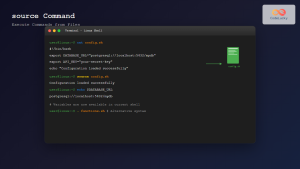
source Command Linux: Execute Scripts and Load Functions Efficiently
The source command in Linux is a powerful built-in shell command that executes commands from a file within the current...

C Typedef: Creating Aliases for Data Types
In the world of C programming, clarity and readability are paramount. As your programs grow in complexity, you might find...
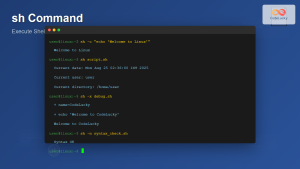
sh Command Linux: Complete Guide to Shell Script Execution and Commands
The sh command is one of the most fundamental tools in Linux and Unix-like systems, serving as the standard shell...

echo Command in Linux: Complete Guide to Print Text and Variables in Terminal
The echo command is one of the most fundamental and frequently used commands in Linux and Unix-like operating systems. It...
python Command Linux: Complete Guide to Running Python Scripts and Interactive Sessions
The python command is one of the most essential tools for developers working with Python on Linux systems. Whether you're...





