
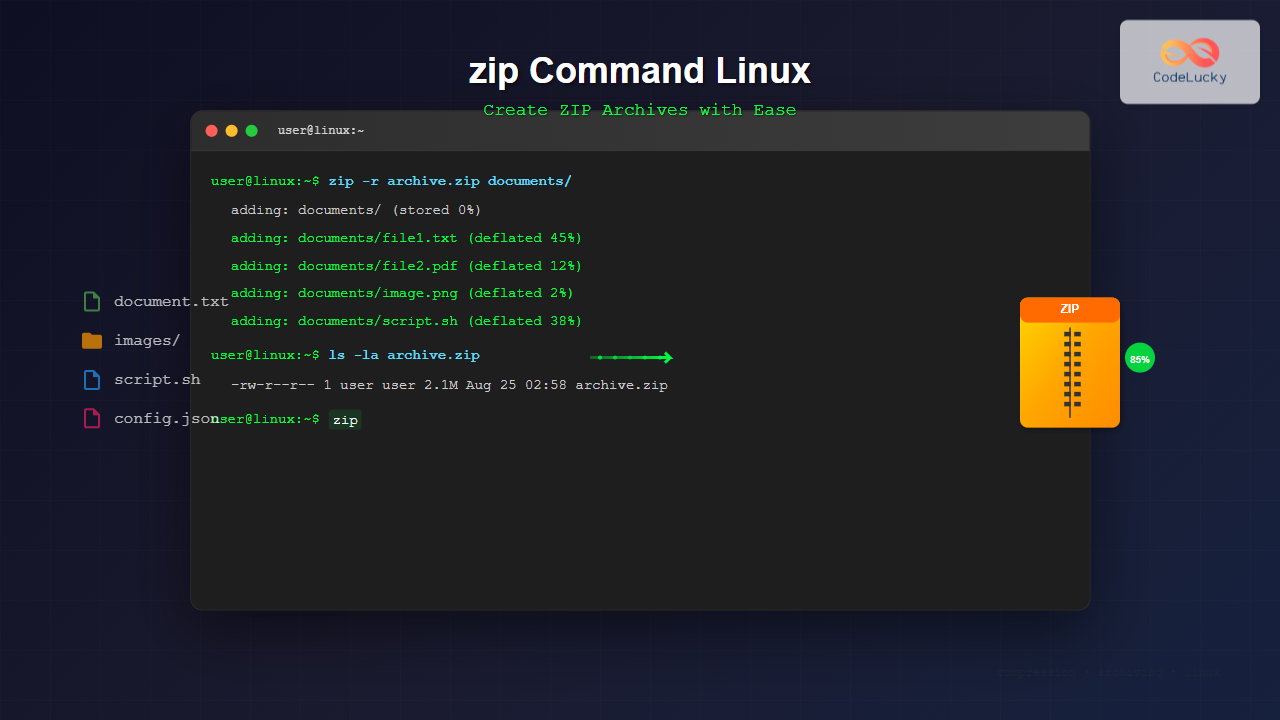
The zip command in Linux is a powerful utility for creating compressed archives and managing files efficiently. Whether you’re backing up data, distributing files, or saving disk space, mastering the zip command is essential for any Linux user or system administrator.
What is the zip Command?
The zip command creates compressed archive files in the ZIP format, which is widely supported across different operating systems. Unlike some Linux-specific compression tools, ZIP archives maintain compatibility with Windows, macOS, and other platforms, making them ideal for cross-platform file sharing.
Basic Syntax
zip [options] archive_name.zip file1 file2 file3...The basic structure includes:
- options: Various flags to modify behavior
- archive_name.zip: Name of the output ZIP file
- files: Source files or directories to compress
Installing zip Command
Most Linux distributions include zip by default. If not installed, use these commands:
Ubuntu/Debian:
sudo apt update
sudo apt install zip unzip
CentOS/RHEL/Fedora:
sudo yum install zip unzip
# or for newer versions
sudo dnf install zip unzip
Basic zip Command Examples
Creating a Simple ZIP Archive
Let’s start with the most basic example – creating a ZIP file from individual files:
zip documents.zip file1.txt file2.txt file3.txtOutput:
  adding: file1.txt (deflated 45%)
  adding: file2.txt (deflated 32%)
  adding: file3.txt (deflated 28%)
This creates documents.zip containing the three text files. The percentages show compression ratios.
Compressing a Directory
To compress an entire directory and its contents recursively:
zip -r backup.zip /home/user/documents/Output:
  adding: home/user/documents/ (stored 0%)
  adding: home/user/documents/report.pdf (deflated 12%)
  adding: home/user/documents/images/ (stored 0%)
  adding: home/user/documents/images/photo1.jpg (deflated 2%)
  adding: home/user/documents/images/photo2.png (deflated 1%)
The -r flag enables recursive compression, including all subdirectories and files.
Advanced zip Options
Compression Levels
Control compression intensity with the -[0-9] option:
# No compression (fastest)
zip -0 fast.zip largefile.txt

# Maximum compression (slowest)
zip -9 small.zip largefile.txt

# Default compression
zip -6 balanced.zip largefile.txt
Example Output Comparison:
# Level 0 (no compression)
  adding: largefile.txt (stored 0%)

# Level 9 (maximum compression)
  adding: largefile.txt (deflated 68%)
Password Protection
Create password-protected archives using the -P option:
zip -P mypassword secure.zip confidential.txtBetter Security Method:
zip -e secure.zip confidential.txtThe -e option prompts for password input, keeping it secure:
Enter password:
Verify password:
  adding: confidential.txt (deflated 42%)
Excluding Files and Patterns
Use -x to exclude specific files or patterns:
# Exclude specific file types
zip -r project.zip /home/user/project/ -x "*.tmp" "*.log"

# Exclude specific directories
zip -r backup.zip /home/user/ -x "*/cache/*" "*/temp/*"
Output:
  adding: home/user/project/ (stored 0%)
  adding: home/user/project/main.py (deflated 45%)
  adding: home/user/project/config.ini (deflated 23%)
  # *.tmp and *.log files are skipped
Practical Examples and Use Cases
Website Backup
Create a complete website backup excluding cache files:
zip -r website-backup-$(date +%Y%m%d).zip /var/www/html/ -x "*/cache/*" "*/logs/*" "*.tmp"This creates a timestamped backup file like website-backup-20250825.zip.
Log File Archive
Archive log files with maximum compression:
zip -9 logs-archive.zip /var/log/*.logOutput:
  adding: var/log/system.log (deflated 89%)
  adding: var/log/error.log (deflated 92%)
  adding: var/log/access.log (deflated 94%)
Log files typically achieve excellent compression ratios due to repetitive content.
Source Code Distribution
Package source code while excluding development files:
zip -r myproject-v1.2.zip myproject/ -x "*/node_modules/*" "*/.git/*" "*.pyc" "*/__pycache__/*"Interactive Examples
Verbose Mode
Use -v for detailed information during compression:
zip -rv detailed.zip documents/Detailed Output:
  adding: documents/ (in=0) (out=0) (stored 0%)
  adding: documents/report.docx (in=45231) (out=43891) (deflated 3%)
  adding: documents/spreadsheet.xlsx (in=23445) (out=22103) (deflated 6%)
  adding: documents/presentation.pptx (in=1234567) (out=1198234) (deflated 3%)
total bytes=1303243, compressed=1264228 -> 3% savings
Update Mode
Add or update files in existing archive:
# Create initial archive
zip archive.zip file1.txt file2.txt

# Update with new/modified files
zip -u archive.zip file1.txt file3.txt newfile.txt
Output:
  adding: file3.txt (deflated 34%)
  adding: newfile.txt (deflated 28%)
Only new or modified files are added, saving time with large archives.
Working with Multiple Archives
Splitting Large Archives
Create split archives for size limitations:
# Split into 100MB chunks
zip -r -s 100m bigarchive.zip /large/directory/
This creates files like:
bigarchive.z01bigarchive.z02bigarchive.zip
Testing Archive Integrity
Verify archive integrity without extraction:
zip -T archive.zipSuccessful Test Output:
test of archive.zip OKFailed Test Output:
zip error: Zip file structure invalid (archive.zip)Performance and Optimization Tips
Speed vs. Compression Trade-offs
| Level | Speed | Compression | Use Case |
|---|---|---|---|
| 0 | Fastest | None | Quick archiving |
| 1-3 | Fast | Low | Frequent backups |
| 6 (default) | Balanced | Good | General use |
| 9 | Slow | Maximum | Long-term storage |
Memory Usage Control
For large files, use the -mm option to control memory usage:
zip -9 -mm largefile.zip hugefile.datError Handling and Troubleshooting
Common Error Messages
Permission Denied:
zip warning: could not open for reading: file.txt
                 Permission denied
Solution: Check file permissions or use sudo if necessary.
Disk Space Issues:
zip error: could not create archive.zip
           No space left on device
Solution: Free up disk space or choose a different destination.
Best Practices
- Always test archives: Use
zip -Tto verify integrity - Use meaningful names: Include dates or versions in archive names
- Consider compression levels: Balance speed vs. size based on usage
- Exclude unnecessary files: Use patterns to skip temporary files
- Document password policies: Maintain secure password management
Advanced Scripting Examples
Automated Backup Script
#!/bin/bash
# Daily backup script
DATE=$(date +%Y%m%d)
BACKUP_DIR="/backups"
SOURCE_DIR="/home/user/important"

zip -r "$BACKUP_DIR/backup-$DATE.zip" "$SOURCE_DIR" \
    -x "*/cache/*" "*/temp/*" "*.tmp" "*.log"

# Keep only last 7 days of backups
find "$BACKUP_DIR" -name "backup-*.zip" -mtime +7 -delete
Selective File Compression
#!/bin/bash
# Compress files older than 30 days
find /var/log -name "*.log" -mtime +30 | \
while read file; do
    zip -m "archived-logs-$(date +%Y%m).zip" "$file"
done
Integration with Other Commands
Using with find
# Archive all PDF files modified in last 7 days
find /documents -name "*.pdf" -mtime -7 | zip recent-pdfs.zip -@
The -@ option reads file names from standard input.
Combining with tar
# Create tar archive first, then compress
tar cf - /source/directory | zip backup.zip -
Conclusion
The zip command is an essential tool for Linux users, offering powerful compression capabilities with cross-platform compatibility. From simple file archiving to complex automated backup systems, mastering these zip command techniques will significantly improve your file management efficiency.
Key takeaways:
- Use
-rfor recursive directory compression - Choose appropriate compression levels based on your needs
- Implement proper exclusion patterns for cleaner archives
- Always test archive integrity with
-Toption - Consider security implications when using password protection
Practice these examples and integrate zip into your daily Linux workflow to become more productive in file management and system administration tasks.
Related Posts

unzip Command Linux: Complete Guide to Extract ZIP Archives Efficiently
The unzip command is one of the most essential tools in Linux for extracting ZIP archive files. Whether you're dealing...

tar Command in Linux: Complete Archive and Extract Files Tutorial with Examples
The tar command is one of the most essential utilities in Linux for creating archives and extracting files. Originally designed...
7z Command Linux: Complete Guide to 7zip Archives Management
The 7z command is a powerful command-line utility for working with 7zip archives in Linux systems. As one of the...
gzip Command Linux: Complete Guide to Compress and Decompress Files
The gzip command is one of the most essential file compression utilities in Linux systems. It provides efficient compression using...

ar Command Linux: Complete Guide to Archive File Management
The ar command in Linux is a powerful archiving utility primarily used for creating and managing archive files, especially static...
gunzip Command Linux: Complete Guide to Decompress Gzip Files
The gunzip command is an essential Linux utility for decompressing files that have been compressed with the gzip compression algorithm....
ranlib Command Linux: Complete Guide to Generate Archive Index Files
The ranlib command is a crucial utility in Linux systems for managing static library archives. It generates an index for...
cp Command Linux: Copy Files and Directories with Examples and Best Practices
The cp command is one of the most fundamental and frequently used commands in Linux systems. It allows you to...
hexdump Command Linux: Complete Guide to Display File Contents in Hexadecimal Format
The hexdump command is a powerful Linux utility that displays the contents of files in hexadecimal format, making it an...

file Command Advanced Linux: Master Detailed File Type Analysis and Detection
The file command is one of the most powerful and underutilized utilities in Linux for determining file types and analyzing...
file Command in Linux: Complete Guide to Determine File Types and Formats
The file command is one of the most essential utilities in Linux for determining file types and formats. Unlike relying...
mkdir Command Linux: Complete Guide to Creating Directories and Subdirectories
The mkdir command is one of the most fundamental and frequently used commands in Linux for creating directories. Whether you're...





