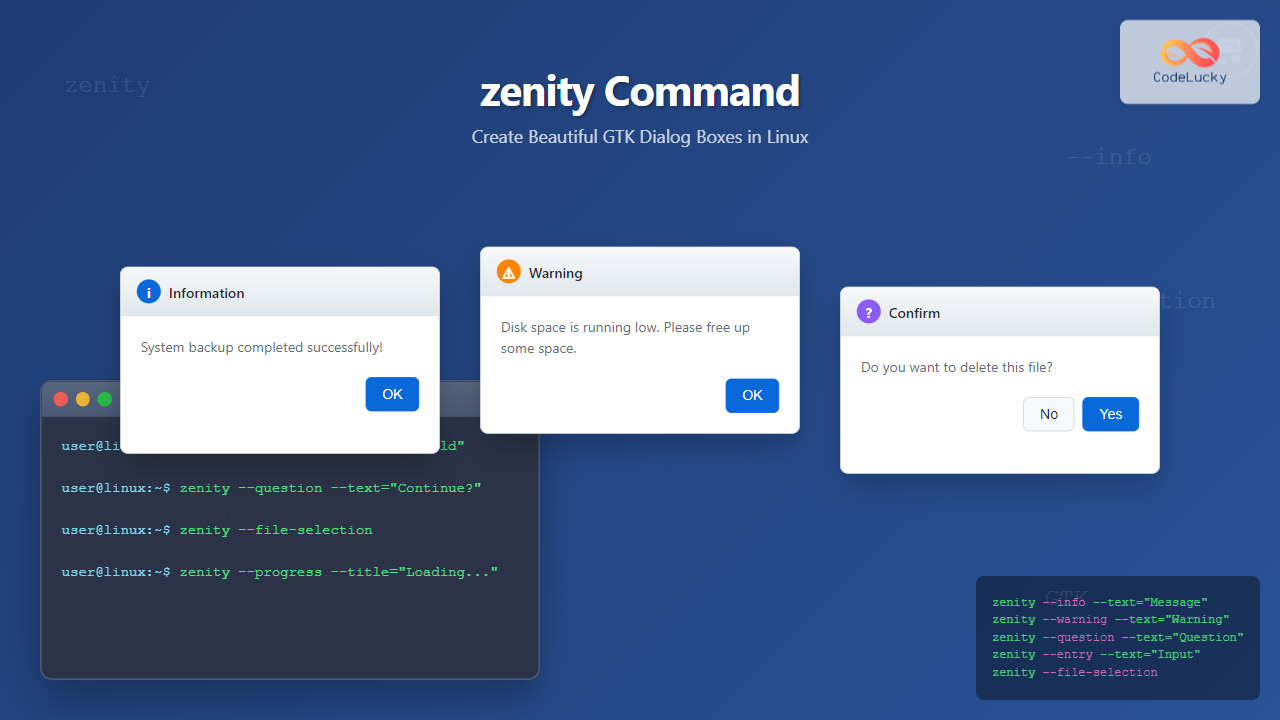
The zenity command is a powerful Linux utility that allows you to create GTK dialog boxes from shell scripts and command line. This tool bridges the gap between command-line scripts and graphical user interfaces, enabling developers to create interactive dialogs without complex GUI programming.
What is zenity Command?
Zenity is a command-line tool that displays GTK dialog boxes in shell scripts. It’s part of the GNOME desktop environment but works on any Linux distribution with GTK libraries installed. The name “zenity” comes from “zen” (simplicity) and “unity” (bringing together command line and GUI).
Key Features of zenity:
- Multiple dialog types (info, warning, error, question, etc.)
- File selection dialogs
- Progress bars and notifications
- Form creation with text entries
- Calendar and color picker dialogs
- Custom icon and text support
Installing zenity
Most Linux distributions include zenity by default. If not installed, use these commands:
Ubuntu/Debian:
sudo apt update
sudo apt install zenity
CentOS/RHEL/Fedora:
# For CentOS/RHEL
sudo yum install zenity

# For Fedora
sudo dnf install zenity
Arch Linux:
sudo pacman -S zenityBasic zenity Syntax
The basic syntax for zenity is:
zenity [OPTIONS] [DIALOG-TYPE] [DIALOG-OPTIONS]Common Global Options:
--title="Title Text"– Sets dialog window title--width=WIDTH– Sets dialog width--height=HEIGHT– Sets dialog height--timeout=SECONDS– Auto-close after specified seconds--no-wrap– Disable text wrapping
Information Dialog (–info)
Information dialogs display messages to users with an “OK” button.
Basic Info Dialog:
zenity --info --text="System backup completed successfully!"Info Dialog with Custom Title:
zenity --info \
       --title="Backup Status" \
       --text="Your files have been backed up to /backup/folder" \
       --width=400
Visual Output: A dialog box appears with an information icon, your custom text, and an “OK” button.
Warning Dialog (–warning)
Warning dialogs alert users about potential issues.
Basic Warning:
zenity --warning --text="Disk space is running low!"Advanced Warning with Timeout:
zenity --warning \
       --title="System Warning" \
       --text="CPU temperature is high. Please check cooling system." \
       --timeout=10
Visual Output: A dialog with a warning triangle icon that auto-closes after 10 seconds.
Error Dialog (–error)
Error dialogs notify users about system errors or failures.
Basic Error Dialog:
zenity --error --text="Failed to connect to database!"Detailed Error Message:
zenity --error \
       --title="Connection Error" \
       --text="Unable to establish connection to server.\n\nError Code: 500\nPlease contact administrator." \
       --width=450
Question Dialog (–question)
Question dialogs ask users for confirmation with “Yes” and “No” buttons.
Simple Yes/No Question:
zenity --question --text="Do you want to delete this file?"Using Question Dialog in Script:
#!/bin/bash

if zenity --question \
          --title="Confirm Action" \
          --text="Are you sure you want to format the USB drive?\n\nThis action cannot be undone."; then
    echo "User selected Yes"
    # Perform formatting
else
    echo "User selected No"
    # Cancel operation
fi
Exit Codes: Returns 0 for “Yes”, 1 for “No”
Text Entry Dialog (–entry)
Entry dialogs collect text input from users.
Basic Text Entry:
name=$(zenity --entry --text="Enter your name:")Entry with Default Value:
username=$(zenity --entry \
                  --title="Login" \
                  --text="Enter username:" \
                  --entry-text="admin")
Password Entry (Hidden Text):
password=$(zenity --entry \
                  --title="Authentication" \
                  --text="Enter password:" \
                  --hide-text)
File Selection Dialog (–file-selection)
File selection dialogs help users choose files or directories.
Select a File:
file=$(zenity --file-selection \
              --title="Select a document" \
              --file-filter="Text files | *.txt" \
              --file-filter="All files | *")
Select Directory:
directory=$(zenity --file-selection \
                   --directory \
                   --title="Choose backup location")
Save File Dialog:
savefile=$(zenity --file-selection \
                  --save \
                  --confirm-overwrite \
                  --filename="report.pdf")
Progress Dialog (–progress)
Progress dialogs show operation progress with percentage and progress bar.
Basic Progress Bar:
#!/bin/bash

(
for i in {0..100}; do
    echo $i
    echo "# Processing file $i of 100"
    sleep 0.1
done
) | zenity --progress \
           --title="File Processing" \
           --text="Processing files..." \
           --percentage=0 \
           --auto-close
Progress with Pulsate (Unknown Duration):
#!/bin/bash

(
echo "# Downloading updates..."
sleep 3
echo "# Installing packages..."
sleep 3
echo "# Configuring system..."
sleep 2
) | zenity --progress \
           --title="System Update" \
           --pulsate \
           --auto-close
List Dialog (–list)
List dialogs present multiple options for user selection.
Simple List Selection:
choice=$(zenity --list \
               --title="Choose OS" \
               --column="Operating System" \
               "Ubuntu" \
               "CentOS" \
               "Debian" \
               "Fedora")
Multi-column List:
selected=$(zenity --list \
                 --title="Process Manager" \
                 --column="PID" --column="Process" --column="CPU%" \
                 "1234" "firefox" "15.2" \
                 "5678" "chrome" "23.1" \
                 "9012" "terminal" "2.5")
Checklist (Multiple Selection):
packages=$(zenity --list \
                 --title="Install Packages" \
                 --checklist \
                 --column="Install" --column="Package" --column="Description" \
                 TRUE "git" "Version control system" \
                 FALSE "vim" "Text editor" \
                 TRUE "curl" "Data transfer tool")
Calendar Dialog (–calendar)
Calendar dialogs allow users to select dates.
Basic Calendar:
date=$(zenity --calendar \
             --title="Select Date" \
             --text="Choose appointment date")
Calendar with Specific Date:
selected_date=$(zenity --calendar \
                      --title="Schedule Meeting" \
                      --day=15 \
                      --month=8 \
                      --year=2025)
Color Selection Dialog (–color-selection)
Color picker dialog for selecting colors.
Basic Color Picker:
color=$(zenity --color-selection \
              --title="Choose Background Color")
Color Picker with Default Color:
selected_color=$(zenity --color-selection \
                       --title="Text Color" \
                       --color="#FF0000")
Scale Dialog (–scale)
Scale dialogs create sliders for numeric input.
Basic Scale:
volume=$(zenity --scale \
               --title="Volume Control" \
               --text="Set volume level:" \
               --min-value=0 \
               --max-value=100 \
               --value=50 \
               --step=5)
Forms Dialog (–forms)
Forms combine multiple input fields in one dialog.
User Registration Form:
user_data=$(zenity --forms \
                  --title="User Registration" \
                  --text="Please fill in your details:" \
                  --add-entry="Full Name" \
                  --add-entry="Email" \
                  --add-password="Password" \
                  --add-combo="Country" \
                  --combo-values="USA|Canada|UK|Australia")
Notification (–notification)
Create system notifications that appear in the notification area.
Basic Notification:
zenity --notification \
       --text="Download completed successfully!"
Notification with Icon:
zenity --notification \
       --text="New email received" \
       --icon="mail-unread"
Practical Examples and Scripts
System Maintenance Script:
#!/bin/bash

# System maintenance menu
choice=$(zenity --list \
               --title="System Maintenance" \
               --text="Select maintenance task:" \
               --column="Task" \
               "Update System" \
               "Clean Temporary Files" \
               "Check Disk Usage" \
               "System Backup")

case $choice in
    "Update System")
        if zenity --question --text="Update system packages?"; then
            # Show progress during update
            (sudo apt update && sudo apt upgrade -y) | \
            zenity --progress --pulsate --title="System Update" --auto-close
        fi
        ;;
    "Clean Temporary Files")
        zenity --info --text="Cleaning temporary files..."
        ;;
    "Check Disk Usage")
        disk_info=$(df -h | grep "^/dev")
        zenity --info --title="Disk Usage" --text="$disk_info"
        ;;
    "System Backup")
        backup_dir=$(zenity --file-selection --directory --title="Select backup location")
        if [ -n "$backup_dir" ]; then
            zenity --info --text="Backup will be saved to: $backup_dir"
        fi
        ;;
esac
File Manager Script:
#!/bin/bash

while true; do
    action=$(zenity --list \
                   --title="File Manager" \
                   --text="Choose action:" \
                   --column="Action" \
                   "Create File" \
                   "Delete File" \
                   "Copy File" \
                   "Exit")

    case $action in
        "Create File")
            filename=$(zenity --entry --text="Enter filename:")
            if [ -n "$filename" ]; then
                touch "$filename"
                zenity --info --text="File '$filename' created successfully!"
            fi
            ;;
        "Delete File")
            file=$(zenity --file-selection --title="Select file to delete")
            if [ -n "$file" ] && zenity --question --text="Delete '$file'?"; then
                rm "$file"
                zenity --info --text="File deleted successfully!"
            fi
            ;;
        "Copy File")
            source=$(zenity --file-selection --title="Select source file")
            if [ -n "$source" ]; then
                dest=$(zenity --file-selection --save --title="Save copy as")
                if [ -n "$dest" ]; then
                    cp "$source" "$dest"
                    zenity --info --text="File copied successfully!"
                fi
            fi
            ;;
        "Exit"|"")
            break
            ;;
    esac
done
Advanced Tips and Tricks
1. Using Icons:
# Use system icons
zenity --info --icon-name="dialog-information" --text="Information"
zenity --warning --icon-name="dialog-warning" --text="Warning"
zenity --error --icon-name="dialog-error" --text="Error"
2. Handling Large Text:
# For long text content
large_text="This is a very long text that might need scrolling..."
echo "$large_text" | zenity --text-info \
                           --title="License Agreement" \
                           --width=600 \
                           --height=400
3. Custom Buttons:
zenity --question \
       --text="Choose action:" \
       --ok-label="Proceed" \
       --cancel-label="Abort"
4. Multiple File Selection:
files=$(zenity --file-selection \
              --multiple \
              --separator="|" \
              --title="Select multiple files")

# Process each file
IFS='|' read -ra FILE_ARRAY <<< "$files"
for file in "${FILE_ARRAY[@]}"; do
    echo "Processing: $file"
done
Common Use Cases
1. Backup Scripts:
Use zenity to create user-friendly backup utilities with progress bars and file selection.
2. System Monitoring:
Display system alerts and warnings through attractive dialog boxes.
3. Installation Scripts:
Create interactive installers with form inputs and progress tracking.
4. Configuration Tools:
Build GUI frontends for command-line configuration utilities.
Error Handling and Exit Codes
Zenity returns different exit codes based on user actions:
- 0 – OK/Yes button pressed
- 1 – Cancel/No button pressed or ESC key
- 5 – Timeout occurred
- -1 – Unexpected error
Proper Error Handling:
#!/bin/bash

filename=$(zenity --entry --text="Enter filename:")
case $? in
    0)
        echo "User entered: $filename"
        ;;
    1)
        echo "User cancelled dialog"
        exit 1
        ;;
    5)
        echo "Dialog timed out"
        ;;
    -1)
        echo "An error occurred"
        exit 1
        ;;
esac
Best Practices
1. User Experience:
- Use clear, concise text messages
- Set appropriate dialog sizes
- Provide meaningful titles
- Use timeouts for non-critical dialogs
2. Script Design:
- Always handle exit codes
- Validate user input
- Provide feedback for long operations
- Use appropriate dialog types
3. Performance:
- Avoid creating too many dialogs in succession
- Use progress bars for time-consuming tasks
- Cache file selections when possible
Troubleshooting Common Issues
1. Dialog Not Appearing:
Ensure DISPLAY variable is set and X11 forwarding is enabled for SSH sessions:
export DISPLAY=:0
ssh -X username@hostname
2. Text Encoding Issues:
Use proper UTF-8 encoding for special characters:
export LANG=en_US.UTF-83. Permission Issues:
Run scripts with appropriate permissions and consider using sudo for system operations.
Conclusion
The zenity command is an invaluable tool for Linux administrators and developers who want to create user-friendly interfaces for shell scripts. Its extensive dialog options, combined with simple syntax, make it perfect for everything from simple notifications to complex interactive forms.
By mastering zenity, you can transform command-line scripts into intuitive GUI applications, improving user experience and making system administration tasks more accessible. Whether you’re creating backup utilities, system monitoring tools, or installation scripts, zenity provides the perfect bridge between command-line power and graphical user interfaces.
Practice with these examples and gradually incorporate zenity into your shell scripts to create more professional and user-friendly applications.
Related Posts
dialog Command Linux: Create Interactive Text-Based User Interfaces with Ease
The dialog command in Linux is a powerful utility that enables developers and system administrators to create sophisticated text-based user...
yad Command Linux: Complete Guide to Yet Another Dialog Tool for Interactive Scripts
The yad (Yet Another Dialog) command is a powerful GUI dialog tool for Linux that allows you to create interactive...
HTML Dialogs: Create Interactive Modal Windows with the <dialog> Tag
HTML <dialog> Tag The <dialog> tag in HTML is used to create interactive dialog boxes or modal windows. These dialogs...
HTML Dialog show() Method: Showing Dialog
Understanding the HTML Dialog show() Method The HTML <dialog> element is used to create dialog boxes or other interactive components,...

HTML DOM Dialog Object: Accessing Dialog Elements
HTML DOM Dialog Object: A Comprehensive Guide to Accessing Dialog Elements The HTML DOM Dialog object represents the <dialog> element...

JavaScript Popup Alert: Creating Dialog Boxes and Notifications
JavaScript popup alerts are a powerful tool for creating interactive and informative user experiences on web pages. These dialog boxes...
JavaScript Window alert() Method: Displaying Alert Box
JavaScript window.alert() Method: Displaying Alert Box The window.alert() method in JavaScript is a fundamental function used to display a simple...
JavaScript Window prompt() Method: Displaying Prompt Box
JavaScript Window prompt() Method: Displaying Prompt Boxes for User Input The window.prompt() method in JavaScript is used to display a...

HTML Dialog close() Method: Closing Dialog
HTML Dialog close() Method: Closing Dialog Windows The HTML <dialog> element is a way to create interactive dialog boxes and...

HTML Dialog open Property: Dialog Open
HTML Dialog open Property: Controlling Dialog Visibility The HTML <dialog> element is used to create modal dialogs and other interactive...
HTML Dialog showModal() Method: Showing Modal Dialog
HTML Dialog showModal() Method: Showing Modal Dialog The HTML <dialog> element, combined with the showModal() method, provides a straightforward way...
MySQL GUI Tools: Simplify Database Management
Managing databases using command-line interfaces can be intimidating for beginners. Graphical User Interface (GUI) tools provide an intuitive alternative, enabling...