
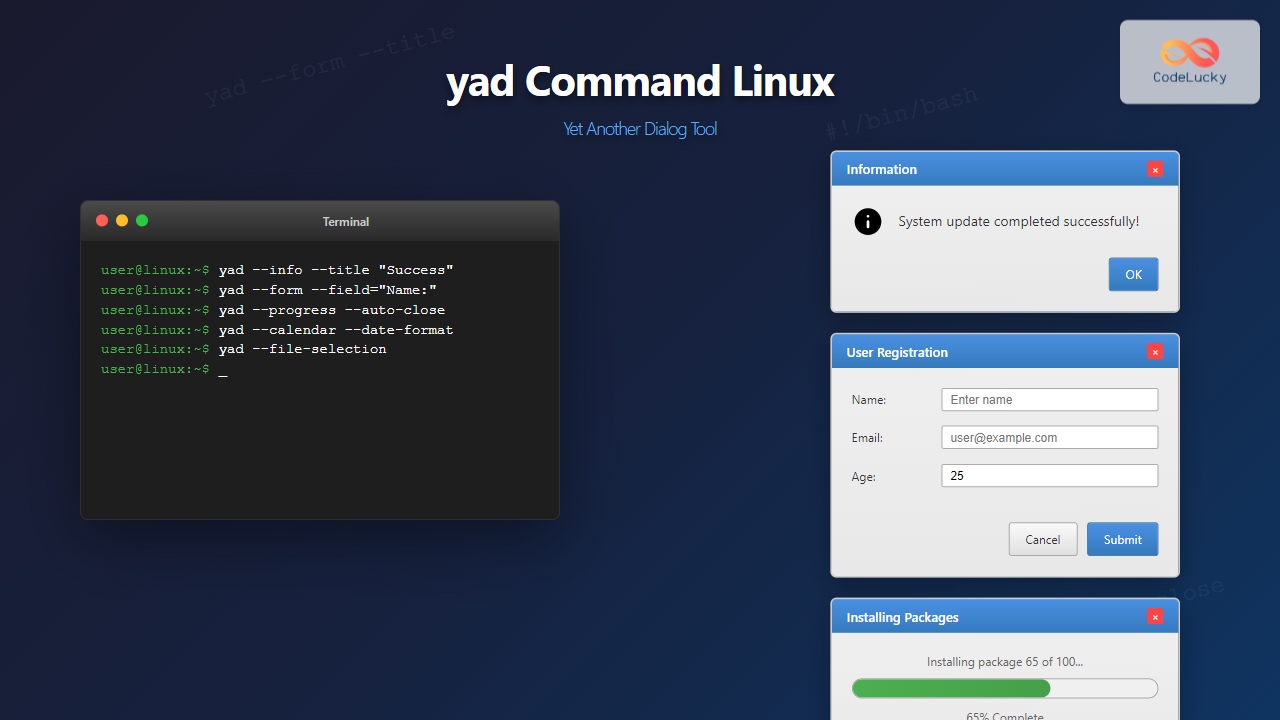
The yad (Yet Another Dialog) command is a powerful GUI dialog tool for Linux that allows you to create interactive graphical interfaces from shell scripts. As a fork of the popular zenity tool, yad provides enhanced functionality and more dialog types, making it an essential utility for system administrators and script developers who want to add user-friendly interfaces to their command-line applications.
What is the yad Command?
The yad command creates various types of dialog boxes and GUI elements that can be integrated into shell scripts. It’s particularly useful for:
- Creating interactive installation scripts
- Building system administration tools
- Developing user-friendly backup utilities
- Making configuration interfaces
- Displaying progress indicators
- Collecting user input through forms
Installing yad on Linux
Before using yad, you need to install it on your system. Here are the installation commands for different Linux distributions:
Ubuntu/Debian:
sudo apt update
sudo apt install yad
CentOS/RHEL/Fedora:
# Fedora
sudo dnf install yad

# CentOS/RHEL (EPEL repository required)
sudo yum install epel-release
sudo yum install yad
Arch Linux:
sudo pacman -S yadBasic yad Syntax
The basic syntax of the yad command follows this pattern:
yad [OPTION...] [--dialog-type] [dialog-specific-options]Common global options include:
--title: Set dialog title--width: Set dialog width--height: Set dialog height--center: Center the dialog on screen--timeout: Auto-close after specified seconds
Common yad Dialog Types
1. Information Dialog (–info)
The information dialog displays a message to the user:
yad --info --title "System Update" --text "Your system has been updated successfully!"Output: This creates a dialog box with an information icon, the specified title, and message text with an OK button.
2. Warning Dialog (–warning)
yad --warning --title "Low Disk Space" --text "Warning: Your disk space is running low!"Output: Displays a warning dialog with a caution icon and the specified message.
3. Error Dialog (–error)
yad --error --title "Connection Failed" --text "Unable to connect to the server."Output: Shows an error dialog with an error icon and message.
4. Question Dialog (–question)
yad --question --title "Confirm Action" --text "Do you want to delete this file?"Output: Creates a dialog with Yes/No buttons. Returns exit code 0 for Yes, 1 for No.
Advanced yad Dialog Types
1. Entry Dialog (–entry)
The entry dialog collects text input from users:
result=$(yad --entry --title "User Input" --text "Enter your name:" --entry-text "Default Name")
echo "You entered: $result"
Output: Displays a text input field with optional default text. The entered value is returned to the variable.
2. Text Info Dialog (–text-info)
Display large amounts of text or file contents:
# Display file contents
yad --text-info --title "Configuration File" --filename="/etc/passwd" --width=600 --height=400

# Display command output
ps aux | yad --text-info --title "Running Processes" --width=800 --height=500
Output: Shows a scrollable text area containing the file contents or piped input.
3. File Selection Dialog (–file-selection)
# Select a file
selected_file=$(yad --file-selection --title "Choose a file")
echo "Selected file: $selected_file"

# Select a directory
selected_dir=$(yad --file-selection --directory --title "Choose a directory")
echo "Selected directory: $selected_dir"
Output: Opens a file browser dialog allowing users to select files or directories.
4. Calendar Dialog (–calendar)
selected_date=$(yad --calendar --title "Select Date" --date-format="%Y-%m-%d")
echo "Selected date: $selected_date"
Output: Displays a calendar widget for date selection.
Form Dialog – The Most Powerful Feature
The form dialog is one of yad’s most powerful features, allowing you to create complex input forms:
result=$(yad --form --title "User Registration" \
    --field="Full Name:" \
    --field="Email:" \
    --field="Age:NUM" \
    --field="Gender:CB" "Male!Female!Other" \
    --field="Subscribe to newsletter:CHK" \
    --field="Comments:TXT")

echo "Form data: $result"
Output: Creates a form with various input types:
- Text field for Full Name
- Text field for Email
- Numeric field for Age
- Combo box for Gender
- Checkbox for Newsletter subscription
- Multi-line text area for Comments
Processing Form Data
#!/bin/bash
result=$(yad --form --title "System Configuration" \
    --field="Server Name:" \
    --field="Port:NUM" "8080" \
    --field="Enable SSL:CHK" \
    --separator="|")

if [ $? -eq 0 ]; then
    IFS='|' read -r server_name port ssl_enabled <<< "$result"
    echo "Server: $server_name"
    echo "Port: $port"
    echo "SSL: $ssl_enabled"
fi
Progress Dialog for Long Operations
The progress dialog is perfect for showing the status of long-running operations:
#!/bin/bash
(
    for i in {1..100}; do
        echo $i
        echo "# Processing file $i of 100"
        sleep 0.1
    done
) | yad --progress --title "File Processing" --percentage=0 --auto-close
Output: Shows a progress bar that updates from 0% to 100% with descriptive text.
Interactive Progress Dialog
#!/bin/bash
{
    echo "10"
    echo "# Initializing..."
    sleep 2

    echo "30"
    echo "# Downloading files..."
    sleep 3

    echo "60"
    echo "# Installing packages..."
    sleep 2

    echo "90"
    echo "# Finalizing installation..."
    sleep 1

    echo "100"
    echo "# Installation complete!"
} | yad --progress --title "Software Installation" --width=400
Notification and System Tray Integration
yad can create desktop notifications and system tray icons:
Simple Notification
yad --notification --image="dialog-information" --text="Backup completed successfully!"Interactive System Tray Icon
yad --notification \
    --image="network-wireless" \
    --text="Network Monitor" \
    --menu="Check Status!bash -c 'yad --info --text=\"Network is running\"'|Restart Network!sudo systemctl restart network|Quit!quit"
List Dialog for Data Display
The list dialog displays tabular data with optional selection capabilities:
# Simple list
yad --list --title "Process List" \
    --column="PID" --column="Name" --column="CPU%" \
    1234 "firefox" "15.2" \
    5678 "chrome" "8.7" \
    9012 "terminal" "2.1"
Interactive List with Selection
selected=$(yad --list --title "Select Server" \
    --column="Select:CHK" --column="Server" --column="Status" \
    FALSE "web-server-01" "Running" \
    TRUE "web-server-02" "Running" \
    FALSE "db-server-01" "Stopped" \
    --separator=" ")

echo "Selected servers: $selected"
Practical Examples and Use Cases
1. System Backup Script with GUI
#!/bin/bash
# Interactive backup script

# Get backup configuration
config=$(yad --form --title "Backup Configuration" \
    --field="Source Directory:DIR" "/home" \
    --field="Destination:DIR" "/backup" \
    --field="Compression:CB" "gzip!bzip2!none" \
    --separator="|")

if [ $? -ne 0 ]; then
    exit 1
fi

IFS='|' read -r source dest compression <<< "$config"

# Confirm backup
yad --question --title "Confirm Backup" \
    --text="Backup $source to $dest with $compression compression?"

if [ $? -eq 0 ]; then
    # Perform backup with progress
    (
        echo "10"
        echo "# Starting backup..."
        sleep 1

        echo "50"
        echo "# Copying files..."
        # Actual backup command would go here
        sleep 3

        echo "100"
        echo "# Backup completed!"
    ) | yad --progress --title "Backup in Progress" --auto-close

    yad --info --text="Backup completed successfully!"
fi
2. Network Configuration Tool
#!/bin/bash
# Network configuration GUI

while true; do
    choice=$(yad --list --title "Network Manager" \
        --column="Action" --column="Description" \
        "View Interfaces" "Show network interfaces" \
        "Configure Interface" "Set IP address" \
        "Test Connection" "Ping a host" \
        "Exit" "Close application" \
        --height=300)

    case "$choice" in
        "View Interfaces"*)
            ip addr | yad --text-info --title "Network Interfaces" --width=600 --height=400
            ;;
        "Configure Interface"*)
            # Interface configuration form
            config=$(yad --form --title "Configure Interface" \
                --field="Interface:" "eth0" \
                --field="IP Address:" \
                --field="Netmask:" "255.255.255.0" \
                --field="Gateway:" \
                --separator="|")

            if [ $? -eq 0 ]; then
                yad --info --text="Configuration saved (would apply: $config)"
            fi
            ;;
        "Test Connection"*)
            host=$(yad --entry --title "Ping Test" --text "Enter hostname or IP:")
            if [ $? -eq 0 ] && [ -n "$host" ]; then
                ping -c 4 "$host" | yad --text-info --title "Ping Results" --width=500 --height=300
            fi
            ;;
        "Exit"*|"")
            break
            ;;
    esac
done
Customizing yad Appearance
Setting Dialog Size and Position
yad --info --title "Custom Dialog" \
    --text "This is a customized dialog" \
    --width=500 \
    --height=200 \
    --center \
    --borders=20
Using Icons and Images
# Using system icons
yad --info --title "Success" \
    --image="dialog-ok" \
    --text "Operation completed successfully"

# Using custom images
yad --info --title "Company Logo" \
    --image="/path/to/logo.png" \
    --text "Welcome to our application"
Advanced Scripting Techniques
Handling Multiple Buttons
#!/bin/bash
yad --question --title "File Operation" \
    --text "What would you like to do with the file?" \
    --button="Edit:0" \
    --button="Delete:1" \
    --button="Copy:2" \
    --button="Cancel:3"

case $? in
    0) echo "Editing file..." ;;
    1) echo "Deleting file..." ;;
    2) echo "Copying file..." ;;
    3|252) echo "Operation cancelled" ;;
esac
Timeout and Auto-close
# Auto-close after 10 seconds
yad --info --title "Auto Close" \
    --text "This dialog will close automatically in 10 seconds" \
    --timeout=10 \
    --timeout-indicator=bottom
Common yad Options and Parameters
| Option | Description | Example |
|---|---|---|
--title |
Set dialog title | --title="My Dialog" |
--width |
Set dialog width | --width=500 |
--height |
Set dialog height | --height=300 |
--center |
Center dialog on screen | --center |
--timeout |
Auto-close timeout | --timeout=30 |
--image |
Set dialog icon | --image="dialog-info" |
--separator |
Field separator for output | --separator="|" |
Error Handling and Debugging
Proper error handling is crucial when using yad in scripts:
#!/bin/bash
# Check if yad is installed
if ! command -v yad &> /dev/null; then
    echo "yad is not installed. Please install it first."
    exit 1
fi

# Function to handle yad errors
handle_yad_result() {
    local exit_code=$1
    case $exit_code in
        0) return 0 ;;  # OK button
        1) echo "Cancel button pressed"; return 1 ;;
        252) echo "Dialog closed by user"; return 1 ;;
        *) echo "Unknown error: $exit_code"; return 1 ;;
    esac
}

# Example usage
result=$(yad --entry --title "Input Required" --text "Enter value:")
handle_yad_result $?

if [ $? -eq 0 ]; then
    echo "User entered: $result"
else
    echo "No input received"
    exit 1
fi
Best Practices for Using yad
- Always check exit codes: yad returns different exit codes for different user actions
- Use appropriate dialog types: Choose the right dialog for your use case
- Provide clear instructions: Use descriptive titles and help text
- Handle cancellation gracefully: Always account for user cancellation
- Set reasonable timeouts: For automated scripts, use timeouts appropriately
- Test on different desktop environments: yad behavior may vary across DEs
Conclusion
The yad command is an incredibly versatile tool for creating GUI interfaces in Linux shell scripts. From simple message dialogs to complex forms and progress indicators, yad enables script developers to create professional, user-friendly applications. Whether you’re building system administration tools, creating interactive installers, or developing user interfaces for complex scripts, yad provides the flexibility and functionality needed to create engaging graphical experiences.
By mastering the various dialog types, form fields, and advanced features covered in this guide, you can transform command-line scripts into intuitive GUI applications that are accessible to users of all technical levels. The key to success with yad is understanding your users’ needs and choosing the appropriate dialog types and options to create the best possible user experience.
Related Posts
dialog Command Linux: Create Interactive Text-Based User Interfaces with Ease
The dialog command in Linux is a powerful utility that enables developers and system administrators to create sophisticated text-based user...
zenity Command Linux: Complete Guide to Create GTK Dialog Boxes
The zenity command is a powerful Linux utility that allows you to create GTK dialog boxes from shell scripts and...

w Command Linux: Complete Guide to Monitor Active Users and System Activity
The w command is one of the most essential system monitoring tools in Linux, providing administrators and users with real-time...
id Command Linux: Complete Guide to Display User and Group IDs
The id command is a fundamental Linux utility that displays user and group identification information for the current user or...

Linux Commands Tutorial: Complete Beginner’s Guide to Terminal Basics
The Linux terminal is a powerful command-line interface that gives you direct control over your operating system. While it might...
loginctl Command Linux: Master Session Management with Practical Examples
The loginctl command is a powerful systemd utility that allows system administrators to introspect and control the systemd login manager...
read Command Linux: Complete Guide to Reading User Input in Shell Scripts
The read command is one of the most fundamental tools in Linux shell scripting for creating interactive programs that capture...
python Command Linux: Complete Guide to Running Python Scripts and Interactive Sessions
The python command is one of the most essential tools for developers working with Python on Linux systems. Whether you're...
logger Command Linux: Complete Guide to System Log Message Management
The logger command in Linux is a powerful utility that allows users and scripts to send messages directly to the...

launchd Linux: Understanding the Service Management Framework for System Administrators
The launchd service management framework has become an essential tool for Linux system administrators who need robust process and service...
vim Command Linux: Master the Ultimate Text Editor with Advanced Techniques
The vim command is one of the most powerful and versatile text editors available in Linux systems. Originally created as...

echo Command in Linux: Complete Guide to Print Text and Variables in Terminal
The echo command is one of the most fundamental and frequently used commands in Linux and Unix-like operating systems. It...





