
The xfs_info command is a powerful utility in Linux systems that provides comprehensive information about XFS filesystems. This command is essential for system administrators who need to understand filesystem characteristics, troubleshoot issues, or optimize storage performance.
What is xfs_info Command?
The xfs_info command displays detailed metadata information about mounted XFS filesystems. It reveals crucial details such as block sizes, inode allocation policies, log configurations, and various filesystem parameters that affect performance and behavior.
XFS (eXtended File System) is a high-performance journaling filesystem originally developed by Silicon Graphics. It’s designed to handle large files and filesystems efficiently, making it popular in enterprise environments and high-performance computing scenarios.
Basic Syntax and Usage
The basic syntax of the xfs_info command is straightforward:
xfs_info [options] mountpoint|deviceParameters:
mountpoint: The directory where the XFS filesystem is mounteddevice: The device file containing the XFS filesystem
Installation and Prerequisites
Before using xfs_info, ensure that XFS utilities are installed on your system:
Ubuntu/Debian:
sudo apt update
sudo apt install xfsprogs
CentOS/RHEL/Fedora:
sudo yum install xfsprogs
# or for newer versions
sudo dnf install xfsprogs
Basic Examples
Example 1: Display Information for Mounted Filesystem
Let’s examine a typical XFS filesystem mounted at /home:
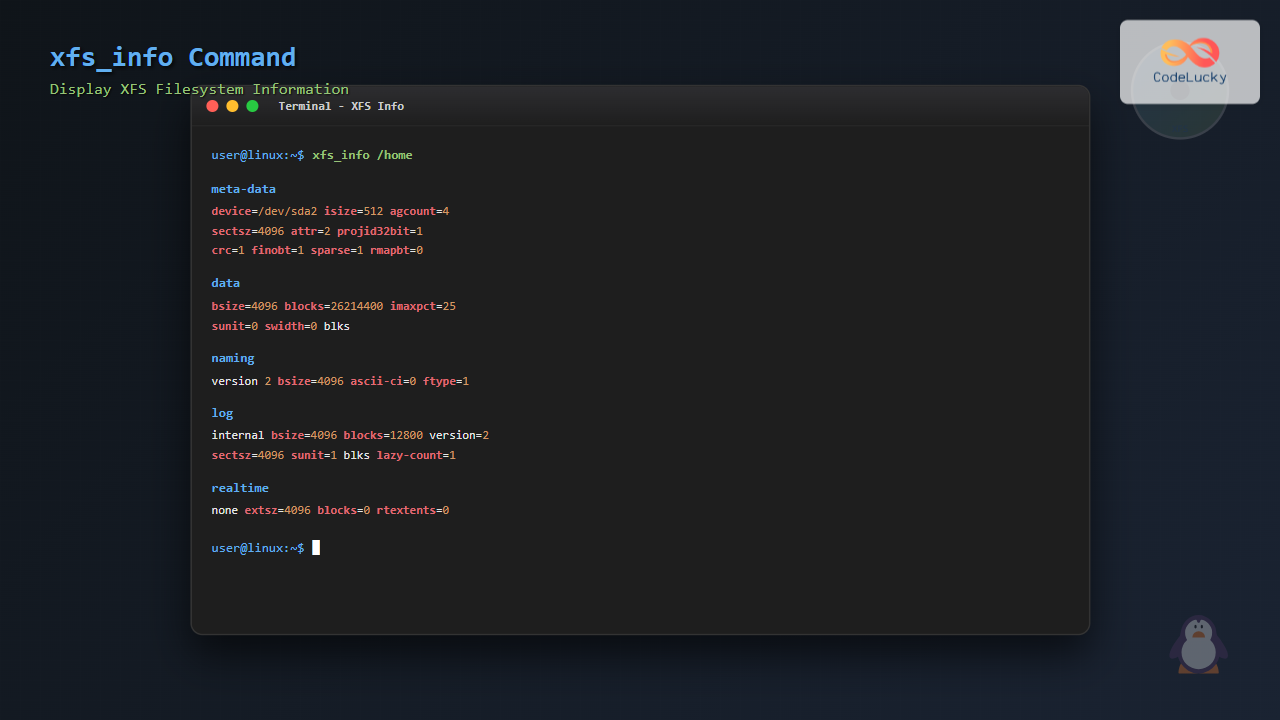
xfs_info /homeSample Output:
meta-data=/dev/sda2              isize=512    agcount=4, agsize=6553600 blks
         =                       sectsz=4096  attr=2, projid32bit=1
         =                       crc=1        finobt=1, sparse=1, rmapbt=0
         =                       reflink=1
data     =                       bsize=4096   blocks=26214400, imaxpct=25
         =                       sunit=0      swidth=0 blks
naming   =version 2              bsize=4096   ascii-ci=0, ftype=1
log      =internal               bsize=4096   blocks=12800, version=2
         =                       sectsz=4096  sunit=1 blks, lazy-count=1
realtime =none                   extsz=4096   blocks=0, rtextents=0
Example 2: Using Device Path
You can also specify the device directly:
xfs_info /dev/sda2This produces the same output as the previous example, showing that both mountpoint and device specifications work identically.
Understanding xfs_info Output
The output from xfs_info is organized into several sections, each providing specific information about different aspects of the filesystem:
Meta-data Section
- isize=512: Inode size in bytes
- agcount=4: Number of allocation groups
- agsize=6553600 blks: Size of each allocation group in blocks
- sectsz=4096: Sector size in bytes
- attr=2: Extended attribute version
- projid32bit=1: 32-bit project ID support enabled
- crc=1: CRC checking enabled
- finobt=1: Free inode B-tree feature enabled
- sparse=1: Sparse inode support enabled
- reflink=1: Reference linking support enabled
Data Section
- bsize=4096: Block size in bytes
- blocks=26214400: Total number of data blocks
- imaxpct=25: Maximum percentage of space for inodes
- sunit=0, swidth=0: Stripe unit and stripe width (RAID optimization)
Naming Section
- version 2: Directory naming version
- bsize=4096: Directory block size
- ascii-ci=0: ASCII case-insensitive naming disabled
- ftype=1: File type information stored in directory entries
Log Section
- internal: Log is stored internally within the filesystem
- bsize=4096: Log block size
- blocks=12800: Number of log blocks
- version=2: Log format version
- lazy-count=1: Lazy superblock counter updates enabled
Realtime Section
- none: No realtime device configured
- extsz=4096: Realtime extent size
- blocks=0: Number of realtime blocks
Advanced Usage Examples
Example 3: Checking Multiple Filesystems
To check information for multiple XFS filesystems, you can use a simple loop:
for mount in /home /var /opt; do
    echo "=== Information for $mount ==="
    xfs_info $mount 2>/dev/null || echo "$mount is not an XFS filesystem"
    echo
done
Example 4: Extracting Specific Information
To extract only the block size information:
xfs_info /home | grep "data" | grep -o "bsize=[0-9]*"Output:
bsize=4096Example 5: Getting Filesystem Size
Calculate the total filesystem size:
xfs_info /home | awk '/data/ && /blocks=/ {
    match($0, /bsize=([0-9]+)/, bsize)
    match($0, /blocks=([0-9]+)/, blocks)
    size_bytes = bsize[1] * blocks[1]
    size_gb = size_bytes / 1024 / 1024 / 1024
    printf "Filesystem size: %.2f GB\n", size_gb
}'
Practical Use Cases
Performance Optimization
Understanding filesystem parameters helps optimize performance:
- Block size: Larger blocks can improve performance for large files
- Allocation groups: More groups can improve parallel I/O performance
- Stripe settings: Important for RAID configurations
Troubleshooting
Use xfs_info to diagnose issues:
# Check if filesystem has modern features
xfs_info /data | grep -E "(crc|finobt|reflink)"

# Verify log configuration
xfs_info /data | grep "log"
Migration Planning
Before migrating data, understand source filesystem characteristics:
# Create a summary script
#!/bin/bash
MOUNT_POINT=$1
echo "XFS Filesystem Summary for $MOUNT_POINT"
echo "======================================"
INFO=$(xfs_info $MOUNT_POINT)
echo "Block Size: $(echo "$INFO" | grep -o 'bsize=[0-9]*' | head -1 | cut -d= -f2) bytes"
echo "Inode Size: $(echo "$INFO" | grep -o 'isize=[0-9]*' | cut -d= -f2) bytes"
echo "Allocation Groups: $(echo "$INFO" | grep -o 'agcount=[0-9]*' | cut -d= -f2)"
echo "CRC Enabled: $(echo "$INFO" | grep -o 'crc=[0-1]' | cut -d= -f2)"
Error Handling and Common Issues
Common Error Messages
Error: “xfs_info: /path is not a mounted XFS filesystem”
This occurs when:
- The path is not mounted
- The filesystem is not XFS
- You don’t have sufficient permissions
Solution:
# Check if path is mounted and filesystem type
mount | grep /path
df -T /path
Permission Issues
If you encounter permission errors, ensure you have read access to the mount point:
ls -ld /mount/point
# If needed, run with sudo
sudo xfs_info /mount/point
Comparison with Other Filesystem Tools
| Command | Filesystem | Purpose |
|---|---|---|
xfs_info |
XFS | Display XFS filesystem information |
tune2fs -l |
ext2/3/4 | Display ext filesystem information |
btrfs filesystem show |
Btrfs | Display Btrfs filesystem information |
fsck.xfs -n |
XFS | Check XFS filesystem (read-only) |
Best Practices
Regular Monitoring
Create monitoring scripts to track filesystem parameters:
#!/bin/bash
# xfs_monitor.sh
LOG_FILE="/var/log/xfs_info.log"
date >> $LOG_FILE
for fs in $(mount | grep xfs | awk '{print $3}'); do
    echo "=== $fs ===" >> $LOG_FILE
    xfs_info $fs >> $LOG_FILE 2>&1
done
Documentation
Always document your filesystem configurations:
# Generate documentation
xfs_info /data > /docs/xfs_data_config.txt
Integration with System Administration
Automated Reporting
Integrate xfs_info into system monitoring:
# Check for filesystem features
if xfs_info /data | grep -q "reflink=1"; then
    echo "Reflink feature available for deduplication"
fi
Backup Verification
Verify filesystem parameters match between source and backup systems:
# Compare filesystem configurations
diff <(xfs_info /source | sort) <(xfs_info /backup | sort)
Conclusion
The xfs_info command is an indispensable tool for managing XFS filesystems in Linux environments. It provides comprehensive information about filesystem structure, features, and configuration that is crucial for system administration, performance optimization, and troubleshooting.
Key takeaways:
- Use
xfs_infoto understand filesystem characteristics before making changes - Regular monitoring helps identify potential issues early
- Understanding the output helps optimize performance for specific workloads
- Combine with other tools for comprehensive filesystem management
By mastering xfs_info, system administrators can make informed decisions about storage management, ensure optimal performance, and maintain reliable XFS filesystems in production environments.
Related Posts
xfs_check Command Linux: Complete Guide to XFS Filesystem Consistency Verification
The xfs_check command is a crucial system administration tool in Linux for verifying the consistency and integrity of XFS filesystems....

xfs_repair Command Linux: Complete Guide to Fix and Repair XFS Filesystems
The xfs_repair command is a powerful utility in Linux designed specifically for checking and repairing XFS filesystems. As XFS is...
dumpe2fs Command Linux: Complete Guide to Display Ext2/3/4 Filesystem Information
The dumpe2fs command is a powerful Linux utility that displays detailed information about ext2, ext3, and ext4 filesystems. This essential...
xattr Command Linux: Complete Guide to Extended File Attributes Management
Extended file attributes in Linux provide a powerful mechanism to store additional metadata beyond traditional file permissions and ownership. The...

File System Implementation: Boot Block, Super Block and Inodes Explained
Understanding File System Implementation File system implementation is a critical component of operating systems that manages how data is stored,...

stat Command Linux: Complete Guide to Display File and Filesystem Status Information
The stat command is a powerful Linux utility that displays detailed information about files and filesystems. Unlike basic commands like...

File System Types: FAT32, NTFS, ext4 and Modern Linux Filesystems Explained
Understanding File Systems: The Foundation of Data Storage A file system is the method and data structure that an operating...

tune2fs Command Linux: Complete Guide to Ext2/3/4 Filesystem Tuning
The tune2fs command is a powerful Linux utility that allows system administrators to modify and tune various parameters of ext2,...

zfs Command Linux: Complete Guide to ZFS Filesystem Administration
The ZFS (Zettabyte File System) is a revolutionary filesystem that combines traditional filesystem capabilities with logical volume management, RAID functionality,...
df Command in Linux: Complete Guide to Check Disk Space Usage
The df command is one of the most essential tools in a Linux system administrator's toolkit. Standing for "disk free,"...
File System in Operating System: Complete Guide to Structure and Organization
Introduction to File Systems A file system is a fundamental component of any operating system that provides a structured way...
sysfs Linux: Complete Guide to Understanding and Using /sys Filesystem
The sysfs filesystem is one of Linux's most powerful yet underutilized features, providing a window into the kernel's internal operations...





