
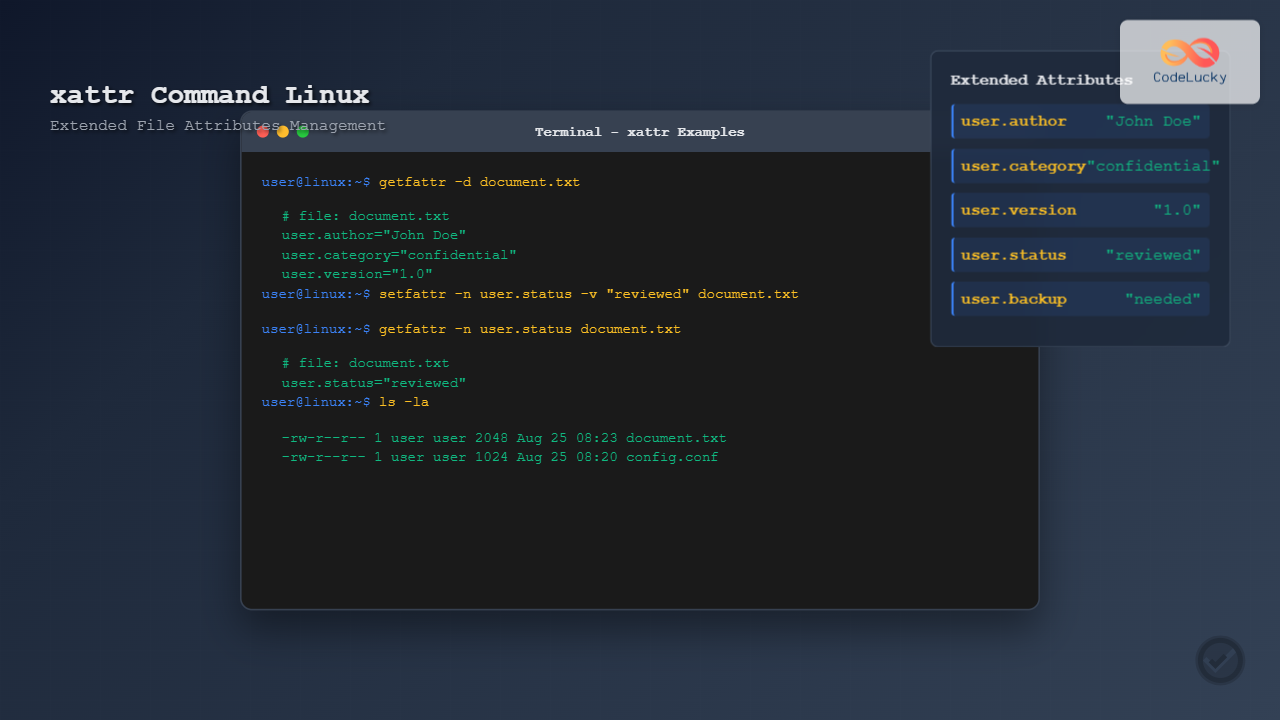
Extended file attributes in Linux provide a powerful mechanism to store additional metadata beyond traditional file permissions and ownership. The xattr command serves as your primary tool for managing these extended attributes, offering fine-grained control over file metadata that can enhance security, organization, and system functionality.
What Are Extended File Attributes?
Extended attributes (xattrs) are name-value pairs associated with files and directories that store metadata beyond the standard POSIX attributes. Unlike traditional attributes like permissions, timestamps, and ownership, extended attributes allow you to attach arbitrary metadata to filesystem objects.
These attributes are organized into namespaces:
- user.* – User-defined attributes accessible to regular users
- system.* – System attributes managed by the kernel
- trusted.* – Trusted attributes accessible only to privileged processes
- security.* – Security-related attributes used by security modules
Installing xattr Command
Most modern Linux distributions include extended attribute support by default. However, you may need to install additional tools:
Ubuntu/Debian:
sudo apt update
sudo apt install attr
CentOS/RHEL/Fedora:
# For RHEL/CentOS 7/8
sudo yum install attr

# For Fedora/RHEL 9+
sudo dnf install attr
Arch Linux:
sudo pacman -S attrBasic xattr Command Syntax
The xattr command follows this general syntax:
xattr [options] file/directoryHowever, Linux systems typically use the getfattr and setfattr commands, which are part of the attr package. Here’s the relationship:
getfattr– Retrieve extended attributessetfattr– Set or modify extended attributesattr– Alternative interface for attribute management
Viewing Extended Attributes
Using getfattr Command
To view all extended attributes of a file:
getfattr -d filenameExample output:
$ getfattr -d sample.txt
# file: sample.txt
user.comment="Important document"
user.author="John Doe"
Viewing Specific Attributes
To view a specific extended attribute:
getfattr -n user.comment sample.txtOutput:
# file: sample.txt
user.comment="Important document"
Viewing All Attributes Including System Ones
getfattr -d -m ".*" filenameSetting Extended Attributes
Using setfattr Command
To set a user-defined extended attribute:
setfattr -n user.description -v "Configuration file for web server" config.txtSetting Multiple Attributes
You can set multiple attributes in sequence:
setfattr -n user.author -v "Jane Smith" document.txt
setfattr -n user.version -v "1.0" document.txt
setfattr -n user.status -v "reviewed" document.txt
Verify the attributes:
$ getfattr -d document.txt
# file: document.txt
user.author="Jane Smith"
user.status="reviewed"
user.version="1.0"
Removing Extended Attributes
To remove a specific extended attribute:
setfattr -x user.description filenameExample:
$ setfattr -x user.status document.txt
$ getfattr -d document.txt
# file: document.txt
user.author="Jane Smith"
user.version="1.0"
Advanced xattr Operations
Copying Extended Attributes
To copy extended attributes from one file to another:
getfattr -d source.txt | setfattr --restore=-
cp source.txt destination.txt
getfattr -d source.txt | setfattr --restore=- destination.txt
Working with Directories
Extended attributes work with directories as well:
setfattr -n user.project -v "WebApp2024" /home/user/projects/webapp
getfattr -d /home/user/projects/webapp
Recursive Operations
To apply extended attributes recursively:
find /path/to/directory -type f -exec setfattr -n user.backup -v "needed" {} \;Practical Use Cases
File Classification System
Create a file classification system using extended attributes:
# Classify files by type
setfattr -n user.category -v "confidential" secret.txt
setfattr -n user.category -v "public" readme.txt
setfattr -n user.category -v "internal" config.txt

# Add retention policies
setfattr -n user.retention -v "7-years" financial_report.pdf
setfattr -n user.retention -v "permanent" legal_document.pdf
Backup and Archive Management
# Mark files for backup
setfattr -n user.backup.priority -v "high" important.doc
setfattr -n user.backup.frequency -v "daily" database.sql
setfattr -n user.backup.last -v "2024-08-25" archive.tar.gz

# Create backup script using extended attributes
#!/bin/bash
find /home/user -type f | while read file; do
    priority=$(getfattr -n user.backup.priority --only-values "$file" 2>/dev/null)
    if [ "$priority" = "high" ]; then
        echo "Backing up high priority file: $file"
        # Backup logic here
    fi
done
Content Management
# Web content management
setfattr -n user.web.status -v "published" article.html
setfattr -n user.web.author -v "content-team" article.html
setfattr -n user.web.publish-date -v "2024-08-25" article.html
setfattr -n user.web.category -v "technology" article.html
Security Applications
File Integrity Monitoring
Use extended attributes to store checksums:
# Store original checksum
original_hash=$(sha256sum important.txt | cut -d' ' -f1)
setfattr -n user.security.checksum -v "$original_hash" important.txt

# Verify integrity later
current_hash=$(sha256sum important.txt | cut -d' ' -f1)
stored_hash=$(getfattr -n user.security.checksum --only-values important.txt)

if [ "$current_hash" = "$stored_hash" ]; then
    echo "File integrity verified"
else
    echo "File may have been modified!"
fi
Access Control Enhancement
# Mark sensitive files
setfattr -n user.security.level -v "restricted" sensitive.txt
setfattr -n user.security.clearance -v "top-secret" classified.txt

# Create access control script
#!/bin/bash
check_access() {
    local file="$1"
    local user_clearance="$2"

    file_level=$(getfattr -n user.security.clearance --only-values "$file" 2>/dev/null)

    case "$file_level" in
        "top-secret")
            if [ "$user_clearance" != "top-secret" ]; then
                echo "Access denied: Insufficient clearance"
                return 1
            fi
            ;;
        "restricted")
            if [ "$user_clearance" = "public" ]; then
                echo "Access denied: Restricted file"
                return 1
            fi
            ;;
    esac

    echo "Access granted"
    return 0
}
Filesystem Support
Not all filesystems support extended attributes. Here’s the compatibility matrix:
| Filesystem | Support | Notes |
|---|---|---|
| ext2/ext3/ext4 | ✅ Yes | Full support with user_xattr mount option |
| XFS | ✅ Yes | Native support, enabled by default |
| Btrfs | ✅ Yes | Full extended attribute support |
| ZFS | ✅ Yes | Supported via xattr=on property |
| NTFS | ⚠️ Limited | Through ntfs-3g with streams support |
| FAT32 | ❌ No | No extended attribute support |
| NFS | ⚠️ Depends | Requires NFSv4 and server support |
Troubleshooting Common Issues
Operation Not Supported
If you encounter “Operation not supported” errors:
# Check if filesystem supports extended attributes
mount | grep "$(df . | tail -1 | awk '{print $1}')"

# Remount with user_xattr option (for ext filesystems)
sudo mount -o remount,user_xattr /dev/sda1 /
Permission Denied
For permission issues with extended attributes:
# Check file ownership and permissions
ls -la filename

# Only file owner can set user.* attributes
# Use sudo for system.* or trusted.* attributes
sudo setfattr -n system.test -v "value" filename
Attribute Size Limitations
Extended attributes have size limits (typically 64KB):
# Check current attribute sizes
getfattr -d filename | grep -o 'user\.[^=]*="[^"]*"' | while read attr; do
    size=$(echo "$attr" | sed 's/.*="//' | sed 's/"$//' | wc -c)
    name=$(echo "$attr" | sed 's/=.*//')
    echo "$name: $size bytes"
done
Performance Considerations
Impact on File Operations
Extended attributes have minimal performance impact on most operations, but consider:
- Copying files with many extended attributes may be slower
- Some backup tools need special handling for extended attributes
- Network filesystems may have additional overhead
Best Practices
- Use descriptive attribute names with consistent naming conventions
- Avoid storing large amounts of data in extended attributes
- Document your extended attribute schema
- Test extended attribute support before deploying in production
- Consider backup implications when using extended attributes
Integration with Other Tools
Backup Tools
Many backup tools support extended attributes:
# tar with extended attributes
tar --xattrs -czf backup.tar.gz directory/

# rsync with extended attributes
rsync -avX --xattrs source/ destination/

# cp with extended attributes
cp --preserve=xattr source.txt destination.txt
File Managers
Some GUI file managers display extended attributes:
- Nautilus (GNOME) – Shows some extended attributes in properties
- Dolphin (KDE) – Extended attribute support via plugins
- Thunar (XFCE) – Basic extended attribute viewing
Scripting with Extended Attributes
Bash Script Example
#!/bin/bash

# File management script using extended attributes
manage_files() {
    local directory="$1"

    # Process all files in directory
    find "$directory" -type f | while read -r file; do
        # Get file modification time
        mod_time=$(stat -c %Y "$file")
        current_time=$(date +%s)
        days_old=$(( (current_time - mod_time) / 86400 ))

        # Set age attribute
        setfattr -n user.age.days -v "$days_old" "$file"

        # Set file type based on extension
        extension="${file##*.}"
        case "$extension" in
            txt|md) setfattr -n user.type -v "document" "$file" ;;
            jpg|png|gif) setfattr -n user.type -v "image" "$file" ;;
            sh|py|js) setfattr -n user.type -v "script" "$file" ;;
            *) setfattr -n user.type -v "unknown" "$file" ;;
        esac

        # Mark old files for cleanup
        if [ $days_old -gt 365 ]; then
            setfattr -n user.cleanup -v "candidate" "$file"
        fi
    done
}

# Usage
manage_files "/path/to/directory"
Conclusion
Extended file attributes provide a powerful mechanism for enhancing file management, security, and organization in Linux systems. The xattr command, along with getfattr and setfattr, offers comprehensive tools for managing these attributes effectively.
Whether you’re implementing file classification systems, enhancing security measures, or creating sophisticated backup strategies, extended attributes offer flexibility that goes far beyond traditional file metadata. By understanding filesystem support, performance implications, and integration possibilities, you can leverage extended attributes to create more robust and intelligent file management solutions.
Remember to test extended attribute functionality in your specific environment and consider the implications for backup, migration, and cross-platform compatibility when designing systems that rely on extended attributes.
Related Posts

lsattr Command Linux: Complete Guide to List and Manage File Attributes
The lsattr command is a powerful Linux utility that displays the extended attributes of files and directories on ext2, ext3,...
File System in Operating System: Complete Guide to Structure and Organization
Introduction to File Systems A file system is a fundamental component of any operating system that provides a structured way...
chattr Command Linux: Complete Guide to Change File Attributes with Examples
The chattr command in Linux is a powerful utility that allows system administrators and users to change file attributes on...

File Permissions in Operating System: Complete Guide to Access Control Lists (ACLs)
Introduction to File Permissions and Access Control File permissions form the backbone of operating system security, controlling who can access,...

stat Command Linux: Complete Guide to Display File and Filesystem Status Information
The stat command is a powerful Linux utility that displays detailed information about files and filesystems. Unlike basic commands like...
xfs_info Command Linux: Complete Guide to Display XFS Filesystem Information
The xfs_info command is a powerful utility in Linux systems that provides comprehensive information about XFS filesystems. This command is...

File System Types: FAT32, NTFS, ext4 and Modern Linux Filesystems Explained
Understanding File Systems: The Foundation of Data Storage A file system is the method and data structure that an operating...
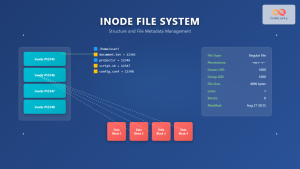
Inode in File System: Complete Guide to Structure and File Metadata
What is an Inode? An inode (index node) is a fundamental data structure in Unix-like file systems that stores metadata...

chown Command Linux: Master File and Directory Ownership Management
The chown command is one of the most fundamental tools in Linux system administration, allowing users to change file and...
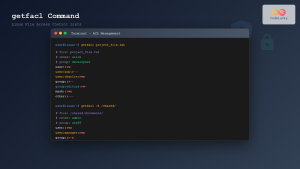
getfacl Command Linux: Complete Guide to File Access Control Lists Management
The getfacl command in Linux is a powerful utility that allows system administrators and users to view Access Control Lists...

file Command Advanced Linux: Master Detailed File Type Analysis and Detection
The file command is one of the most powerful and underutilized utilities in Linux for determining file types and analyzing...

Directory Structure: Single-level, Two-level, and Tree Structure in Operating Systems
Understanding Directory Structures in Operating Systems Directory structures are fundamental components of file systems that organize and manage files in...





