
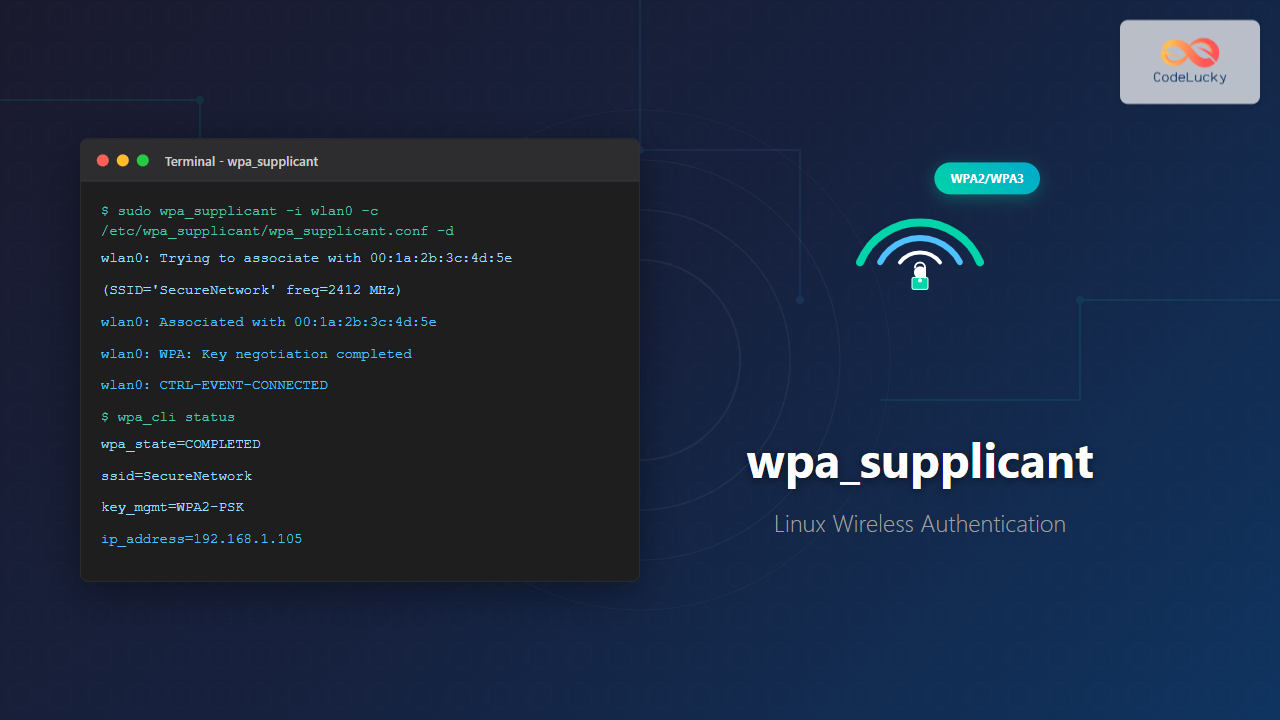
wpa_supplicant is a crucial Linux daemon that handles WPA/WPA2 wireless authentication, making it possible to connect to secure wireless networks. This comprehensive guide covers everything you need to know about configuring and using wpa_supplicant for reliable wireless connectivity.
What is wpa_supplicant?
wpa_supplicant is an IEEE 802.1X supplicant implementation that provides key negotiation with WPA authenticators and controls the roaming and IEEE 802.11 authentication/association processes. It supports various authentication methods including WPA-PSK, WPA-EAP, and WPA2.
Key Features
- WPA/WPA2 personal and enterprise support
- IEEE 802.11i/RSN (WPA2) pre-authentication
- IEEE 802.1X EAP methods
- Dynamic WEP keys with IEEE 802.1X
- Wireless Protected Setup (WPS)
- P2P (Wi-Fi Direct) support
Installation and Setup
Installing wpa_supplicant
On most Linux distributions, wpa_supplicant comes pre-installed. If not, install it using your package manager:
# Ubuntu/Debian
sudo apt update
sudo apt install wpasupplicant

# CentOS/RHEL/Fedora
sudo yum install wpa_supplicant
# or
sudo dnf install wpa_supplicant

# Arch Linux
sudo pacman -S wpa_supplicant
Checking Installation
$ wpa_supplicant -vExpected output:
wpa_supplicant v2.9
Copyright (c) 2003-2019, Jouni Malinen <[email protected]> and contributors

This software may be distributed under the terms of the BSD license.
See README for more details.
Configuration File Structure
The main configuration file is typically located at /etc/wpa_supplicant/wpa_supplicant.conf. The basic structure includes global parameters and network blocks.
Basic Configuration Template
# /etc/wpa_supplicant/wpa_supplicant.conf
ctrl_interface=/run/wpa_supplicant
ctrl_interface_group=wheel
update_config=1
country=US

network={
    ssid="YourNetworkName"
    psk="YourPassword"
    priority=1
}
Configuration Parameters Explained
| Parameter | Description | Example |
|---|---|---|
| ctrl_interface | Control interface socket path | /run/wpa_supplicant |
| ctrl_interface_group | Group allowed to use control interface | wheel |
| update_config | Allow configuration updates | 1 (enabled) |
| country | Country code for regulatory domain | US, GB, DE |
Network Configuration Examples
WPA2-PSK (Personal) Network
network={
    ssid="HomeNetwork"
    psk="MySecurePassword123"
    key_mgmt=WPA-PSK
    proto=WPA2
    pairwise=CCMP
    group=CCMP
    priority=5
}
WPA3-SAE Network
network={
    ssid="WPA3Network"
    sae_password="MyWPA3Password"
    key_mgmt=SAE
    ieee80211w=2
    priority=10
}
Hidden Network
network={
    ssid="HiddenNetwork"
    psk="HiddenPassword123"
    scan_ssid=1
    priority=3
}
Open Network
network={
    ssid="FreeWiFi"
    key_mgmt=NONE
    priority=1
}
Enterprise WPA2-EAP
network={
    ssid="CorpNetwork"
    key_mgmt=WPA-EAP
    eap=PEAP
    identity="[email protected]"
    password="password123"
    phase2="auth=MSCHAPV2"
    ca_cert="/etc/ssl/certs/ca-certificate.pem"
    priority=8
}
Running wpa_supplicant
Basic Command Structure
sudo wpa_supplicant -i <interface> -c <config_file> -BCommon Usage Examples
Start wpa_supplicant in Background
sudo wpa_supplicant -B -i wlan0 -c /etc/wpa_supplicant/wpa_supplicant.confStart with Debug Output
sudo wpa_supplicant -i wlan0 -c /etc/wpa_supplicant/wpa_supplicant.conf -dDebug output example:
wlan0: Trying to associate with 00:1a:2b:3c:4d:5e (SSID='HomeNetwork' freq=2412 MHz)
wlan0: Associated with 00:1a:2b:3c:4d:5e
wlan0: WPA: Key negotiation completed with 00:1a:2b:3c:4d:5e [PTK=CCMP GTK=CCMP]
wlan0: CTRL-EVENT-CONNECTED - Connection to 00:1a:2b:3c:4d:5e completed
Start with Specific Driver
sudo wpa_supplicant -D nl80211 -i wlan0 -c /etc/wpa_supplicant/wpa_supplicant.confCommand-Line Options
| Option | Description | Example |
|---|---|---|
| -i | Network interface | -i wlan0 |
| -c | Configuration file path | -c /etc/wpa_supplicant/wpa_supplicant.conf |
| -B | Run in background (daemon mode) | -B |
| -D | Driver name | -D nl80211 |
| -d | Debug mode | -d |
| -P | PID file | -P /run/wpa_supplicant.pid |
Using wpa_cli (Interactive Control)
wpa_cli provides an interactive command-line interface for controlling wpa_supplicant.
Starting wpa_cli
$ sudo wpa_cli -i wlan0Interactive prompt:
wpa_cli v2.9
Copyright (c) 2004-2019, Jouni Malinen <[email protected]> and contributors

Interactive mode

>
Common wpa_cli Commands
Scan for Networks
> scan
OK
> scan_results
bssid / frequency / signal level / flags / ssid
00:1a:2b:3c:4d:5e	2412	-45	[WPA2-PSK-CCMP][ESS]	HomeNetwork
aa:bb:cc:dd:ee:ff	2437	-52	[WPA2-PSK-CCMP][WPS][ESS]	NeighborWiFi
11:22:33:44:55:66	5180	-38	[WPA2-PSK-CCMP][ESS]	Office5G
Add Network
> add_network
0
> set_network 0 ssid "NewNetwork"
OK
> set_network 0 psk "password123"
OK
> enable_network 0
OK
Check Status
> status
bssid=00:1a:2b:3c:4d:5e
freq=2412
ssid=HomeNetwork
id=0
mode=station
pairwise_cipher=CCMP
group_cipher=CCMP
key_mgmt=WPA2-PSK
wpa_state=COMPLETED
ip_address=192.168.1.105
List Networks
> list_networks
network id / ssid / bssid / flags
0	HomeNetwork	any	[CURRENT]
1	Office5G	any	[DISABLED]
2	FreeWiFi	any	[DISABLED]
Save Configuration
> save_config
OK
Systemd Integration
Enable wpa_supplicant Service
# Enable for specific interface
sudo systemctl enable [email protected]

# Start the service
sudo systemctl start [email protected]

# Check status
sudo systemctl status [email protected]
Status output example:
● [email protected] - WPA supplicant daemon (interface-specific version)
   Loaded: loaded (/lib/systemd/system/[email protected]; enabled; vendor preset: enabled)
   Active: active (running) since Mon 2025-08-26 02:15:32 IST; 15min ago
 Main PID: 1234 (wpa_supplicant)
   Status: "wlan0: COMPLETED"
    Tasks: 1 (limit: 4915)
   CGroup: /system.slice/system-wpa_supplicant.slice/[email protected]
           └─1234 /sbin/wpa_supplicant -c /etc/wpa_supplicant/wpa_supplicant-wlan0.conf -i wlan0
Custom Service File
Create a custom service file at /etc/systemd/system/wpa_supplicant-custom.service:
[Unit]
Description=WPA supplicant
Before=network.target
After=dbus.service
Wants=network.target
IgnoreOnIsolate=true

[Service]
Type=dbus
BusName=fi.w1.wpa_supplicant1
ExecStart=/sbin/wpa_supplicant -u -s -O /run/wpa_supplicant
Restart=always
RestartSec=5

[Install]
WantedBy=multi-user.target
Advanced Configuration
Multiple Network Priorities
# High priority home network
network={
    ssid="HomeNetwork"
    psk="homepassword"
    priority=10
}

# Medium priority office network
network={
    ssid="OfficeNetwork"
    psk="officepassword"
    priority=5
}

# Low priority public network
network={
    ssid="PublicWiFi"
    key_mgmt=NONE
    priority=1
}
MAC Address Randomization
# Global MAC randomization
mac_addr=1
preassoc_mac_addr=1
gas_rand_mac_addr=1

network={
    ssid="PrivacyNetwork"
    psk="password123"
    mac_addr=1
}
Country-Specific Configuration
# Country code for regulatory compliance
country=US

# Scan only allowed channels
freq_list=2412 2437 2462 5180 5200 5220

network={
    ssid="USNetwork"
    psk="password123"
    scan_freq=2412 2437 2462
}
Security Considerations
Protecting Configuration Files
# Set proper permissions
sudo chmod 600 /etc/wpa_supplicant/wpa_supplicant.conf
sudo chown root:root /etc/wpa_supplicant/wpa_supplicant.conf
Using PSK Hash Instead of Plaintext
Generate PSK hash to avoid storing plaintext passwords:
$ wpa_passphrase "NetworkName" "password123"Output:
network={
    ssid="NetworkName"
    #psk="password123"
    psk=a1b2c3d4e5f6789012345678901234567890abcdef1234567890abcdef123456
}
Troubleshooting
Common Issues and Solutions
Authentication Failures
# Check logs for authentication errors
journalctl -u wpa_supplicant@wlan0 -f

# Common error patterns:
# CTRL-EVENT-SSID-TEMP-DISABLED - Wrong password
# CTRL-EVENT-SCAN-FAILED - Driver issues
# CTRL-EVENT-ASSOC-REJECT - Network rejection
Interface Not Found
# Check available interfaces
ip link show

# Bring interface up
sudo ip link set wlan0 up

# Check interface state
iwconfig wlan0
Driver Issues
# List available drivers
wpa_supplicant -h

# Try different driver
sudo wpa_supplicant -D wext -i wlan0 -c /etc/wpa_supplicant/wpa_supplicant.conf
Debug Mode Analysis
# Run with maximum debug output
sudo wpa_supplicant -i wlan0 -c /etc/wpa_supplicant/wpa_supplicant.conf -ddd
Debug output analysis:
# Successful connection stages:
1. CTRL-EVENT-SCAN-STARTED
2. CTRL-EVENT-SCAN-RESULTS
3. Trying to associate with [BSSID]
4. Associated with [BSSID]
5. WPA: Key negotiation completed
6. CTRL-EVENT-CONNECTED
Performance Optimization
Roaming Configuration
network={
    ssid="EnterpriseNetwork"
    psk="password123"
    # Fast roaming settings
    bgscan="simple:30:-45:300"
    scan_freq=2412 2437 2462 5180 5200
}
Power Management
# Disable power saving for better performance
iwconfig wlan0 power off

# Or configure in wpa_supplicant
network={
    ssid="NetworkName"
    psk="password123"
    # Disable power save
    disable_ht=1
    disable_vht=1
}
Integration with Network Managers
Working with NetworkManager
If using NetworkManager, stop it before using wpa_supplicant directly:
# Stop NetworkManager
sudo systemctl stop NetworkManager

# Disable NetworkManager management for interface
echo 'SUBSYSTEM=="net", ACTION=="add", DRIVERS=="?*", ATTR{address}=="aa:bb:cc:dd:ee:ff", ATTR{dev_id}=="0x0", ATTR{type}=="1", NAME="wlan0"' | sudo tee /etc/udev/rules.d/70-persistent-net.rules
Using with netplan (Ubuntu 18+)
# /etc/netplan/01-network-config.yaml
network:
  version: 2
  wifis:
    wlan0:
      dhcp4: yes
      access-points:
        "NetworkName":
          password: "password123"
Best Practices
Configuration Management
- Keep configuration files secure with proper permissions
- Use PSK hashes instead of plaintext passwords
- Regularly update country codes for compliance
- Set appropriate network priorities
- Monitor logs for security events
Monitoring and Maintenance
# Create monitoring script
#!/bin/bash
# monitor-wifi.sh

while true; do
    STATUS=$(wpa_cli -i wlan0 status | grep wpa_state)
    if [[ "$STATUS" != *"COMPLETED"* ]]; then
        echo "$(date): WiFi disconnected, attempting reconnection"
        wpa_cli -i wlan0 reassociate
    fi
    sleep 30
done
Conclusion
wpa_supplicant is a powerful and flexible tool for managing wireless connections on Linux systems. By understanding its configuration options, command-line usage, and troubleshooting techniques, you can ensure reliable and secure wireless connectivity. Whether you’re managing a single device or deploying across multiple systems, wpa_supplicant provides the foundation for robust wireless network authentication.
Remember to regularly update your configurations, monitor connection stability, and follow security best practices to maintain optimal wireless connectivity performance.
Related Posts
hostapd Linux: Complete Guide to IEEE 802.11 AP and Authentication Server Setup
hostapd (Host Access Point Daemon) is a powerful user-space daemon that enables Linux systems to function as IEEE 802.11 access...
iwconfig Command Linux: Complete Guide to Wireless Network Configuration
The iwconfig command is a powerful Linux utility that allows you to configure and manage wireless network interfaces from the...
iwlist Command Linux: Complete Guide to Scanning Wireless Networks
The iwlist command is a powerful Linux utility that allows users to scan and display detailed information about wireless networks...

whatsup Linux: Complete Network Monitoring and System Administration Guide
whatsup is a powerful network monitoring and system administration tool for Linux that provides real-time insights into network connectivity, system...
nmcli Command Linux: Complete Guide to NetworkManager Command Line Tool
The nmcli (NetworkManager Command Line Interface) is a powerful command-line tool that allows you to control NetworkManager and configure network...
NetworkManager Linux: Complete Guide to Network Management Service
NetworkManager is a powerful network management service that provides automatic network detection and configuration for Linux systems. It simplifies network...

ManageEngine Linux: Complete Network Monitoring Solutions Guide
Network monitoring is crucial for maintaining optimal performance and security in Linux environments. ManageEngine provides powerful network monitoring solutions specifically...
SNMP Command Linux: Complete Guide to Simple Network Management Protocol Configuration and Usage
Introduction to SNMP Command in Linux Simple Network Management Protocol (SNMP) is a fundamental protocol used for monitoring and managing...
Security in Operating System: Complete Guide to Access Control and Authentication
Introduction to Operating System Security Operating system security forms the foundation of computer security, protecting system resources and user data...
ip Command Linux: Complete Guide to Advanced Network Configuration and Management
The ip command is one of the most powerful and versatile networking tools in Linux, serving as the modern replacement...

observium Linux: Complete Network Management and Monitoring Platform Guide
Observium is a powerful, auto-discovering network monitoring platform designed for Linux systems that provides comprehensive visibility into network infrastructure. This...
dhcpcd Command Linux: Complete Guide to DHCP Client Daemon Management
The dhcpcd (DHCP Client Daemon) is a powerful network configuration tool in Linux that automatically obtains IP addresses and network...





