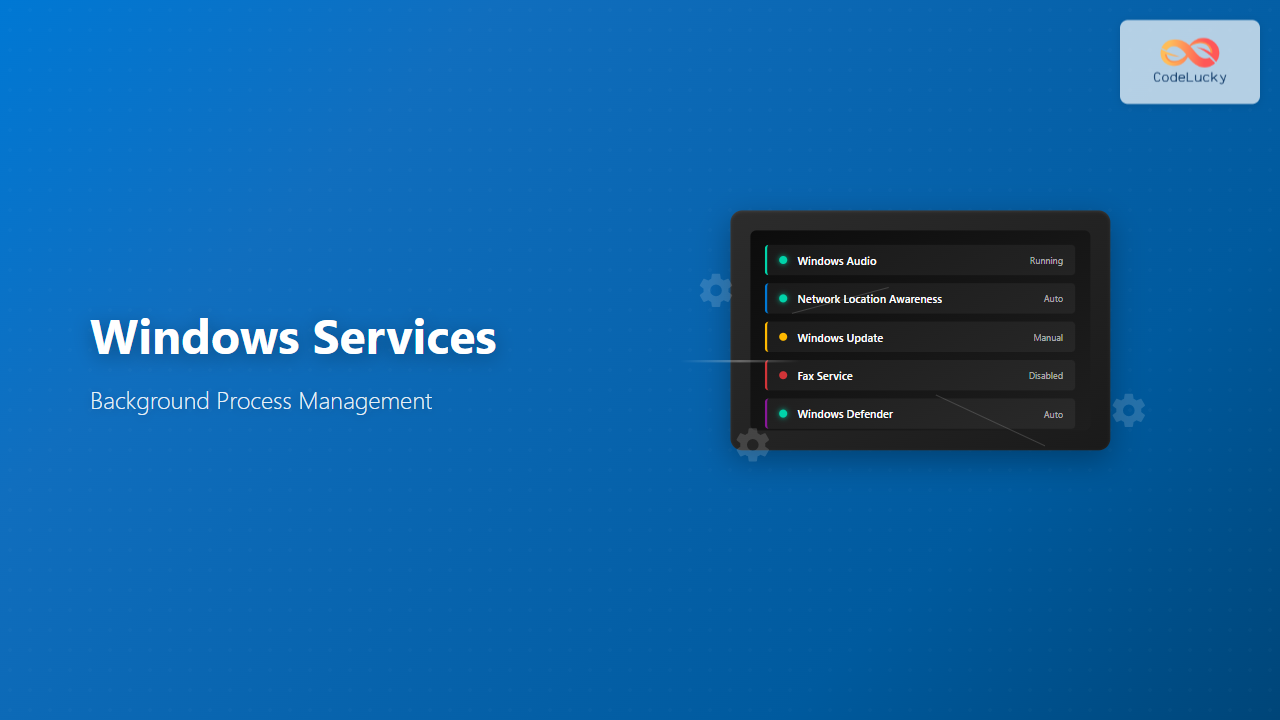
Windows Services form the backbone of the Windows operating system, running silently in the background to provide essential functionality that keeps your system operational. These background processes handle everything from network connectivity and security to system updates and hardware management, operating independently of user interaction.
Understanding Windows Services is crucial for system administrators, developers, and power users who want to optimize system performance, troubleshoot issues, or develop robust applications. This comprehensive guide explores every aspect of Windows Services, from basic concepts to advanced management techniques.
What Are Windows Services?
Windows Services are specialized programs designed to run continuously in the background without requiring user intervention. Unlike regular applications that depend on user interaction, services operate at the system level and can start automatically when Windows boots, even before any user logs in.
These services provide critical system functionality such as:
- Network Services: Managing network connections, DHCP, DNS resolution
- Security Services: Windows Defender, firewall management, certificate services
- Hardware Services: Device drivers, print spoolers, audio services
- System Services: Event logging, task scheduling, Windows Update
- Application Services: Database servers, web servers, custom business applications

Service Control Manager (SCM)
The Service Control Manager (SCM) acts as the central authority for managing all Windows Services. This system component is responsible for starting, stopping, and monitoring services throughout their lifecycle.
SCM Responsibilities
- Service Registration: Maintains a registry of all installed services
- Lifecycle Management: Controls service startup, shutdown, and state transitions
- Dependency Resolution: Ensures services start in the correct order based on dependencies
- Error Handling: Manages service failures and recovery actions
- Security Enforcement: Applies service-specific security policies and permissions
The SCM stores service configuration information in the Windows Registry under the key HKEY_LOCAL_MACHINE\SYSTEM\CurrentControlSet\Services.
Types of Windows Services
Windows Services can be categorized based on their execution model and hosting mechanism:
Service Types by Execution Model
| Service Type | Description | Example |
|---|---|---|
| Win32 Own Process | Runs in its own dedicated process | Windows Defender Antivirus Service |
| Win32 Share Process | Shares a process with other services | Multiple services in svchost.exe |
| Kernel Driver | Runs at kernel level for hardware access | Disk drivers, network adapters |
| File System Driver | Provides file system functionality | NTFS, FAT32 drivers |
Service Host Processes
Many Windows services run within shared host processes to optimize resource usage:
- svchost.exe: Hosts multiple related services in grouped processes
- Local System: High-privilege services requiring full system access
- Local Service: Limited privilege services for basic functionality
- Network Service: Services requiring network access with limited local privileges
Service States and Lifecycle
Windows Services transition through various states during their operational lifecycle. Understanding these states is essential for effective service management.

Service State Descriptions
- Stopped: Service is not running and consumes no system resources
- Start Pending: Service is in the process of starting up
- Running: Service is actively executing and providing functionality
- Stop Pending: Service is in the process of shutting down
- Pause Pending: Service is being paused but remains loaded in memory
- Paused: Service is loaded but temporarily inactive
- Continue Pending: Service is resuming from paused state
Service Startup Types
Windows Services can be configured with different startup behaviors to control when and how they initialize:
| Startup Type | Description | Use Cases |
|---|---|---|
| Automatic | Starts automatically when Windows boots | Essential system services, security services |
| Automatic (Delayed Start) | Starts after initial boot process completes | Non-critical services that can wait |
| Manual | Starts only when explicitly requested | On-demand services, diagnostic tools |
| Disabled | Prevented from starting | Unused services, security hardening |
Managing Windows Services
Services Management Console (services.msc)
The Services Management Console provides a comprehensive graphical interface for managing Windows Services:
- Press Windows + R to open Run dialog
- Type
services.mscand press Enter - The Services console displays all installed services with their current status
Key columns in the Services console:
- Name: Service display name
- Description: Brief explanation of service functionality
- Status: Current operational state
- Startup Type: How the service is configured to start
- Log On As: Security context under which the service runs
Command-Line Service Management
PowerShell and Command Prompt provide powerful tools for service management automation:
PowerShell Service Commands
# Get all services
Get-Service

# Get specific service
Get-Service -Name "Spooler"

# Start a service
Start-Service -Name "Spooler"

# Stop a service
Stop-Service -Name "Spooler"

# Restart a service
Restart-Service -Name "Spooler"

# Get service status with detailed information
Get-Service -Name "Spooler" | Format-List *

# Set service startup type
Set-Service -Name "Spooler" -StartupType Manual
SC Command Examples
# Query service configuration
sc query Spooler

# Start a service
sc start Spooler

# Stop a service
sc stop Spooler

# Configure service startup type
sc config Spooler start= manual

# Query service dependencies
sc enumdepend Spooler
Service Dependencies and Relationships
Windows Services often depend on other services or system components to function correctly. The Service Control Manager manages these dependencies to ensure proper startup order and system stability.

Managing Service Dependencies
Understanding service dependencies is crucial for troubleshooting and system optimization:
- Dependency Chains: Services may depend on multiple other services
- Circular Dependencies: Must be avoided to prevent startup failures
- Group Dependencies: Services can depend on service groups rather than individual services
- Driver Dependencies: Services may require specific drivers to be loaded first
Viewing Dependencies
# PowerShell: Get service dependencies
Get-Service -Name "Spooler" -RequiredServices
Get-Service -Name "Spooler" -DependentServices

# Command Prompt: SC command
sc enumdepend Spooler
sc qc Spooler
Service Security and Permissions
Windows Services operate under specific security contexts that determine their access rights and capabilities:
Service Account Types
| Account Type | Privileges | Security Level | Use Cases |
|---|---|---|---|
| Local System | Full system access | Highest | Core system services |
| Local Service | Limited local access | Medium | Local functionality services |
| Network Service | Network access with limited local rights | Medium | Network-enabled services |
| Custom Account | User-defined privileges | Configurable | Application-specific services |
Service Hardening
Modern Windows versions implement service hardening features to improve security:
- Service SIDs: Each service gets a unique Security Identifier
- Restricted Tokens: Services run with limited privilege tokens
- Session Isolation: Services run in Session 0, isolated from user sessions
- Write Restrictions: Limited ability to modify system files and registry
Service Monitoring and Troubleshooting
Event Logging
Windows Services generate extensive logging information that can be viewed through Event Viewer:
- Open Event Viewer (
eventvwr.msc) - Navigate to Windows Logs → System
- Filter events by source or service name
- Check Application logs for service-specific errors
Common Event Log Locations
- System Log: Service start/stop events, SCM messages
- Application Log: Service-specific application events
- Security Log: Service logon events and security-related activities
- Custom Logs: Application-specific service logs
Performance Monitoring
Monitor service performance using built-in Windows tools:
Task Manager Service Monitoring
- Open Task Manager (Ctrl + Shift + Esc)
- Navigate to Services tab
- Monitor CPU and memory usage
- Right-click services for management options
Resource Monitor
# Open Resource Monitor
resmon

# Monitor specific service process
# Navigate to Overview tab
# Expand processes related to services
Creating Custom Windows Services
Developers can create custom Windows Services using various programming languages and frameworks:
Service Development Requirements
- Service Control Handler: Responds to SCM control messages
- Service Main Function: Entry point for service execution
- Service Registration: Proper registration with SCM
- Error Handling: Robust error management and logging
- Resource Management: Proper cleanup of resources
Service Installation and Configuration
Custom services require proper installation and configuration:
Service Installation Commands
# Install service using SC
sc create MyService binPath= "C:\Path\To\Service.exe"

# Configure service parameters
sc config MyService start= auto
sc config MyService obj= "LocalSystem"
sc description MyService "Custom service description"

# Start the service
sc start MyService

# Remove service
sc delete MyService
Best Practices for Service Management

Security Best Practices
- Principle of Least Privilege: Run services with minimum required permissions
- Service Account Isolation: Use dedicated service accounts for critical applications
- Regular Updates: Keep services and their dependencies updated
- Network Restrictions: Limit network access for services that don’t require it
- Audit Configuration: Enable auditing for sensitive service operations
Performance Optimization
- Selective Startup: Disable unnecessary services to improve boot time
- Delayed Start: Use delayed automatic startup for non-critical services
- Resource Monitoring: Regularly monitor service resource consumption
- Memory Management: Ensure services properly manage memory allocation
- Thread Management: Optimize thread usage in multithreaded services
Reliability and Recovery
- Recovery Actions: Configure automatic restart for critical services
- Dependency Planning: Carefully plan service dependencies
- Error Logging: Implement comprehensive error logging
- Graceful Shutdown: Ensure services handle shutdown signals properly
- State Persistence: Save critical state information for recovery
Advanced Service Management Techniques
Group Policy Integration
Enterprise environments can manage services through Group Policy:
- Service Configuration: Centrally configure service startup types
- Security Settings: Apply consistent security policies
- Service Restrictions: Prevent unauthorized service installation
- Audit Policies: Configure service-related audit settings
WMI Service Management
Windows Management Instrumentation (WMI) provides programmatic access to service management:
# PowerShell WMI examples
Get-WmiObject -Class Win32_Service | Where-Object {$_.State -eq "Running"}
Get-WmiObject -Class Win32_Service -Filter "Name='Spooler'"

# Start service via WMI
(Get-WmiObject -Class Win32_Service -Filter "Name='Spooler'").StartService()

# Stop service via WMI
(Get-WmiObject -Class Win32_Service -Filter "Name='Spooler'").StopService()
Common Service Issues and Solutions
Service Startup Failures
Common causes and solutions for service startup problems:
- Dependency Issues: Check that all required services are running
- Permission Problems: Verify service account has necessary privileges
- Missing Files: Ensure service executable and dependencies exist
- Configuration Errors: Review service configuration parameters
- Port Conflicts: Check for port conflicts with other services
Performance Issues
- High CPU Usage: Analyze service processes for inefficient code
- Memory Leaks: Monitor memory usage trends over time
- Disk I/O Problems: Check for excessive disk operations
- Network Bottlenecks: Analyze network communication patterns
Recovery Strategies
- Automatic Restart: Configure service recovery options
- Safe Mode Recovery: Use safe mode for critical service issues
- System Restore: Roll back to previous working state
- Registry Backup: Maintain service configuration backups
Conclusion
Windows Services are fundamental components that enable robust, scalable system operations. Mastering service management is essential for maintaining optimal system performance, ensuring security, and troubleshooting issues effectively.
Key takeaways from this comprehensive guide:
- Understanding service types, states, and lifecycle enables better system management
- Proper security configuration protects against threats and unauthorized access
- Regular monitoring and maintenance prevent issues before they impact operations
- Following best practices ensures reliable, secure, and efficient service operations
- Advanced management techniques provide powerful tools for enterprise environments
Whether you’re a system administrator managing enterprise infrastructure, a developer creating custom services, or a power user optimizing system performance, this knowledge forms the foundation for effective Windows system management. Continue exploring advanced topics like service clustering, failover configurations, and integration with cloud services to further enhance your expertise.
Regular practice with the tools and techniques covered in this guide will build confidence and competence in managing Windows Services effectively. Remember that service management is an ongoing process that requires attention to security updates, performance optimization, and proactive monitoring to maintain optimal system health.
Related Posts
Windows Process Management: Complete Guide to Task Manager and Services
Windows process management is a fundamental aspect of system administration that every IT professional and power user should master. At...
Windows Operating System: Complete Guide to Architecture and Core Components
The Windows Operating System stands as one of the most widely used operating systems globally, powering billions of devices from...

systemd Linux: Complete Guide to System and Service Manager
systemd is a powerful system and service manager that has become the default init system for most modern Linux distributions....
runit Linux: Complete Guide to Unix Init Scheme with Service Supervision
runit is a lightweight, cross-platform Unix init scheme with service supervision that provides a reliable alternative to traditional init systems....
Operating System Functions: Core Components and System Responsibilities
An operating system (OS) serves as the fundamental software layer that manages computer hardware resources and provides essential services to...

sv Command Linux: Master Runit Service Control and Management
The sv command is a powerful utility in Linux systems that serves as the primary interface for controlling services managed...
service Command Linux: Complete Guide to Managing System Services
The service command is a fundamental tool in Linux system administration that allows you to manage system services and daemons...

launchd Linux: Understanding the Service Management Framework for System Administrators
The launchd service management framework has become an essential tool for Linux system administrators who need robust process and service...

Process Scheduling in Operating System: Algorithms, Types & Implementation Guide
Process scheduling is one of the most critical components of an operating system that determines how the CPU time is...
Embedded Operating System: Complete Guide to Resource-Constrained Environments
Embedded operating systems form the backbone of countless devices we interact with daily, from smart home appliances to automotive control...
upstart Linux: Complete Guide to Event-Based System Initialization
The upstart initialization system revolutionized Linux system startup processes by introducing event-based service management. Unlike traditional SysV init systems that...
Intrusion Detection System: Complete Guide to OS-Level Security Monitoring
Understanding Intrusion Detection Systems An Intrusion Detection System (IDS) is a critical security tool that monitors network traffic and system...