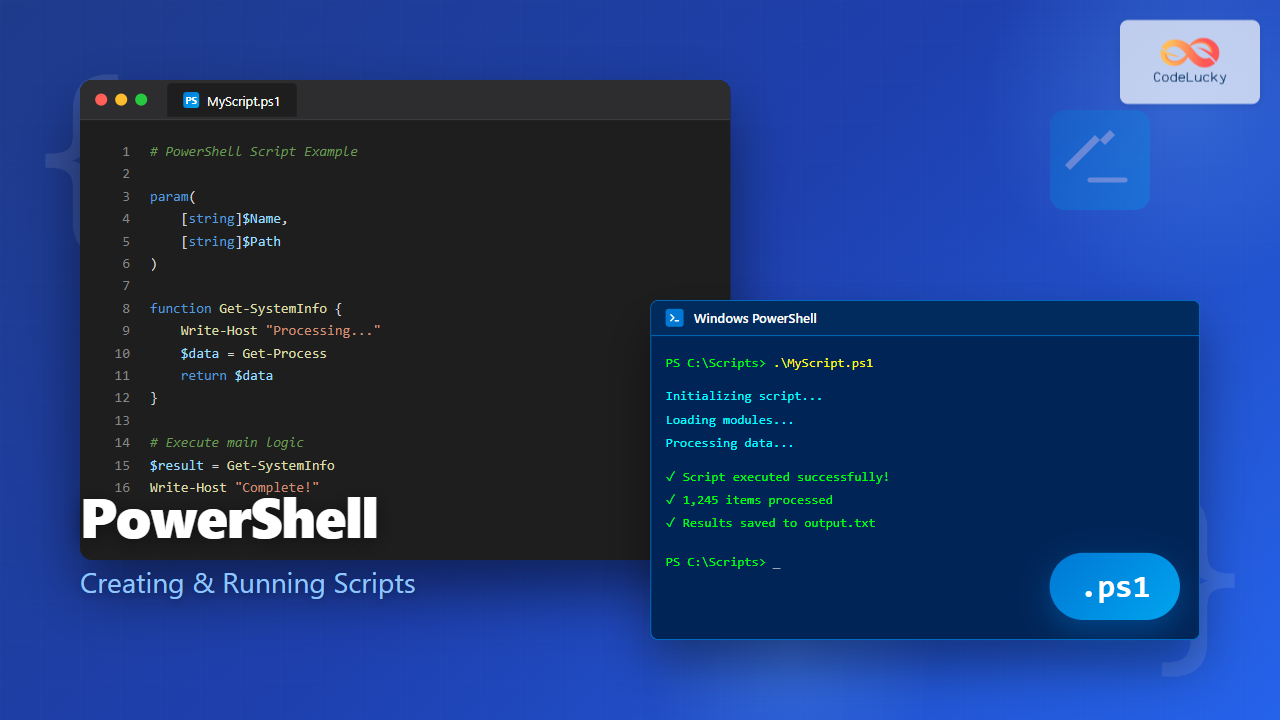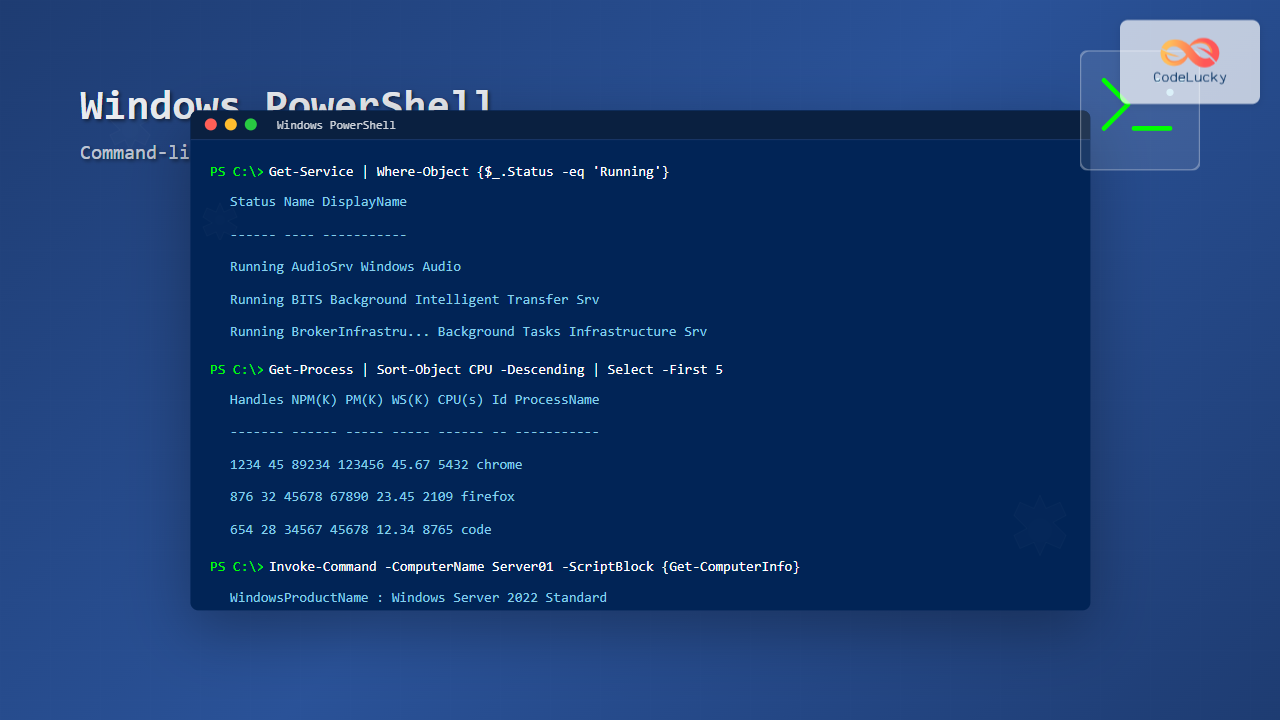
Windows PowerShell stands as Microsoft’s most powerful command-line interface and scripting environment, revolutionizing how administrators manage Windows systems. Built on the .NET Framework, PowerShell transcends traditional command-line limitations by working with .NET objects rather than plain text, making it an indispensable tool for modern system administration.
What is Windows PowerShell?
Windows PowerShell is an object-oriented automation engine and scripting language designed specifically for system administration tasks. Unlike traditional command-line interfaces that work with text streams, PowerShell manipulates .NET objects, providing unprecedented control over Windows systems and applications.

Key Features of PowerShell
- Object-Based Pipeline: Commands pass .NET objects instead of text
- Extensive Cmdlet Library: Over 200 built-in commands
- Remote Management: Execute commands on remote systems
- Scripting Capabilities: Create complex automation scripts
- Integration: Seamless integration with Windows and .NET
PowerShell Architecture and Components
Understanding PowerShell’s architecture is crucial for effective administration. The system consists of several key components working together to provide a comprehensive management environment.

Core Components
PowerShell Engine: The core runtime that processes commands and manages the execution environment.
Cmdlets (Command-lets): Specialized .NET classes that perform specific operations. They follow a verb-noun naming convention like Get-Process or Set-Location.
Providers: Adapt data stores to look like file systems, enabling uniform access to different data sources.
PowerShell ISE: Integrated Scripting Environment for developing and testing scripts.
Getting Started with PowerShell
PowerShell comes pre-installed on Windows systems. You can access it through multiple methods:
- Search for “PowerShell” in the Start menu
- Press
Win + R, typepowershell, and press Enter - Right-click the Start button and select “Windows PowerShell”
Basic PowerShell Syntax
PowerShell commands follow a consistent verb-noun pattern. Here are fundamental examples:
# Get list of running processes
Get-Process

# Get information about a specific service
Get-Service -Name "Spooler"

# List files in current directory
Get-ChildItem

# Get system information
Get-ComputerInfo
Expected Output for Get-Process:
Handles  NPM(K)    PM(K)      WS(K)     CPU(s)     Id  SI ProcessName
-------  ------    -----      -----     ------     --  -- -----------
    794      32    18476      25172       1.23   1234   1 chrome
    456      18     8932      12456       0.45   5678   1 notepad
    234      12     4567       6789       0.12   9101   0 svchost
Essential PowerShell Cmdlets
Mastering core cmdlets forms the foundation of PowerShell proficiency. These commands handle the most common administrative tasks.
Information Gathering Cmdlets
# System information
Get-ComputerInfo | Select-Object WindowsProductName, TotalPhysicalMemory

# Disk space information
Get-WmiObject -Class Win32_LogicalDisk | Select-Object DeviceID, Size, FreeSpace

# Network configuration
Get-NetIPConfiguration

# Installed programs
Get-WmiObject -Class Win32_Product | Select-Object Name, Version
File and Directory Management
# Navigate directories
Set-Location C:\Windows
Get-Location

# Create new directory
New-Item -ItemType Directory -Path "C:\Temp\PowerShellTest"

# Copy files
Copy-Item -Path "C:\Source\*" -Destination "C:\Destination\" -Recurse

# Remove files
Remove-Item -Path "C:\Temp\oldfile.txt" -Force
Sample Output for Get-ChildItem:
Directory: C:\Windows

Mode                LastWriteTime         Length Name
----                -------------         ------ ----
d-----        8/15/2025   2:30 PM                System32
d-----        8/10/2025   9:15 AM                Temp
-a----        7/20/2025   4:45 PM           1024 notepad.exe
-a----        7/18/2025  11:30 AM           2048 regedit.exe
Working with Services and Processes
System administrators frequently manage services and processes. PowerShell provides comprehensive cmdlets for these tasks.
Service Management
# List all services
Get-Service

# Get specific service status
Get-Service -Name "Windows Update"

# Start a service
Start-Service -Name "Spooler"

# Stop a service
Stop-Service -Name "Fax" -Force

# Set service startup type
Set-Service -Name "Themes" -StartupType Automatic
Process Management
# Get processes by name
Get-Process -Name "chrome"

# Get processes using most CPU
Get-Process | Sort-Object CPU -Descending | Select-Object -First 5

# Stop a process
Stop-Process -Name "notepad" -Force

# Start a new process
Start-Process -FilePath "notepad.exe" -ArgumentList "C:\temp\file.txt"

PowerShell Pipeline and Object Manipulation
The pipeline is PowerShell’s most powerful feature, allowing you to chain commands together and manipulate data efficiently.
Pipeline Basics
# Basic pipeline example
Get-Process | Where-Object {$_.CPU -gt 10} | Sort-Object CPU -Descending

# Select specific properties
Get-Service | Select-Object Name, Status, StartType

# Filter and format output
Get-EventLog -LogName System -Newest 10 | Format-Table TimeGenerated, EntryType, Message -AutoSize
Advanced Object Manipulation
# Group objects
Get-Process | Group-Object ProcessName | Sort-Object Count -Descending

# Measure objects
Get-ChildItem C:\Windows | Measure-Object -Property Length -Sum -Average

# Export data
Get-Process | Export-Csv -Path "C:\Temp\processes.csv" -NoTypeInformation

# Import data
$processes = Import-Csv -Path "C:\Temp\processes.csv"
Variables and Data Types
PowerShell supports various data types and variable operations essential for scripting and automation.
Variable Declaration and Usage
# Simple variables
$computerName = $env:COMPUTERNAME
$currentDate = Get-Date
$serviceCount = (Get-Service).Count

# Arrays
$services = @("Spooler", "Themes", "AudioSrv")
$numbers = 1,2,3,4,5

# Hash tables
$userInfo = @{
    Name = "John Doe"
    Email = "[email protected]"
    Department = "IT"
}

# Display variables
Write-Host "Computer: $computerName"
Write-Host "Date: $currentDate"
Write-Host "Services: $serviceCount"
Working with Different Data Types
# String operations
$text = "PowerShell Administration"
$text.ToUpper()
$text.Replace("Administration", "Automation")

# Numeric operations
$num1 = 100
$num2 = 50
$result = $num1 + $num2

# DateTime operations
$now = Get-Date
$tomorrow = $now.AddDays(1)
$formatted = $now.ToString("yyyy-MM-dd HH:mm:ss")
Control Structures and Scripting
PowerShell supports standard programming constructs for creating sophisticated automation scripts.
Conditional Statements
# If-else statement
$diskSpace = (Get-WmiObject -Class Win32_LogicalDisk -Filter "DeviceID='C:'").FreeSpace / 1GB

if ($diskSpace -lt 10) {
    Write-Warning "Low disk space: $([math]::Round($diskSpace, 2)) GB remaining"
} elseif ($diskSpace -lt 20) {
    Write-Host "Moderate disk space: $([math]::Round($diskSpace, 2)) GB remaining" -ForegroundColor Yellow
} else {
    Write-Host "Sufficient disk space: $([math]::Round($diskSpace, 2)) GB remaining" -ForegroundColor Green
}
Loops
# ForEach loop
$services = @("Spooler", "Themes", "AudioSrv")
foreach ($service in $services) {
    $status = (Get-Service -Name $service).Status
    Write-Host "$service is $status"
}

# While loop
$counter = 1
while ($counter -le 5) {
    Write-Host "Count: $counter"
    $counter++
}

# For loop
for ($i = 1; $i -le 10; $i++) {
    if ($i % 2 -eq 0) {
        Write-Host "$i is even"
    }
}

Functions and Advanced Scripting
Functions enable code reusability and better organization in PowerShell scripts.
Creating Functions
# Basic function
function Get-SystemInfo {
    param(
        [Parameter(Mandatory=$false)]
        [string]$ComputerName = $env:COMPUTERNAME
    )

    $info = Get-ComputerInfo -ComputerName $ComputerName

    return @{
        ComputerName = $info.CsName
        OS = $info.WindowsProductName
        Memory = [math]::Round($info.TotalPhysicalMemory / 1GB, 2)
        Processor = $info.CsProcessors[0].Name
    }
}

# Advanced function with error handling
function Test-ServiceHealth {
    param(
        [Parameter(Mandatory=$true)]
        [string[]]$ServiceNames
    )

    $results = @()

    foreach ($serviceName in $ServiceNames) {
        try {
            $service = Get-Service -Name $serviceName -ErrorAction Stop
            $results += [PSCustomObject]@{
                Name = $service.Name
                Status = $service.Status
                StartType = $service.StartType
                Health = if ($service.Status -eq 'Running') { 'Healthy' } else { 'Unhealthy' }
            }
        }
        catch {
            $results += [PSCustomObject]@{
                Name = $serviceName
                Status = 'Not Found'
                StartType = 'Unknown'
                Health = 'Error'
            }
        }
    }

    return $results
}
Remote Administration with PowerShell
PowerShell’s remote capabilities enable administrators to manage multiple systems efficiently from a central location.
Setting Up PowerShell Remoting
# Enable PowerShell remoting (run as administrator)
Enable-PSRemoting -Force

# Configure trusted hosts (if needed)
Set-Item WSMan:\localhost\Client\TrustedHosts -Value "192.168.1.*" -Force

# Test connectivity
Test-WSMan -ComputerName "RemoteComputer"
Remote Command Execution
# Execute single command remotely
Invoke-Command -ComputerName "Server01" -ScriptBlock { Get-Service }

# Execute multiple commands
Invoke-Command -ComputerName "Server01", "Server02" -ScriptBlock {
    Get-Process | Where-Object { $_.CPU -gt 10 }
    Get-EventLog -LogName System -Newest 5
}

# Persistent sessions
$session = New-PSSession -ComputerName "Server01"
Invoke-Command -Session $session -ScriptBlock { $env:COMPUTERNAME }
Remove-PSSession $session
Error Handling and Debugging
Robust error handling ensures reliable script execution and easier troubleshooting.
Try-Catch-Finally Blocks
# Basic error handling
try {
    $service = Get-Service -Name "NonExistentService" -ErrorAction Stop
    Write-Host "Service found: $($service.Name)"
}
catch {
    Write-Error "Error occurred: $($_.Exception.Message)"
    # Log error to file
    $_ | Out-File -FilePath "C:\Logs\errors.log" -Append
}
finally {
    Write-Host "Cleanup operations completed"
}

# Advanced error handling with specific exception types
try {
    $result = 10 / 0
}
catch [System.DivideByZeroException] {
    Write-Host "Cannot divide by zero" -ForegroundColor Red
}
catch {
    Write-Host "An unexpected error occurred: $($_.Exception.GetType().Name)"
}
Debugging Techniques
# Set breakpoints and debug
Set-PSBreakpoint -Script "C:\Scripts\MyScript.ps1" -Line 10

# Verbose and debug output
Write-Verbose "Processing user data..." -Verbose
Write-Debug "Variable value: $userCount"

# Execution policy and script signing
Get-ExecutionPolicy
Set-ExecutionPolicy -ExecutionPolicy RemoteSigned -Scope CurrentUser

PowerShell Modules and Snap-ins
Modules extend PowerShell functionality, providing specialized cmdlets for specific tasks.
Working with Modules
# List available modules
Get-Module -ListAvailable

# Import a module
Import-Module ActiveDirectory

# Find modules online
Find-Module -Name "*Azure*"

# Install modules from PowerShell Gallery
Install-Module -Name AzureRM -Force

# Get module commands
Get-Command -Module ActiveDirectory
Creating Custom Modules
# Create a simple module file (SystemUtils.psm1)
function Get-DiskUsage {
    param([string]$DriveLetter = "C")

    $disk = Get-WmiObject -Class Win32_LogicalDisk -Filter "DeviceID='$DriveLetter`:'"

    return [PSCustomObject]@{
        Drive = $disk.DeviceID
        TotalSize = [math]::Round($disk.Size / 1GB, 2)
        FreeSpace = [math]::Round($disk.FreeSpace / 1GB, 2)
        UsedSpace = [math]::Round(($disk.Size - $disk.FreeSpace) / 1GB, 2)
        PercentFree = [math]::Round(($disk.FreeSpace / $disk.Size) * 100, 2)
    }
}

# Import and use the custom module
Import-Module .\SystemUtils.psm1
Get-DiskUsage -DriveLetter "C"
Best Practices and Performance Optimization
Following PowerShell best practices ensures maintainable, secure, and efficient scripts.
Scripting Best Practices
- Use approved verbs: Follow Get-Verb output for function naming
- Parameter validation: Implement proper parameter validation
- Error handling: Always include appropriate error handling
- Documentation: Use comment-based help for functions
- Security: Avoid hardcoded credentials and sensitive data
# Example of well-structured function with help
<#
.SYNOPSIS
    Gets system health information for specified computers.

.DESCRIPTION
    This function retrieves comprehensive health information including
    disk space, memory usage, and critical services status.

.PARAMETER ComputerName
    One or more computer names to check. Defaults to local computer.

.PARAMETER IncludeServices
    Specify whether to include service status in the report.

.EXAMPLE
    Get-SystemHealth -ComputerName "Server01" -IncludeServices

.NOTES
    Requires administrative privileges for remote computers.
#>
function Get-SystemHealth {
    [CmdletBinding()]
    param(
        [Parameter(ValueFromPipeline=$true)]
        [ValidateNotNullOrEmpty()]
        [string[]]$ComputerName = $env:COMPUTERNAME,

        [switch]$IncludeServices
    )

    process {
        foreach ($computer in $ComputerName) {
            try {
                # Implementation here
                Write-Verbose "Processing $computer"
            }
            catch {
                Write-Error "Failed to process $computer`: $($_.Exception.Message)"
            }
        }
    }
}
Performance Optimization Tips
# Use efficient cmdlets
# Instead of: Get-WmiObject Win32_Process
# Use: Get-Process

# Filter early in pipeline
Get-Process | Where-Object {$_.Name -eq "chrome"}

# Use -Filter parameter when available
Get-EventLog -LogName System -After (Get-Date).AddDays(-1)

# Avoid unnecessary object creation
# Instead of: Get-Process | Select-Object Name | ForEach-Object {$_.Name}
# Use: (Get-Process).Name
Conclusion
Windows PowerShell represents a paradigm shift in system administration, offering unprecedented control and automation capabilities. From basic file management to complex enterprise automation, PowerShell’s object-oriented approach and extensive cmdlet library make it an essential tool for modern IT professionals.
By mastering the concepts covered in this guide—from basic cmdlets and pipeline operations to advanced scripting and remote management—administrators can significantly improve their efficiency and system management capabilities. The key to PowerShell proficiency lies in understanding its object-oriented nature and leveraging the pipeline for complex data manipulation tasks.
As you continue your PowerShell journey, remember that practice and experimentation are crucial. Start with simple tasks, gradually building complexity as you become more comfortable with the syntax and concepts. The investment in learning PowerShell will pay dividends in your system administration career, enabling you to automate repetitive tasks and manage systems at scale with confidence and precision.