
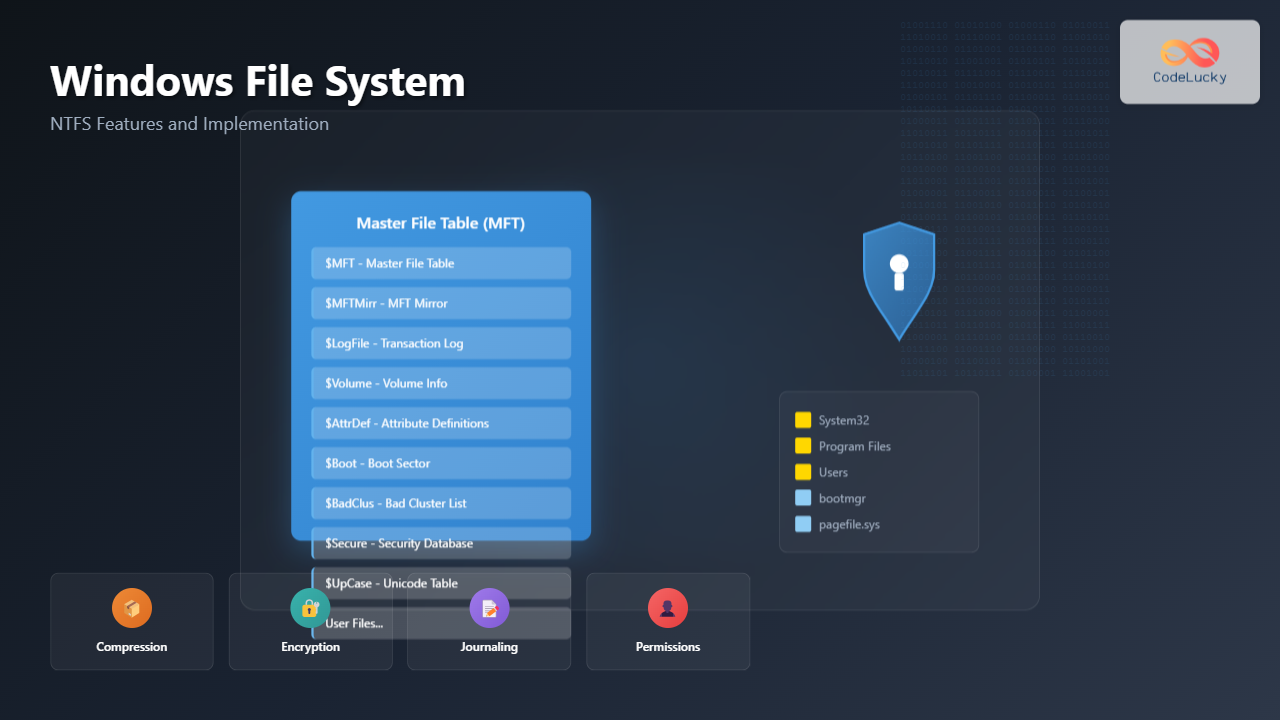
Introduction to NTFS File System
NTFS (New Technology File System) is the default file system for modern Windows operating systems, providing advanced features like security permissions, file compression, encryption, and journaling. Introduced with Windows NT 3.1 in 1993, NTFS has evolved to become one of the most robust and feature-rich file systems available today.
Understanding NTFS is crucial for system administrators, developers, and power users who need to manage Windows environments effectively. This comprehensive guide explores NTFS architecture, features, and practical implementation techniques.
NTFS Architecture and Core Components
NTFS uses a sophisticated architecture based on the Master File Table (MFT), which serves as the central database for all file and directory information on the volume.

Master File Table Structure
The MFT contains a record for every file and directory on the NTFS volume. Each MFT entry is typically 1024 bytes in size and contains attributes that describe the file’s properties, data location, and security information.
# View MFT information using PowerShell
Get-WmiObject -Class Win32_Volume | Where-Object {$_.FileSystem -eq "NTFS"} |
Select-Object Label, Capacity, FreeSpace, FileSystem

# Output example:
Label    Capacity      FreeSpace     FileSystem
-----    --------      ---------     ----------
System   536870912000  128849018880  NTFS
Data     1000204886016 456789123456  NTFS
Key NTFS Features and Benefits
1. Security and Access Control Lists (ACLs)
NTFS security provides granular file and folder permissions through Access Control Lists. Each file and directory has a security descriptor containing:
- Discretionary Access Control List (DACL) – Controls user and group access
- System Access Control List (SACL) – Defines auditing policies
- Owner Security Identifier (SID) – Identifies the file owner
# View file permissions using icacls command
icacls "C:\Important\document.txt"

# Output example:
C:\Important\document.txt NT AUTHORITY\SYSTEM:(F)
                         BUILTIN\Administrators:(F)
                         DOMAIN\User1:(M)
                         DOMAIN\User2:(R)

# Permission codes:
# F = Full Control, M = Modify, R = Read, W = Write
2. File Compression and Encryption
NTFS supports transparent file compression and Encrypting File System (EFS) for data protection:
# Enable compression on a folder
compact /c /s:"C:\CompressedFolder" /i

# Enable encryption on a file
cipher /e "C:\SecureFolder\confidential.doc"

# View compression and encryption status
Get-ChildItem "C:\TestFolder" | Select-Object Name, Attributes, Length

3. Journaling and Transaction Logging
NTFS maintains a transaction log ($LogFile) that records all file system changes before they occur, ensuring data integrity even during unexpected shutdowns.
# Check file system integrity
chkdsk C: /f /r

# View transaction log information
fsutil fsinfo ntfsinfo C:
Advanced NTFS Features
Alternate Data Streams (ADS)
Alternate Data Streams allow multiple data streams to be associated with a single file, providing a way to store metadata or additional information without modifying the main file content.
# Create an alternate data stream
echo "Hidden metadata" > file.txt:metadata

# View alternate data streams
dir /r file.txt

# Read from alternate data stream
more < file.txt:metadata
Hard Links and Junction Points
NTFS supports multiple types of links that provide flexible file system navigation:
- Hard Links – Multiple directory entries pointing to the same file data
- Symbolic Links – Pointer files that redirect to another location
- Junction Points – Directory symbolic links
# Create a hard link
mklink /H "hardlink.txt" "original.txt"

# Create a symbolic link
mklink "symlink.txt" "C:\Path\To\original.txt"

# Create a junction point
mklink /J "JunctionFolder" "C:\Target\Directory"

NTFS Disk Space Management
Cluster Size Optimization
NTFS uses clusters as the smallest unit of disk allocation. Choosing the right cluster size affects storage efficiency and performance:
| Volume Size | Default Cluster Size | Recommended Use |
|---|---|---|
| Up to 512 MB | 512 bytes | Small files, embedded systems |
| 513 MB – 1 GB | 1 KB | General purpose |
| 1 GB – 2 GB | 2 KB | Mixed file sizes |
| 2 GB – 2 TB | 4 KB | Standard desktop/server |
| 2 TB+ | 4 KB – 64 KB | Large files, databases |
Volume Quotas and Disk Usage
NTFS provides built-in disk quota management to control user storage consumption:
# Enable disk quotas
fsutil quota enable C:

# Set quota for a user
fsutil quota modify C: 1073741824 2147483648 DOMAIN\Username

# Query quota information
fsutil quota query C: DOMAIN\Username
NTFS Performance Optimization
File System Fragmentation
NTFS includes built-in defragmentation capabilities and automatic optimization features:
# Analyze fragmentation
defrag C: /A

# Defragment the volume
defrag C: /O

# Schedule automatic optimization
schtasks /create /tn "Weekly Defrag" /tr "defrag C: /O" /sc weekly

SSD Optimization with TRIM
Modern NTFS implementations support TRIM commands for SSD optimization:
# Check TRIM support
fsutil behavior query DisableDeleteNotify

# Enable TRIM (0 = enabled, 1 = disabled)
fsutil behavior set DisableDeleteNotify 0

# Manual TRIM operation
Optimize-Volume -DriveLetter C -ReTrim
NTFS Implementation Best Practices
1. Volume Planning and Partitioning
- Separate system and data volumes for better management and performance
- Use appropriate cluster sizes based on typical file sizes
- Reserve 15% free space to prevent excessive fragmentation
2. Security Configuration
# Apply secure permissions to sensitive directories
icacls "C:\Confidential" /inheritance:r
icacls "C:\Confidential" /grant "Administrators:(OI)(CI)F"
icacls "C:\Confidential" /grant "SYSTEM:(OI)(CI)F"
icacls "C:\Confidential" /grant "AuthorizedUsers:(OI)(CI)M"
3. Backup and Recovery Strategy
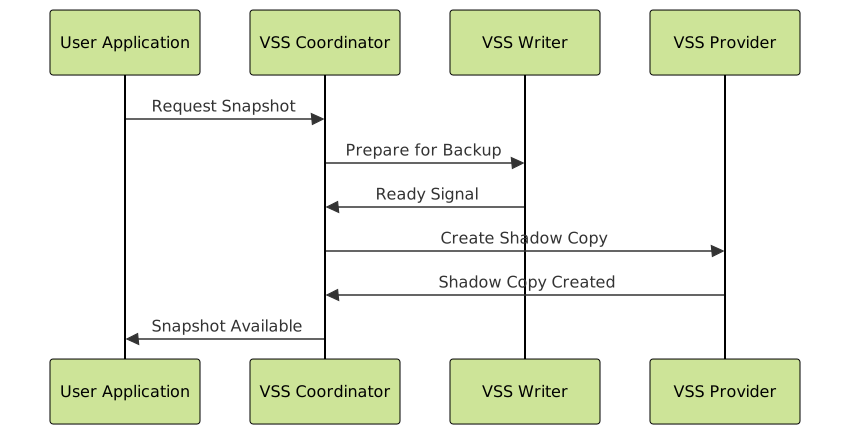
Implement Volume Shadow Copy Service (VSS) for consistent backups:
# Enable shadow copies
vssadmin add shadowstorage /for=C: /on=C: /maxsize=10GB

# Create a shadow copy
vssadmin create shadow /for=C:

# List shadow copies
vssadmin list shadows
Troubleshooting Common NTFS Issues
File System Corruption
Use built-in utilities to diagnose and repair NTFS corruption:
# Check file system integrity
chkdsk C: /f /r /x

# Scan for bad sectors
chkdsk C: /r /scan

# System File Checker
sfc /scannow

# DISM repair
dism /online /cleanup-image /restorehealth
Permission Issues
# Reset permissions to default
icacls "C:\ProblemFolder" /reset /t /c /l

# Take ownership of files
takeown /f "C:\ProblemFolder" /r /d y

# Grant full control to administrators
icacls "C:\ProblemFolder" /grant Administrators:F /t
Future of NTFS and ReFS Comparison
Microsoft’s newer Resilient File System (ReFS) builds upon NTFS foundations while adding enhanced data integrity features:
| Feature | NTFS | ReFS |
|---|---|---|
| Maximum file size | 16 TB | 35 PB |
| Checksums | Limited | Built-in for all data |
| Self-healing | No | Yes (with Storage Spaces) |
| Boot support | Yes | No |
| Compression | Yes | No |
Conclusion
NTFS remains the cornerstone of Windows file systems, offering robust security, advanced features, and reliable performance for desktop and server environments. Understanding its architecture, features, and optimization techniques is essential for effective Windows system administration.
Key takeaways for NTFS implementation:
- Leverage security features with proper ACL configuration
- Optimize performance through appropriate cluster sizing and defragmentation
- Implement comprehensive backup strategies using VSS and regular integrity checks
- Monitor and maintain file system health proactively
As storage requirements continue to evolve, NTFS’s mature feature set and widespread compatibility ensure its continued relevance in modern computing environments, while newer technologies like ReFS prepare for future high-capacity storage scenarios.
Related Posts
File System in Operating System: Complete Guide to Structure and Organization
Introduction to File Systems A file system is a fundamental component of any operating system that provides a structured way...

File System Types: FAT32, NTFS, ext4 and Modern Linux Filesystems Explained
Understanding File Systems: The Foundation of Data Storage A file system is the method and data structure that an operating...
Directory Structure: Single-level, Two-level, and Tree Structure in Operating Systems
Understanding Directory Structures in Operating Systems Directory structures are fundamental components of file systems that organize and manage files in...
File System Implementation: Boot Block, Super Block and Inodes Explained
Understanding File System Implementation File system implementation is a critical component of operating systems that manages how data is stored,...

zfs Command Linux: Complete Guide to ZFS Filesystem Administration
The ZFS (Zettabyte File System) is a revolutionary filesystem that combines traditional filesystem capabilities with logical volume management, RAID functionality,...

Distributed File System: Complete Guide to NFS, CIFS and Network Storage Solutions
A Distributed File System (DFS) allows multiple computers to access and share files over a network as if they were...
File Permissions in Operating System: Complete Guide to Access Control Lists (ACLs)
Introduction to File Permissions and Access Control File permissions form the backbone of operating system security, controlling who can access,...
File Allocation Methods: Contiguous, Linked and Indexed Storage Techniques
Understanding File Allocation Methods in Operating Systems File allocation methods are fundamental techniques used by operating systems to organize and...
Storage Management: Complete Guide to Primary, Secondary and Tertiary Storage Systems
Storage management is one of the most critical components of an operating system, responsible for efficiently organizing, accessing, and maintaining...
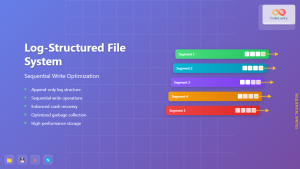
Log-structured File System: Sequential Write Optimization for High-Performance Storage
Log-structured File Systems (LFS) represent a revolutionary approach to data storage that fundamentally changes how operating systems handle file operations....
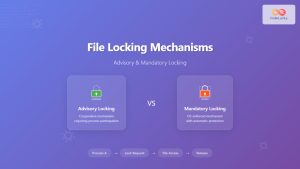
File Locking Mechanisms: Complete Guide to Advisory and Mandatory Locking in Operating Systems
File locking mechanisms are essential components of modern operating systems that prevent data corruption and ensure data integrity when multiple...
Encryption in Operating System: Complete Guide to Data Protection Methods
Operating system encryption serves as the cornerstone of modern data protection, safeguarding sensitive information from unauthorized access, data breaches, and...





