Introduction to Windows Event Logs
Windows Event Logs serve as the comprehensive recording system for all activities, errors, warnings, and informational messages generated by the Windows operating system, applications, and services. These logs are essential for system administrators, IT professionals, and power users who need to monitor system health, diagnose problems, and maintain security compliance.
The Windows Event Log system captures everything from routine system operations to critical security breaches, making it an invaluable resource for both proactive monitoring and reactive troubleshooting. Understanding how to effectively use Event Logs can significantly reduce system downtime and improve overall system reliability.

Understanding Event Log Structure
Core Event Log Categories
Windows organizes events into several primary categories, each serving specific monitoring purposes:
- System Log: Records events related to system components, device drivers, and core Windows services
- Application Log: Contains events generated by applications and programs running on the system
- Security Log: Tracks security-related events including login attempts, privilege usage, and audit events
- Setup Log: Documents installation and configuration activities for Windows components and updates
- Forwarded Events: Stores events collected from remote computers in enterprise environments
Event Types and Severity Levels
Each event entry contains specific information categorized by severity level:
| Event Type | Icon | Description | Action Required |
|---|---|---|---|
| Error | Red X | Significant problems that require immediate attention | Immediate investigation |
| Warning | Yellow Triangle | Potential issues that may cause problems later | Monitor and plan resolution |
| Information | Blue i | Successful operations and routine activities | Review for patterns |
| Success Audit | Key Icon | Successful security access attempts | Regular review for compliance |
| Failure Audit | Lock Icon | Failed security access attempts | Immediate security review |
Accessing Windows Event Logs
Using Event Viewer GUI
The primary tool for accessing Event Logs is the Event Viewer, which provides a comprehensive graphical interface:
Method 1: Start Menu Access
- Press
Windows + Rto open Run dialog - Type
eventvwr.mscand press Enter - Event Viewer opens with expandable tree structure
Method 2: Administrative Tools
- Right-click Start button and select “Computer Management”
- Expand “System Tools” in left panel
- Click “Event Viewer” to access logs
Method 3: Control Panel Route
- Open Control Panel → System and Security → Administrative Tools
- Double-click “Event Viewer” to launch application
Command Line Access with PowerShell
PowerShell provides powerful cmdlets for Event Log management:
# Get all event logs
Get-EventLog -List

# Display recent System events
Get-EventLog -LogName System -Newest 50

# Filter events by specific criteria
Get-EventLog -LogName Application -EntryType Error -After (Get-Date).AddDays(-7)

# Export events to CSV format
Get-EventLog -LogName Security -Newest 100 | Export-Csv -Path "C:\SecurityEvents.csv"
Advanced PowerShell Event Log Queries
For more complex filtering and analysis, use the Get-WinEvent cmdlet:
# Query with hash table filter
Get-WinEvent -FilterHashtable @{LogName='System'; Level=2; StartTime=(Get-Date).AddDays(-1)}

# Use XPath filtering for precise results
Get-WinEvent -FilterXPath "*[System[EventID=1074]]" -LogName System

# Search across multiple logs simultaneously
Get-WinEvent -FilterHashtable @{LogName='System','Application'; Level=1,2,3}

# Export to structured XML format
Get-WinEvent -LogName Application -MaxEvents 1000 | Export-Clixml -Path "C:\AppEvents.xml"
System Monitoring Strategies
Proactive Monitoring Setup
Effective system monitoring requires establishing baseline patterns and implementing automated alerting mechanisms:

Key Performance Indicators in Event Logs
Monitor these critical event IDs for system health assessment:
| Event ID | Source | Description | Monitoring Priority |
|---|---|---|---|
| 1074 | System | System shutdown initiated | High |
| 4625 | Security | Failed login attempt | Critical |
| 4648 | Security | Explicit credential logon | Medium |
| 1001 | Application Error | Application crash | High |
| 7034 | Service Control Manager | Service crashed unexpectedly | High |
Creating Custom Event Log Views
Custom views allow filtering and organizing events based on specific criteria:
- Create New Custom View:
- Right-click “Custom Views” in Event Viewer
- Select “Create Custom View”
- Configure filter criteria (time range, event level, sources)
- Advanced Filtering Options:
- Event logs: Select specific log categories
- Event level: Choose severity levels to include
- Event sources: Filter by specific applications or services
- Keywords: Use XML filtering for complex queries
- Save and Share Views:
- Save custom views for recurring analysis
- Export view definitions for team sharing
- Schedule automated reports based on custom views
Advanced Troubleshooting Techniques
Correlating Events for Root Cause Analysis
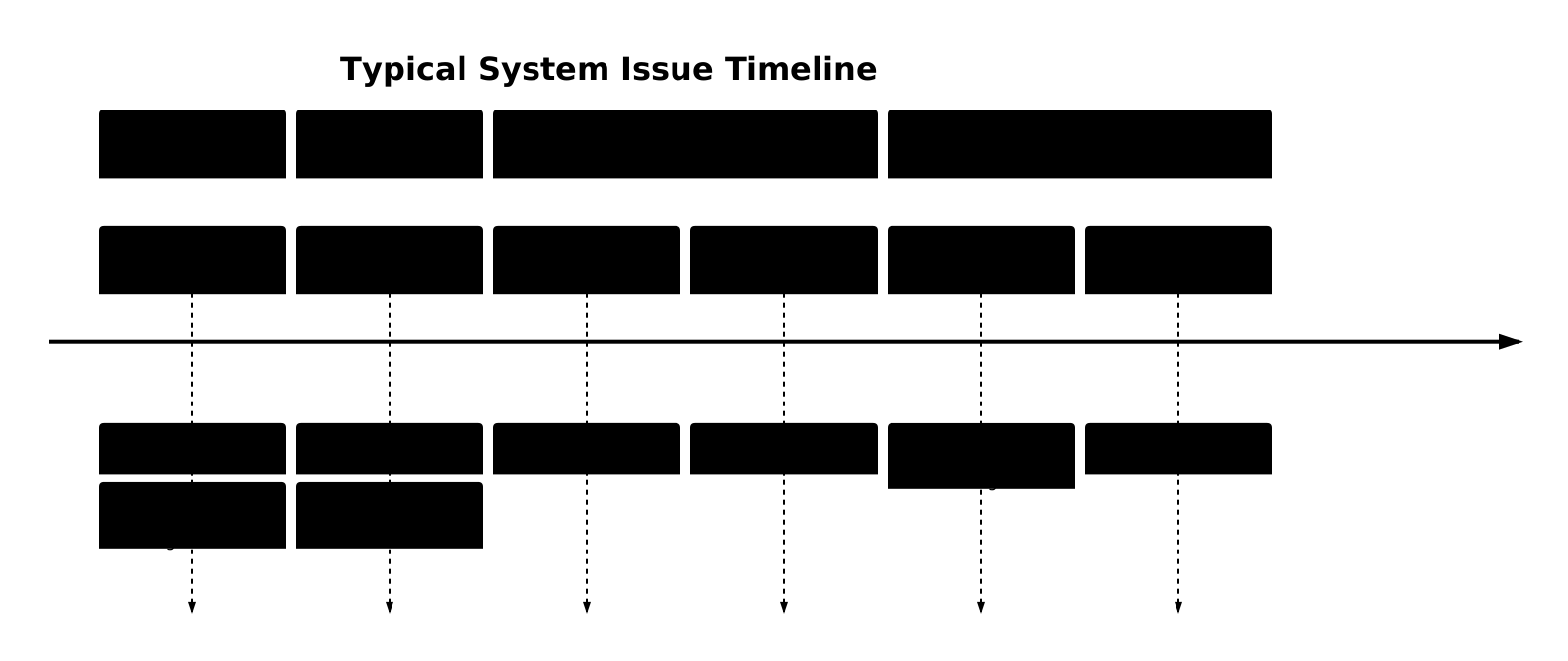
Effective troubleshooting requires understanding event relationships and timing patterns:
Event Log Analysis Workflow
Follow this systematic approach for effective troubleshooting:
- Problem Identification:
- Define the symptom timeline
- Identify affected systems or users
- Determine impact scope
- Event Collection:
- Gather events from relevant time windows
- Include multiple log sources (System, Application, Security)
- Export events for offline analysis
- Pattern Analysis:
- Look for recurring event patterns
- Correlate events across different logs
- Identify sequence of events leading to issues
- Resolution Implementation:
- Apply targeted fixes based on event analysis
- Monitor for resolution confirmation events
- Document solution for future reference
Common Event Log Analysis Scenarios
Scenario 1: System Boot Issues
# Analyze boot-related events
Get-WinEvent -FilterHashtable @{
    LogName='System'
    ID=12,13,6005,6006,6008,6009
    StartTime=(Get-Date).AddDays(-7)
} | Sort-Object TimeCreated
Scenario 2: Security Breach Investigation
# Investigate failed login attempts
Get-WinEvent -FilterHashtable @{
    LogName='Security'
    ID=4625,4648,4771,4776
    StartTime=(Get-Date).AddHours(-24)
} | Group-Object Id | Select-Object Count, Name
Scenario 3: Application Performance Issues
# Find application crashes and hangs
Get-WinEvent -FilterHashtable @{
    LogName='Application'
    ID=1000,1001,1002
    Level=1,2
    StartTime=(Get-Date).AddDays(-3)
} | Group-Object LevelDisplayName, Id
Event Log Management and Maintenance
Log Size and Retention Configuration
Proper log management prevents storage issues and ensures important events aren’t lost:
- Configure Log Size Limits:
- Right-click desired log in Event Viewer
- Select “Properties” to access settings
- Set maximum log size (recommended: 512MB to 1GB)
- Set Retention Policies:
- Overwrite as needed: Default option, overwrites oldest events
- Archive when full: Automatically archives logs when size limit reached
- Manual archive: Requires administrative intervention
- PowerShell Log Management:
# Check current log configuration
Get-WinEvent -ListLog * | Select-Object LogName, FileSize, MaximumSizeInBytes, RecordCount

# Configure log size programmatically
wevtutil sl System /ms:1073741824  # Set System log to 1GB

# Clear specific event log
Clear-EventLog -LogName Application
wevtutil cl Application  # Alternative method
Event Log Archiving and Backup
Implement regular archiving for compliance and historical analysis:
# Export logs in multiple formats
wevtutil epl System C:\Archive\System_$(Get-Date -Format 'yyyyMMdd').evtx
Get-WinEvent -LogName Security -MaxEvents 10000 | Export-Csv C:\Archive\Security_$(Get-Date -Format 'yyyyMMdd').csv

# Automated backup script
$LogNames = @('System', 'Application', 'Security')
$BackupPath = "C:\EventLogBackups\$(Get-Date -Format 'yyyy-MM-dd')"
New-Item -ItemType Directory -Path $BackupPath -Force

foreach ($Log in $LogNames) {
    $FileName = "$BackupPath\$Log`_$(Get-Date -Format 'yyyyMMddHHmm').evtx"
    wevtutil epl $Log $FileName
}
Security Monitoring with Event Logs
Critical Security Events to Monitor
Security-focused event monitoring helps detect potential threats and maintain compliance:
| Event ID | Description | Risk Level | Response Action |
|---|---|---|---|
| 4624 | Successful account logon | Low | Baseline monitoring |
| 4625 | Failed account logon | Medium-High | Investigate patterns |
| 4672 | Special privileges assigned | Medium | Verify authorization |
| 4720 | User account created | Medium | Validate creation request |
| 4728 | User added to security group | High | Immediate review |
Implementing Security Event Alerting
Create automated responses to critical security events:

Enterprise Event Log Management
Event Log Forwarding and Centralization
In enterprise environments, centralizing event logs provides comprehensive visibility:
# Configure event forwarding subscription
wecutil cs subscription.xml

# Sample subscription configuration (XML)
# <Subscription xmlns="http://schemas.microsoft.com/2006/03/windows/events/subscription">
#   <SubscriptionId>CentralLogging</SubscriptionId>
#   <SubscriptionType>SourceInitiated</SubscriptionType>
#   <Description>Forward critical events to central server</Description>
#   <Uri>http://schemas.microsoft.com/wbem/wsman/1/windows/EventLog</Uri>
# </Subscription>

# Query forwarded events
Get-WinEvent -LogName ForwardedEvents | Group-Object MachineName
Integration with SIEM Solutions
Event logs serve as primary data sources for Security Information and Event Management systems:
- Real-time streaming: Configure WinRM or Syslog forwarding
- Batch processing: Schedule regular export and import cycles
- API integration: Use PowerShell or REST APIs for automated collection
- Compliance reporting: Generate automated compliance reports from event data
Troubleshooting Common Event Log Issues
Event Log Service Problems
When Event Log services malfunction, follow these diagnostic steps:
# Check Event Log service status
Get-Service -Name EventLog

# Restart Event Log service if needed
Restart-Service -Name EventLog -Force

# Verify event log file integrity
Get-ChildItem C:\Windows\System32\winevt\Logs\*.evtx | ForEach-Object {
    Try {
        Get-WinEvent -Path $_.FullName -MaxEvents 1 | Out-Null
        Write-Host "$($_.Name): OK" -ForegroundColor Green
    }
    Catch {
        Write-Host "$($_.Name): CORRUPTED" -ForegroundColor Red
    }
}
Performance Impact Mitigation
Event logging can impact system performance if not properly managed:
- Optimize Log Sizes:
- Monitor log growth rates
- Adjust maximum sizes based on activity levels
- Implement automated archiving
- Selective Event Filtering:
- Disable unnecessary audit categories
- Use Group Policy to control event generation
- Filter events at collection point
- Storage Optimization:
- Place event logs on dedicated storage
- Use SSDs for high-activity systems
- Implement log compression where supported
Best Practices and Recommendations
Event Log Security Hardening
Secure event log access and prevent tampering:
- Access Control: Limit event log read/write permissions to authorized personnel only
- Audit Trail Protection: Enable success and failure audit for event log access
- Remote Access Security: Use encrypted channels for remote event log access
- Backup Security: Encrypt archived event log files and store securely
Documentation and Change Management
Maintain comprehensive documentation for event log management:
- Baseline Documentation:
- Document normal event patterns and frequencies
- Create event ID reference guides
- Maintain troubleshooting playbooks
- Change Management:
- Document all event log configuration changes
- Track custom view definitions and sharing
- Version control PowerShell scripts and automation
- Training and Knowledge Transfer:
- Train team members on event log analysis techniques
- Share troubleshooting experiences and solutions
- Create escalation procedures for critical events
Conclusion
Windows Event Logs represent one of the most powerful tools available for system monitoring, troubleshooting, and security management. Mastering their use requires understanding not only the technical aspects of event generation and collection but also the analytical skills needed to extract meaningful insights from the vast amounts of data they contain.
Successful event log management combines proactive monitoring strategies with reactive troubleshooting capabilities. By implementing the techniques and best practices outlined in this guide, system administrators can significantly improve their ability to maintain system health, detect security threats, and resolve issues quickly and effectively.
The investment in learning advanced event log management techniques pays dividends in reduced downtime, improved security posture, and more efficient IT operations. As Windows systems continue to evolve, the event log system remains a constant and reliable source of system intelligence that every IT professional should master.