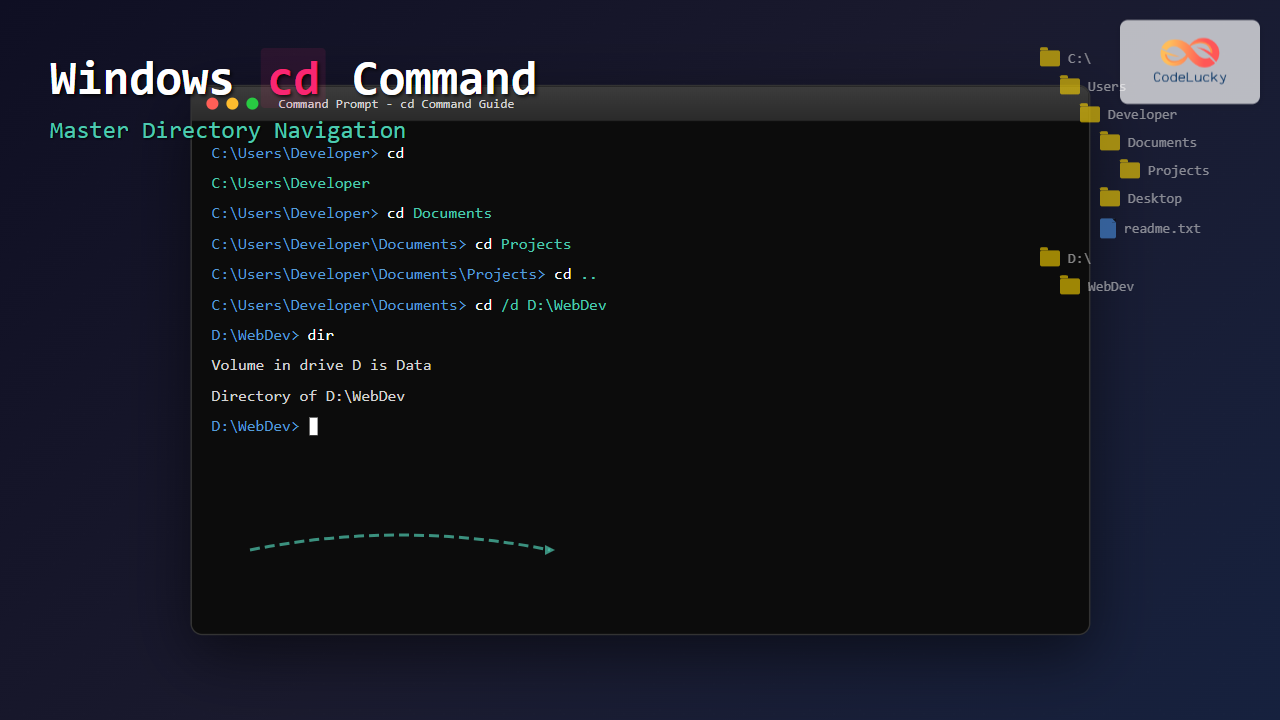
The cd (Change Directory) command is one of the most fundamental and frequently used commands in Windows Command Prompt. Whether you’re a developer, system administrator, or power user, mastering directory navigation through the command line is essential for efficient file system management and automation tasks.
This comprehensive guide will walk you through everything you need to know about the cd command, from basic usage to advanced techniques that will significantly improve your command line productivity.
What is the cd Command?
The cd command stands for “Change Directory” and is used to navigate between folders (directories) in the Windows file system through the Command Prompt. It allows you to move from your current location to any other directory on your system, whether it’s on the same drive or a different one.

Basic cd Command Syntax
The basic syntax of the cd command is straightforward:
cd [path]Where [path] can be:
- Absolute path: Complete path from the root directory (e.g.,
C:\Users\Documents) - Relative path: Path relative to your current location (e.g.,
Documentsor..\Desktop)
Getting Started: Opening Command Prompt
Before using the cd command, you need to open Command Prompt:
- Windows + R method: Press
Win + R, typecmd, and press Enter - Start Menu method: Type “Command Prompt” in the Start Menu search
- File Explorer method: Navigate to any folder, type
cmdin the address bar - Shift + Right-click: Hold Shift and right-click in any folder, select “Open PowerShell window here” or “Open command window here”
Essential cd Command Examples
1. Changing to a Specific Directory
To navigate to a specific folder, use the full path:
cd C:\Users\YourUsername\DocumentsOutput:
C:\Users\YourUsername>cd C:\Users\YourUsername\Documents
C:\Users\YourUsername\Documents>
2. Moving to a Subdirectory
If you’re currently in C:\Users\YourUsername and want to go to the Documents folder:
cd DocumentsOutput:
C:\Users\YourUsername>cd Documents
C:\Users\YourUsername\Documents>
3. Going Back to Parent Directory
Use two dots (..) to move up one level:
cd ..Output:
C:\Users\YourUsername\Documents>cd ..
C:\Users\YourUsername>
4. Moving Multiple Levels Up
Chain multiple .. with backslashes to go up several levels:
cd ..\..\..
Output:
C:\Users\YourUsername\Documents\Projects\WebDev>cd ..\..\..
C:\Users>
Advanced cd Command Techniques
Changing Drives
To switch between different drives, you have two options:
Method 1: Drive Letter Only
D:Output:
C:\Users\YourUsername>D:
D:\>
Method 2: cd with /d Parameter
cd /d D:\ProjectsOutput:
C:\Users\YourUsername>cd /d D:\Projects
D:\Projects>
Using Environment Variables
Windows provides several environment variables for quick navigation:
cd %USERPROFILE%          # Navigate to user's home directory
cd %APPDATA%              # Navigate to AppData\Roaming
cd %LOCALAPPDATA%         # Navigate to AppData\Local
cd %PROGRAMFILES%         # Navigate to Program Files
cd %TEMP%                 # Navigate to temporary files folder
Example Output:
C:\>cd %USERPROFILE%
C:\Users\YourUsername>
Tab Completion for Faster Navigation
Use the Tab key to auto-complete directory names:
- Type
cd Do - Press Tab to complete to “Documents” (if it exists)
- Press Tab multiple times to cycle through options starting with “Do”
Handling Paths with Spaces
When dealing with directories that contain spaces in their names, you must enclose the path in quotes:
cd "C:\Program Files\Microsoft Office"Without quotes (incorrect):
C:\>cd C:\Program Files
The system cannot find the path specified.
With quotes (correct):
C:\>cd "C:\Program Files"
C:\Program Files>
Useful cd Command Shortcuts

Quick Navigation Shortcuts
| Command | Description | Example |
|---|---|---|
cd \ |
Go to root of current drive | C:\Users\John> cd \ → C:\> |
cd |
Display current directory | C:\Users> cd → C:\Users |
cd . |
Stay in current directory | No change in location |
cd ~ |
Go to user home directory | cd ~ → C:\Users\YourUsername> |
Working with UNC Paths
For network locations, use UNC (Universal Naming Convention) paths:
cd /d \\ServerName\ShareName\FolderExample:
cd /d \\CompanyServer\SharedDocs\ReportsNote: The /d parameter is essential when changing to network drives or different drive letters.
Combining cd with Other Commands
Creating and Navigating in One Go
mkdir NewProject && cd NewProjectOutput:
C:\Users\YourUsername>mkdir NewProject && cd NewProject
C:\Users\YourUsername\NewProject>
Listing Directory Contents After Navigation
cd Documents && dirThis command changes to the Documents directory and immediately lists its contents.
Common cd Command Errors and Solutions

Error 1: “The system cannot find the path specified”
Cause: Typo in path or directory doesn’t exist
Solution: Use dir command to verify directory names and check spelling
Error 2: “Access is denied”
Cause: Insufficient permissions
Solution: Run Command Prompt as Administrator or check folder permissions
Error 3: Invalid path format
Cause: Using forward slashes instead of backslashes
Solution: Use backslashes (\) for Windows paths, not forward slashes (/)
Advanced Tips for Power Users
Using Pushd and Popd
Save your current directory and return to it later:
pushd C:\Important\Location    # Save current dir and go to new location
cd somewhere\else              # Navigate elsewhere
popd                          # Return to saved location
Creating Batch Scripts for Quick Navigation
Create a batch file (quicknav.bat) for frequently accessed directories:
@echo off
if "%1"=="docs" cd /d "C:\Users\%USERNAME%\Documents"
if "%1"=="proj" cd /d "D:\Projects"
if "%1"=="desk" cd /d "C:\Users\%USERNAME%\Desktop"
Usage: quicknav docs to go to Documents folder.
Command History Navigation
Use these keyboard shortcuts for efficient navigation:
- ↑ Arrow: Previous command
- ↓ Arrow: Next command
- F7: Command history menu
- F8: Search command history
Best Practices for Using cd Command
- Use Tab completion: Reduces typing and prevents errors
- Always use quotes: For paths containing spaces
- Leverage environment variables: For system directories
- Use relative paths: When working within project hierarchies
- Remember the /d parameter: When changing drives
- Create shortcuts: For frequently accessed locations

Integration with Modern Windows Tools
Windows Terminal
The modern Windows Terminal supports all cd commands with enhanced features:
- Better Unicode support
- Improved copy-paste functionality
- Multiple tabs and panes
- Customizable themes and profiles
PowerShell Integration
While PowerShell uses Set-Location as the primary command, cd works as an alias:
Set-Location C:\Users\Documents  # PowerShell native
cd C:\Users\Documents            # Alias (works the same)
Troubleshooting Directory Navigation Issues
When cd Doesn’t Seem to Work
- Check current directory: Type
cdwithout parameters - Verify path exists: Use
dirto list contents - Check permissions: Try running as Administrator
- Escape special characters: Use quotes or escape sequences
Network Drive Issues
If network drives aren’t accessible:
- Map the network drive first:
net use Z: \\server\share - Then navigate:
cd /d Z:\ - Or use direct UNC path with /d parameter
Conclusion
The cd command is an indispensable tool for Windows command line navigation. From basic directory changes to advanced techniques like environment variable usage and network path navigation, mastering these concepts will significantly improve your command line efficiency.
Remember to practice these commands regularly, use Tab completion to save time, and don’t forget to enclose paths with spaces in quotes. Whether you’re managing files, running scripts, or performing system administration tasks, the cd command will be your constant companion in the Windows command line environment.
As you become more comfortable with these techniques, you’ll find that navigating the Windows file system through the command line becomes second nature, opening up new possibilities for automation and efficient system management.