
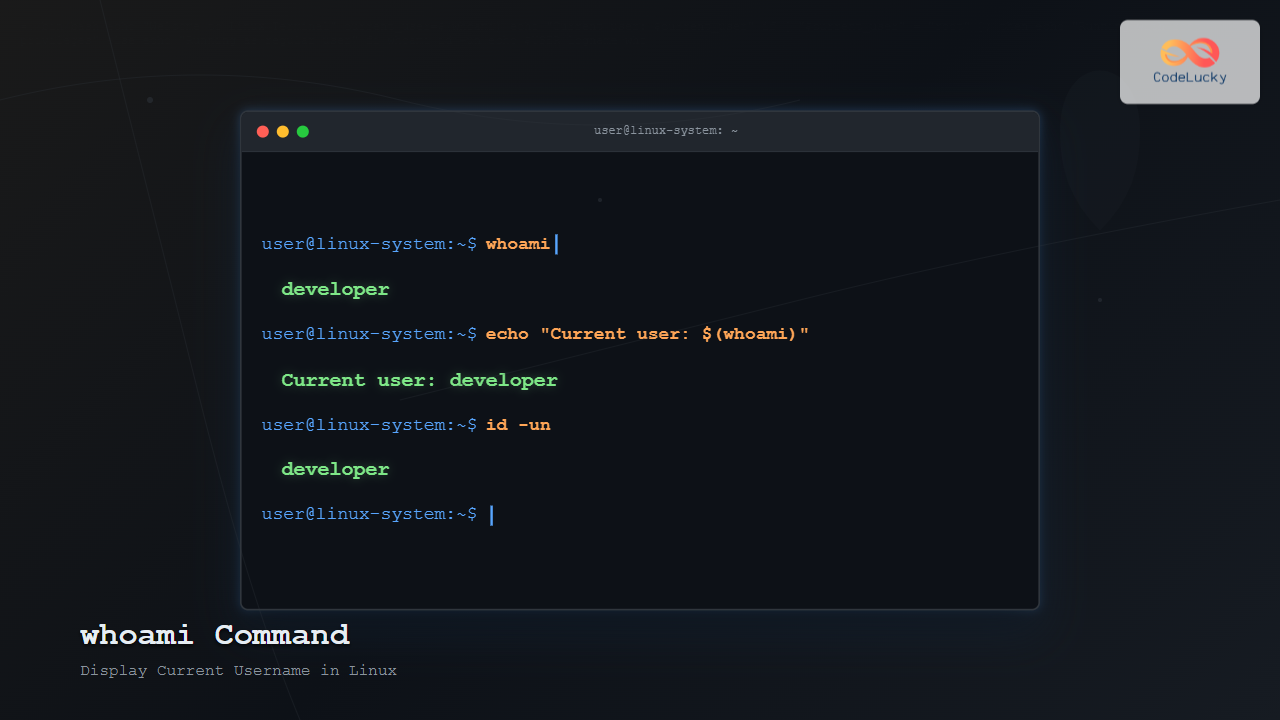
The whoami command is one of the most fundamental and frequently used commands in Linux systems. This simple yet powerful utility displays the username of the currently logged-in user, making it an essential tool for system administrators, developers, and Linux users who need to quickly identify their current user context.
What is the whoami Command?
The whoami command is a basic Unix/Linux utility that prints the effective username of the current user. It’s particularly useful in shell scripts, system administration tasks, and when working with multiple user accounts or switching between different user contexts using commands like su or sudo.
Basic Syntax and Usage
The syntax for the whoami command is straightforward:
whoami [OPTION]In most cases, you’ll simply run the command without any options:
$ whoami
john
The command returns the username immediately, making it perfect for quick identity verification.
Command Options
While whoami is typically used without options, it does support a few standard GNU utility options:
--help: Display help information and usage details--version: Show version information
Help Option Example
$ whoami --help
Usage: whoami [OPTION]...
Print the user name associated with the current effective user ID.
Same as id -un.

      --help     display this help and exit
      --version  output version information and exit

GNU coreutils online help: <http://www.gnu.org/software/coreutils/>
Report whoami translation bugs to <http://translationproject.org/team/>
Version Option Example
$ whoami --version
whoami (GNU coreutils) 8.32
Copyright (C) 2020 Free Software Foundation, Inc.
License GPLv3+: GNU GPL version 3 or later <https://gnu.org/licenses/gpl.html>.
This is free software: you are free to change and redistribute it.
There is NO WARRANTY, to the extent permitted by law.

Written by Richard Mlynarik.
Practical Examples and Use Cases
Basic User Identification
The most common use case is simply identifying the current user:
$ whoami
alice
Using whoami in Shell Scripts
The command is frequently used in shell scripts to determine the current user for conditional logic:
#!/bin/bash

current_user=$(whoami)

if [ "$current_user" = "root" ]; then
    echo "Running as root user"
    # Perform administrative tasks
else
    echo "Running as regular user: $current_user"
    # Perform user-level tasks
fi
Combining with Other Commands
You can combine whoami with other commands for more complex operations:
$ echo "Current user: $(whoami), Home directory: $HOME"
Current user: bob, Home directory: /home/bob
Using whoami After User Switching
When switching users with su or sudo, whoami helps verify the current effective user:
$ whoami
alice

$ sudo -u root whoami
root

$ su - bob
$ whoami
bob
Difference Between whoami and Related Commands
whoami vs id Command
While whoami only shows the username, the id command provides more comprehensive user information:
$ whoami
john

$ id
uid=1000(john) gid=1000(john) groups=1000(john),4(adm),24(cdrom),27(sudo),30(dip),46(plugdev),120(lpadmin),131(lxd),132(sambashare)
whoami vs who Command
The who command shows all currently logged-in users, while whoami shows only the current user:
$ whoami
alice

$ who
alice    tty1         2024-01-15 09:30
bob      pts/0        2024-01-15 10:15 (192.168.1.100)
charlie  pts/1        2024-01-15 11:00 (192.168.1.101)
whoami vs logname Command
The logname command shows the login name, which may differ from the effective user shown by whoami when using su:
$ logname
alice

$ whoami
alice

$ sudo su -
# whoami
root

# logname
alice
Advanced Usage Scenarios
Environment-Specific Operations
Use whoami to perform different actions based on the current user:
#!/bin/bash

case $(whoami) in
    "root")
        echo "Performing system-wide configuration..."
        # System administration tasks
        ;;
    "developer")
        echo "Setting up development environment..."
        # Development-specific setup
        ;;
    *)
        echo "Running standard user setup..."
        # General user tasks
        ;;
esac
Log File Creation
Incorporate user information into log files:
$ echo "$(date): User $(whoami) performed backup operation" >> /var/log/backup.logConditional File Permissions
Set file permissions based on the current user:
#!/bin/bash

file="/tmp/user_file"
user=$(whoami)

touch "$file"

if [ "$user" = "admin" ]; then
    chmod 755 "$file"
    echo "Admin permissions set for $file"
else
    chmod 644 "$file"
    echo "User permissions set for $file"
fi
Security Considerations
Understanding your current user context is crucial for security:
- Privilege Escalation Awareness: Always verify your current user when performing administrative tasks
- Script Security: Use
whoamiin scripts to prevent unauthorized operations - Audit Trails: Include user information in logs for better security monitoring
Troubleshooting Common Issues
Command Not Found
If whoami is not available (rare in modern Linux distributions), you can use alternatives:
$ id -un
alice

$ echo $USER
alice
Permission Issues
If you encounter permission issues, verify your current user and check if you need elevated privileges:
$ whoami
user

$ sudo whoami
root
Best Practices
- Use in Scripts: Always include user verification in administrative scripts
- Security Checks: Verify user identity before executing sensitive operations
- Documentation: Include
whoamioutput in system documentation and logs - Testing: Use
whoamito test user switching scenarios
Integration with System Administration
System administrators frequently use whoami in various scenarios:
Automated Backups
#!/bin/bash

# Backup script with user verification
BACKUP_USER="backup"
CURRENT_USER=$(whoami)

if [ "$CURRENT_USER" != "$BACKUP_USER" ]; then
    echo "Error: This script must run as $BACKUP_USER user"
    exit 1
fi

echo "Starting backup as $CURRENT_USER..."
# Backup operations here
System Monitoring
#!/bin/bash

# Log system activity with user information
echo "$(date): System check performed by $(whoami)" >> /var/log/system_check.log

# Perform system checks
df -h
free -m
uptime
Conclusion
The whoami command is a simple yet indispensable tool in the Linux command arsenal. Its primary strength lies in its simplicity and reliability for user identity verification. Whether you’re writing shell scripts, performing system administration tasks, or simply need to confirm your current user context, whoami provides immediate and accurate information.
Understanding and effectively using whoami is essential for anyone working with Linux systems, especially in multi-user environments or when dealing with user privilege management. By incorporating this command into your daily Linux workflow, you’ll enhance both your productivity and security posture.
Remember that while whoami is straightforward, its applications in scripting, system administration, and security contexts make it a powerful tool that deserves a place in every Linux user’s toolkit.
Related Posts
who Command in Linux: Complete Guide to Display Logged in Users
The who command is one of the most fundamental system administration tools in Linux, designed to display information about currently...
su Command in Linux: Complete Guide to Switch User Accounts in Terminal
The su command (substitute user or switch user) is one of the most fundamental commands in Linux system administration. It...
id Command Linux: Complete Guide to Display User and Group IDs
The id command is a fundamental Linux utility that displays user and group identification information for the current user or...
usermod Command Linux: Complete Guide to Modify User Account Properties
The usermod command is a powerful Linux utility that allows system administrators to modify existing user account properties without deleting...

w Command Linux: Complete Guide to Monitor Active Users and System Activity
The w command is one of the most essential system monitoring tools in Linux, providing administrators and users with real-time...
userdel Command Linux: Complete Guide to Safely Delete User Accounts
The userdel command is a crucial system administration tool in Linux that allows you to safely remove user accounts from...
groups Command Linux: Complete Guide to Display User Group Memberships
The groups command is a fundamental Linux utility that displays the group memberships of users on your system. Understanding how...
alias Command in Linux: Create Custom Command Shortcuts and Boost Your Productivity
The alias command in Linux is a powerful tool that allows you to create custom shortcuts for frequently used commands,...
useradd Command Linux: Complete Guide to Add New User Accounts
The useradd command is one of the most essential tools in Linux system administration for creating new user accounts. Whether...
loginctl Command Linux: Master Session Management with Practical Examples
The loginctl command is a powerful systemd utility that allows system administrators to introspect and control the systemd login manager...
passwd Command Linux: Complete Guide to Password Management from Terminal
The passwd command is one of the most essential utilities in Linux system administration, allowing users and administrators to change...

python Command Linux: Complete Guide to Running Python Scripts and Interactive Sessions
The python command is one of the most essential tools for developers working with Python on Linux systems. Whether you're...





