
The who command is one of the most fundamental system administration tools in Linux, designed to display information about currently logged-in users on your system. Whether you’re managing a multi-user server environment or simply want to monitor user activity on your local machine, understanding the who command is essential for effective system administration.
What is the who Command?
The who command is a standard Unix/Linux utility that reads the system’s utmp file to display information about users currently logged into the system. It provides details such as usernames, terminal names, login times, and remote host information for network connections.
Basic Syntax and Usage
The basic syntax of the who command is straightforward:
who [OPTION]... [FILE | ARG1 ARG2]Let’s start with the most basic usage:
$ whoExample Output:
john     tty1         2025-08-25 08:30
alice    pts/0        2025-08-25 09:15 (192.168.1.100)
bob      pts/1        2025-08-25 10:22 (office.example.com)
sarah    pts/2        2025-08-25 11:45 (:0)
This output shows:
- Username: The login name of the user
- Terminal: The terminal or pseudo-terminal being used
- Login Time: When the user logged in
- Remote Host: The IP address or hostname (for remote connections)
Understanding Terminal Types
Different terminal types indicate different types of connections:
- tty1, tty2, etc.: Physical console terminals
- pts/0, pts/1, etc.: Pseudo-terminals (SSH, terminal emulators)
- :0, :1, etc.: X Window System displays
Common who Command Options
Display All Information (-a, –all)
The -a option displays comprehensive information about all logged-in users:
$ who -aExample Output:
           system boot  2025-08-25 07:00
           run-level 5  2025-08-25 07:01
LOGIN      tty1         2025-08-25 07:01               580 id=tty1
john     + tty1         2025-08-25 08:30               580
alice    + pts/0        2025-08-25 09:15  old          1234 (192.168.1.100)
bob      + pts/1        2025-08-25 10:22   .           1456 (office.example.com)
Show Boot Time (-b, –boot)
Display the last system boot time:
$ who -bExample Output:
system boot 2025-08-25 07:00Display Dead Processes (-d, –dead)
Show information about dead processes:
$ who -dShow Heading Line (-H, –heading)
Add column headers for better readability:
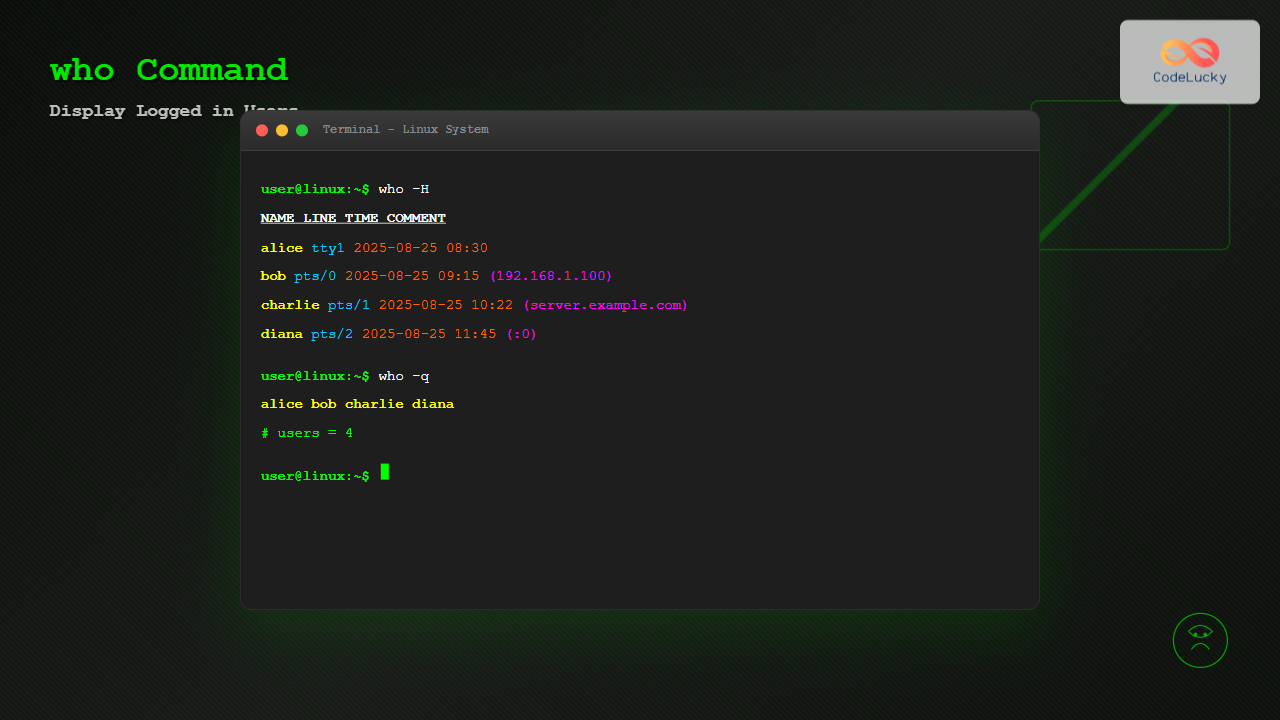
$ who -HExample Output:
NAME     LINE         TIME             COMMENT
john     tty1         2025-08-25 08:30
alice    pts/0        2025-08-25 09:15 (192.168.1.100)
bob      pts/1        2025-08-25 10:22 (office.example.com)
Display Login Processes (-l, –login)
Show system login processes:
$ who -lShow Process Information (-u, –users)
Display additional process information including idle time and process IDs:
$ who -uExample Output:
john     tty1         2025-08-25 08:30  old          580
alice    pts/0        2025-08-25 09:15   .           1234 (192.168.1.100)
bob      pts/1        2025-08-25 10:22  00:05        1456 (office.example.com)
The idle time column shows:
- . (dot): Active within the last minute
- old: Idle for more than 24 hours
- Time format: Shows idle time in hours:minutes
Advanced who Command Usage
Count Logged-in Users (-q, –count)
Get a quick count of logged-in users:
$ who -qExample Output:
john alice bob sarah
# users = 4
Show Run Level (-r, –runlevel)
Display current and previous system run levels:
$ who -rExample Output:
run-level 5 2025-08-25 07:01Show Time of Last System Clock Change (-t, –time)
Display when the system clock was last changed:
$ who -tPractical Examples and Use Cases
Monitoring Server Activity
For system administrators managing servers, monitoring user activity is crucial:
# Check who's logged in with detailed information
$ who -uH

NAME     LINE         TIME             IDLE          PID COMMENT
admin    pts/0        2025-08-25 09:00   .           1234 (10.0.0.50)
deploy   pts/1        2025-08-25 10:30  01:15        2345 (ci.example.com)
backup   pts/2        2025-08-25 11:00  old          3456 (backup.example.com)
Security Monitoring
Identify suspicious login activities:
# Quick user count for monitoring
$ who -q
admin deploy backup unknown_user
# users = 4

# Detailed view to investigate
$ who -a
System Maintenance
Before performing system maintenance, check for active users:
# Check for active sessions before maintenance
$ who -u | grep -v "old"
Combining who with Other Commands
Filter Active Users
# Show only users active in the last hour
$ who -u | awk '$4 == "." || $4 ~ /^[0-9]{1,2}:[0-9]{2}$/'
Monitor Remote Connections
# Show only remote connections
$ who | grep "("
Count Users by Terminal Type
# Count SSH connections
$ who | grep "pts/" | wc -l
Troubleshooting Common Issues
Empty Output
If who returns no output, possible causes include:
- No users currently logged in
- Corrupted utmp file
- Permission issues
Checking utmp File
The who command reads from /var/run/utmp by default. You can specify a different file:
$ who /var/log/wtmpDifferences Between who, w, and users Commands
| Command | Purpose | Information Displayed |
|---|---|---|
who |
Show logged-in users | Username, terminal, login time, remote host |
w |
Show user activity | Users + what they’re currently doing |
users |
List usernames only | Simple list of logged-in usernames |
Security Considerations
When using the who command in production environments:
- Regular Monitoring: Implement automated scripts to monitor user logins
- Log Analysis: Combine with log analysis tools for comprehensive security monitoring
- Access Control: Ensure appropriate permissions on utmp files
- Remote Access: Monitor remote connections for unauthorized access attempts
Automation Scripts
Here’s a simple bash script to monitor and alert on suspicious login activity:
#!/bin/bash
# Monitor login activity

CURRENT_USERS=$(who -q | tail -1 | cut -d'=' -f2 | tr -d ' ')
MAX_USERS=5

if [ "$CURRENT_USERS" -gt "$MAX_USERS" ]; then
    echo "Alert: $CURRENT_USERS users logged in (max: $MAX_USERS)"
    who -H
fi
Best Practices
- Regular Monitoring: Check user activity regularly, especially on production servers
- Combine Tools: Use
whoalongsidelast,lastlog, and system logs - Document Patterns: Understand normal login patterns for your systems
- Automate Alerts: Set up automated monitoring for unusual activity
- Secure Access: Ensure utmp files have appropriate permissions
Conclusion
The who command is an indispensable tool for Linux system administrators and users who need to monitor system access and user activity. From basic user listing to comprehensive system monitoring, mastering the various options and use cases of the who command enhances your ability to maintain secure and well-monitored Linux systems.
Whether you’re troubleshooting user issues, monitoring security, or preparing for system maintenance, the who command provides the essential information needed for effective system administration. Regular use and understanding of this command, combined with other system monitoring tools, forms the foundation of proactive Linux system management.
Related Posts

w Command Linux: Complete Guide to Monitor Active Users and System Activity
The w command is one of the most essential system monitoring tools in Linux, providing administrators and users with real-time...
last Command Linux: Display Login History and System Boot Records
The last command is an essential Linux utility that displays a chronological list of user logins, system boots, and shutdowns...
whoami Command Linux: Display Current Username and Identity Information
The whoami command is one of the most fundamental and frequently used commands in Linux systems. This simple yet powerful...
logger Command Linux: Complete Guide to System Log Message Management
The logger command in Linux is a powerful utility that allows users and scripts to send messages directly to the...
id Command Linux: Complete Guide to Display User and Group IDs
The id command is a fundamental Linux utility that displays user and group identification information for the current user or...

ps Command in Linux: Complete Guide to Process Monitoring and Management
The ps command is one of the most fundamental and powerful tools in Linux for displaying information about running processes....
groups Command Linux: Complete Guide to Display User Group Memberships
The groups command is a fundamental Linux utility that displays the group memberships of users on your system. Understanding how...
useradd Command Linux: Complete Guide to Add New User Accounts
The useradd command is one of the most essential tools in Linux system administration for creating new user accounts. Whether...
loginctl Command Linux: Master Session Management with Practical Examples
The loginctl command is a powerful systemd utility that allows system administrators to introspect and control the systemd login manager...
history Command Linux: Complete Guide to View and Manage Your Command History
The history command in Linux is one of the most powerful tools for managing and navigating your command line experience....
userdel Command Linux: Complete Guide to Safely Delete User Accounts
The userdel command is a crucial system administration tool in Linux that allows you to safely remove user accounts from...
env Command Linux: Complete Guide to Display Environment Variables
Environment variables are crucial components of any Linux system, storing configuration data and system information that applications and processes rely...





