
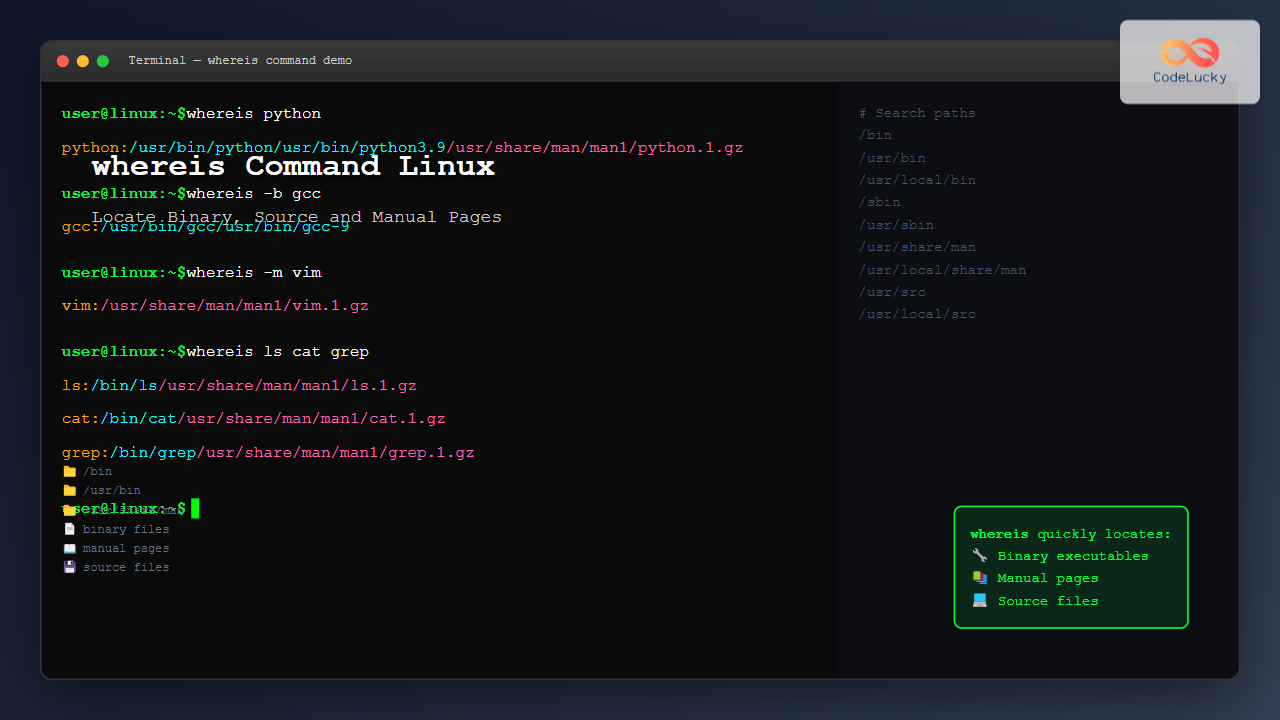
The whereis command is a powerful Linux utility that helps system administrators and developers quickly locate binary executables, source files, and manual pages for commands and programs. Unlike other search commands, whereis provides a fast and efficient way to find specific types of files without searching the entire filesystem.
What is the whereis Command?
The whereis command searches for files in a restricted set of locations, making it much faster than commands like find or locate. It specifically looks for:
- Binary executables – The actual program files
- Source files – Source code files
- Manual pages – Documentation files
This targeted approach makes whereis ideal when you need to quickly understand where a program is installed or find its documentation.
Basic Syntax and Usage
The basic syntax of the whereis command is:
whereis [options] filenameLet’s start with a simple example:
$ whereis ls
ls: /bin/ls /usr/share/man/man1/ls.1.gz
This output shows that the ls command’s binary is located at /bin/ls and its manual page is at /usr/share/man/man1/ls.1.gz.
Command Options and Flags
The whereis command offers several options to refine your search:
-b (Binary Only)
Use the -b option to search only for binary files:
$ whereis -b python
python: /usr/bin/python /usr/bin/python3.8 /usr/bin/python3.9
-m (Manual Pages Only)
The -m option searches only for manual pages:
$ whereis -m gcc
gcc: /usr/share/man/man1/gcc.1.gz
-s (Source Files Only)
Use -s to search for source files:
$ whereis -s bash
bash: /usr/src/bash
-u (Unusual Entries)
The -u option finds files that don’t have the expected number of entries:
$ whereis -u -m -s *Advanced Options
Custom Search Paths
You can specify custom search directories using these options:
-B directory– Set binary search path-M directory– Set manual page search path-S directory– Set source search path
$ whereis -B /usr/local/bin -b python
python: /usr/local/bin/python3.9
Limiting Search Scope
Use -f to terminate the directory list and begin the file list:
$ whereis -B /bin -f ls cat
ls: /bin/ls
cat: /bin/cat
Practical Examples
Finding Complete Information About a Command
To get comprehensive information about where a command’s files are located:
$ whereis vim
vim: /usr/bin/vim /usr/bin/vim.basic /usr/bin/vim.tiny /etc/vim /usr/share/vim /usr/share/man/man1/vim.1.gz
This shows the binary locations, configuration directory, and manual page for vim.
Checking Multiple Commands
You can check multiple commands simultaneously:
$ whereis grep sed awk
grep: /bin/grep /usr/share/man/man1/grep.1.gz
sed: /bin/sed /usr/share/man/man1/sed.1.gz
awk: /usr/bin/awk /usr/share/man/man1/awk.1.gz
Finding Development Tools
Locate development tools and their documentation:
$ whereis -b -m gcc make
gcc: /usr/bin/gcc /usr/share/man/man1/gcc.1.gz
make: /usr/bin/make /usr/share/man/man1/make.1.gz
Comparing whereis with Other Commands
whereis vs which
While which only shows the path to the executable, whereis provides more comprehensive information:
$ which python
/usr/bin/python

$ whereis python
python: /usr/bin/python /usr/bin/python2.7 /usr/share/man/man1/python.1.gz
whereis vs locate
The locate command searches the entire filesystem database, while whereis searches specific directories:
$ locate bash | head -5
/bin/bash
/etc/bash.bashrc
/etc/bash_completion
/etc/bash_completion.d
/usr/share/doc/bash

$ whereis bash
bash: /bin/bash /etc/bash.bashrc /usr/share/man/man1/bash.1.gz
Common Use Cases
System Administration
System administrators often use whereis to:
- Verify software installation locations
- Find configuration files
- Locate documentation for troubleshooting
$ whereis apache2
apache2: /usr/sbin/apache2 /etc/apache2 /usr/share/apache2 /usr/share/man/man8/apache2.8.gz
Development Environment Setup
Developers use whereis to locate development tools:
$ whereis node npm
node: /usr/bin/node /usr/include/node /usr/share/man/man1/node.1.gz
npm: /usr/bin/npm /usr/share/man/man1/npm.1
Package Management
Before installing or removing packages, check their current locations:
$ whereis git
git: /usr/bin/git /usr/share/man/man1/git.1.gz
Troubleshooting Common Issues
No Results Found
If whereis returns no results, the file might not be installed or located in standard directories:
$ whereis nonexistentcommand
nonexistentcommand:
Partial Results
Sometimes you might see only binary or manual pages. This is normal and indicates that not all file types are available:
$ whereis somecommand
somecommand: /usr/bin/somecommand
Performance Considerations
The whereis command is optimized for speed because it:
- Searches only predefined directories
- Doesn’t traverse the entire filesystem
- Uses built-in path knowledge
- Doesn’t rely on database updates like
locate
Best Practices
Use Specific Options
When you know what you’re looking for, use specific options:
# Only need the binary location
$ whereis -b python

# Only need documentation
$ whereis -m python
Combine with Other Commands
Use whereis output with other commands:
$ ls -la $(whereis -b python | cut -d: -f2)Script Integration
In shell scripts, use whereis to verify dependencies:
#!/bin/bash
if [ -z "$(whereis -b git | cut -d: -f2)" ]; then
    echo "Git is not installed"
    exit 1
fi
Alternative Commands
While whereis is excellent for its specific use case, consider these alternatives:
which– Find executable location in PATHtype– Show command type and locationlocate– Find files using databasefind– Search filesystem in real-time
Conclusion
The whereis command is an essential tool for Linux users who need to quickly locate system files, binaries, and documentation. Its speed and targeted search make it invaluable for system administration, development, and troubleshooting tasks. By understanding its various options and use cases, you can efficiently manage and navigate your Linux system.
Whether you’re setting up a development environment, troubleshooting system issues, or simply exploring your system’s file structure, whereis provides the quick answers you need without the overhead of more comprehensive search tools.
Related Posts
which Command Linux: Complete Guide to Finding Executable File Locations
The which command is one of the most fundamental utilities in Linux and Unix-like systems, designed to help users locate...

locate Command in Linux: Fast File Search Using Database Indexing
The locate command is one of Linux's most efficient file search utilities, offering lightning-fast results by leveraging a pre-built database...

locate Command Advanced Linux: Database Search Optimization Techniques
The locate command is one of Linux's most powerful file search utilities, offering lightning-fast file discovery through its pre-built database...
find Command Linux: Ultimate Guide to Search Files and Directories by Name, Size, and Attributes
The find command is one of the most powerful and versatile tools in Linux for searching files and directories. Whether...
which Command Linux: Complete Guide to Locating Executable Commands in PATH
The which command is a fundamental Linux utility that helps you locate executable files in your system's PATH environment variable....
find Command Advanced Linux: Master Complex Search Patterns and Powerful Operations
The find command is one of the most powerful and versatile tools in the Linux arsenal, capable of performing complex...
strings Command Linux: Extract and Analyze Text from Binary Files
The strings command is a powerful Linux utility that extracts printable character sequences from binary files. Whether you're analyzing executables,...

updatedb Command Linux: Complete Guide to Update Locate Database
The updatedb command is a crucial system utility in Linux that updates the database used by the locate command for...

mlocate Command Linux: Complete Guide to Secure File Search and Database Management
The mlocate command is a powerful and secure implementation of the traditional locate utility in Linux systems. Unlike its predecessor,...
readelf Command Linux: Complete Guide to ELF File Analysis and Debugging
The readelf command is an essential tool for Linux developers, system administrators, and security analysts who need to examine Executable...

file Command Advanced Linux: Master Detailed File Type Analysis and Detection
The file command is one of the most powerful and underutilized utilities in Linux for determining file types and analyzing...

size Command Linux: Display Section Sizes of Object Files and Executables
The size command is a powerful utility in Linux systems that displays the section sizes of object files, executables, and...





