
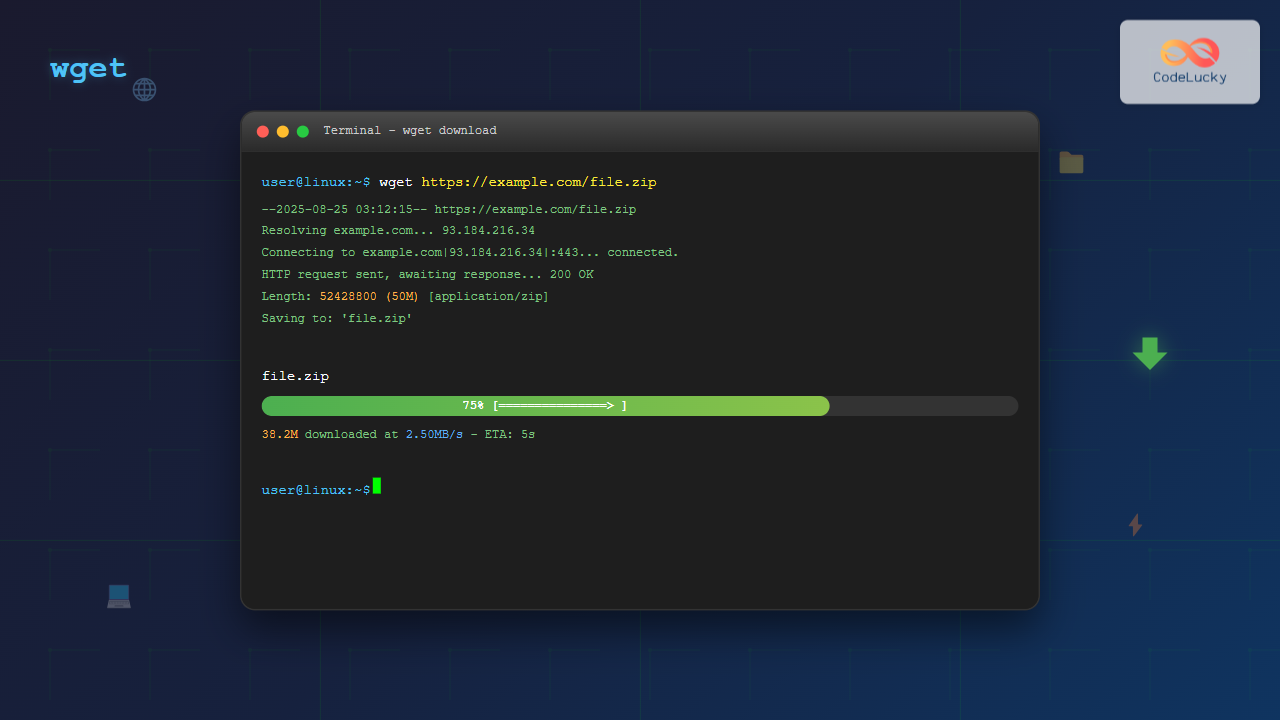
The wget command is one of the most powerful and versatile tools in Linux for downloading files from the internet. Whether you’re downloading a single file, mirroring an entire website, or automating download tasks, wget provides extensive functionality that makes it indispensable for system administrators, developers, and Linux users alike.
What is wget Command?
wget (World Wide Web get) is a free command-line utility for downloading files from web servers using HTTP, HTTPS, and FTP protocols. It’s a non-interactive downloader, meaning it can work in the background without requiring user interaction, making it perfect for scripts and automated tasks.
Installing wget
Most Linux distributions come with wget pre-installed. However, if it’s not available on your system, you can install it using your distribution’s package manager:
# Ubuntu/Debian
sudo apt update && sudo apt install wget

# CentOS/RHEL/Fedora
sudo yum install wget
# or for newer versions
sudo dnf install wget

# Arch Linux
sudo pacman -S wget
Basic wget Syntax
The basic syntax of wget is straightforward:
wget [OPTIONS] [URL]Simple File Download Examples
Download a Single File
The simplest use case is downloading a single file:
wget https://example.com/file.zipExpected Output:
--2025-08-25 03:11:42--  https://example.com/file.zip
Resolving example.com (example.com)... 93.184.216.34
Connecting to example.com (example.com)|93.184.216.34|:443... connected.
HTTP request sent, awaiting response... 200 OK
Length: 1048576 (1.0M) [application/zip]
Saving to: 'file.zip'

file.zip           100%[===================>]   1.00M  2.50MB/s    in 0.4s

2025-08-25 03:11:43 (2.50 MB/s) - 'file.zip' saved [1048576/1048576]
Download with Custom Filename
Use the -O option to specify a custom filename:
wget -O myfile.zip https://example.com/file.zipDownload to Specific Directory
Use the -P option to specify the download directory:
wget -P /home/user/downloads https://example.com/file.zipAdvanced Download Options
Resume Interrupted Downloads
One of wget’s most useful features is the ability to resume interrupted downloads:
wget -c https://example.com/largefile.isoThe -c option continues partial downloads, saving time and bandwidth when downloading large files.
Limit Download Speed
Control bandwidth usage by limiting download speed:
# Limit to 200KB/s
wget --limit-rate=200k https://example.com/file.zip

# Limit to 1MB/s
wget --limit-rate=1m https://example.com/file.zip
Download Multiple Files
Download multiple files by listing URLs in a text file:
# Create a file with URLs
echo "https://example.com/file1.zip" > urls.txt
echo "https://example.com/file2.zip" >> urls.txt
echo "https://example.com/file3.zip" >> urls.txt

# Download all files
wget -i urls.txt
Background Downloads
Run wget in the background and log output to a file:
wget -b https://example.com/largefile.isoCheck the progress by viewing the log file:
tail -f wget-logAuthentication and Headers
HTTP Authentication
For password-protected resources:
# Basic authentication
wget --user=username --password=password https://example.com/protected/file.zip

# Or use --ask-password for interactive password input
wget --user=username --ask-password https://example.com/protected/file.zip
Custom Headers
Add custom headers to your requests:
wget --header="User-Agent: Custom-Agent/1.0" https://example.com/file.zip
wget --header="Authorization: Bearer token123" https://api.example.com/file.zip
Website Mirroring and Recursive Downloads
Download Entire Website
Mirror a complete website for offline browsing:
wget -m -k -K -E https://example.comOptions explained:
-m: Mirror (equivalent to -r -N -l inf –no-remove-listing)-k: Convert links for local viewing-K: Keep backup of original files-E: Adjust extension of HTML files
Recursive Download with Depth Limit
Download files recursively with a maximum depth:
wget -r -l 2 https://example.comThe -l 2 option limits recursion to 2 levels deep.
Download Specific File Types
Download only specific file types from a website:
# Download only PDF files
wget -r -A "*.pdf" https://example.com

# Download images only
wget -r -A "*.jpg,*.png,*.gif" https://example.com
FTP Downloads
Anonymous FTP
wget ftp://ftp.example.com/path/to/file.zipFTP with Authentication
wget --ftp-user=username --ftp-password=password ftp://ftp.example.com/file.zipAdvanced Configuration Options
Retry and Timeout Settings
# Set number of retries
wget --tries=5 https://example.com/file.zip

# Set timeout values
wget --timeout=30 --dns-timeout=10 --connect-timeout=15 https://example.com/file.zip
User Agent Customization
Some servers block requests from wget’s default user agent. Customize it:
wget --user-agent="Mozilla/5.0 (X11; Linux x86_64) AppleWebKit/537.36" https://example.com/file.zipCookie Handling
# Save cookies to file
wget --save-cookies cookies.txt https://example.com/login

# Load cookies from file
wget --load-cookies cookies.txt https://example.com/protected-area
Output and Logging Options
Quiet and Verbose Modes
# Quiet mode (minimal output)
wget -q https://example.com/file.zip

# Verbose mode (detailed output)
wget -v https://example.com/file.zip

# Debug mode (maximum detail)
wget -d https://example.com/file.zip
Custom Log Files
# Log to specific file
wget -o download.log https://example.com/file.zip

# Append to log file
wget -a download.log https://example.com/file.zip
Practical Use Cases and Scripts
Automated Backup Script
#!/bin/bash
# Daily backup download script

DATE=$(date +%Y%m%d)
LOG_FILE="/var/log/backup_download_$DATE.log"

wget -o $LOG_FILE \
     --timeout=300 \
     --tries=3 \
     -P /backup/daily \
     https://backup.example.com/daily/backup_$DATE.tar.gz

if [ $? -eq 0 ]; then
    echo "Backup downloaded successfully" >> $LOG_FILE
else
    echo "Backup download failed" >> $LOG_FILE
    exit 1
fi
Bulk File Download with Progress
#!/bin/bash
# Download multiple files with progress tracking

urls=(
    "https://example.com/file1.zip"
    "https://example.com/file2.zip"
    "https://example.com/file3.zip"
)

total=${#urls[@]}
current=0

for url in "${urls[@]}"; do
    ((current++))
    echo "Downloading file $current of $total: $url"
    wget --progress=bar:force -P downloads "$url"
    echo "Completed $current/$total downloads"
done
Common wget Options Reference
| Option | Description | Example |
|---|---|---|
-O |
Output filename | wget -O file.zip URL |
-P |
Directory prefix | wget -P /downloads URL |
-c |
Continue partial download | wget -c URL |
-b |
Background download | wget -b URL |
-t |
Number of retries | wget -t 5 URL |
-T |
Timeout in seconds | wget -T 30 URL |
-r |
Recursive download | wget -r URL |
-l |
Maximum recursion depth | wget -r -l 2 URL |
Troubleshooting Common Issues
SSL Certificate Errors
For sites with SSL certificate issues:
# Skip certificate check (use cautiously)
wget --no-check-certificate https://example.com/file.zip

# Specify CA certificate bundle
wget --ca-certificate=/path/to/ca-bundle.crt https://example.com/file.zip
Connection Refused or Timeout
# Increase timeout and retry values
wget --timeout=60 --tries=10 --retry-connrefused https://example.com/file.zip
Server Blocking wget
# Use a different user agent
wget --user-agent="Mozilla/5.0 (compatible; Googlebot/2.1)" https://example.com/file.zip
Security Considerations
When using wget, keep these security aspects in mind:
- Avoid plaintext passwords: Use
--ask-passwordinstead of--password - Validate certificates: Don’t use
--no-check-certificateunless absolutely necessary - Limit recursion: Always set depth limits when using recursive downloads
- Check file integrity: Verify checksums when available
Performance Optimization Tips
- Use parallel downloads: Run multiple wget instances for different files
- Optimize connection settings: Adjust timeout values based on your network
- Resume interrupted downloads: Always use
-cfor large files - Limit bandwidth: Use
--limit-rateto avoid overwhelming your connection
Conclusion
The wget command is an incredibly powerful tool for downloading files and content from the internet. From simple file downloads to complex website mirroring operations, wget provides the flexibility and reliability needed for both interactive use and automated scripts. By mastering the various options and techniques covered in this guide, you’ll be able to handle virtually any download scenario efficiently and effectively.
Remember to always respect website robots.txt files and terms of service when using wget, especially for recursive downloads and website mirroring. With great power comes great responsibility, and wget certainly provides great power for managing internet downloads in Linux environments.
Related Posts
curl Command Linux: Complete Guide to Transfer Data from Servers with Examples
The curl command is one of the most powerful and versatile tools in the Linux command-line arsenal for transferring data...

PHP File Download: Serving Files to Users
In the world of web development, providing users with the ability to download files is a common requirement. Whether it's...

ftp Command Linux: Complete Guide to File Transfer Protocol Client Operations
The ftp command in Linux is a powerful client utility for transferring files between local and remote systems using the...

unzip Command Linux: Complete Guide to Extract ZIP Archives Efficiently
The unzip command is one of the most essential tools in Linux for extracting ZIP archive files. Whether you're dealing...

HTML Anchor download Property: Link Download
HTML Anchor download Property: Forcing Downloads The HTML <a> (anchor) tag, commonly used to create hyperlinks, gains enhanced functionality with...

Python Scrapy: Web Scraping for Data Collection
In today's data-driven world, web scraping has become an essential skill for developers, data scientists, and businesses alike. Python Scrapy...

JavaScript Fetch API: Making HTTP Requests from JavaScript
In the modern web development landscape, making HTTP requests from JavaScript is a crucial skill. The Fetch API provides a...
scp Command Linux: Complete Guide to Secure File Transfer Over SSH
The scp (Secure Copy Protocol) command is one of the most essential tools in Linux for securely transferring files between...
tcpdump Command Linux: Complete Guide to Network Packet Capture and Analysis
The tcpdump command is one of the most powerful network analysis tools available in Linux systems. It allows system administrators...

tar Command in Linux: Complete Archive and Extract Files Tutorial with Examples
The tar command is one of the most essential utilities in Linux for creating archives and extracting files. Originally designed...

zip Command Linux: Complete Guide to Creating ZIP Archives with Examples
The zip command in Linux is a powerful utility for creating compressed archives and managing files efficiently. Whether you're backing...

rsync Command Linux: Complete Guide to Sync Files and Directories Efficiently
The rsync command is one of the most powerful and versatile file synchronization utilities available in Linux systems. Whether you're...





