
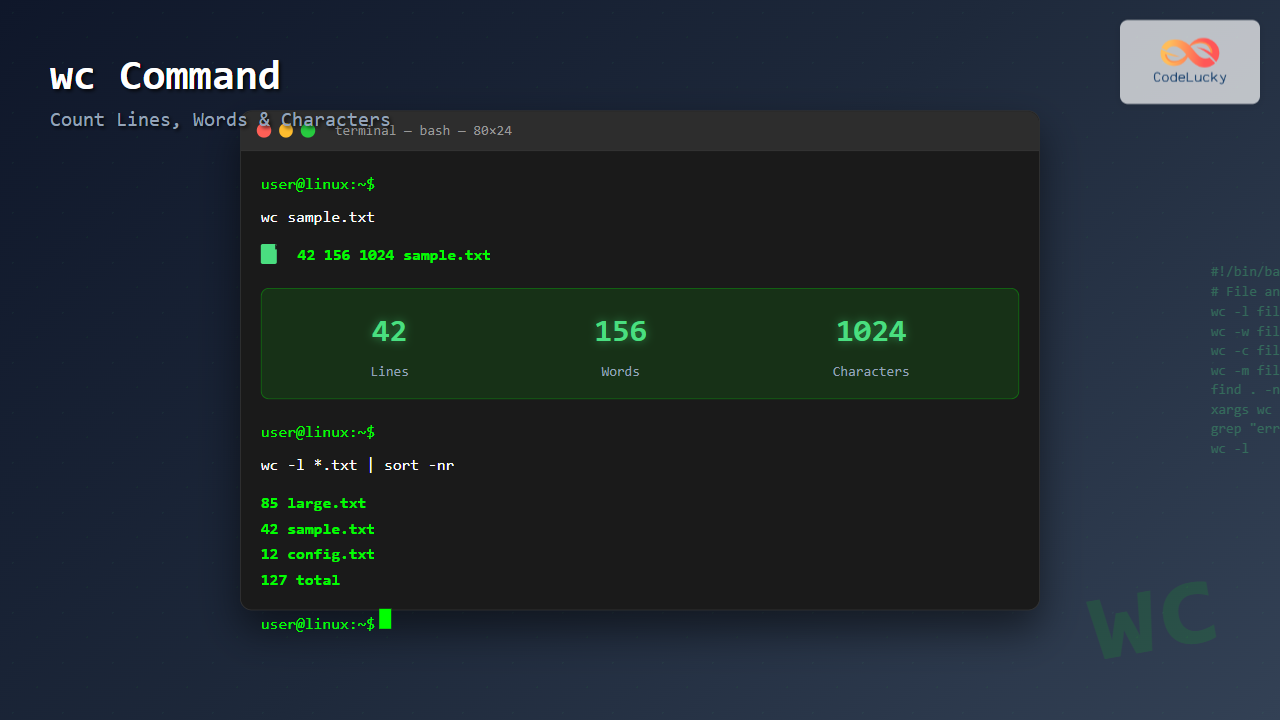
The wc (word count) command is one of the most useful text processing utilities in Linux and Unix systems. It provides essential statistics about files, including the number of lines, words, and characters. Whether you’re analyzing log files, counting code lines, or processing text data, the wc command is an indispensable tool for system administrators, developers, and data analysts.
What is the wc Command?
The wc command stands for “word count” and is used to display newline, word, and byte counts for files. By default, it shows three numbers: the number of lines, words, and bytes in a file. This simple yet powerful command can process single files, multiple files, or input from standard input (stdin).
Basic Syntax
wc [OPTION]... [FILE]...If no file is specified, wc reads from standard input. The command supports various options to customize its output and behavior.
Common wc Command Options
Here are the most frequently used options with the wc command:
-lor--lines: Display only the number of lines-wor--words: Display only the number of words-cor--bytes: Display only the number of bytes-mor--chars: Display only the number of characters-Lor--max-line-length: Display the length of the longest line--help: Display help information--version: Display version information
Basic Usage Examples
Default Output
Let’s start with a basic example. Create a sample file and use wc to analyze it:
$ echo -e "Hello World\nThis is a test file\nWith multiple lines" > sample.txt
$ wc sample.txt
Output:
3 8 39 sample.txtThis output shows:
- 3 lines
- 8 words
- 39 bytes
- sample.txt filename
Counting Lines Only
To count only the number of lines in a file:
$ wc -l sample.txtOutput:
3 sample.txtCounting Words Only
To count only the number of words:
$ wc -w sample.txtOutput:
8 sample.txtCounting Characters
To count characters (including spaces and newlines):
$ wc -m sample.txtOutput:
39 sample.txtCounting Bytes
To count bytes in a file:
$ wc -c sample.txtOutput:
39 sample.txtNote: In ASCII text files, the number of characters and bytes are usually the same. However, in files with multibyte characters (like UTF-8), the byte count may be higher than the character count.
Advanced Usage Examples
Processing Multiple Files
You can analyze multiple files simultaneously:
$ echo "File one content" > file1.txt
$ echo -e "File two\nhas more content" > file2.txt
$ wc file1.txt file2.txt
Output:
1  3 17 file1.txt
2  4 22 file2.txt
3  7 39 total
The last line shows the totals for all processed files.
Using Wildcards
Process all text files in a directory:
$ wc *.txtThis command will analyze all files with the .txt extension in the current directory.
Finding the Longest Line
To find the length of the longest line in a file:
$ wc -L sample.txtOutput:
19 sample.txtThis shows that the longest line contains 19 characters.
Working with Standard Input
The wc command can read from standard input, making it useful in pipelines:
Counting Output from Other Commands
$ ls -l | wc -lThis counts the number of files and directories in the current directory (including the total line from ls -l).
Counting Processes
$ ps aux | wc -lThis counts the number of running processes (including the header line).
Interactive Input
You can also type directly into wc:
$ wc
This is a test
This has multiple words
Output:
2 7 43Practical Use Cases
1. Code Analysis
Count lines of code in a project:
$ find . -name "*.py" -exec wc -l {} + | tail -1This finds all Python files and shows the total line count.
2. Log File Analysis
Analyze log files to understand their size:
$ wc -l /var/log/syslogCount error entries in a log file:
$ grep "ERROR" /var/log/application.log | wc -l3. Data Processing
Count records in a CSV file (excluding header):
$ tail -n +2 data.csv | wc -l4. Configuration File Analysis
Count non-empty, non-comment lines in a configuration file:
$ grep -v "^#" /etc/ssh/sshd_config | grep -v "^$" | wc -lCombining wc with Other Commands
Sorting Files by Line Count
$ wc -l *.txt | sort -nThis sorts files by their line count in ascending order.
Finding Files with Most Words
$ wc -w *.txt | sort -nr | head -5This shows the top 5 files with the most words.
Excluding Specific Files
$ find . -name "*.log" ! -name "debug.log" -exec wc -l {} +Count lines in all log files except debug.log.
Understanding the Differences: Characters vs Bytes
It’s important to understand the difference between -c (bytes) and -m (characters):
$ echo "Hello 世界" > unicode.txt
$ wc -c unicode.txt  # Count bytes
$ wc -m unicode.txt  # Count characters
Output:
13 unicode.txt  # bytes (UTF-8 encoding uses multiple bytes for non-ASCII characters)
9 unicode.txt   # characters
Performance Tips
1. Processing Large Files
For very large files, using specific options can be faster:
$ wc -l large_file.txt # Faster than wc large_file.txt if you only need line count2. Avoiding Filename Display
When processing single files via stdin, the filename won’t be displayed:
$ wc -l < file.txtOutput:
10Common Pitfalls and Solutions
1. Empty Files
Empty files will show zero counts:
$ touch empty.txt
$ wc empty.txt
Output:
0 0 0 empty.txt2. Files Without Trailing Newlines
Files that don’t end with a newline might show unexpected line counts:
$ echo -n "No newline at end" > nonewline.txt
$ wc -l nonewline.txt
Output:
0 nonewline.txt3. Binary Files
While wc can process binary files, the results may not be meaningful for word and line counts.
Troubleshooting Common Issues
Permission Denied Errors
If you encounter permission errors:
$ sudo wc /root/private.txtProcessing Files with Spaces in Names
Use quotes when dealing with filenames containing spaces:
$ wc "file with spaces.txt"Alternative Commands and Comparisons
While wc is the standard tool for counting, here are some alternatives:
awk 'END {print NR}' file.txt– Count lines using awksed -n '$=' file.txt– Count lines using sedgrep -c ".*" file.txt– Count lines using grep
Conclusion
The wc command is a fundamental tool in the Linux command-line arsenal. Its simplicity and versatility make it invaluable for text processing, data analysis, and system administration tasks. From basic file statistics to complex data processing pipelines, mastering wc will significantly enhance your command-line productivity.
Whether you’re counting lines of code, analyzing log files, or processing large datasets, the wc command provides quick and reliable text statistics. Combined with other Unix utilities through pipes and redirection, it becomes even more powerful for complex text processing workflows.
Practice these examples and experiment with different options to become proficient with this essential Linux command. The wc command’s straightforward nature makes it an excellent starting point for learning text processing in Linux environments.
Related Posts

stat Command Linux: Complete Guide to Display File and Filesystem Status Information
The stat command is a powerful Linux utility that displays detailed information about files and filesystems. Unlike basic commands like...

size Command Linux: Display Section Sizes of Object Files and Executables
The size command is a powerful utility in Linux systems that displays the section sizes of object files, executables, and...
file Command in Linux: Complete Guide to Determine File Types and Formats
The file command is one of the most essential utilities in Linux for determining file types and formats. Unlike relying...

ls Command in Linux: Complete Guide to List Files and Directories with Examples
The ls command is one of the most fundamental and frequently used commands in Linux and Unix-like operating systems. It...
ls Command Advanced Linux: Complete Guide to File Listing Mastery
The ls command is one of the most fundamental and frequently used commands in Linux and Unix-like operating systems. While...

file Command Advanced Linux: Master Detailed File Type Analysis and Detection
The file command is one of the most powerful and underutilized utilities in Linux for determining file types and analyzing...
head Command in Linux: Display First Lines of Files Efficiently
The head command is one of the most fundamental and frequently used utilities in Linux and Unix-like operating systems. It...

w Command Linux: Complete Guide to Monitor Active Users and System Activity
The w command is one of the most essential system monitoring tools in Linux, providing administrators and users with real-time...
strings Command Linux: Extract and Analyze Text from Binary Files
The strings command is a powerful Linux utility that extracts printable character sequences from binary files. Whether you're analyzing executables,...
lsof Command Linux: Complete Guide to List Open Files and Running Processes
The lsof command (List Open Files) is one of the most powerful and versatile utilities in Linux systems. It provides...
hexdump Command Linux: Complete Guide to Display File Contents in Hexadecimal Format
The hexdump command is a powerful Linux utility that displays the contents of files in hexadecimal format, making it an...
du Command Linux: Display Directory Size and Disk Usage Explained with Examples
The du (disk usage) command in Linux is a powerful tool that allows users to measure directory size, analyze disk...





