
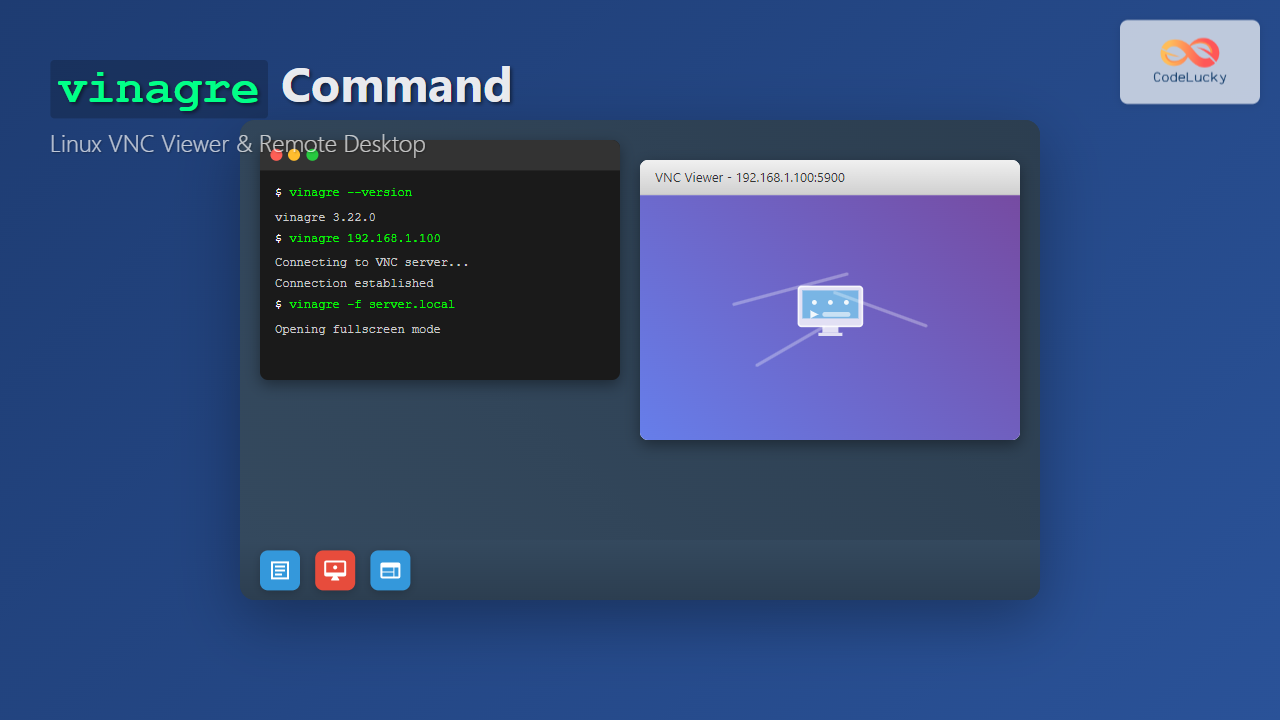
The vinagre command is a powerful VNC (Virtual Network Computing) viewer for Linux systems that enables users to connect to remote desktops seamlessly. As part of the GNOME desktop environment, vinagre provides an intuitive graphical interface for accessing remote computers over a network connection.
What is vinagre?
Vinagre is a remote desktop viewer application designed for the GNOME desktop environment. It supports multiple protocols including VNC, SSH, RDP (Remote Desktop Protocol), and SPICE, making it a versatile tool for system administrators and users who need to access remote systems.
Key Features of vinagre
- Multi-protocol support: VNC, SSH, RDP, and SPICE protocols
- Bookmark management: Save and organize frequently accessed connections
- Full-screen mode: Immersive remote desktop experience
- Keyboard shortcuts: Efficient navigation and control
- Connection history: Quick access to recent connections
- Authentication support: Password and certificate-based authentication
Installing vinagre
Most Linux distributions include vinagre in their default repositories. Here’s how to install it on popular distributions:
Ubuntu/Debian
sudo apt update
sudo apt install vinagre
CentOS/RHEL/Fedora
# For CentOS/RHEL
sudo yum install vinagre

# For Fedora
sudo dnf install vinagre
Arch Linux
sudo pacman -S vinagreBasic vinagre Command Syntax
The basic syntax for the vinagre command is:
vinagre [OPTIONS] [CONNECTION]Where:
OPTIONSare command-line flags that modify behaviorCONNECTIONis the remote server address or connection file
Common vinagre Command Options
| Option | Description |
|---|---|
-h, --help |
Display help information |
-v, --version |
Show version information |
-F, --file |
Open a connection file |
-f, --fullscreen |
Start in full-screen mode |
-n, --new-window |
Open connection in new window |
--geometry |
Set window geometry |
Practical vinagre Examples
Example 1: Basic VNC Connection
Connect to a VNC server running on IP address 192.168.1.100:
vinagre 192.168.1.100Expected Output:
Opening VNC connection to 192.168.1.100:5900
Connecting...
Authentication required
[Password prompt appears]
Example 2: Connect with Specific Port
Connect to a VNC server on a custom port:
vinagre 192.168.1.100:5901This connects to VNC display :1 (port 5901) instead of the default :0 (port 5900).
Example 3: Full-Screen Connection
Start vinagre in full-screen mode:
vinagre -f 192.168.1.100Visual Result: The remote desktop opens immediately in full-screen mode, providing an immersive experience.
Example 4: SSH Connection
Connect via SSH protocol:
vinagre ssh://[email protected]Expected Output:
Establishing SSH connection to 192.168.1.100
Username: username
Password: [hidden]
Connected successfully
Example 5: RDP Connection
Connect to a Windows machine using RDP:
vinagre rdp://192.168.1.100Advanced vinagre Usage
Using Connection Files
You can save connection details in a file and load it later:
# Create a connection file
echo "vnc://192.168.1.100:5900" > my_server.vnc

# Load the connection file
vinagre -F my_server.vnc
Setting Window Geometry
Control the initial window size and position:
vinagre --geometry=800x600+100+50 192.168.1.100This opens a 800×600 pixel window positioned 100 pixels from the left and 50 pixels from the top of the screen.
Managing Bookmarks
Vinagre provides a bookmark system for frequently accessed connections:
Adding Bookmarks
- Open vinagre GUI (run
vinagrewithout arguments) - Go to Bookmarks → Add Bookmark
- Fill in connection details:
- Name: Descriptive name for the connection
- Protocol: VNC, SSH, RDP, or SPICE
- Host: IP address or hostname
- Port: Connection port (optional)
Using Bookmarks from Command Line
Access bookmarked connections:
vinagre bookmark://MyServerSecurity Considerations
VNC Security
VNC connections are not encrypted by default. For secure connections, consider:
- SSH Tunneling: Route VNC through SSH
- VPN: Use VPN for network-level encryption
- TLS Encryption: Enable if supported by VNC server
SSH Tunneling Example
# Create SSH tunnel
ssh -L 5900:localhost:5900 user@remote-server

# Connect through tunnel
vinagre localhost:5900
Troubleshooting Common Issues
Connection Refused
Problem: “Connection refused” error
Solutions:
- Verify VNC server is running on target machine
- Check firewall settings on both machines
- Confirm correct IP address and port
# Check if VNC server is listening
nmap -p 5900 192.168.1.100

# Test connection with netcat
nc -zv 192.168.1.100 5900
Authentication Failures
Problem: Authentication repeatedly fails
Solutions:
- Verify VNC password is correct
- Check VNC server authentication settings
- Try connecting with different VNC client to isolate issue
Display Issues
Problem: Black screen or corrupted display
Solutions:
- Check color depth settings
- Verify screen resolution compatibility
- Try different VNC encoding methods
Performance Optimization
Network Optimization
For better performance over slow connections:
- Reduce color depth: Use 8-bit color instead of 24-bit
- Lower resolution: Use smaller screen resolution
- Compression: Enable VNC compression if available
Local Performance
Optimize local system performance:
# Check system resources
htop

# Monitor network usage
iftop

# Check vinagre process
ps aux | grep vinagre
Integration with Other Tools
Scripting vinagre Connections
Create automated connection scripts:
#!/bin/bash
# connect_to_server.sh

SERVER_IP="192.168.1.100"
PORT="5900"

echo "Connecting to VNC server at $SERVER_IP:$PORT"
vinagre -f $SERVER_IP:$PORT
Desktop Integration
Create desktop shortcuts for frequent connections:
# Create .desktop file
cat > ~/Desktop/MyServer.desktop << EOF
[Desktop Entry]
Version=1.0
Type=Application
Name=My VNC Server
Comment=Connect to my VNC server
Exec=vinagre 192.168.1.100
Icon=vinagre
Terminal=false
Categories=Network;RemoteAccess;
EOF
Alternative VNC Viewers
While vinagre is excellent for GNOME environments, consider these alternatives:
- TigerVNC Viewer: Cross-platform, high performance
- RealVNC Viewer: Commercial solution with advanced features
- Remmina: Feature-rich remote desktop client
- KRDC: KDE’s remote desktop client
Best Practices
Security Best Practices
- Always use strong passwords for VNC connections
- Implement SSH tunneling for internet connections
- Regularly update vinagre and VNC server software
- Use firewall rules to restrict VNC access
- Consider certificate-based authentication where possible
Performance Best Practices
- Use appropriate color depth for your network speed
- Close unnecessary applications on remote machine
- Monitor network bandwidth usage
- Use local network connections when possible
- Optimize VNC server settings for your use case
Conclusion
The vinagre command is an essential tool for Linux users who need reliable remote desktop access. Its integration with GNOME, support for multiple protocols, and user-friendly interface make it an excellent choice for both casual users and system administrators.
Whether you’re managing remote servers, providing technical support, or accessing your home computer from work, mastering vinagre will significantly improve your remote access capabilities. Remember to prioritize security by using encrypted connections and strong authentication methods.
By following the examples and best practices outlined in this guide, you’ll be able to leverage vinagre’s full potential for efficient and secure remote desktop connections in your Linux environment.
Related Posts
RealVNC Linux: Complete Guide to Remote Desktop Access and Control
RealVNC is a powerful remote desktop software that enables users to control Linux systems remotely over a network connection. As...
vncserver Command Linux: Complete Guide to VNC Server Setup and Management
The vncserver command is a powerful tool in Linux that enables remote desktop access by starting a Virtual Network Computing...
x11vnc Command Linux: Complete Guide to Remote Desktop Access via VNC Server
The x11vnc command is a powerful Linux utility that allows you to share your existing X11 desktop session via VNC...
rdesktop Command Linux: Complete Guide to Remote Desktop Protocol Client
The rdesktop command is a powerful Remote Desktop Protocol (RDP) client for Linux systems that enables seamless connections to Windows...
xrdp Command Linux: Complete Guide to Remote Desktop Server Setup
The xrdp command is a powerful Linux utility that implements Microsoft's Remote Desktop Protocol (RDP) server functionality on Unix-like systems....
tightvncserver Linux: Complete Guide to TightVNC Server Setup and Configuration
TightVNC Server is a powerful remote desktop solution that allows you to access and control Linux systems remotely over a...
TeamViewer Linux: Complete Guide to Remote Desktop Access and Support
TeamViewer is one of the most popular remote desktop solutions available today, offering cross-platform compatibility and robust features for remote...
xfreerdp Command Linux: Complete Guide to FreeRDP Remote Desktop Client
The xfreerdp command is a powerful Linux utility that serves as the primary client for the FreeRDP project, enabling users...
NoMachine Linux: Complete Guide to Remote Desktop Access and Configuration
NoMachine is a powerful remote desktop solution that enables secure access to Linux systems from anywhere in the world. Unlike...
screen Command Linux: Complete Guide to Managing Multiple Terminal Sessions
The screen command is one of the most powerful tools in a Linux administrator's arsenal, allowing you to create, manage,...
AnyDesk Linux: Complete Remote Desktop Solution Guide for Linux Users
AnyDesk is a powerful cross-platform remote desktop application that enables users to access computers remotely over the internet. For Linux...
Wireshark Command Linux: Complete Network Protocol Analyzer Guide
Wireshark is the world's most popular network protocol analyzer, providing deep visibility into network traffic and communication protocols. While most...
- What is vinagre?
- Installing vinagre
- Basic vinagre Command Syntax
- Common vinagre Command Options
- Practical vinagre Examples
- Advanced vinagre Usage
- Managing Bookmarks
- Security Considerations
- Troubleshooting Common Issues
- Performance Optimization
- Integration with Other Tools
- Alternative VNC Viewers
- Best Practices
- Conclusion





