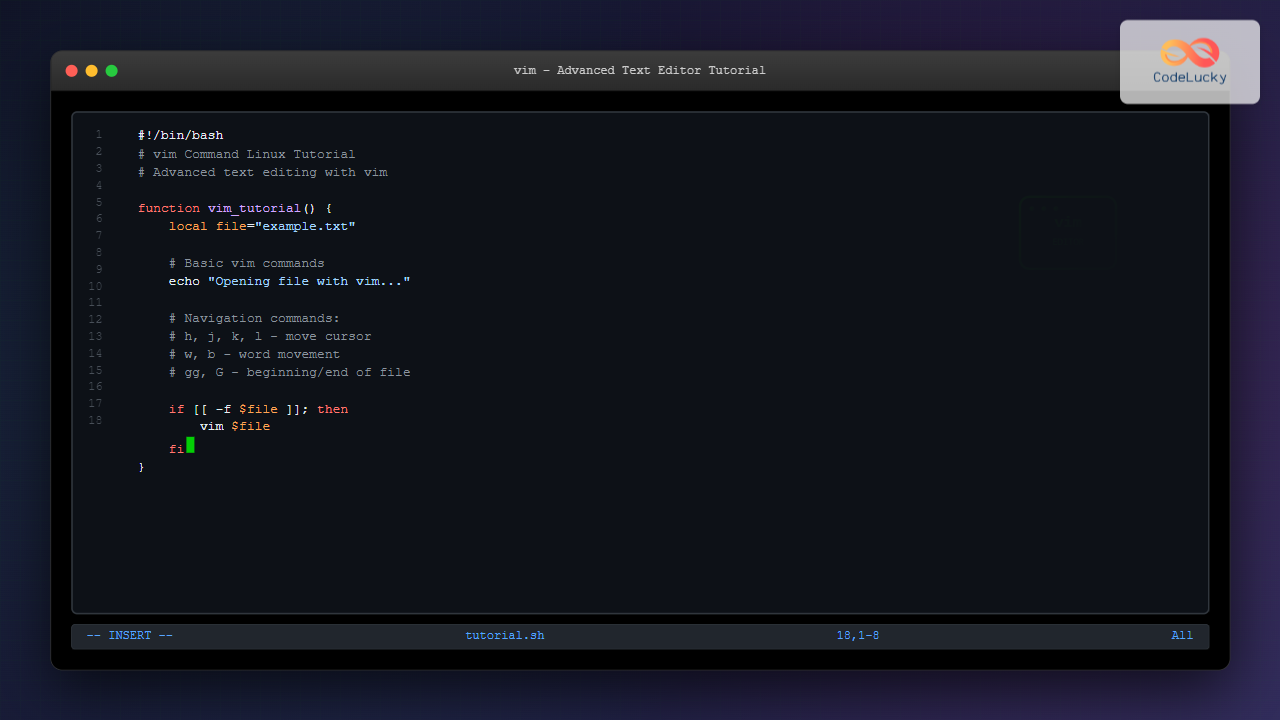
The vim command is one of the most powerful and versatile text editors available in Linux systems. Originally created as an improved version of the vi editor, vim (Vi IMproved) has become an essential tool for developers, system administrators, and power users worldwide. This comprehensive guide will take you from basic vim operations to advanced techniques that will transform your text editing workflow.
What is vim Command in Linux?
Vim is a highly configurable text editor built to enable efficient text editing. It’s an improved version of the vi editor distributed with most UNIX systems. Vim is often called a “programmer’s editor,” and so useful for programming that many consider it an entire IDE.
Unlike traditional text editors, vim operates in different modes, each serving specific purposes. This modal approach makes vim incredibly efficient once mastered, allowing users to perform complex text manipulations with minimal keystrokes.
Installing vim on Linux
Most Linux distributions come with vim pre-installed. However, if it’s not available on your system, you can install it using your distribution’s package manager:
Ubuntu/Debian:
sudo apt update
sudo apt install vim
CentOS/RHEL/Fedora:
sudo yum install vim     # CentOS/RHEL 7
sudo dnf install vim     # Fedora/RHEL 8+
Arch Linux:
sudo pacman -S vimUnderstanding vim Modes
Vim operates in several distinct modes, each with its own purpose and set of commands:
1. Normal Mode (Command Mode)
This is the default mode when you start vim. In this mode, you can navigate, delete, copy, paste, and execute commands. Every key press is interpreted as a command.
2. Insert Mode
In insert mode, vim behaves like a regular text editor where you can type and insert text. You enter insert mode from normal mode and return to normal mode by pressing Esc.
3. Visual Mode
Visual mode allows you to select text for operations like copying, deleting, or formatting. It’s vim’s equivalent of highlighting text.
4. Command-Line Mode
This mode allows you to execute complex commands, search and replace operations, save files, and configure vim settings.
Basic vim Commands and Navigation
Starting vim
To open vim, simply type:
vim filename.txtIf the file doesn’t exist, vim will create it when you save. To open vim without a file:
vimEssential Movement Commands
| Command | Action |
|---|---|
h |
Move cursor left |
j |
Move cursor down |
k |
Move cursor up |
l |
Move cursor right |
w |
Move to beginning of next word |
b |
Move to beginning of previous word |
0 |
Move to beginning of line |
$ |
Move to end of line |
gg |
Move to first line of file |
G |
Move to last line of file |
Entering Insert Mode
| Command | Action |
|---|---|
i |
Insert before cursor |
I |
Insert at beginning of line |
a |
Append after cursor |
A |
Append at end of line |
o |
Open new line below cursor |
O |
Open new line above cursor |
Essential vim Commands for Text Manipulation
Deleting Text
| Command | Action |
|---|---|
x |
Delete character under cursor |
X |
Delete character before cursor |
dw |
Delete word |
dd |
Delete entire line |
D |
Delete from cursor to end of line |
Copy and Paste Operations
| Command | Action |
|---|---|
yy |
Copy (yank) current line |
yw |
Copy word |
p |
Paste after cursor |
P |
Paste before cursor |
Saving and Exiting vim
These commands are executed in command-line mode (press : first):
| Command | Action |
|---|---|
:w |
Save file |
:q |
Quit vim |
:wq |
Save and quit |
:q! |
Quit without saving |
:w filename |
Save as different filename |
Advanced vim Commands and Techniques
Search and Replace
Vim provides powerful search and replace capabilities:
Basic Search
/pattern          # Search forward for pattern
?pattern          # Search backward for pattern
n                 # Go to next search result
N                 # Go to previous search result
Search and Replace Examples
:s/old/new/       # Replace first occurrence in current line
:s/old/new/g      # Replace all occurrences in current line
:%s/old/new/g     # Replace all occurrences in entire file
:%s/old/new/gc    # Replace with confirmation for each
:1,10s/old/new/g  # Replace in lines 1-10
Working with Multiple Files
:e filename       # Open another file
:split filename   # Open file in horizontal split
:vsplit filename  # Open file in vertical split
Ctrl+w + h/j/k/l  # Navigate between splits
:bn               # Next buffer
:bp               # Previous buffer
:bd               # Close current buffer
Visual Mode Operations
Visual mode allows you to select text for bulk operations:
v                 # Start visual mode (character-wise)
V                 # Start visual line mode
Ctrl+v            # Start visual block mode
y                 # Copy selected text
d                 # Delete selected text
>                 # Indent selected text
<                 # Unindent selected text
Practical Examples and Use Cases
Example 1: Editing a Configuration File
Let’s say you need to edit a configuration file:
# Open the file
vim /etc/ssh/sshd_config

# Search for a specific setting
/PasswordAuthentication

# Change the value
# Press 'i' to enter insert mode, make changes, press Esc
# Navigate to the value and change it

# Save and exit
:wq
Example 2: Working with Code
# Open a Python file
vim script.py

# Jump to a specific line number
:25

# Delete 5 lines starting from current position
5dd

# Copy a function (assuming it's 10 lines)
10yy

# Paste it elsewhere
p

# Save the file
:w
Example 3: Bulk Text Processing
Replace all occurrences of a variable name in a code file:
# Open the file
vim mycode.js

# Replace all instances of 'oldVariable' with 'newVariable'
:%s/oldVariable/newVariable/g

# Verify changes and save
:w
Customizing vim with .vimrc
The .vimrc file in your home directory allows you to customize vim’s behavior:
# Create or edit .vimrc file
vim ~/.vimrc
Here are some useful configuration options:
" Enable line numbers
set number

" Enable syntax highlighting
syntax on

" Set tab width to 4 spaces
set tabstop=4
set shiftwidth=4
set expandtab

" Enable mouse support
set mouse=a

" Show matching parentheses
set showmatch

" Enable incremental search
set incsearch

" Highlight search results
set hlsearch

" Auto-indent new lines
set autoindent

" Show current mode in status line
set showmode

" Enable file type detection
filetype plugin indent on
Advanced Features and Plugins
Macros
Macros allow you to record and replay sequences of commands:
qa                # Start recording macro 'a'
# Perform your actions
q                 # Stop recording
@a                # Execute macro 'a'
@@                # Execute last macro
5@a               # Execute macro 'a' 5 times
Folding
Code folding helps manage large files:
zf                # Create fold
zo                # Open fold
zc                # Close fold
zR                # Open all folds
zM                # Close all folds
Vim Productivity Tips
1. Use Numbers with Commands
5dd               # Delete 5 lines
3yy               # Copy 3 lines
10w               # Move 10 words forward
2. Combine Commands
d$                # Delete to end of line
y0                # Copy to beginning of line
c2w               # Change 2 words
3. Use Marks
ma                # Set mark 'a'
'a                # Jump to mark 'a'
'.                # Jump to last edit position
Common vim Mistakes and How to Avoid Them
1. Getting Stuck in Insert Mode
Problem: New users often get confused about modes.
Solution: Always press Esc to return to normal mode before executing commands.
2. Accidentally Recording Macros
Problem: Pressing q followed by a letter starts macro recording.
Solution: Press q again to stop recording, or Esc to cancel.
3. Losing Changes
Problem: Quitting without saving.
Solution: Use :w frequently, or enable auto-save in your .vimrc.
vim vs Other Text Editors
| Feature | vim | nano | emacs |
|---|---|---|---|
| Learning Curve | Steep | Gentle | Steep |
| Speed (once learned) | Very Fast | Moderate | Fast |
| System Resources | Low | Very Low | Higher |
| Customization | Extensive | Limited | Extensive |
Troubleshooting Common Issues
1. vim is in Replace Mode
If characters are being overwritten instead of inserted, you’re in replace mode. Press Esc then i to enter insert mode.
2. Cannot Save File (Permission Denied)
:w !sudo tee % # Save with sudo privileges3. File is Read-Only
:w! # Force write (if you have permissions)Conclusion
Mastering the vim command in Linux is an investment that pays dividends in productivity and efficiency. While the initial learning curve may seem daunting, the modal editing approach and powerful command combinations make vim an incredibly efficient tool for text editing, programming, and system administration tasks.
Start with the basic commands covered in this guide, practice regularly, and gradually incorporate more advanced features. Remember that becoming proficient with vim is a journey, not a destination. Even experienced users continue to discover new techniques and workflows that enhance their productivity.
The key to vim mastery is consistent practice and gradually building muscle memory for common operations. Start by using vim for simple editing tasks, then progressively tackle more complex scenarios as your confidence grows. With time and practice, you’ll find that vim becomes an extension of your thought process, allowing you to manipulate text at the speed of thought.
Related Posts
nano Command Linux: Complete Guide to Simple Text Editing for Beginners
The nano command is one of the most beginner-friendly text editors available in Linux systems. Unlike complex editors like Vim...
emacs Command Linux: Complete Guide to the Powerful Text Editor
The emacs command is one of the most powerful and extensible text editors available in Linux systems. Originally developed by...
sed Command Linux: Complete Guide to Stream Editor for Text Manipulation
The sed (Stream Editor) command is one of the most powerful text processing utilities in Linux and Unix systems. It...
sed Advanced Linux: Stream Editor Advanced Techniques for Text Processing
The sed (Stream Editor) command stands as one of the most powerful text processing tools in Linux systems. While basic...

Linux Commands Tutorial: Complete Beginner’s Guide to Terminal Basics
The Linux terminal is a powerful command-line interface that gives you direct control over your operating system. While it might...

echo Command in Linux: Complete Guide to Print Text and Variables in Terminal
The echo command is one of the most fundamental and frequently used commands in Linux and Unix-like operating systems. It...
alias Command in Linux: Create Custom Command Shortcuts and Boost Your Productivity
The alias command in Linux is a powerful tool that allows you to create custom shortcuts for frequently used commands,...
dialog Command Linux: Create Interactive Text-Based User Interfaces with Ease
The dialog command in Linux is a powerful utility that enables developers and system administrators to create sophisticated text-based user...
g++ Command Linux: Complete Guide to Compile C++ Programs Efficiently
The g++ command is one of the most essential tools for C++ developers working on Linux systems. As part of...
HTML Editors: Choosing the Right Tool for Web Development
Introduction Choosing the right tool is crucial for any craft, and web development is no exception. When it comes to...

cat Command in Linux: Complete Guide to Display and Concatenate Files
The cat command is one of the most fundamental and frequently used commands in Linux and Unix-like operating systems. Short...

less Command Linux: Complete Guide to View Large Files Page by Page
The less command is one of the most essential tools for Linux system administrators and developers who need to view...