
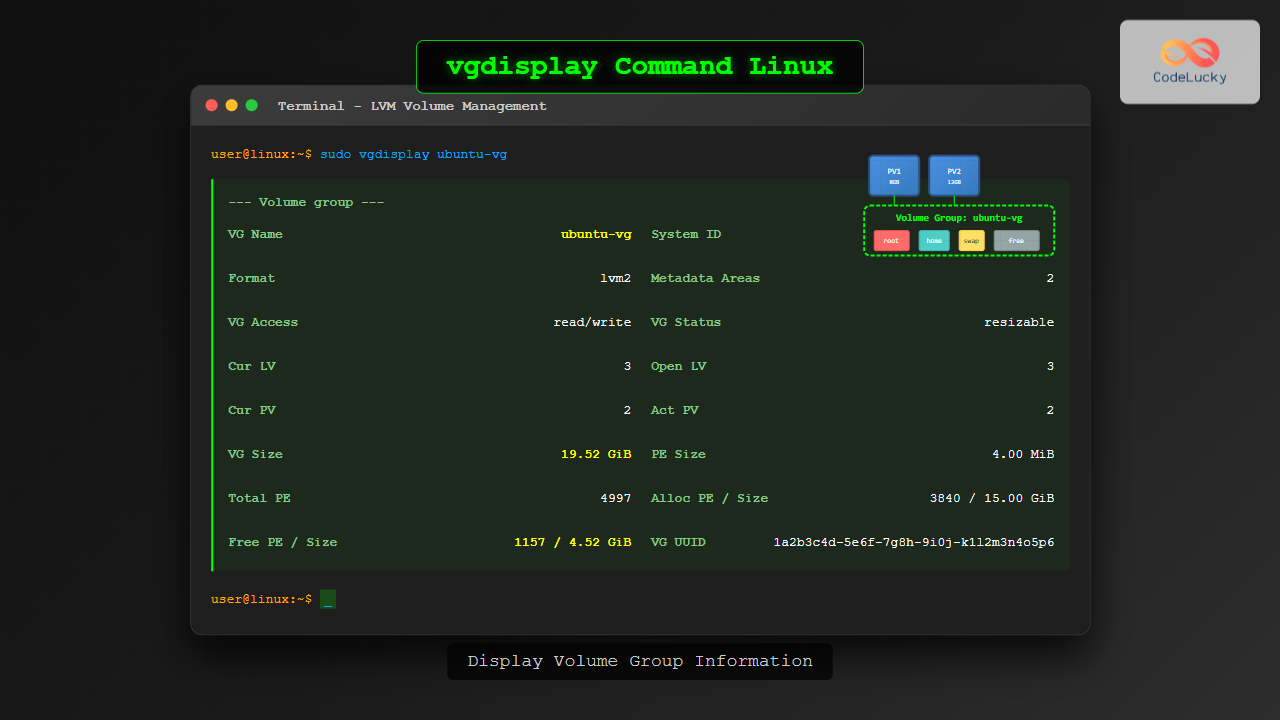
The vgdisplay command is an essential tool in Linux systems for displaying detailed information about Volume Groups (VGs) in Logical Volume Management (LVM). This powerful command provides administrators with comprehensive insights into storage configuration, helping manage disk space and monitor system resources effectively.
What is the vgdisplay Command?
The vgdisplay command stands for “Volume Group Display” and is part of the LVM2 package in Linux distributions. It shows detailed information about one or more volume groups, including size, allocation status, physical volumes, and logical volumes within the group.
Volume Groups act as storage pools that combine multiple physical volumes (hard drives or partitions) into a single logical unit, making storage management more flexible and efficient.
Basic Syntax and Usage
The basic syntax of the vgdisplay command is:
vgdisplay [options] [volume_group_name]Simple Usage Example
To display information about all volume groups on the system:
sudo vgdisplayExample output:
--- Volume group ---
VG Name               ubuntu-vg
System ID
Format                lvm2
Metadata Areas        1
Metadata Sequence No  3
VG Access             read/write
VG Status             resizable
MAX LV                0
Cur LV                2
Open LV               2
Max PV                0
Cur PV                1
Act PV                1
VG Size               <19.00 GiB
PE Size               4.00 MiB
Total PE              4863
Alloc PE / Size       4863 / <19.00 GiB
Free PE / Size        0 / 0
VG UUID               abc123-def4-5678-9abc-def012345678
Common Options and Parameters
Display Specific Volume Group
To view information about a specific volume group:
sudo vgdisplay ubuntu-vgShort Format Display
Use the -s option for a concise summary:
sudo vgdisplay -sOutput:
"ubuntu-vg" <19.00 GiB [4863/0/0 free]
"data-vg" 50.00 GiB [12800/2560/10240 free]
Verbose Output
For more detailed information, use the -v option:
sudo vgdisplay -v ubuntu-vgColon-Separated Output
The -c option provides machine-readable output:
sudo vgdisplay -cOutput format:
ubuntu-vg:r/w:772:-1:0:2:2:-1:0:1:1:19922944:4096:4863:4863:0:abc123-def4-5678-9abc-def012345678Understanding the Output Fields
Let’s break down the key fields displayed by vgdisplay:
| Field | Description |
|---|---|
| VG Name | Name of the volume group |
| Format | LVM format version (typically lvm2) |
| VG Access | Access permissions (read/write or read-only) |
| VG Status | Current status (resizable, exported, etc.) |
| Cur LV | Number of logical volumes in the group |
| Cur PV | Number of physical volumes in the group |
| VG Size | Total size of the volume group |
| PE Size | Physical Extent size (allocation unit) |
| Free PE | Available space in physical extents |
Practical Examples and Use Cases
Example 1: Monitoring Storage Usage
Check available space in all volume groups:
sudo vgdisplay -s | grep -E "(Free|free)"Example 2: Multiple Volume Groups
Display information for multiple volume groups:
sudo vgdisplay ubuntu-vg data-vg backup-vgExample 3: JSON-like Output for Scripting
Use with other commands for automated monitoring:
sudo vgdisplay -c | awk -F: '{print $1 ": " $13*$14/1024/1024 " GB total, " $15*$14/1024/1024 " GB free"}'Advanced Usage Scenarios
Integration with System Monitoring
Create a simple monitoring script:
#!/bin/bash
echo "Volume Group Status Report"
echo "=========================="
for vg in $(sudo vgs --noheadings -o vg_name); do
    echo "Checking VG: $vg"
    sudo vgdisplay -s $vg
    echo ""
done
Checking VG Health
Combine vgdisplay with other LVM commands:
sudo vgdisplay -v ubuntu-vg | grep -A 5 "Physical volumes"Common Error Messages and Troubleshooting
Volume Group Not Found
If you encounter “Volume group not found” error:
sudo vgscan
sudo vgdisplay
Permission Denied
Always run vgdisplay with sudo privileges:
# Wrong
vgdisplay

# Correct
sudo vgdisplay
No Volume Groups Found
This indicates no LVM setup exists on the system. Check with:
sudo pvs
sudo vgs
sudo lvs
Related LVM Commands
The vgdisplay command works alongside other LVM tools:
pvdisplay– Display physical volume informationlvdisplay– Display logical volume informationvgs– Brief volume group summaryvgextend– Extend volume group sizevgreduce– Reduce volume group size
Best Practices and Tips
Regular Monitoring
Include vgdisplay in regular system health checks:
sudo vgdisplay -s > /var/log/vg-status-$(date +%Y%m%d).logAutomation and Scripting
Use the colon-separated output for parsing in scripts:
VG_FREE=$(sudo vgdisplay -c ubuntu-vg | cut -d: -f16)
if [ "$VG_FREE" -lt 1000 ]; then
    echo "Warning: Low space in volume group"
fi
Documentation
Always document your volume group structure:
sudo vgdisplay -v > /docs/lvm-structure-$(hostname).txtPerformance Considerations
The vgdisplay command is generally lightweight, but consider these points:
- Use
-soption for quick checks in scripts - Avoid frequent verbose queries on systems with many volume groups
- Cache output when possible for repeated access
Security Implications
Volume group information can reveal storage architecture details:
- Restrict access to LVM commands to authorized users
- Use sudo for controlled access
- Be cautious when sharing vgdisplay output
Conclusion
The vgdisplay command is an indispensable tool for Linux system administrators working with LVM storage systems. It provides comprehensive volume group information essential for storage management, capacity planning, and troubleshooting. By mastering its various options and understanding the output format, administrators can effectively monitor and maintain their storage infrastructure.
Regular use of vgdisplay helps ensure optimal storage utilization, early detection of capacity issues, and informed decision-making for storage expansion or reorganization. Whether you’re managing a single server or a complex storage environment, vgdisplay remains a fundamental command in your Linux administration toolkit.
Related Posts
pvdisplay Command Linux: Complete Guide to Physical Volume Information Display
The pvdisplay command is an essential tool in Linux for displaying detailed information about Physical Volumes (PVs) in Logical Volume...
vgcreate Command Linux: Complete Guide to Volume Group Creation
The vgcreate command is a fundamental tool in Linux Logical Volume Manager (LVM) that allows system administrators to create volume...
lvdisplay Command Linux: Complete Guide to Display Logical Volume Information
The lvdisplay command is an essential tool in Linux for displaying detailed information about logical volumes (LVs) in Logical Volume...
pvcreate Command Linux: Complete Guide to Creating Physical Volumes for LVM
The pvcreate command is a fundamental tool in Linux Logical Volume Management (LVM) that initializes storage devices as physical volumes....
lvm Command Linux: Complete Guide to Logical Volume Manager Operations
The Logical Volume Manager (LVM) is a powerful disk management tool in Linux that provides flexible storage management by abstracting...
lvcreate Command Linux: Complete Guide to Creating Logical Volumes with Examples
The lvcreate command is a fundamental tool in Linux Logical Volume Management (LVM) that allows you to create logical volumes...

Storage Virtualization: Complete Guide to Logical Volume Management in Linux
Storage virtualization through Logical Volume Management (LVM) represents one of the most powerful features in modern Linux systems, providing administrators...
lsblk Command Linux: Complete Guide to List and Manage Block Devices
The lsblk command is an essential Linux utility that displays information about block devices in a tree-like format. Whether you're...
kpartx Command Linux: Create and Manage Partition Maps with Complete Examples
The kpartx command is a powerful Linux utility that creates device maps from partition tables, enabling you to access partitions...
sgdisk Command Linux: Complete Guide to Script-Friendly GPT Partition Management
The sgdisk command is a powerful script-friendly alternative to the interactive gdisk utility for managing GPT (GUID Partition Table) partitions...
fdisk Command Linux: Complete Guide to Disk Partition Management
The fdisk command is one of the most powerful and essential tools for disk partition management in Linux systems. Whether...
cfdisk Command Linux: Complete Guide to Curses-based Partition Management
The cfdisk command is a powerful, user-friendly partition table editor for Linux systems that provides a curses-based interface for managing...





