
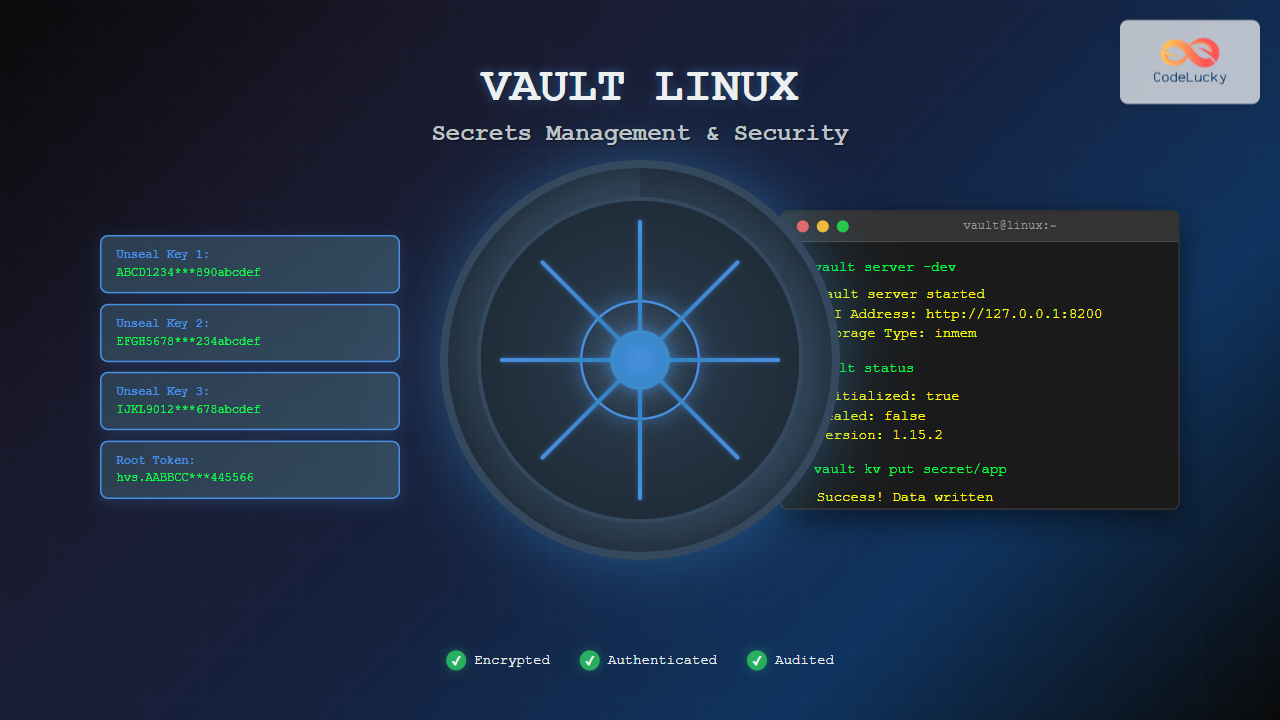
HashiCorp Vault is a powerful open-source tool designed to securely store and manage secrets, passwords, certificates, and encryption keys. In today’s cloud-native and distributed computing environments, managing sensitive data has become increasingly complex. Vault addresses these challenges by providing a centralized, secure platform for secrets management with advanced features like dynamic secrets, encryption as a service, and fine-grained access control.
This comprehensive guide will walk you through everything you need to know about using Vault on Linux systems, from basic installation to advanced production configurations.
What is HashiCorp Vault?
Vault is a secrets management system that provides a unified interface to any secret while providing tight access control and recording a detailed audit log. It can store traditional static secrets like usernames and passwords, but its real power lies in generating dynamic secrets on-demand for services like databases, cloud providers, and SSH access.
Key Features of Vault
- Secure Secret Storage: Arbitrary key/value secrets can be stored in Vault with encryption at rest
- Dynamic Secrets: Generate secrets on-demand for some systems, such as AWS or SQL databases
- Data Encryption: Encrypt and decrypt data without storing it inside Vault
- Leasing and Renewal: All secrets have a lease associated with them
- Revocation: Built-in revocation support helps security teams to lock down systems
Installing Vault on Linux
Method 1: Binary Installation
The simplest way to install Vault is by downloading the pre-compiled binary:
# Download the latest Vault binary
wget https://releases.hashicorp.com/vault/1.15.2/vault_1.15.2_linux_amd64.zip

# Unzip the downloaded file
unzip vault_1.15.2_linux_amd64.zip

# Move the binary to a directory in your PATH
sudo mv vault /usr/local/bin/

# Make it executable
sudo chmod +x /usr/local/bin/vault

# Verify installation
vault version
Expected Output:
Vault v1.15.2 (build date unknown), built on 2023-11-06T11:33:28ZMethod 2: Package Manager Installation
For Ubuntu/Debian systems:
# Add HashiCorp GPG key
curl -fsSL https://apt.releases.hashicorp.com/gpg | sudo apt-key add -

# Add the official HashiCorp repository
sudo apt-add-repository "deb [arch=amd64] https://apt.releases.hashicorp.com $(lsb_release -cs) main"

# Update package list
sudo apt update

# Install Vault
sudo apt install vault
For CentOS/RHEL/Fedora systems:
# Add HashiCorp repository
sudo yum install -y yum-utils
sudo yum-config-manager --add-repo https://rpm.releases.hashicorp.com/RHEL/hashicorp.repo

# Install Vault
sudo yum install vault
Vault Server Configuration
Development Mode
For learning and testing purposes, you can start Vault in development mode:
# Start Vault in dev mode
vault server -dev
Expected Output:
==> Vault server configuration:

             Api Address: http://127.0.0.1:8200
                     Cgo: disabled
         Cluster Address: https://127.0.0.1:8201
              Go Version: go1.21.3
              Listener 1: tcp (addr: "127.0.0.1:8200", cluster address: "127.0.0.1:8201", max_request_duration: "1m30s", max_request_size: "33554432", tls: "disabled")
               Log Level: info
                   Mlock: supported: true, enabled: false
           Recovery Mode: false
                 Storage: inmem
                 Version: Vault v1.15.2
             Version Sha: build date unknown

WARNING! dev mode is enabled! In this mode, Vault runs entirely in-memory
and starts unsealed with a single unseal key. The root token is already
authenticated to the CLI, so you can immediately begin using Vault.

You may need to set the following environment variable:

    $ export VAULT_ADDR='http://127.0.0.1:8200'

The unseal key and root token are displayed below in case you want to
seal/unseal the Vault or re-authenticate.

Unseal Key: Jxj8NBdmpvtFoT1eaVD6B3Csg2NjqTpCQb5YfxrRmeM=
Root Token: hvs.8XcDhoCOtsHgq3EqOyiBT9Ds
Production Configuration
Create a configuration file for production use:
# Create Vault configuration directory
sudo mkdir -p /etc/vault.d

# Create configuration file
sudo tee /etc/vault.d/vault.hcl << 'EOF'
ui = true
disable_mlock = true

storage "file" {
  path = "/opt/vault/data"
}

listener "tcp" {
  address     = "0.0.0.0:8200"
  tls_disable = "true"
}

api_addr = "http://127.0.0.1:8200"
cluster_addr = "https://127.0.0.1:8201"
EOF
Create necessary directories and set permissions:
# Create data directory
sudo mkdir -p /opt/vault/data

# Create vault user
sudo useradd --system --home /etc/vault.d --shell /bin/false vault

# Set ownership
sudo chown -R vault:vault /etc/vault.d /opt/vault/data
Starting and Initializing Vault
Starting the Vault Server
# Start Vault server with configuration
vault server -config=/etc/vault.d/vault.hcl
Setting Environment Variables
In a new terminal, set the Vault address:
# Set Vault address
export VAULT_ADDR='http://127.0.0.1:8200'

# Check server status
vault status
Expected Output (Uninitialized):
Key                Value
---                -----
Seal Type          shamir
Initialized        false
Sealed             true
Total Shares       0
Threshold          0
Unseal Progress    0/0
Unseal Nonce       n/a
Version            1.15.2
Build Date         2023-11-06T11:33:28Z
Storage Type       file
HA Enabled         false
Initializing Vault
# Initialize Vault with 5 key shares and threshold of 3
vault operator init -key-shares=5 -key-threshold=3
Expected Output:
Unseal Key 1: ABCD1234567890abcdef1234567890abcdef12
Unseal Key 2: EFGH1234567890abcdef1234567890abcdef34
Unseal Key 3: IJKL1234567890abcdef1234567890abcdef56
Unseal Key 4: MNOP1234567890abcdef1234567890abcdef78
Unseal Key 5: QRST1234567890abcdef1234567890abcdef90

Initial Root Token: hvs.AABBCCDDEE112233445566778899

Vault initialized with 5 key shares and a key threshold of 3. Please securely
distribute the key shares printed above. When the Vault is re-sealed,
restarted, or stopped, you must supply at least 3 of these keys to unseal it
before it can start servicing requests.
Important: Save these keys and root token securely. You’ll need them to unseal Vault.
Unsealing Vault
Vault starts sealed and must be unsealed before use:
# Unseal with first key
vault operator unseal ABCD1234567890abcdef1234567890abcdef12

# Unseal with second key
vault operator unseal EFGH1234567890abcdef1234567890abcdef34

# Unseal with third key (reaches threshold)
vault operator unseal IJKL1234567890abcdef1234567890abcdef56
Expected Output (After third key):
Key             Value
---             -----
Seal Type       shamir
Initialized     true
Sealed          false
Total Shares    5
Threshold       3
Version         1.15.2
Build Date      2023-11-06T11:33:28Z
Storage Type    file
Cluster Name    vault-cluster-8b173291
Cluster ID      d8ee7ca3-8d7f-4c2f-a337-df042fcd4d37
HA Enabled      false
Authentication and Access Control
Authenticating with Root Token
# Authenticate using root token
vault auth hvs.AABBCCDDEE112233445566778899

# Verify authentication
vault auth -methods
Enabling Authentication Methods
Vault supports multiple authentication methods. Let’s enable userpass authentication:
# Enable userpass auth method
vault auth enable userpass

# Create a user
vault write auth/userpass/users/john \
    password=securepassword \
    policies=default

# Test authentication
vault auth -method=userpass username=john
Working with Secrets Engines
Key-Value Secrets Engine v2
The KV secrets engine is enabled by default. Let’s store and retrieve secrets:
# Store a secret
vault kv put secret/myapp/config \
    username=dbuser \
    password=supersecret \
    database_url=postgres://localhost:5432/myapp

# Retrieve the secret
vault kv get secret/myapp/config
Expected Output:
====== Metadata ======
Key              Value
---              -----
created_time     2025-08-26T03:28:58.259066Z
custom_metadata  <nil>
deletion_time    n/a
destroyed        false
version          1

====== Data ======
Key           Value
---           -----
database_url  postgres://localhost:5432/myapp
password      supersecret
username      dbuser
Database Secrets Engine
Enable dynamic database credentials:
# Enable database secrets engine
vault secrets enable database

# Configure PostgreSQL connection
vault write database/config/postgresql \
    plugin_name=postgresql-database-plugin \
    connection_url="postgresql://{{username}}:{{password}}@localhost:5432/postgres" \
    allowed_roles="readonly" \
    username="vault" \
    password="vaultpass"

# Create a role for read-only access
vault write database/roles/readonly \
    db_name=postgresql \
    creation_statements="CREATE ROLE \"{{name}}\" WITH LOGIN PASSWORD '{{password}}' VALID UNTIL '{{expiration}}'; \
        GRANT SELECT ON ALL TABLES IN SCHEMA public TO \"{{name}}\";" \
    default_ttl="1h" \
    max_ttl="24h"

# Generate dynamic credentials
vault read database/creds/readonly
Expected Output:
Key                Value
---                -----
lease_id           database/creds/readonly/2f6a614c-4aa2-7b19-24b9-ad944a8d4de6
lease_duration     1h
lease_renewable    true
password           A1a-23bcdefg456hijkl
username           v-root-readonly-48hr2t0xvhdy4pb9xy0s-1693036138
AWS Secrets Engine
Configure AWS dynamic credentials:
# Enable AWS secrets engine
vault secrets enable aws

# Configure AWS credentials
vault write aws/config/root \
    access_key=AKIAIOSFODNN7EXAMPLE \
    secret_key=wJalrXUtnFEMI/K7MDENG/bPxRfiCYEXAMPLEKEY \
    region=us-east-1

# Create a role for EC2 access
vault write aws/roles/ec2-role \
    credential_type=iam_user \
    policy_document=-<<EOF
{
  "Version": "2012-10-17",
  "Statement": [
    {
      "Sid": "Stmt1426528957000",
      "Effect": "Allow",
      "Action": [
        "ec2:*"
      ],
      "Resource": [
        "*"
      ]
    }
  ]
}
EOF

# Generate AWS credentials
vault read aws/creds/ec2-role
Policies and Access Control
Creating Policies
Create a policy file for application access:
# Create policy file
tee myapp-policy.hcl << 'EOF'
# Read-only on secrets
path "secret/data/myapp/*" {
  capabilities = ["read"]
}

# List secrets
path "secret/metadata/myapp/*" {
  capabilities = ["list"]
}

# Generate database credentials
path "database/creds/readonly" {
  capabilities = ["read"]
}

# Renew leases
path "sys/leases/renew" {
  capabilities = ["update"]
}
EOF

# Write the policy to Vault
vault policy write myapp-policy myapp-policy.hcl

# List policies
vault policy list
Assigning Policies to Users
# Update user with policy
vault write auth/userpass/users/john \
    password=securepassword \
    policies=myapp-policy

# Create a token with specific policy
vault token create -policy=myapp-policy
Vault Agent and Auto-Unseal
Configuring Vault Agent
Create Vault Agent configuration for automatic authentication:
# Create agent configuration
tee vault-agent.hcl << 'EOF'
vault {
  address = "http://127.0.0.1:8200"
}

auto_auth {
  method "userpass" {
    mount_path = "auth/userpass"
    config = {
      username = "john"
      password_file_path = "/etc/vault-agent/password"
    }
  }

  sink "file" {
    config = {
      path = "/tmp/vault-token"
    }
  }
}

cache {
  use_auto_auth_token = true
}

listener "tcp" {
  address = "127.0.0.1:8100"
  tls_disable = true
}
EOF

# Create password file
sudo mkdir -p /etc/vault-agent
echo "securepassword" | sudo tee /etc/vault-agent/password

# Run Vault Agent
vault agent -config=vault-agent.hcl
Encryption as a Service
Transit Secrets Engine
Use Vault for encryption operations without storing data:
# Enable transit secrets engine
vault secrets enable transit

# Create encryption key
vault write -f transit/keys/my-app-key

# Encrypt data
vault write transit/encrypt/my-app-key \
    plaintext=$(echo "my secret data" | base64)

# Example output shows encrypted data
# You'll get something like: vault:v1:8SDd3WHDOjf7mq69CyCqYjBXAiQQAVZRkFM13ok481zoCmHnSeDX9vyf7w==

# Decrypt data
vault write transit/decrypt/my-app-key \
    ciphertext="vault:v1:8SDd3WHDOjf7mq69CyCqYjBXAiQQAVZRkFM13ok481zoCmHnSeDX9vyf7w=="
Monitoring and Auditing
Enabling Audit Logging
# Enable file audit
vault audit enable file file_path=/var/log/vault-audit.log

# Enable syslog audit
vault audit enable syslog

# List audit devices
vault audit list
Health Checking
# Check Vault health
vault status

# Detailed health check
curl -s http://127.0.0.1:8200/v1/sys/health | jq
Backup and Recovery
Creating Backups
# Create snapshot (Enterprise feature)
# For open-source, backup the storage backend

# For file storage backend
sudo tar -czf vault-backup-$(date +%Y%m%d).tar.gz /opt/vault/data

# Backup policies
vault policy list | xargs -I {} sh -c 'vault policy read {} > {}.hcl'
Production Best Practices
Systemd Service Configuration
Create a systemd service for Vault:
# Create systemd service file
sudo tee /etc/systemd/system/vault.service << 'EOF'
[Unit]
Description=HashiCorp Vault
Documentation=https://www.vaultproject.io/docs/
Requires=network-online.target
After=network-online.target
ConditionFileNotEmpty=/etc/vault.d/vault.hcl

[Service]
Type=notify
User=vault
Group=vault
ProtectSystem=full
ProtectHome=read-only
PrivateTmp=yes
PrivateDevices=yes
SecureBits=keep-caps
AmbientCapabilities=CAP_IPC_LOCK
CapabilityBoundingSet=CAP_SYSLOG CAP_IPC_LOCK
NoNewPrivileges=yes
ExecStart=/usr/local/bin/vault server -config=/etc/vault.d/vault.hcl
ExecReload=/bin/kill --signal HUP $MAINPID
KillMode=process
Restart=on-failure
RestartSec=5
TimeoutStopSec=30
StartLimitInterval=60
StartLimitBurst=3
LimitNOFILE=65536
LimitMEMLOCK=infinity

[Install]
WantedBy=multi-user.target
EOF

# Enable and start service
sudo systemctl enable vault
sudo systemctl start vault
sudo systemctl status vault
TLS Configuration
Configure TLS for production:
# Generate self-signed certificate (for testing)
openssl req -x509 -nodes -days 365 -newkey rsa:2048 \
    -keyout /etc/vault.d/vault-key.pem \
    -out /etc/vault.d/vault-cert.pem \
    -subj "/C=US/ST=State/L=City/O=Organization/CN=vault.example.com"

# Update vault.hcl for TLS
sudo tee /etc/vault.d/vault.hcl << 'EOF'
ui = true
disable_mlock = true

storage "file" {
  path = "/opt/vault/data"
}

listener "tcp" {
  address       = "0.0.0.0:8200"
  tls_cert_file = "/etc/vault.d/vault-cert.pem"
  tls_key_file  = "/etc/vault.d/vault-key.pem"
}

api_addr = "https://127.0.0.1:8200"
cluster_addr = "https://127.0.0.1:8201"
EOF
Troubleshooting Common Issues
Common Problems and Solutions
1. Vault Sealed After Restart:
# Check status
vault status

# If sealed, unseal with threshold number of keys
vault operator unseal <key1>
vault operator unseal <key2>
vault operator unseal <key3>
2. Permission Denied Errors:
# Check current token capabilities
vault token capabilities sys/health

# Check policy for specific path
vault policy read my-policy
3. Storage Permission Issues:
# Fix storage permissions
sudo chown -R vault:vault /opt/vault/data
sudo chmod 750 /opt/vault/data
Debugging Commands
# View server logs
journalctl -u vault -f

# Check configuration syntax
vault server -config=/etc/vault.d/vault.hcl -test

# List all mounts
vault secrets list -detailed
Advanced Configuration Examples
High Availability Setup
For production environments, configure Vault with Consul backend:
# vault.hcl for HA setup
ui = true
disable_mlock = true

storage "consul" {
  address = "127.0.0.1:8500"
  path    = "vault/"
}

listener "tcp" {
  address       = "0.0.0.0:8200"
  tls_cert_file = "/etc/vault.d/vault-cert.pem"
  tls_key_file  = "/etc/vault.d/vault-key.pem"
}

api_addr = "https://vault-node1.example.com:8200"
cluster_addr = "https://vault-node1.example.com:8201"
Auto-Unseal with Cloud KMS
Configure auto-unseal with AWS KMS:
# Add to vault.hcl
seal "awskms" {
  region     = "us-east-1"
  kms_key_id = "alias/vault-unseal-key"
}
Security Considerations
- Root Token Management: Revoke root tokens after initial setup and use limited-privilege tokens
- Network Security: Always use TLS in production and restrict network access
- Audit Logging: Enable comprehensive audit logging and monitor for suspicious activities
- Backup Security: Encrypt backups and store unseal keys separately from backups
- Regular Rotation: Implement regular rotation of secrets and certificates
Conclusion
HashiCorp Vault provides a robust solution for secrets management in modern infrastructure. By following the practices outlined in this guide, you can implement secure, scalable secrets management that integrates seamlessly with your existing Linux-based systems and applications.
Key takeaways for successful Vault implementation include proper initialization and unsealing procedures, thoughtful policy design, regular monitoring and auditing, and adherence to security best practices. Whether you’re managing database credentials, API keys, or encryption keys, Vault’s flexible architecture adapts to diverse use cases while maintaining security standards.
Remember that secrets management is an ongoing process that requires regular maintenance, monitoring, and updates to ensure continued security and reliability in your infrastructure.
Related Posts
cryptsetup Command Linux: Complete Guide to LUKS Disk Encryption
The cryptsetup command is a powerful Linux utility that provides disk encryption capabilities through the Linux Unified Key Setup (LUKS)...
gpg Command Linux: Complete Guide to GNU Privacy Guard Encryption and Digital Signatures
GNU Privacy Guard (GPG) is a powerful encryption tool that implements the OpenPGP standard, providing cryptographic privacy and authentication for...
Encryption in Operating System: Complete Guide to Data Protection Methods
Operating system encryption serves as the cornerstone of modern data protection, safeguarding sensitive information from unauthorized access, data breaches, and...
Python Cryptography: Securing Data with Encryption
In today's digital age, data security is paramount. Whether you're developing a web application, handling sensitive user information, or simply...
nomad Linux: Complete Guide to HashiCorp’s Workload Orchestrator
What is HashiCorp Nomad? HashiCorp Nomad is a simple yet powerful workload orchestrator that enables organizations to deploy and manage...
passwd Command Linux: Complete Guide to Password Management from Terminal
The passwd command is one of the most essential utilities in Linux system administration, allowing users and administrators to change...
Rancher Linux: Complete Container Management Platform for DevOps Teams
Rancher Linux revolutionizes container management by providing a comprehensive platform that simplifies Kubernetes orchestration, multi-cloud deployments, and enterprise-grade container operations....
PHP Password Hashing: Secure Password Storage
In today's digital landscape, securing user passwords is paramount. As PHP developers, we have a responsibility to implement robust password...
openssl Command Linux: Complete Guide to Cryptography and SSL Certificate Management
The openssl command is one of the most powerful and versatile cryptographic tools available in Linux systems. This comprehensive toolkit...
Security in Operating System: Complete Guide to Access Control and Authentication
Introduction to Operating System Security Operating system security forms the foundation of computer security, protecting system resources and user data...
ssh Command Linux: Secure Shell Remote Access Tutorial with Examples
The ssh command in Linux, short for Secure Shell, is one of the most essential tools for system administrators, developers,...

SaltStack Linux: Complete Guide to Intelligent IT Automation and Configuration Management
SaltStack has revolutionized the way system administrators and DevOps engineers manage infrastructure at scale. As a powerful configuration management and...





