
The userdel command is a crucial system administration tool in Linux that allows you to safely remove user accounts from your system. Whether you’re managing a multi-user environment or cleaning up unused accounts, understanding how to properly use userdel is essential for maintaining system security and organization.
What is the userdel Command?
The userdel command is a low-level utility that removes user accounts and related files from a Linux system. It modifies system files like /etc/passwd, /etc/shadow, and /etc/group to eliminate all traces of the specified user account.
Basic Syntax
The basic syntax of the userdel command is:
userdel [OPTIONS] USERNAMECommand Options and Flags
Here are the most commonly used options with the userdel command:
| Option | Description |
|---|---|
-r, --remove |
Remove the user’s home directory and mail spool |
-f, --force |
Force removal of user account even if still logged in |
-Z, --selinux-user |
Remove any SELinux user mapping for the user |
--help |
Display help message |
--version |
Display version information |
Basic User Deletion Examples
Simple User Deletion
To delete a user account without removing their home directory:
sudo userdel johnExpected Output:
# No output on success - user account removed from system filesAfter this command, the user john will no longer be able to log in, but their home directory (/home/john) will remain on the system.
Complete User Removal
To delete a user account along with their home directory and mail spool:
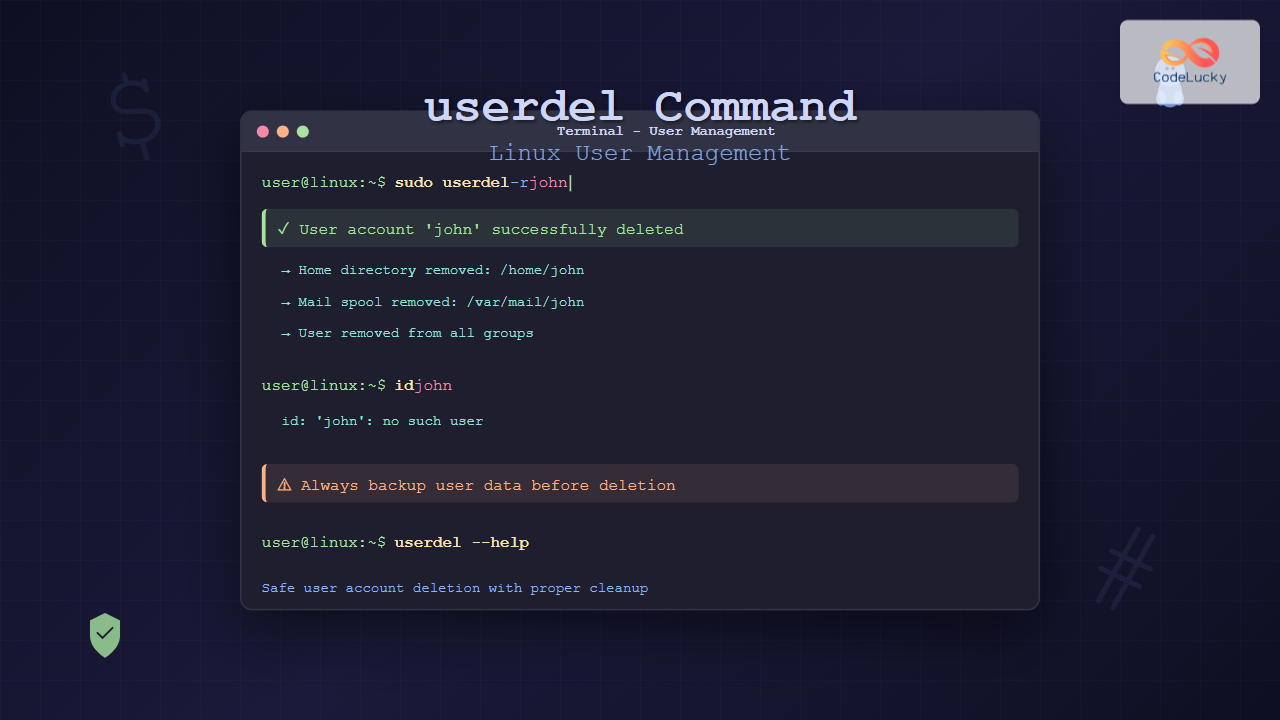
sudo userdel -r johnExpected Output:
# No output on success - user account and files removed completelyThis command removes:
- User account from
/etc/passwd - Password information from
/etc/shadow - Group information from
/etc/group - Home directory (
/home/john) - Mail spool (
/var/mail/john)
Advanced Usage Scenarios
Force User Deletion
If a user is currently logged in or has running processes, you might need to force the deletion:
sudo userdel -f johnWarning: Using the -f flag can cause system instability if the user has active processes. Always check for running processes first:
ps -u johnCombining Options
You can combine multiple options for comprehensive user removal:
sudo userdel -rf johnThis command forcefully removes the user account along with all associated files and directories.
Pre-Deletion Checklist
Before deleting a user account, perform these essential checks:
1. Check if User is Currently Logged In
who | grep johnor
w john2. List User’s Running Processes
ps -u johnSample Output:
  PID TTY          TIME CMD
 1234 pts/0    00:00:00 bash
 1235 pts/0    00:00:01 vim
3. Check User’s Cron Jobs
sudo crontab -u john -l4. Backup Important Data
sudo tar -czf /backup/john_backup.tar.gz /home/johnFile System Impact
When you delete a user with userdel, here’s what happens to different system files:
Modified System Files
- /etc/passwd – User account entry removed
- /etc/shadow – Password information removed
- /etc/group – User removed from all groups
- /etc/gshadow – Group shadow information updated
Files and Directories Affected
With the -r option:
- /home/username – Completely removed
- /var/mail/username – Mail spool deleted
- /tmp – User’s temporary files may remain
- /var/tmp – User’s temporary files may remain
Common Error Messages and Solutions
User Currently Logged In
Error:
userdel: user john is currently used by process 1234Solution:
- Ask the user to log out, or
- Kill user processes:
sudo pkill -u john - Then run:
sudo userdel -r john
User Does Not Exist
Error:
userdel: user 'john' does not existSolution: Verify the username exists:
id johnPermission Denied
Error:
userdel: Permission deniedSolution: Use sudo or switch to root user:
sudo userdel johnBest Practices and Security Considerations
1. Always Backup Before Deletion
# Create a full backup of user data
sudo cp -r /home/john /backup/john_$(date +%Y%m%d)

# Create a system files backup
sudo cp /etc/passwd /etc/passwd.backup
sudo cp /etc/shadow /etc/shadow.backup
2. Document User Deletion
Maintain logs of user deletions for audit purposes:
echo "$(date): Deleted user john - Reason: Employee departure" | sudo tee -a /var/log/user_management.log3. Handle Group Ownership
Check for files owned by the user before deletion:
find / -user john -type f 2>/dev/nullReassign ownership if necessary:
sudo find / -user john -exec chown newowner:newgroup {} \;Alternative Methods
Using deluser Command
On Debian-based systems, you can also use deluser:
sudo deluser --remove-home johnTemporary Account Disabling
Instead of permanent deletion, you might want to temporarily disable an account:
sudo usermod -L john    # Lock the account
sudo usermod -s /sbin/nologin john    # Prevent login
Verification After Deletion
After deleting a user, verify the removal was successful:
Check System Files
# Verify user is removed from passwd
grep john /etc/passwd

# Check shadow file
sudo grep john /etc/shadow

# Verify home directory removal (if -r was used)
ls -la /home/john
Expected Results:
- No output from grep commands (user not found)
- “No such file or directory” for home directory check
Troubleshooting Common Issues
Files Still Owned by Deleted User
Find files still owned by the deleted user’s UID:
find / -uid 1001 2>/dev/nullWhere 1001 was john’s user ID. These files will show as owned by the numeric UID since the username no longer exists.
Mail Spool Remains
If mail spool wasn’t removed automatically:
sudo rm -f /var/mail/john
sudo rm -f /var/spool/mail/john
Security Best Practices
- Regular Audits – Periodically review user accounts and remove unused ones
- Process Verification – Always check for running processes before deletion
- Data Backup – Backup important user data before removal
- Documentation – Maintain records of all user management activities
- Gradual Approach – Consider disabling accounts first, then deleting after a grace period
Conclusion
The userdel command is a powerful tool for managing user accounts in Linux systems. When used correctly with proper precautions, it helps maintain system security and organization. Always remember to backup important data, verify user status, and document your actions for proper system administration.
The key to successful user management is understanding not just how to delete accounts, but when and why to do so safely. By following the practices outlined in this guide, you can confidently manage user accounts while maintaining system integrity and security.
Related Posts
usermod Command Linux: Complete Guide to Modify User Account Properties
The usermod command is a powerful Linux utility that allows system administrators to modify existing user account properties without deleting...
useradd Command Linux: Complete Guide to Add New User Accounts
The useradd command is one of the most essential tools in Linux system administration for creating new user accounts. Whether...
su Command in Linux: Complete Guide to Switch User Accounts in Terminal
The su command (substitute user or switch user) is one of the most fundamental commands in Linux system administration. It...
passwd Command Linux: Complete Guide to Password Management from Terminal
The passwd command is one of the most essential utilities in Linux system administration, allowing users and administrators to change...
who Command in Linux: Complete Guide to Display Logged in Users
The who command is one of the most fundamental system administration tools in Linux, designed to display information about currently...
groups Command Linux: Complete Guide to Display User Group Memberships
The groups command is a fundamental Linux utility that displays the group memberships of users on your system. Understanding how...
wipe Command Linux: Complete Guide to Secure File Deletion and Data Wiping
The wipe command in Linux is a powerful utility designed for secure file deletion that goes far beyond the standard...
whoami Command Linux: Display Current Username and Identity Information
The whoami command is one of the most fundamental and frequently used commands in Linux systems. This simple yet powerful...
unset Command Linux: Complete Guide to Remove Variables and Functions Efficiently
The unset command in Linux is a powerful built-in shell utility that allows you to remove variables and functions from...
rm Command in Linux: Complete Guide to Delete Files and Directories Safely
The rm command is one of the most powerful and potentially dangerous commands in Linux. It stands for "remove" and...
id Command Linux: Complete Guide to Display User and Group IDs
The id command is a fundamental Linux utility that displays user and group identification information for the current user or...

w Command Linux: Complete Guide to Monitor Active Users and System Activity
The w command is one of the most essential system monitoring tools in Linux, providing administrators and users with real-time...





