
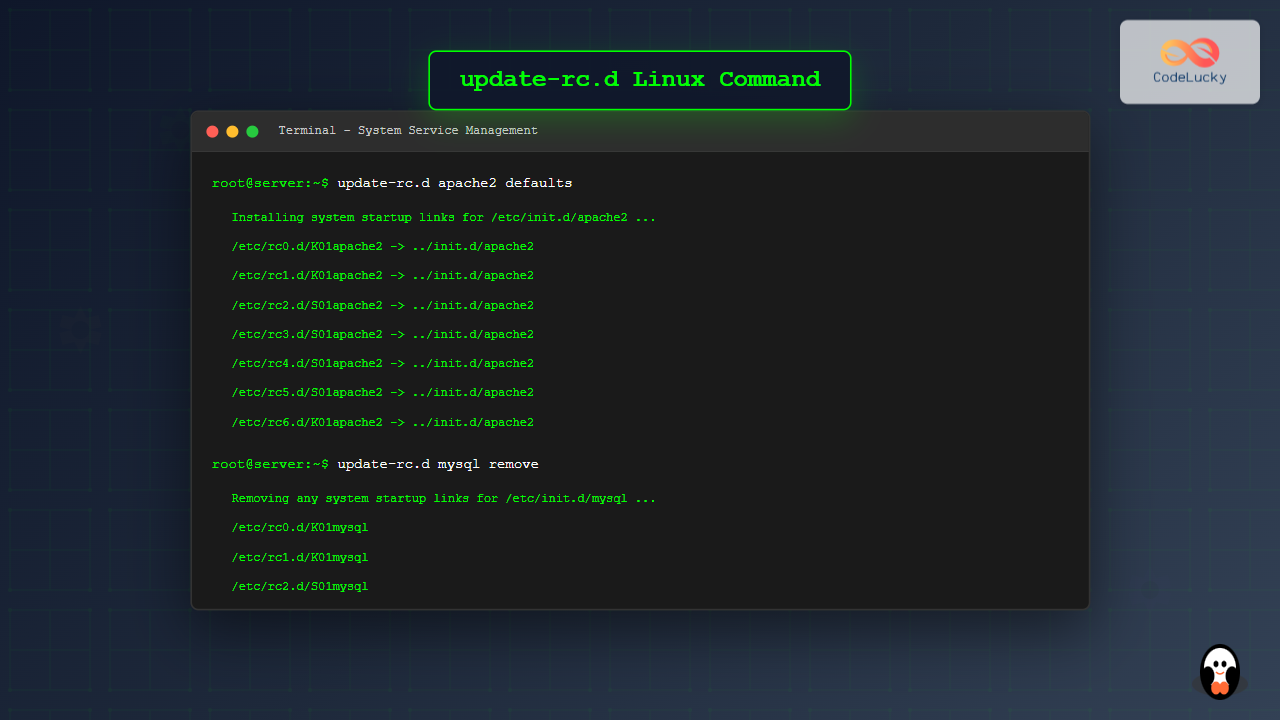
The update-rc.d command is a powerful utility in Debian-based Linux distributions that manages the symbolic links for System V init scripts. This tool allows system administrators to install and remove services that should start or stop at specific run levels during the boot process.
What is update-rc.d Command?
The update-rc.d command is specifically designed for Debian and Ubuntu systems to manage init script links in the /etc/rc*.d/ directories. It provides a standardized way to control which services start automatically during system boot and at different run levels.
- Install and remove system services
- Configure service start/stop priorities
- Manage run level associations
- Handle service dependencies
Basic Syntax and Options
The basic syntax of the update-rc.d command follows this pattern:
update-rc.d [options] service_name action [arguments]
Common Options
| Option | Description |
|---|---|
-n |
Dry run – show what would be done without executing |
-f |
Force removal even if script exists |
-h |
Display help information |
Understanding Run Levels
Before diving into examples, it’s crucial to understand Linux run levels:
| Run Level | Description |
|---|---|
| 0 | System halt/shutdown |
| 1 | Single-user mode |
| 2-5 | Multi-user modes |
| 6 | System reboot |
Installing Services with update-rc.d
Basic Service Installation
To install a service with default start and stop links:
sudo update-rc.d apache2 defaults
Expected Output:
update-rc.d: using dependency based boot sequencing
insserv: warning: script 'K01apache2' missing LSB tags and overrides
insserv: warning: script 'apache2' missing LSB tags and overrides
Custom Priority Installation
Install a service with specific start and stop priorities:
sudo update-rc.d myservice start 20 2 3 4 5 . stop 80 0 1 6 .
This command creates:
- Start links with priority 20 in run levels 2, 3, 4, and 5
- Stop links with priority 80 in run levels 0, 1, and 6
Removing Services
Basic Service Removal
To remove all links for a service:
sudo update-rc.d apache2 remove
Expected Output:
update-rc.d: using dependency based boot sequencing
insserv: warning: current start runlevel(s) (empty) of script `apache2' overrides LSB header.
Force Removal
Force remove a service even if the script still exists:
sudo update-rc.d -f apache2 remove
Practical Examples and Use Cases
Example 1: Managing a Custom Service
Let’s create and manage a custom service called “myapp”:
# Create the service script
sudo nano /etc/init.d/myapp

# Make it executable
sudo chmod +x /etc/init.d/myapp

# Install the service
sudo update-rc.d myapp defaults
Example 2: Disabling a Service Temporarily
To disable a service without removing the script:
sudo update-rc.d mysql disable
To re-enable it later:
sudo update-rc.d mysql enable
Example 3: Checking Current Service Status
View current service links in the system:
# List all services
ls -la /etc/rc*.d/ | grep apache2

# Check specific run level
ls -la /etc/rc2.d/ | grep apache2
Advanced Configuration Options
Using LSB Headers
Modern init scripts should include LSB (Linux Standard Base) headers for proper dependency management:
#!/bin/bash
### BEGIN INIT INFO
# Provides:          myservice
# Required-Start:    $local_fs $network
# Required-Stop:     $local_fs $network
# Default-Start:     2 3 4 5
# Default-Stop:      0 1 6
# Short-Description: My custom service
# Description:       Detailed description of my service
### END INIT INFO
Dependency-Based Boot Sequencing
When using LSB headers, update-rc.d automatically handles dependencies:
sudo update-rc.d myservice defaults
The system will automatically determine the correct start/stop sequence based on dependencies.
Troubleshooting Common Issues
Issue 1: Missing LSB Tags Warning
Problem: Warning about missing LSB tags
Solution: Add proper LSB headers to your init script or use the -f option
Issue 2: Service Not Starting
Check if the service is properly installed:
# Verify links exist
ls -la /etc/rc*.d/*myservice*

# Test the script manually
sudo /etc/init.d/myservice start
Issue 3: Permission Denied Errors
Ensure proper permissions on the init script:
sudo chmod 755 /etc/init.d/myservice
sudo chown root:root /etc/init.d/myservice
Best Practices and Security Considerations
- Always run update-rc.d with sudo privileges
- Validate init scripts before installation
- Use LSB headers for proper dependency management
- Test services in non-production environments first
- Keep backup of working configurations
Alternative Tools and Modern Alternatives
While update-rc.d is still widely used, modern systems often employ alternatives:
systemctl (systemd)
# Modern equivalent for systemd systems
sudo systemctl enable myservice
sudo systemctl disable myservice
service Command
# Generic service management
sudo service apache2 start
sudo service apache2 stop
Conclusion
The update-rc.d command remains an essential tool for managing system services in Debian-based Linux distributions. Understanding its functionality allows system administrators to properly configure service startup behavior, manage dependencies, and maintain system stability.
Whether you’re installing custom applications, managing web servers, or configuring database services, mastering update-rc.d provides the foundation for effective Linux system administration. Remember to always test configurations in safe environments and maintain proper documentation of your service configurations.
As Linux systems continue to evolve, while systemd becomes more prevalent, the principles and knowledge gained from understanding update-rc.d remain valuable for maintaining legacy systems and understanding the evolution of Linux service management.
Related Posts

rc-update Command Linux: Complete Guide to Managing OpenRC Services
The rc-update command is a powerful utility in Linux systems that use OpenRC as their init system, primarily found in...
service Command Linux: Complete Guide to Managing System Services
The service command is a fundamental tool in Linux system administration that allows you to manage system services and daemons...
chkconfig Command Linux: Complete Guide to System Service Management
The chkconfig command is a powerful system administration tool in Red Hat-based Linux distributions that allows you to configure system...

init Command Linux: Complete Guide to Process Control and System Initialization
The init command in Linux serves as the cornerstone of system initialization and process control. As the first process started...

systemd Linux: Complete Guide to System and Service Manager
systemd is a powerful system and service manager that has become the default init system for most modern Linux distributions....

sysvinit Linux: Complete Guide to System V Initialization System
The System V initialization system (sysvinit) is a traditional init system that has been the backbone of Unix and Linux...

launchd Linux: Understanding the Service Management Framework for System Administrators
The launchd service management framework has become an essential tool for Linux system administrators who need robust process and service...
upstart Linux: Complete Guide to Event-Based System Initialization
The upstart initialization system revolutionized Linux system startup processes by introducing event-based service management. Unlike traditional SysV init systems that...

sv Command Linux: Master Runit Service Control and Management
The sv command is a powerful utility in Linux systems that serves as the primary interface for controlling services managed...
systemctl Command Linux: Complete Guide to Control Systemd Services
The systemctl command is the primary tool for controlling systemd services in modern Linux distributions. As the central management utility...
telinit Command Linux: Complete Guide to System Runlevel Management
The telinit command is a powerful Linux utility that allows system administrators to change the current runlevel of a Linux...
runit Linux: Complete Guide to Unix Init Scheme with Service Supervision
runit is a lightweight, cross-platform Unix init scheme with service supervision that provides a reliable alternative to traditional init systems....





