
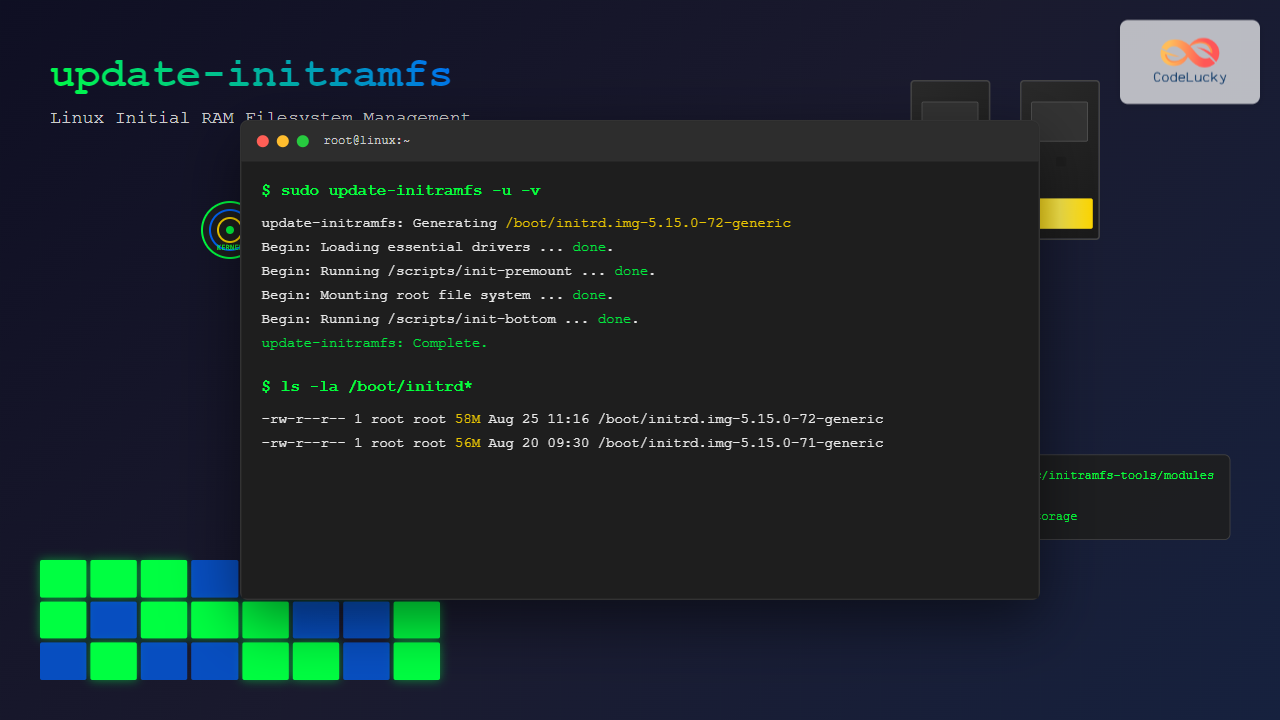
The update-initramfs command is a crucial Linux system administration tool that manages the initial RAM filesystem (initramfs). This command creates, updates, or deletes initramfs images that contain essential drivers and scripts needed during the early boot process before the root filesystem is mounted.
What is initramfs?
The initial RAM filesystem (initramfs) is a temporary filesystem loaded into memory during the Linux boot process. It contains kernel modules, device drivers, and scripts necessary to mount the real root filesystem. The initramfs ensures that your system can boot properly, especially when dealing with complex storage configurations like RAID, LVM, or encrypted filesystems.
Basic Syntax and Usage
The basic syntax of the update-initramfs command is:
update-initramfs [OPTIONS] [KERNEL_VERSION]Here are the most commonly used options:
-c– Create a new initramfs image-u– Update an existing initramfs image-d– Delete an initramfs image-k– Specify kernel version-v– Verbose output-b– Set backup directory
Common Examples and Use Cases
1. Update initramfs for Current Kernel
The most common usage is updating the initramfs for the currently running kernel:
sudo update-initramfs -uExpected Output:
update-initramfs: Generating /boot/initrd.img-5.15.0-72-generic2. Update initramfs for All Installed Kernels
To update initramfs images for all installed kernels:
sudo update-initramfs -u -k allExpected Output:
update-initramfs: Generating /boot/initrd.img-5.15.0-72-generic
update-initramfs: Generating /boot/initrd.img-5.15.0-71-generic
update-initramfs: Generating /boot/initrd.img-5.15.0-70-generic
3. Create initramfs for Specific Kernel Version
To create an initramfs for a specific kernel version:
sudo update-initramfs -c -k 5.15.0-72-genericExpected Output:
update-initramfs: Generating /boot/initrd.img-5.15.0-72-generic4. Verbose Output for Debugging
Use the verbose flag to see detailed information during the process:
sudo update-initramfs -u -vExpected Output:
update-initramfs: Generating /boot/initrd.img-5.15.0-72-generic
Begin: Loading essential drivers ... done.
Begin: Running /scripts/init-premount ... done.
Begin: Mounting root file system ... done.
Begin: Running /scripts/init-bottom ... done.
update-initramfs: Done.
5. Delete initramfs Image
To remove an initramfs image for a specific kernel:
sudo update-initramfs -d -k 5.15.0-70-genericExpected Output:
update-initramfs: Deleting /boot/initrd.img-5.15.0-70-genericAdvanced Usage Scenarios
Creating Backup Before Update
You can specify a backup directory to store the old initramfs before creating a new one:
sudo update-initramfs -u -b /backup/initramfsForce Recreation of initramfs
Sometimes you need to force recreation of the initramfs:
sudo update-initramfs -c -k $(uname -r)When to Use update-initramfs
You should run update-initramfs in the following situations:
- After kernel installation: New kernels need corresponding initramfs images
- Hardware changes: When adding new storage devices or changing disk configurations
- Driver updates: After installing or updating critical drivers
- System configuration changes: Modifications to /etc/initramfs-tools/ configuration
- Boot issues: When experiencing boot problems related to missing drivers
Configuration Files
The update-initramfs command uses several configuration files:
/etc/initramfs-tools/initramfs.conf
Main configuration file controlling initramfs behavior:
# Most important settings
MODULES=most
BOOT=local
DEVICE=
KEYMAP=n
COMPRESS=gzip
/etc/initramfs-tools/modules
List additional kernel modules to include:
# Add modules one per line
ext4
usb-storage
ahci
Troubleshooting Common Issues
Permission Denied Error
Always run update-initramfs with sudo privileges:
# Wrong
update-initramfs -u
update-initramfs: failed to create directory: Permission denied

# Correct
sudo update-initramfs -u
Insufficient Disk Space
Check available space in /boot partition:
df -h /bootClean old kernel images if needed:
sudo apt autoremove --purgeMissing Kernel Headers
Install kernel headers if missing:
sudo apt update
sudo apt install linux-headers-$(uname -r)
Best Practices
1. Always Backup
Before making changes, backup your current initramfs:
sudo cp /boot/initrd.img-$(uname -r) /boot/initrd.img-$(uname -r).backup2. Test After Updates
After updating initramfs, verify the system boots properly before making additional changes.
3. Monitor Disk Space
Regularly check /boot partition space:
du -sh /boot/*4. Keep Multiple Kernel Options
Maintain at least two working kernel versions for fallback options.
Integration with Package Management
The update-initramfs command is automatically triggered during:
- Kernel package installation/removal
- Driver package updates
- System upgrades
You can check if automatic updates are enabled:
cat /etc/kernel-img.confPerformance Considerations
The initramfs generation process can be resource-intensive. Consider these factors:
- CPU Usage: Compression and module processing require CPU resources
- I/O Impact: Reading modules and writing initramfs affects disk performance
- Memory Usage: Temporary files and compression buffers use RAM
Security Implications
The initramfs contains critical boot components, so:
- Protect initramfs files with appropriate permissions
- Regularly update kernel and drivers for security fixes
- Monitor changes to /etc/initramfs-tools/ configuration
- Use secure boot when available
Conclusion
The update-initramfs command is essential for maintaining a properly functioning Linux system. Understanding its usage, options, and best practices ensures your system boots reliably and includes all necessary drivers and modules. Regular maintenance using this command helps prevent boot issues and keeps your system running smoothly.
Remember to always test your system after making initramfs changes and maintain proper backups. This proactive approach will help you avoid potential boot problems and maintain system stability.
Related Posts
mkinitrd Command Linux: Complete Guide to Creating Initial RAM Disks
The mkinitrd command is a crucial Linux utility that creates initial RAM disk (initrd) images, which are essential for the...
devtmpfs Linux: Complete Guide to Device Temporary Filesystem Management
The devtmpfs (Device Temporary Filesystem) is a crucial component of modern Linux systems that revolutionizes how device nodes are managed...

dracut Command Linux: Complete Guide to Initial RAM Filesystem Creation and Management
The dracut command is a powerful utility in Linux systems that creates initial RAM disk (initramfs) images used during the...
File System Implementation: Boot Block, Super Block and Inodes Explained
Understanding File System Implementation File system implementation is a critical component of operating systems that manages how data is stored,...

init Command Linux: Complete Guide to Process Control and System Initialization
The init command in Linux serves as the cornerstone of system initialization and process control. As the first process started...
tmpfs Linux: Complete Guide to Temporary Filesystem in Memory for Better Performance
tmpfs (temporary file system) is a powerful Linux feature that creates a virtual filesystem stored entirely in RAM and swap...
insmod Command Linux: Complete Guide to Insert Kernel Modules
The insmod command is a fundamental Linux utility that allows system administrators and developers to insert kernel modules into the...
devfs Linux: Complete Guide to Device Filesystem Management
The Device Filesystem (devfs) represents a revolutionary approach to device management in Linux systems, providing dynamic creation and removal of...
sysfs Linux: Complete Guide to Understanding and Using /sys Filesystem
The sysfs filesystem is one of Linux's most powerful yet underutilized features, providing a window into the kernel's internal operations...
proc filesystem Linux: Complete Guide to Understanding /proc Directory Structure and Commands
What is the Linux /proc Filesystem? The /proc filesystem is a virtual filesystem in Linux that provides a window into...
lsblk Command Linux: Complete Guide to List and Manage Block Devices
The lsblk command is an essential Linux utility that displays information about block devices in a tree-like format. Whether you're...

tune2fs Command Linux: Complete Guide to Ext2/3/4 Filesystem Tuning
The tune2fs command is a powerful Linux utility that allows system administrators to modify and tune various parameters of ext2,...





