
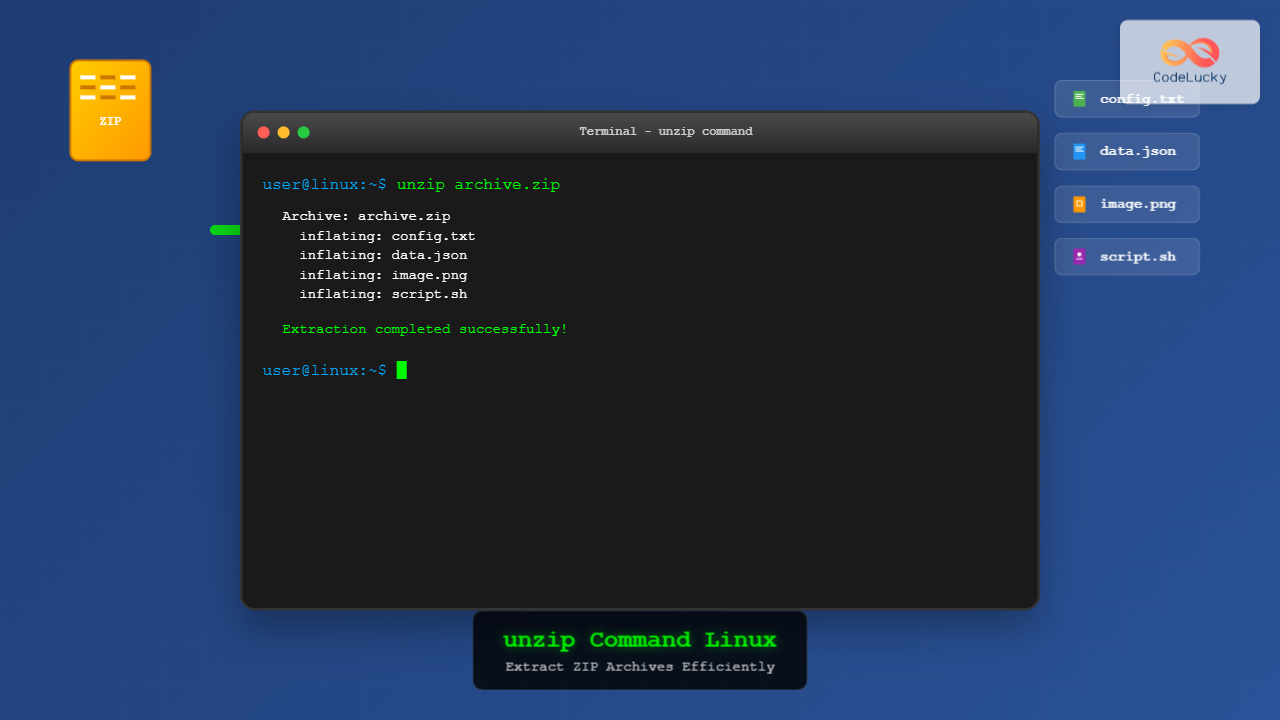
The unzip command is one of the most essential tools in Linux for extracting ZIP archive files. Whether you’re dealing with compressed downloads, backup files, or software distributions, mastering this command will significantly improve your file management efficiency on Linux systems.
What is the unzip Command?
The unzip command is a command-line utility that extracts files and directories from ZIP archives. It’s part of the Info-ZIP package and comes pre-installed on most Linux distributions. This powerful tool supports various ZIP formats and provides extensive options for controlling the extraction process.
Basic Syntax and Installation
The basic syntax of the unzip command follows this pattern:
unzip [options] archive.zip [file(s)] [destination]If unzip isn’t installed on your system, you can install it using your distribution’s package manager:
# Ubuntu/Debian
sudo apt update && sudo apt install unzip

# CentOS/RHEL/Fedora
sudo yum install unzip
# or for newer versions
sudo dnf install unzip

# Arch Linux
sudo pacman -S unzip
Basic Usage Examples
Simple File Extraction
The most straightforward way to extract a ZIP file is to use the command without any options:
unzip archive.zipThis command extracts all files from archive.zip to the current directory. Here’s what the output typically looks like:
$ unzip documents.zip
Archive:  documents.zip
  inflating: readme.txt
  inflating: data/config.json
   creating: images/
  inflating: images/logo.png
  inflating: scripts/backup.sh
Extract to Specific Directory
To extract files to a specific directory, use the -d option:
unzip archive.zip -d /path/to/destination/Example:
$ unzip project.zip -d ~/Downloads/extracted/
Archive:  project.zip
   creating: /home/user/Downloads/extracted/project/
  inflating: /home/user/Downloads/extracted/project/main.py
  inflating: /home/user/Downloads/extracted/project/config.ini
Advanced Options and Flags
List Archive Contents Without Extracting
Use the -l flag to list the contents of a ZIP file without extracting:
unzip -l archive.zipOutput example:
$ unzip -l website.zip
Archive:  website.zip
  Length      Date    Time    Name
---------  ---------- -----   ----
     2048  08-25-2025 10:30   index.html
     1536  08-25-2025 10:31   style.css
      892  08-25-2025 10:32   script.js
     4096  08-25-2025 10:33   images/header.jpg
---------                     -------
     8572                     4 files
Quiet and Verbose Modes
For silent extraction (no output), use the -q flag:
unzip -q archive.zipFor detailed verbose output, use -v:
unzip -v archive.zipVerbose output provides additional information about compression ratios and file attributes:
$ unzip -v backup.zip
Archive:  backup.zip
 Length   Method    Size  Cmpr    Date    Time   CRC-32   Name
--------  ------  ------- ---- ---------- ----- --------  ----
    1024  Defl:N      512  50% 08-25-2025 10:45 a1b2c3d4  config.txt
    2048  Defl:N     1024  50% 08-25-2025 10:46 e5f6g7h8  data.csv
--------          -------  ---                            -------
    3072             1536  50%                            2 files
Overwrite Control
Control file overwriting behavior with these options:
-o: Overwrite existing files without prompting-n: Never overwrite existing files-u: Update existing files only if archive version is newer
# Overwrite without asking
unzip -o archive.zip

# Never overwrite existing files
unzip -n archive.zip

# Update only newer files
unzip -u archive.zip
Working with Password-Protected Archives
For password-protected ZIP files, use the -P option followed by the password:
unzip -P password archive.zipFor better security, you can prompt for the password interactively by omitting the password:
$ unzip archive.zip
Archive:  archive.zip
[archive.zip] file1.txt password:
  inflating: file1.txt
Selective File Extraction
Extract Specific Files
Extract only specific files by naming them after the archive:
unzip archive.zip file1.txt file2.txtExtract Files by Pattern
Use wildcards to extract files matching specific patterns:
# Extract all .txt files
unzip archive.zip "*.txt"

# Extract all files from a specific directory
unzip archive.zip "docs/*"

# Extract files with specific extension from subdirectories
unzip archive.zip "*/*.pdf"
Example output:
$ unzip project.zip "*.py"
Archive:  project.zip
  inflating: main.py
  inflating: utils.py
  inflating: tests/test_main.py
Exclude Files During Extraction
Use the -x option to exclude specific files or patterns:
# Exclude specific files
unzip archive.zip -x unwanted.txt

# Exclude files by pattern
unzip archive.zip -x "*.tmp" "*.log"

# Exclude entire directories
unzip archive.zip -x "temp/*"
Preserving File Attributes and Permissions
The -X option preserves file ownership and permissions (when run as root):
sudo unzip -X archive.zipTo preserve timestamps, use the -DD option:
unzip -DD archive.zipTesting Archive Integrity
Before extracting, test the archive integrity using the -t flag:
unzip -t archive.zipOutput for a valid archive:
$ unzip -t backup.zip
Archive:  backup.zip
    testing: config.txt               OK
    testing: data/users.csv           OK
    testing: images/logo.png          OK
No errors detected in compressed data of backup.zip.
For a corrupted archive:
$ unzip -t corrupted.zip
Archive:  corrupted.zip
    testing: file1.txt                OK
    testing: file2.txt                bad CRC a1b2c3d4 (should be e5f6g7h8)
At least one error was detected in corrupted.zip.
Handling Large Archives and Memory Management
For very large archives, you can use the -j option to junk (ignore) directory paths and extract all files to the current directory:
unzip -j large_archive.zipThis flattens the directory structure and can be useful when you only need the files themselves.
Interactive Extraction Examples
Here’s a practical scenario demonstrating interactive extraction with user prompts:
$ unzip website_backup.zip
Archive:  website_backup.zip
replace index.html? [y]es, [n]o, [A]ll, [N]one, [r]ename: A
  inflating: index.html
  inflating: assets/style.css
  inflating: assets/script.js
  inflating: images/banner.jpg
   creating: uploads/
The options mean:
y: Yes, replace this filen: No, skip this fileA: Replace all existing filesN: Don’t replace any existing filesr: Rename the file being extracted
Common Error Messages and Solutions
Archive Not Found
$ unzip nonexistent.zip
unzip: cannot find or open nonexistent.zip, nonexistent.zip.zip or nonexistent.zip.ZIP.
Solution: Verify the file path and ensure the ZIP file exists.
Insufficient Permissions
$ unzip archive.zip -d /root/
unzip: cannot create extraction directory: /root/
Solution: Use sudo or choose a directory with write permissions.
Corrupted Archive
$ unzip damaged.zip
Archive:  damaged.zip
  End-of-central-directory signature not found.
Solution: The archive is corrupted. Try to obtain a fresh copy or use recovery tools.
Combining unzip with Other Commands
You can combine unzip with other Linux commands for powerful file processing:
# Extract and immediately list contents
unzip archive.zip && ls -la

# Extract multiple archives
for file in *.zip; do unzip "$file" -d "${file%.zip}"; done

# Extract and count files
unzip -l archive.zip | grep -c "inflating"

# Extract and pipe filenames to another command
unzip -Z1 archive.zip | grep "\.txt$" | wc -l
Best Practices and Tips
1. Always Test Before Extracting
Test archive integrity before extraction to avoid partial extractions:
unzip -t archive.zip && unzip archive.zip2. Use Specific Destination Directories
Always specify a destination directory to avoid cluttering your current location:
mkdir extracted_files
unzip archive.zip -d extracted_files/
3. Preview Contents First
List archive contents before extraction to understand the directory structure:
unzip -l archive.zip4. Handle Spaces in Filenames
When dealing with filenames containing spaces, use quotes:
unzip "my archive.zip" -d "destination folder/"5. Batch Processing
For multiple archives, create a simple script:
#!/bin/bash
for zipfile in *.zip; do
    dirname="${zipfile%.zip}"
    mkdir -p "$dirname"
    unzip "$zipfile" -d "$dirname"
    echo "Extracted $zipfile to $dirname"
done
Performance Considerations
The unzip command is generally efficient, but for large archives or systems with limited resources:
- Use
-qflag to reduce output overhead for automated scripts - Consider available disk space before extraction
- For network-mounted filesystems, extract to local storage first
- Use
-jflag to flatten directory structure if deep nesting isn’t needed
Alternative Tools and Related Commands
While unzip is the standard tool for ZIP files, you might also encounter:
7z– Supports multiple archive formats including ZIPtar– For TAR archives, often used with compressiongunzip– For GZIP compressed filesbunzip2– For BZIP2 compressed files
Example using 7z as an alternative:
7z x archive.zipConclusion
The unzip command is an indispensable tool for Linux users working with ZIP archives. From basic extraction to advanced selective processing, mastering its various options and flags will significantly enhance your file management capabilities. Remember to always test archive integrity, use appropriate destination directories, and leverage the command’s powerful pattern matching features for efficient file extraction.
Whether you’re a system administrator managing backups, a developer working with compressed distributions, or a regular user handling downloaded files, the techniques covered in this guide will help you work more efficiently with ZIP archives in Linux environments.
Related Posts

zip Command Linux: Complete Guide to Creating ZIP Archives with Examples
The zip command in Linux is a powerful utility for creating compressed archives and managing files efficiently. Whether you're backing...
7z Command Linux: Complete Guide to 7zip Archives Management
The 7z command is a powerful command-line utility for working with 7zip archives in Linux systems. As one of the...
gunzip Command Linux: Complete Guide to Decompress Gzip Files
The gunzip command is an essential Linux utility for decompressing files that have been compressed with the gzip compression algorithm....
gzip Command Linux: Complete Guide to Compress and Decompress Files
The gzip command is one of the most essential file compression utilities in Linux systems. It provides efficient compression using...

tar Command in Linux: Complete Archive and Extract Files Tutorial with Examples
The tar command is one of the most essential utilities in Linux for creating archives and extracting files. Originally designed...

ar Command Linux: Complete Guide to Archive File Management
The ar command in Linux is a powerful archiving utility primarily used for creating and managing archive files, especially static...
hexdump Command Linux: Complete Guide to Display File Contents in Hexadecimal Format
The hexdump command is a powerful Linux utility that displays the contents of files in hexadecimal format, making it an...
rm Command in Linux: Complete Guide to Delete Files and Directories Safely
The rm command is one of the most powerful and potentially dangerous commands in Linux. It stands for "remove" and...
strings Command Linux: Extract and Analyze Text from Binary Files
The strings command is a powerful Linux utility that extracts printable character sequences from binary files. Whether you're analyzing executables,...
wget Command Linux: Complete Guide to Download Files from Internet
The wget command is one of the most powerful and versatile tools in Linux for downloading files from the internet....

file Command Advanced Linux: Master Detailed File Type Analysis and Detection
The file command is one of the most powerful and underutilized utilities in Linux for determining file types and analyzing...

locate Command Advanced Linux: Database Search Optimization Techniques
The locate command is one of Linux's most powerful file search utilities, offering lightning-fast file discovery through its pre-built database...





