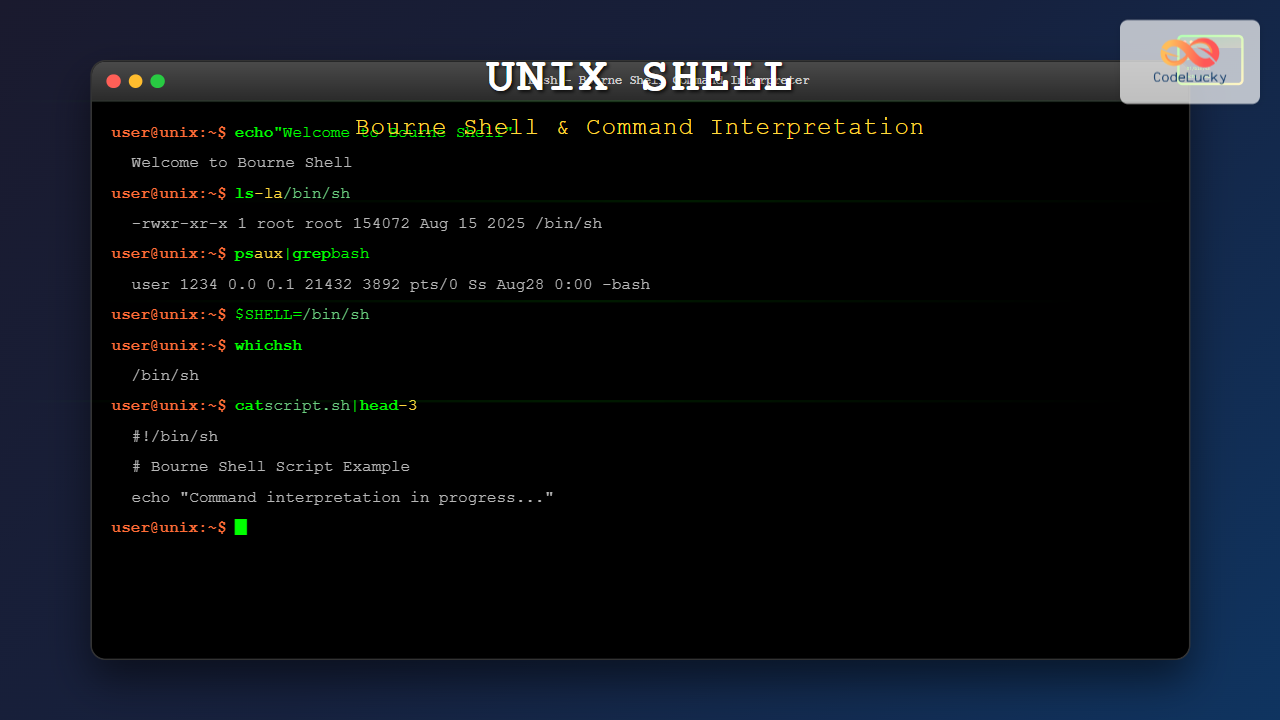
The Unix shell serves as the command-line interface between users and the operating system kernel, providing a powerful environment for system interaction and automation. Among the various shell implementations, the Bourne Shell (sh) stands as one of the most influential and widely-used shells in Unix-like systems.
Originally developed by Stephen Bourne at Bell Labs in 1977, the Bourne Shell became the standard shell for Unix systems and laid the foundation for many modern shell implementations. Understanding its command interpretation mechanisms is crucial for system administrators, developers, and anyone working with Unix-based systems.
What is the Bourne Shell?
The Bourne Shell, commonly referred to as sh, is a command-line interpreter that processes user commands and executes programs. It serves as both an interactive command processor and a scripting language interpreter, making it an essential tool for Unix system operations.
Key Characteristics
- Portability: Available on virtually all Unix-like systems
- Simplicity: Clean, straightforward syntax
- Scriptability: Excellent for automation and batch processing
- Process Control: Built-in job control and process management
- I/O Redirection: Powerful input/output redirection capabilities

Command Interpretation Process
The Bourne Shell follows a systematic approach to interpret and execute commands. Understanding this process is fundamental to effective shell usage.
1. Lexical Analysis
The shell first breaks down the input into tokens, identifying keywords, operators, and arguments:
$ ls -la /home/user
This command is tokenized as:
ls– Command-la– Options/home/user– Argument
2. Parsing and Syntax Analysis
The shell parses tokens according to its grammar rules, handling:
- Command structure
- Pipeline operators (
|) - Redirection operators (
<,>,>>) - Background execution (
&) - Command separators (
;)
$ ps aux | grep bash | wc -l
This pipeline is parsed into three connected commands with appropriate data flow.
3. Variable and Parameter Expansion
The shell expands variables and parameters before command execution:
$ USER="john"
$ echo "Welcome, $USER"
Welcome, john

$ echo "Current directory: $(pwd)"
Current directory: /home/john

Built-in Commands
The Bourne Shell includes several built-in commands that are executed directly by the shell without creating new processes:
Essential Built-ins
| Command | Purpose | Example |
|---|---|---|
cd |
Change directory | cd /var/log |
echo |
Display text | echo "Hello World" |
pwd |
Print working directory | pwd |
set |
Set shell options | set -x |
export |
Export variables | export PATH=$PATH:/usr/local/bin |
Practical Examples
$ cd /tmp
$ pwd
/tmp

$ echo $HOME
/home/username

$ export MY_VAR="Hello"
$ echo $MY_VAR
Hello
Command Line Processing
Quoting and Escaping
The Bourne Shell provides several quoting mechanisms to control how arguments are interpreted:
Single Quotes (Literal)
$ echo 'The $HOME variable is not expanded'
The $HOME variable is not expanded
Double Quotes (Variable Expansion)
$ echo "The $HOME variable expands to: $HOME"
The $HOME variable expands to: /home/username
Backslash Escaping
$ echo "The cost is \$100"
The cost is $100
Wildcard Expansion
The shell expands wildcards (globbing) before passing arguments to commands:
$ ls *.txt
file1.txt  file2.txt  readme.txt

$ echo *.[ch]
main.c  utils.c  header.h
Input/Output Redirection
One of the most powerful features of the Bourne Shell is its I/O redirection capabilities:
Output Redirection
# Redirect stdout to file (overwrite)
$ ls -l > directory_listing.txt

# Redirect stdout to file (append)
$ echo "New entry" >> logfile.txt

# Redirect stderr
$ command_that_fails 2> error.log

# Redirect both stdout and stderr
$ command > output.log 2>&1
Input Redirection
# Read from file
$ sort < unsorted_data.txt

# Here document
$ cat << EOF
This is a here document
It can span multiple lines
EOF
Pipes
# Simple pipe
$ ps aux | grep bash

# Multiple pipes
$ cat /var/log/syslog | grep error | wc -l

# Complex pipeline
$ find /var/log -name "*.log" | xargs grep -l "ERROR" | sort
Variables and Environment
Variable Assignment
$ NAME="John Doe"
$ AGE=30
$ echo "$NAME is $AGE years old"
John Doe is 30 years old
Environment Variables
$ export PATH=$PATH:/opt/local/bin
$ export EDITOR=vi
$ env | grep EDITOR
EDITOR=vi
Special Variables
| Variable | Description | Example Usage |
|---|---|---|
$0 |
Script name | echo "Script: $0" |
$1, $2, ... |
Positional parameters | echo "First arg: $1" |
$# |
Number of arguments | echo "Args count: $#" |
$? |
Exit status | echo "Last exit code: $?" |
$$ |
Process ID | echo "PID: $$" |

Control Structures
Conditional Statements
#!/bin/sh

if [ $# -eq 0 ]; then
    echo "No arguments provided"
    exit 1
elif [ $# -eq 1 ]; then
    echo "One argument: $1"
else
    echo "Multiple arguments: $#"
fi
Loops
For Loop
#!/bin/sh

for file in *.txt; do
    echo "Processing: $file"
    wc -l "$file"
done
While Loop
#!/bin/sh

counter=1
while [ $counter -le 5 ]; do
    echo "Count: $counter"
    counter=$((counter + 1))
done
Process Control
Background Processes
# Run command in background
$ long_running_command &
[1] 1234

# Check job status
$ jobs
[1]+  Running    long_running_command &

# Bring to foreground
$ fg %1
Process Substitution
# Compare outputs of two commands
$ diff <(ps aux | sort) <(ps aux | sort -r)

# Use command output as filename
$ tar -cf backup.tar $(find /home -name "*.txt")

Advanced Command Interpretation
Command Substitution
# Using backticks (traditional)
$ echo "Today is `date`"
Today is Thu Aug 28 18:37:00 IST 2025

# Using $() (preferred)
$ echo "Files in current dir: $(ls | wc -l)"
Files in current dir: 15
Arithmetic Expansion
$ result=$((5 + 3 * 2))
$ echo "Result: $result"
Result: 11

$ count=10
$ echo "Next value: $((count + 1))"
Next value: 11
Pattern Matching
# Case statement with pattern matching
case "$filename" in
    *.txt)
        echo "Text file"
        ;;
    *.jpg|*.png|*.gif)
        echo "Image file"
        ;;
    *)
        echo "Unknown file type"
        ;;
esac
Shell Scripting Best Practices
Script Structure
#!/bin/sh
# Script description and usage
# Author: Your Name
# Date: $(date)

# Set strict error handling
set -e
set -u

# Define functions
usage() {
    echo "Usage: $0 [options] file"
    echo "Options:"
    echo "  -h    Show this help"
    echo "  -v    Verbose mode"
}

# Main logic
main() {
    local verbose=false

    while getopts "hv" opt; do
        case $opt in
            h) usage; exit 0 ;;
            v) verbose=true ;;
            *) usage; exit 1 ;;
        esac
    done

    shift $((OPTIND-1))

    if [ $# -eq 0 ]; then
        echo "Error: No file specified"
        usage
        exit 1
    fi

    # Process file
    process_file "$1" "$verbose"
}

# Function definitions
process_file() {
    local file="$1"
    local verbose="$2"

    if [ ! -f "$file" ]; then
        echo "Error: File '$file' not found"
        exit 1
    fi

    if [ "$verbose" = true ]; then
        echo "Processing file: $file"
    fi

    # File processing logic here
}

# Call main function with all arguments
main "$@"
Debugging and Error Handling
Debugging Options
# Enable debugging
$ set -x
$ command_to_debug
+ command_to_debug
+ echo "Debug output shows each command"

# Disable debugging
$ set +x
Error Handling
#!/bin/sh

# Exit on any error
set -e

# Function to handle errors
error_handler() {
    echo "Error occurred in script at line $1"
    exit 1
}

# Trap errors
trap 'error_handler $LINENO' ERR

# Your script logic here
risky_command || {
    echo "Command failed, but continuing..."
    # Handle error gracefully
}
Performance Considerations
Efficient Command Usage
# Inefficient - multiple processes
$ cat file.txt | grep pattern | wc -l

# More efficient - fewer processes
$ grep -c pattern file.txt

# Efficient file operations
$ while IFS= read -r line; do
    process_line "$line"
done < input_file.txt
Memory Management
# Use here strings for small inputs
$ command <<< "$variable"

# Use temporary files for large data
$ mktemp_file=$(mktemp)
$ large_command > "$mktemp_file"
$ process_file "$mktemp_file"
$ rm "$mktemp_file"
Common Pitfalls and Solutions
Quoting Issues
# Problem: Unquoted variables
$ file="my file.txt"
$ ls $file  # Fails because of space

# Solution: Proper quoting
$ ls "$file"  # Works correctly
Path Issues
# Problem: Relative paths in scripts
$ cd /some/dir
$ ./script.sh  # May fail if script assumes current directory

# Solution: Use absolute paths or explicit directory changes
$ cd "$(dirname "$0")"
$ ./script.sh
Integration with System Services
Cron Integration
# Crontab entry for shell script
# m h dom mon dow command
0 2 * * * /usr/local/bin/backup_script.sh > /var/log/backup.log 2>&1
Service Scripts
#!/bin/sh
# System service script template

SERVICE_NAME="myservice"
PID_FILE="/var/run/$SERVICE_NAME.pid"
LOG_FILE="/var/log/$SERVICE_NAME.log"

start() {
    if [ -f "$PID_FILE" ]; then
        echo "$SERVICE_NAME is already running"
        return 1
    fi

    echo "Starting $SERVICE_NAME..."
    nohup myservice_daemon > "$LOG_FILE" 2>&1 &
    echo $! > "$PID_FILE"
    echo "$SERVICE_NAME started"
}

stop() {
    if [ ! -f "$PID_FILE" ]; then
        echo "$SERVICE_NAME is not running"
        return 1
    fi

    echo "Stopping $SERVICE_NAME..."
    kill $(cat "$PID_FILE")
    rm "$PID_FILE"
    echo "$SERVICE_NAME stopped"
}

case "$1" in
    start) start ;;
    stop) stop ;;
    restart) stop; start ;;
    *) echo "Usage: $0 {start|stop|restart}" ;;
esac
Conclusion
The Bourne Shell remains a cornerstone of Unix-like operating systems, providing a robust and flexible command interpretation environment. Its straightforward syntax, powerful features, and universal availability make it an essential tool for system administration, automation, and software development.
Understanding command interpretation in the Bourne Shell enables users to:
- Write efficient and portable shell scripts
- Automate complex system tasks
- Debug and troubleshoot system issues
- Integrate with other Unix tools and services
- Build robust automation pipelines
As Unix-like systems continue to evolve, the fundamental principles of Bourne Shell command interpretation remain relevant and valuable. Whether you’re managing servers, developing applications, or automating workflows, mastering these concepts will significantly enhance your productivity and system administration capabilities.
The key to becoming proficient with the Bourne Shell is consistent practice and experimentation. Start with simple commands and gradually build up to more complex scripts and automation tasks. Remember that the shell’s power lies not just in individual commands, but in how they can be combined and orchestrated to solve real-world problems efficiently.
- What is the Bourne Shell?
- Command Interpretation Process
- Built-in Commands
- Command Line Processing
- Input/Output Redirection
- Variables and Environment
- Control Structures
- Process Control
- Advanced Command Interpretation
- Shell Scripting Best Practices
- Debugging and Error Handling
- Performance Considerations
- Common Pitfalls and Solutions
- Integration with System Services
- Conclusion