
The uname command is one of the most fundamental Linux utilities for retrieving system information. Whether you’re a system administrator, developer, or Linux enthusiast, understanding how to use uname effectively is crucial for system diagnostics, scripting, and general system awareness.
What is the uname Command?
The uname command (short for “Unix name”) displays system information about the Linux kernel and system architecture. It’s a built-in command available on virtually all Unix-like operating systems, including Linux distributions, macOS, and BSD variants.
This command reads information from the kernel and presents it in various formats depending on the options used. The information includes kernel name, version, release, machine architecture, processor type, and more.
Basic Syntax and Usage
The basic syntax of the uname command is straightforward:
uname [OPTION]...When executed without any options, uname displays the kernel name:
$ uname
Linux
Complete List of uname Options
The uname command supports several options that control what information is displayed:
| Option | Description |
|---|---|
-a, --all |
Display all available information |
-s, --kernel-name |
Display kernel name (default) |
-n, --nodename |
Display network node hostname |
-r, --kernel-release |
Display kernel release version |
-v, --kernel-version |
Display kernel version |
-m, --machine |
Display machine hardware name |
-p, --processor |
Display processor type |
-i, --hardware-platform |
Display hardware platform |
-o, --operating-system |
Display operating system name |
--help |
Display help information |
--version |
Display version information |
Detailed Examples with Output
1. Display All System Information (-a)
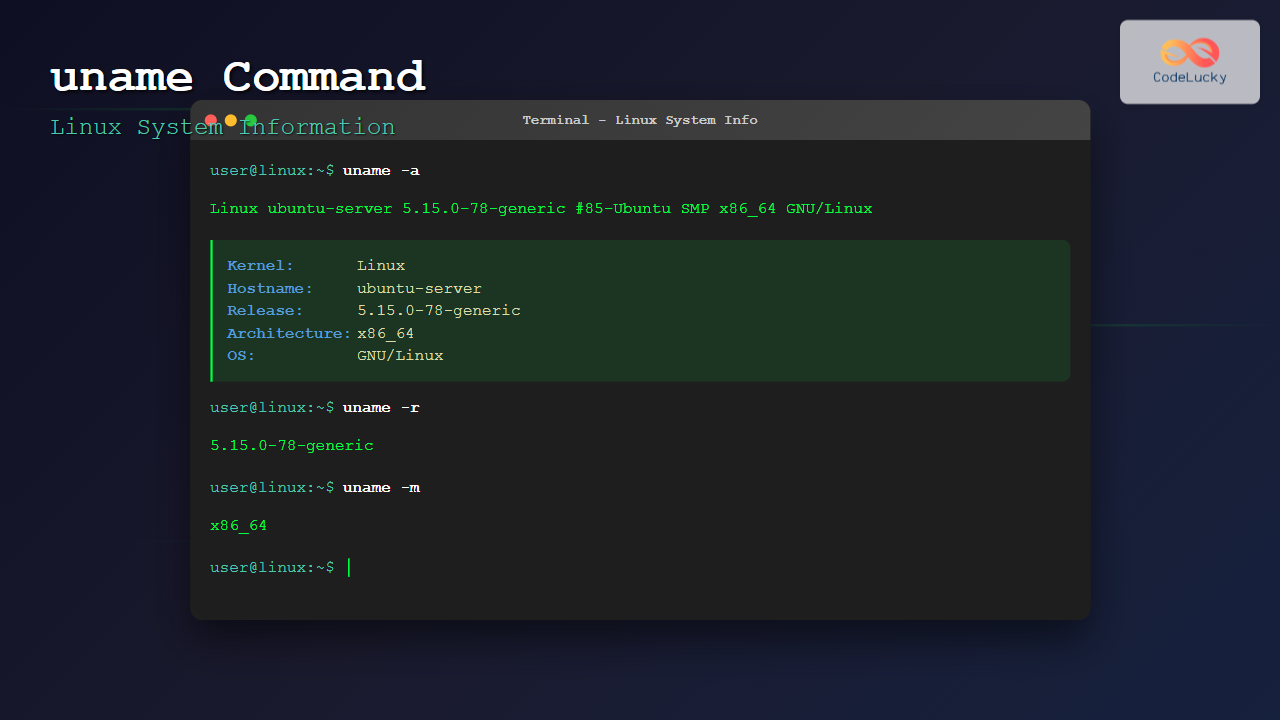
The most commonly used option is -a, which displays all available system information:
$ uname -a
Linux ubuntu-server 5.15.0-78-generic #85-Ubuntu SMP Fri Jul 7 15:25:09 UTC 2023 x86_64 x86_64 x86_64 GNU/Linux
This output contains the following information in order:
- Linux – Kernel name
- ubuntu-server – Hostname
- 5.15.0-78-generic – Kernel release
- #85-Ubuntu SMP Fri Jul 7 15:25:09 UTC 2023 – Kernel version
- x86_64 – Machine hardware name
- x86_64 – Processor type
- x86_64 – Hardware platform
- GNU/Linux – Operating system
2. Display Kernel Name (-s)
$ uname -s
Linux
This is the default behavior when no options are specified.
3. Display Hostname (-n)
$ uname -n
ubuntu-server
This shows the network node hostname, which is useful in networked environments.
4. Display Kernel Release (-r)
$ uname -r
5.15.0-78-generic
The kernel release information is particularly useful for identifying the exact kernel version running on your system.
5. Display Kernel Version (-v)
$ uname -v
#85-Ubuntu SMP Fri Jul 7 15:25:09 UTC 2023
This provides detailed version information including build number and compilation date.
6. Display Machine Architecture (-m)
$ uname -m
x86_64
This shows the machine hardware architecture, which is essential for determining software compatibility.
7. Display Processor Type (-p)
$ uname -p
x86_64
On some systems, this might show “unknown” if the processor type cannot be determined.
8. Display Hardware Platform (-i)
$ uname -i
x86_64
Similar to processor type, this may show “unknown” on certain systems.
9. Display Operating System (-o)
$ uname -o
GNU/Linux
This identifies the operating system type.
Combining Multiple Options
You can combine multiple options to display specific information:
$ uname -sr
Linux 5.15.0-78-generic
$ uname -nm
ubuntu-server x86_64$ uname -rvo
5.15.0-78-generic #85-Ubuntu SMP Fri Jul 7 15:25:09 UTC 2023 GNU/LinuxPractical Use Cases and Applications
1. System Compatibility Checking
Before installing software, you can check system compatibility:
$ uname -m
x86_64
This helps determine if you need 32-bit or 64-bit software packages.
2. Kernel Version Verification
Check if your kernel is up to date:
$ uname -r
5.15.0-78-generic
3. Script Automation
Use uname in shell scripts for conditional logic:
#!/bin/bash
if [ "$(uname -s)" = "Linux" ]; then
    echo "Running on Linux"
    # Linux-specific commands
elif [ "$(uname -s)" = "Darwin" ]; then
    echo "Running on macOS"
    # macOS-specific commands
fi
4. System Information Gathering
Create a comprehensive system information script:
#!/bin/bash
echo "=== System Information ==="
echo "Hostname: $(uname -n)"
echo "Kernel: $(uname -s)"
echo "Release: $(uname -r)"
echo "Architecture: $(uname -m)"
echo "Operating System: $(uname -o)"
Comparing uname with Other System Information Commands
While uname provides kernel and basic system information, other commands offer different types of system data:
- hostnamectl – More detailed hostname and system information
- lscpu – Detailed CPU information
- cat /proc/version – Alternative way to view kernel information
- lsb_release – Distribution-specific information
Cross-Platform Compatibility
The uname command works across different Unix-like systems with slight variations:
Linux Example:
$ uname -a
Linux ubuntu 5.15.0-78-generic #85-Ubuntu SMP x86_64 x86_64 x86_64 GNU/Linux
macOS Example:
$ uname -a
Darwin MacBook-Pro.local 22.6.0 Darwin Kernel Version 22.6.0 x86_64
FreeBSD Example:
$ uname -a
FreeBSD freebsd-server 13.2-RELEASE FreeBSD 13.2-RELEASE amd64
Troubleshooting Common Issues
Issue: “unknown” Output
Sometimes uname -p or uname -i returns “unknown”:
$ uname -p
unknown
Solution: This is normal on some systems where this information isn’t available. Use uname -m instead for architecture information.
Issue: Permission Denied
The uname command should work for all users without special permissions. If you encounter permission issues, check if the command exists:
$ which uname
/usr/bin/uname
Advanced Tips and Tricks
1. Store System Information in Variables
KERNEL_VERSION=$(uname -r)
ARCHITECTURE=$(uname -m)
HOSTNAME=$(uname -n)

echo "System: $HOSTNAME running kernel $KERNEL_VERSION on $ARCHITECTURE"
2. Create System Information Function
sysinfo() {
    echo "System Information:"
    echo "=================="
    echo "Hostname:     $(uname -n)"
    echo "Kernel:       $(uname -s) $(uname -r)"
    echo "Architecture: $(uname -m)"
    echo "Platform:     $(uname -i 2>/dev/null || echo "unknown")"
    echo "OS:           $(uname -o)"
}
3. Conditional Package Installation
if [ "$(uname -m)" = "x86_64" ]; then
    echo "Installing 64-bit package"
    # Install 64-bit version
else
    echo "Installing 32-bit package"
    # Install 32-bit version
fi
Security Considerations
The uname command reveals system information that could be useful for attackers:
- Kernel version – May reveal known vulnerabilities
- Architecture – Helps in selecting appropriate exploits
- Hostname – May provide network information
In security-sensitive environments, consider filtering uname output in logs and avoid displaying it in web applications.
Performance and Resource Usage
The uname command is extremely lightweight and fast:
- Minimal CPU usage
- No significant memory footprint
- Near-instantaneous execution
- Safe for frequent use in scripts
Best Practices
- Use specific options – Instead of
uname -a, use specific options likeuname -rwhen you only need kernel version - Handle unknown values – Always account for “unknown” returns in scripts
- Combine with other commands – Use alongside commands like
lscpuandhostnamectlfor complete system information - Document script usage – When using
unamein scripts, document why specific options are used
Conclusion
The uname command is an essential tool for any Linux user or administrator. Its simplicity and reliability make it perfect for system identification, script automation, and troubleshooting. Whether you’re checking kernel versions, determining architecture compatibility, or gathering system information for documentation, uname provides quick and accurate results.
By mastering the various options and understanding their outputs, you’ll be better equipped to manage Linux systems effectively. Remember to combine uname with other system information commands for comprehensive system analysis and always consider security implications when exposing system information.
Related Posts
nm Command Linux: Complete Guide to Display Symbol Tables from Object Files
The nm command is a powerful utility in Linux that displays the symbol table of object files, executables, shared libraries,...

size Command Linux: Display Section Sizes of Object Files and Executables
The size command is a powerful utility in Linux systems that displays the section sizes of object files, executables, and...
modinfo Command Linux: Complete Guide to Display Kernel Module Information
The modinfo command is an essential Linux utility that displays detailed information about kernel modules. Whether you're troubleshooting hardware issues,...
env Command Linux: Complete Guide to Display Environment Variables
Environment variables are crucial components of any Linux system, storing configuration data and system information that applications and processes rely...
type Command Linux: Complete Guide to Display Command Type and Location
The type command is an essential Linux utility that helps you identify the nature and location of commands in your...
readelf Command Linux: Complete Guide to ELF File Analysis and Debugging
The readelf command is an essential tool for Linux developers, system administrators, and security analysts who need to examine Executable...
who Command in Linux: Complete Guide to Display Logged in Users
The who command is one of the most fundamental system administration tools in Linux, designed to display information about currently...
lsmod Command Linux: Complete Guide to Listing Kernel Modules
The lsmod command is an essential Linux utility that displays information about currently loaded kernel modules in your system. Understanding...
unalias Command Linux: Complete Guide to Remove Command Aliases
The unalias command in Linux is a powerful shell built-in utility that allows you to remove previously defined command aliases....

file Command Advanced Linux: Master Detailed File Type Analysis and Detection
The file command is one of the most powerful and underutilized utilities in Linux for determining file types and analyzing...

echo Command in Linux: Complete Guide to Print Text and Variables in Terminal
The echo command is one of the most fundamental and frequently used commands in Linux and Unix-like operating systems. It...

free Command in Linux: Monitor Memory Usage and Swap Space Efficiently
The free command is one of the most essential utilities in Linux for monitoring system memory usage and swap space....





