
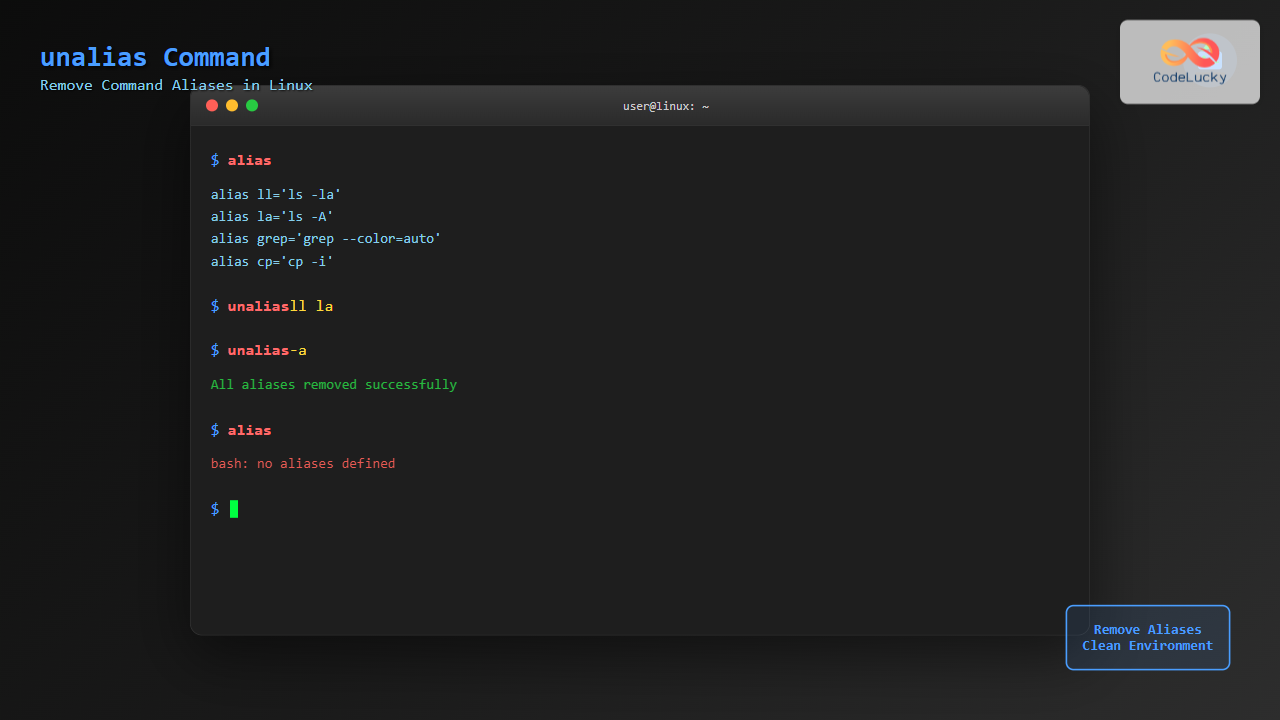
The unalias command in Linux is a powerful shell built-in utility that allows you to remove previously defined command aliases. Whether you’re cleaning up your shell environment or troubleshooting alias conflicts, understanding how to effectively use the unalias command is essential for Linux system administrators and power users.
What is the unalias Command?
The unalias command is a shell built-in that removes alias definitions from your current shell session. When you create aliases using the alias command, they remain active until you either log out or explicitly remove them using unalias.
Aliases are shortcuts that allow you to create custom commands or modify existing command behavior. However, there are times when you need to remove these aliases temporarily or permanently, which is where the unalias command becomes invaluable.
Basic Syntax and Options
The basic syntax of the unalias command is straightforward:
unalias [OPTIONS] [ALIAS_NAME...]Available Options
- -a: Remove all alias definitions
- –help: Display help information
- —: End of options marker
Practical Examples
Example 1: Removing a Single Alias
Let’s start by creating an alias and then removing it:
# Create an alias
$ alias ll='ls -la'

# Verify the alias exists
$ alias ll
alias ll='ls -la'

# Remove the alias
$ unalias ll

# Verify the alias is removed
$ alias ll
bash: alias: ll: not found
Output: The alias ‘ll’ has been successfully removed from the current shell session.
Example 2: Removing Multiple Aliases
You can remove multiple aliases in a single command:
# Create multiple aliases
$ alias la='ls -a'
$ alias grep='grep --color=auto'
$ alias cp='cp -i'

# Remove multiple aliases at once
$ unalias la grep cp

# Verify removal
$ alias la
bash: alias: la: not found
Example 3: Removing All Aliases
To remove all aliases at once, use the -a option:
# Display current aliases
$ alias
alias egrep='egrep --color=auto'
alias fgrep='fgrep --color=auto'
alias grep='grep --color=auto'
alias l='ls -CF'
alias la='ls -A'
alias ll='ls -alF'
alias ls='ls --color=auto'

# Remove all aliases
$ unalias -a

# Verify all aliases are removed
$ alias
# (No output - all aliases removed)
Advanced Usage Scenarios
Handling Aliases with Special Characters
When dealing with aliases that contain special characters, you might need to use quotes:
# Create an alias with special characters
$ alias 'my-command'='echo "Hello World"'

# Remove the alias
$ unalias 'my-command'
Error Handling
When attempting to remove non-existent aliases, unalias will display an error:
$ unalias nonexistent
bash: unalias: nonexistent: not found
To handle multiple aliases where some might not exist:
# This will show errors for non-existent aliases but continue processing
$ unalias existing_alias nonexistent_alias another_existing_alias
bash: unalias: nonexistent_alias: not found
Interactive Example: Alias Management Session
Here’s a comprehensive example showing a typical alias management session:
# Step 1: Check current aliases
$ alias | head -5
alias egrep='egrep --color=auto'
alias fgrep='fgrep --color=auto'
alias grep='grep --color=auto'
alias l='ls -CF'
alias la='ls -A'

# Step 2: Create some custom aliases
$ alias myls='ls -lah --color=auto'
$ alias mygrep='grep -n --color=auto'
$ alias mycd='cd && pwd'

# Step 3: Verify new aliases
$ alias | grep "my"
alias mycd='cd && pwd'
alias mygrep='grep -n --color=auto'
alias myls='ls -lah --color=auto'

# Step 4: Test an alias
$ myls /tmp
total 4.0K
drwxrwxrwt 15 root root 4.0K Aug 25 02:00 .
drwxr-xr-x 20 root root 4.0K Aug 24 18:30 ..

# Step 5: Remove specific aliases
$ unalias mygrep mycd

# Step 6: Verify removal
$ alias | grep "my"
alias myls='ls -lah --color=auto'

# Step 7: Remove remaining custom alias
$ unalias myls
Best Practices and Tips
1. Temporary Alias Removal
If you want to temporarily bypass an alias without removing it, use a backslash:
# If 'ls' is aliased to 'ls --color=auto'
$ \ls  # This uses the original ls command, not the alias
2. Checking Before Removal
Always verify an alias exists before attempting to remove it:
# Check if alias exists
$ alias myalias 2>/dev/null && echo "Alias exists" || echo "Alias not found"

# Remove only if it exists
$ alias myalias 2>/dev/null && unalias myalias
3. Script-Safe Removal
In scripts, handle potential errors gracefully:
#!/bin/bash

# Function to safely remove an alias
remove_alias_safe() {
    local alias_name="$1"
    if alias "$alias_name" >/dev/null 2>&1; then
        unalias "$alias_name"
        echo "Removed alias: $alias_name"
    else
        echo "Alias not found: $alias_name"
    fi
}

# Usage
remove_alias_safe "myalias"
Common Use Cases
1. Cleaning Development Environment
When switching between different development projects, you might need to clean up project-specific aliases:
# Remove development-specific aliases
$ unalias build test deploy start
2. Troubleshooting Command Issues
Sometimes aliases can interfere with scripts or expected command behavior:
# Temporarily remove problematic aliases
$ unalias ls cp mv rm

# Run your script or commands
$ ./my_script.sh

# Recreate aliases if needed
$ source ~/.bashrc
3. System Administration
System administrators often need to ensure clean environments:
# Remove all user-defined aliases for clean environment
$ unalias -a

# Verify clean state
$ alias
# Should show only system defaults or nothing
Differences Between Shell Types
The unalias command behaves consistently across most shells, but there are subtle differences:
Bash
- Supports all standard options
- Provides clear error messages
- Built-in command with consistent behavior
Zsh
- Similar functionality to Bash
- May have additional options in some versions
- Integrates well with Zsh’s alias management
Fish Shell
- Uses different syntax for alias management
- May not support unalias directly
- Uses
functions -efor similar functionality
Troubleshooting Common Issues
Issue 1: “Command not found”
If you get a “command not found” error, your shell might not support unalias as a built-in:
# Check if unalias is available
$ type unalias
unalias is a shell builtin
Issue 2: Permission Denied
In restricted shells, you might not be able to modify aliases:
$ unalias ls
bash: unalias: ls: restricted
Issue 3: Aliases Reappearing
If aliases reappear after removal, they might be defined in your shell configuration files:
# Check for aliases in configuration files
$ grep -r "alias myalias" ~/.bashrc ~/.bash_profile ~/.bash_aliases
Security Considerations
When using unalias, consider these security aspects:
- Temporary vs Permanent: unalias only affects the current session
- Privilege Escalation: Be cautious when removing security-related aliases
- Script Integrity: Ensure scripts don’t depend on specific aliases
- System Aliases: Avoid removing system-critical aliases without understanding their purpose
Integration with Other Commands
Combining with alias Command
# Create, test, and remove an alias in sequence
$ alias testcmd='echo "Testing command"'
$ testcmd
Testing command
$ unalias testcmd
$ testcmd
bash: testcmd: command not found
Using with Shell Functions
# Function to manage aliases
manage_alias() {
    case "$1" in
        create) alias "$2"="$3" ;;
        remove) unalias "$2" ;;
        list) alias "$2" ;;
        *) echo "Usage: manage_alias {create|remove|list} alias_name [command]" ;;
    esac
}

# Usage examples
$ manage_alias create mytest "echo hello"
$ manage_alias list mytest
$ manage_alias remove mytest
Performance Considerations
The unalias command is lightweight and fast, but consider these points:
- Memory Usage: Removing aliases frees up small amounts of shell memory
- Execution Speed: unalias executes instantly as it’s a shell built-in
- Script Performance: Large-scale alias removal in scripts is still very fast
Conclusion
The unalias command is an essential tool for Linux users who work with command aliases. Whether you’re cleaning up your shell environment, troubleshooting command conflicts, or managing temporary aliases in scripts, understanding how to effectively use unalias will improve your command-line efficiency.
Remember that unalias only affects the current shell session, so any aliases defined in your shell configuration files will return when you start a new session. For permanent alias removal, you’ll need to edit your shell configuration files directly.
By mastering the unalias command along with proper alias management techniques, you’ll have better control over your Linux shell environment and can create more robust, predictable command-line workflows.
Related Posts
alias Command in Linux: Create Custom Command Shortcuts and Boost Your Productivity
The alias command in Linux is a powerful tool that allows you to create custom shortcuts for frequently used commands,...
unset Command Linux: Complete Guide to Remove Variables and Functions Efficiently
The unset command in Linux is a powerful built-in shell utility that allows you to remove variables and functions from...
uname Command Linux: Complete Guide to Display System Information
The uname command is one of the most fundamental Linux utilities for retrieving system information. Whether you're a system administrator,...
type Command Linux: Complete Guide to Display Command Type and Location
The type command is an essential Linux utility that helps you identify the nature and location of commands in your...
set Command Linux: Display and Configure Shell Options for Advanced Terminal Control
The set command is one of the most powerful built-in commands in Linux shells, allowing you to display and modify...
whoami Command Linux: Display Current Username and Identity Information
The whoami command is one of the most fundamental and frequently used commands in Linux systems. This simple yet powerful...
userdel Command Linux: Complete Guide to Safely Delete User Accounts
The userdel command is a crucial system administration tool in Linux that allows you to safely remove user accounts from...

bash Command Linux: Start New Shell Sessions and Execute Scripts Efficiently
The bash command is one of the most fundamental tools in Linux systems, serving as both a command-line interpreter and...
strip Command Linux: Complete Guide to Removing Symbols from Object Files
The strip command is a powerful Linux utility that removes symbols, debugging information, and other metadata from executable files, object...
SQL Aliases: Renaming Columns and Tables Temporarily
SQL aliases are powerful tools that allow you to temporarily rename columns or tables in your queries. They're like nicknames...

Linux Commands Tutorial: Complete Beginner’s Guide to Terminal Basics
The Linux terminal is a powerful command-line interface that gives you direct control over your operating system. While it might...
rm Command in Linux: Complete Guide to Delete Files and Directories Safely
The rm command is one of the most powerful and potentially dangerous commands in Linux. It stands for "remove" and...





