
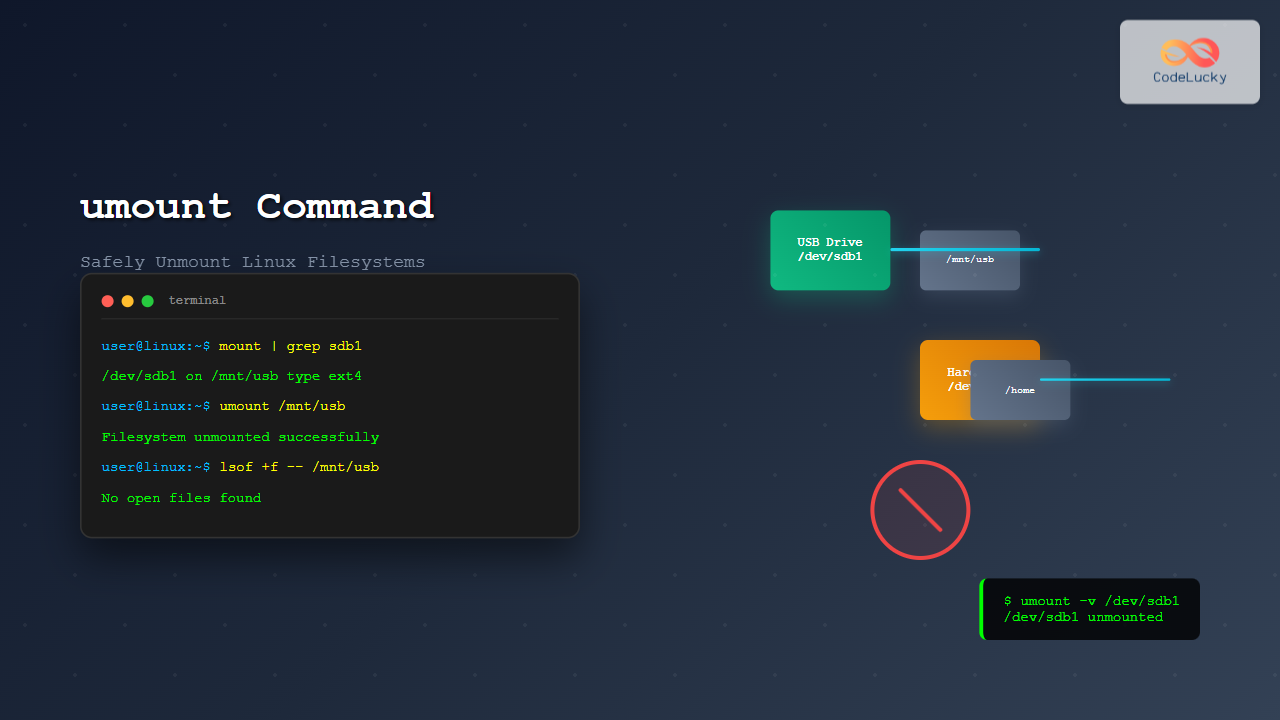
The umount command is an essential Linux utility that allows you to safely disconnect filesystems from the directory tree. Whether you’re managing external drives, network shares, or temporary filesystems, understanding how to properly unmount storage devices is crucial for data integrity and system stability.
What is the umount Command?
The umount command stands for “unmount” and is used to detach mounted filesystems from the Linux directory structure. When you unmount a filesystem, the system ensures all pending data is written to disk and releases any locks or resources associated with that mount point.
Unlike the mount command which attaches filesystems, umount safely removes them, preventing data corruption and ensuring system stability.
Basic Syntax and Options
The basic syntax for the umount command is:
umount [OPTIONS] DIRECTORY|DEVICECommon Options
| Option | Description |
|---|---|
-f, --force |
Force unmount (unreliable for NFS) |
-l, --lazy |
Lazy unmount – detach filesystem from hierarchy now |
-v, --verbose |
Verbose mode – show detailed output |
-n, --no-mtab |
Don’t write to /etc/mtab |
-r, --read-only |
Remount as read-only if unmount fails |
-t, --types |
Specify filesystem type |
Basic umount Examples
Unmounting by Device Name
$ umount /dev/sdb1This command unmounts the filesystem on device /dev/sdb1.
Unmounting by Mount Point
$ umount /mnt/usbThis unmounts whatever filesystem is mounted at /mnt/usb.
Verbose Unmounting
$ umount -v /dev/sdb1
/dev/sdb1 unmounted
The verbose option provides confirmation of the unmount operation.
Checking Current Mounts
Before unmounting, you can check what filesystems are currently mounted:
$ mount | grep sdb1
/dev/sdb1 on /mnt/usb type ext4 (rw,relatime)

$ df -h | grep sdb1
/dev/sdb1       7.3G  1.2G  5.7G  18% /mnt/usb
You can also check the /proc/mounts file:
$ cat /proc/mounts | grep sdb1
/dev/sdb1 /mnt/usb ext4 rw,relatime 0 0
Handling Busy Filesystems
One common issue when unmounting is the “device is busy” error:
$ umount /mnt/usb
umount: /mnt/usb: target is busy.
Finding What’s Using the Filesystem
Use lsof (list open files) to identify processes using the filesystem:
$ lsof +f -- /mnt/usb
COMMAND  PID USER   FD   TYPE DEVICE SIZE/OFF NODE NAME
bash    1234 user  cwd    DIR   8,17     4096    2 /mnt/usb
Use fuser to identify processes by mount point:
$ fuser -v /mnt/usb
                     USER        PID ACCESS COMMAND
/mnt/usb:            user       1234 ..c.. bash
Resolving Busy Filesystem Issues
Method 1: Change Directory
$ cd /
$ umount /mnt/usb
Method 2: Kill Processes
$ fuser -k /mnt/usb
$ umount /mnt/usb
Method 3: Lazy Unmount
$ umount -l /mnt/usbThe lazy unmount detaches the filesystem immediately but cleans up references when they’re no longer busy.
Advanced umount Techniques
Force Unmounting
Use the force option with caution, as it can lead to data loss:
$ umount -f /mnt/nfsNote: Force unmount is primarily useful for network filesystems like NFS when the server is unreachable.
Unmounting Multiple Filesystems
Unmount all filesystems of a specific type:
$ umount -a -t tmpfsUnmount multiple specific mount points:
$ umount /mnt/usb1 /mnt/usb2 /mnt/cdromRead-only Fallback
If unmounting fails, try remounting as read-only:
$ umount -r /mnt/problematicWorking with Different Filesystem Types
Network Filesystems (NFS)
$ umount server:/path/to/shareFor NFS mounts that are unresponsive:
$ umount -f -l server:/path/to/shareCIFS/SMB Shares
$ umount //server/shareLoop Devices
$ umount /mnt/iso
$ losetup -d /dev/loop0
Practical Examples and Use Cases
USB Drive Management
Complete workflow for safely removing a USB drive:
# Check what's mounted
$ lsblk
NAME   MAJ:MIN RM  SIZE RO TYPE MOUNTPOINT
sdb      8:16   1  7.5G  0 disk
└─sdb1   8:17   1  7.5G  0 part /media/usb

# Sync data to ensure all writes are complete
$ sync

# Unmount the USB drive
$ umount /media/usb

# Verify it's unmounted
$ lsblk | grep sdb
sdb      8:16   1  7.5G  0 disk
└─sdb1   8:17   1  7.5G  0 part
Temporary Filesystem Cleanup
# Create and mount a temporary filesystem
$ mkdir /tmp/ramdisk
$ mount -t tmpfs -o size=100M tmpfs /tmp/ramdisk

# Use the ramdisk
$ echo "test data" > /tmp/ramdisk/test.txt

# Clean up
$ umount /tmp/ramdisk
$ rmdir /tmp/ramdisk
CD/DVD Management
# Mount CD/DVD
$ mount /dev/cdrom /mnt/cdrom

# After use, unmount before ejecting
$ umount /mnt/cdrom
$ eject /dev/cdrom
Troubleshooting Common Issues
Permission Denied Errors
$ umount /mnt/usb
umount: /mnt/usb: Permission denied
Solution: Use sudo for system-mounted filesystems:
$ sudo umount /mnt/usbMount Point Not Found
$ umount /mnt/nonexistent
umount: /mnt/nonexistent: not mounted
Solution: Verify the mount point exists and is actually mounted:
$ mount | grep /mnt/nonexistentStale NFS Handles
For problematic NFS mounts:
$ umount -f -l /mnt/nfsBest Practices and Safety Tips
Pre-unmount Checklist
- Sync data: Run
syncto ensure all data is written - Check for open files: Use
lsoforfuser - Change directory: Ensure you’re not in the mount point
- Close applications: Exit programs using the filesystem
Safe Unmounting Script
#!/bin/bash
MOUNT_POINT="$1"

if [ -z "$MOUNT_POINT" ]; then
    echo "Usage: $0 <mount_point>"
    exit 1
fi

echo "Syncing data..."
sync

echo "Checking for open files..."
if lsof +f -- "$MOUNT_POINT" 2>/dev/null; then
    echo "Warning: Files are still open on $MOUNT_POINT"
    read -p "Continue anyway? (y/N): " response
    if [[ ! "$response" =~ ^[Yy]$ ]]; then
        exit 1
    fi
fi

echo "Unmounting $MOUNT_POINT..."
if umount "$MOUNT_POINT"; then
    echo "Successfully unmounted $MOUNT_POINT"
else
    echo "Failed to unmount $MOUNT_POINT"
    exit 1
fi
Integration with System Scripts
Automatic Unmounting in Scripts
#!/bin/bash
# Backup script with automatic cleanup

BACKUP_MOUNT="/mnt/backup"
BACKUP_DEVICE="/dev/sdc1"

# Mount backup drive
mount "$BACKUP_DEVICE" "$BACKUP_MOUNT"

# Perform backup
rsync -av /home/user/documents/ "$BACKUP_MOUNT/backup/"

# Cleanup - ensure unmount happens even if backup fails
trap 'umount "$BACKUP_MOUNT" 2>/dev/null' EXIT

# Explicit unmount
umount "$BACKUP_MOUNT"
Service Management
For systemd services that manage mounts:
$ systemctl stop mount-service
$ umount /mnt/service-mount
Monitoring and Logging
Logging Unmount Operations
$ umount -v /mnt/usb 2>&1 | tee -a /var/log/mount.logSystem Event Monitoring
Monitor system logs for unmount events:
$ journalctl -f | grep -i umountConclusion
The umount command is a fundamental tool for Linux system administration. Proper use of umount ensures data integrity and prevents filesystem corruption. Remember to always sync data before unmounting, check for open files, and use appropriate options for different scenarios.
Key takeaways:
- Always sync data before unmounting
- Use
lsofandfuserto troubleshoot busy filesystems - Lazy unmount (
-l) is safer than force unmount (-f) - Different filesystem types may require specific handling
- Implement proper error handling in scripts
By following these guidelines and examples, you’ll be able to safely manage filesystem unmounting in any Linux environment, from simple USB drives to complex network storage systems.
Related Posts
mount Command Linux: Complete Guide to Mount Filesystems and Drives
The mount command is one of the most fundamental tools in Linux system administration, allowing you to attach filesystems from...
wipe Command Linux: Complete Guide to Secure File Deletion and Data Wiping
The wipe command in Linux is a powerful utility designed for secure file deletion that goes far beyond the standard...
rm Command in Linux: Complete Guide to Delete Files and Directories Safely
The rm command is one of the most powerful and potentially dangerous commands in Linux. It stands for "remove" and...
rmdir Command in Linux: Complete Guide to Remove Empty Directories Safely
The rmdir command is a fundamental Linux utility designed specifically for removing empty directories. Unlike the more powerful rm -r...
shred Command Linux: Complete Guide to Securely Delete Files and Protect Data
When you delete files in Linux using the standard rm command, the data isn't actually removed from your storage device....
devfs Linux: Complete Guide to Device Filesystem Management
The Device Filesystem (devfs) represents a revolutionary approach to device management in Linux systems, providing dynamic creation and removal of...
loop Command Linux: Complete Guide to Loop Device Management and Block Device Control
The loop command in Linux is a powerful utility for managing loop devices, which are virtual block devices that allow...

File System Types: FAT32, NTFS, ext4 and Modern Linux Filesystems Explained
Understanding File Systems: The Foundation of Data Storage A file system is the method and data structure that an operating...

tune2fs Command Linux: Complete Guide to Ext2/3/4 Filesystem Tuning
The tune2fs command is a powerful Linux utility that allows system administrators to modify and tune various parameters of ext2,...
tmpfs Linux: Complete Guide to Temporary Filesystem in Memory for Better Performance
tmpfs (temporary file system) is a powerful Linux feature that creates a virtual filesystem stored entirely in RAM and swap...
quotaoff Command Linux: Complete Guide to Disable Disk Quotas Safely
The quotaoff command is a crucial Linux system administration tool used to disable disk quotas on file systems. When you...
losetup Command Linux: Complete Guide to Setup and Manage Loop Devices
The losetup command is a powerful Linux utility that allows you to associate loop devices with regular files, enabling you...





