
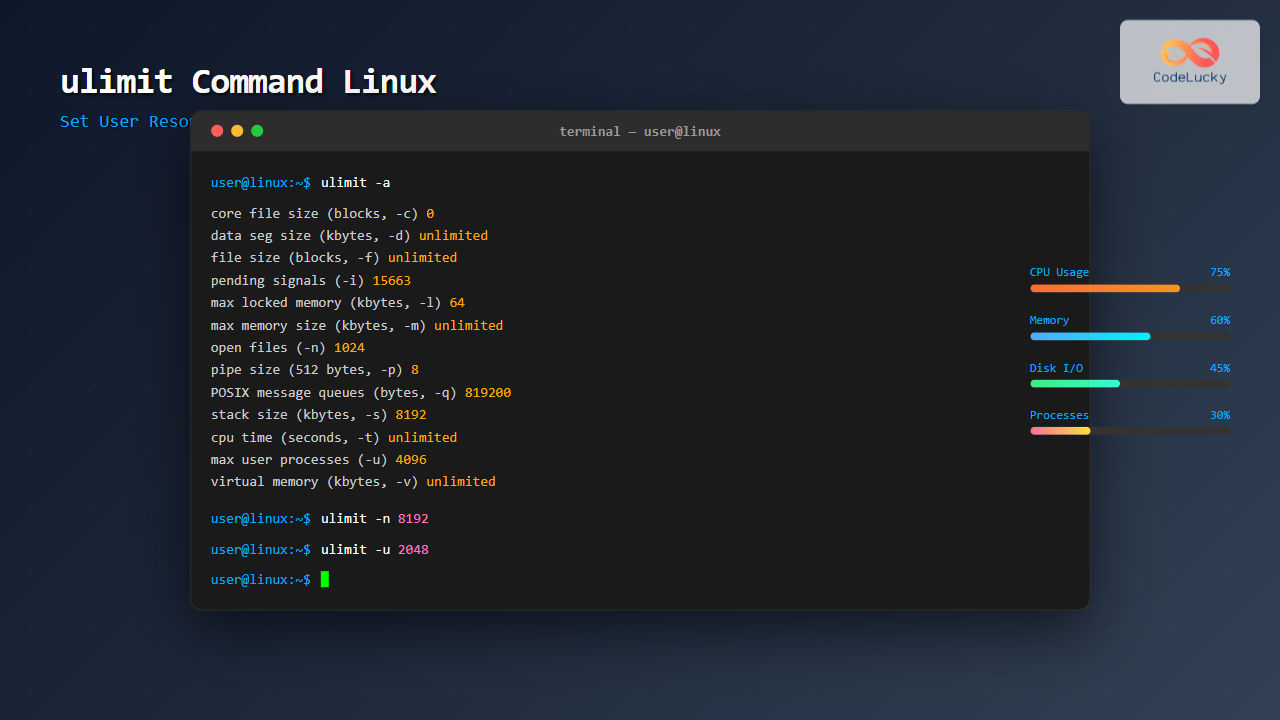
The ulimit command is a powerful built-in shell utility in Linux that allows users and system administrators to control the amount of system resources available to processes spawned by the shell. Understanding and properly configuring resource limits is crucial for maintaining system stability, preventing resource exhaustion, and ensuring optimal performance in multi-user environments.
What is ulimit Command?
The ulimit command stands for “user limit” and provides a mechanism to set or display resource limits for the current shell and its child processes. These limits help prevent individual users or processes from consuming excessive system resources that could impact overall system performance or cause system crashes.
Resource limits are enforced by the kernel and are inherited by child processes. When a process attempts to exceed these limits, the system either denies the request or terminates the process, depending on the specific resource type.
Basic Syntax and Usage
The basic syntax of the ulimit command follows this pattern:
ulimit [options] [limit_value]To display current limits, simply run ulimit without arguments:
$ ulimit
unlimited
This shows the default file size limit. To see all current limits, use the -a option:
$ ulimit -a
core file size          (blocks, -c) 0
data seg size           (kbytes, -d) unlimited
scheduling priority             (-e) 0
file size               (blocks, -f) unlimited
pending signals                 (-i) 15663
max locked memory       (kbytes, -l) 16384
max memory size         (kbytes, -m) unlimited
open files                      (-n) 1024
pipe size            (512 bytes, -p) 8
POSIX message queues     (bytes, -q) 819200
real-time priority              (-r) 0
stack size              (kbytes, -s) 8192
cpu time               (seconds, -t) unlimited
max user processes              (-u) 15663
virtual memory          (kbytes, -v) unlimited
file locks                      (-x) unlimited
Common ulimit Options
Here are the most frequently used ulimit options with their descriptions:
File-Related Limits
- -f (file size): Maximum size of files created by the shell (in 512-byte blocks)
- -n (open files): Maximum number of open file descriptors
- -x (file locks): Maximum number of file locks
Memory-Related Limits
- -d (data segment): Maximum size of a process’s data segment
- -m (memory size): Maximum resident set size
- -v (virtual memory): Maximum amount of virtual memory available
- -l (locked memory): Maximum size of memory that can be locked
- -s (stack size): Maximum stack size
Process-Related Limits
- -u (user processes): Maximum number of processes available to a user
- -t (CPU time): Maximum amount of CPU time (in seconds)
- -c (core file size): Maximum size of core files created
Other Options
- -a (all): Display all current limits
- -H (hard limit): Set or display hard limits
- -S (soft limit): Set or display soft limits
Practical Examples
Setting File Descriptor Limits
One of the most common uses of ulimit is setting the maximum number of open files:
# Check current open files limit
$ ulimit -n
1024

# Set open files limit to 4096
$ ulimit -n 4096

# Verify the change
$ ulimit -n
4096
Setting Memory Limits
You can limit the stack size to prevent stack overflow issues:
# Check current stack size (in KB)
$ ulimit -s
8192

# Set stack size to 4MB (4096 KB)
$ ulimit -s 4096

# Verify the change
$ ulimit -s
4096
Setting Process Limits
Limit the number of processes a user can create:
# Check current process limit
$ ulimit -u
15663

# Set process limit to 100
$ ulimit -u 100

# Verify the change
$ ulimit -u
100
Setting CPU Time Limits
Prevent processes from consuming excessive CPU time:
# Set CPU time limit to 300 seconds (5 minutes)
$ ulimit -t 300

# Verify the setting
$ ulimit -t
300
Hard vs Soft Limits
Linux implements two types of limits for each resource:
Soft Limits
Soft limits are the current effective limits that can be modified by the user up to the hard limit value. When a process exceeds a soft limit, it typically receives a signal but may continue executing.
# Display soft limits (default behavior)
$ ulimit -S -a

# Set soft limit for open files
$ ulimit -S -n 2048
Hard Limits
Hard limits represent the maximum value that soft limits can be set to. Only the root user can increase hard limits. When a process exceeds a hard limit, it’s usually terminated.
# Display hard limits
$ ulimit -H -a

# Set hard limit for open files (requires root privileges)
$ sudo ulimit -H -n 8192
Setting Both Limits Simultaneously
# Set both soft and hard limits for open files
$ ulimit -n 4096  # This sets both soft and hard limits to the same value

# Check both limits
$ ulimit -S -n  # Soft limit
4096
$ ulimit -H -n  # Hard limit
4096
Making Limits Persistent
By default, ulimit settings only apply to the current shell session. To make limits persistent across reboots and login sessions, you need to configure system files.
Using /etc/security/limits.conf
The primary configuration file for user limits is /etc/security/limits.conf:
# Edit the limits configuration file
$ sudo nano /etc/security/limits.conf

# Add entries in the format:
# <domain> <type> <item> <value>

# Examples:
username soft nofile 4096
username hard nofile 8192
@developers soft nproc 2048
@developers hard nproc 4096
* soft core 0
* hard core unlimited
Format Explanation
- Domain: Username, group name (@groupname), or wildcard (*)
- Type: soft or hard
- Item: Resource type (nofile, nproc, cpu, etc.)
- Value: Limit value or “unlimited”
Using Profile Scripts
You can also set limits in shell profile scripts:
# Add to ~/.bashrc or ~/.profile
ulimit -n 4096
ulimit -u 2048
ulimit -s 4096
Monitoring and Troubleshooting
Checking Process-Specific Limits
You can view the limits for any running process using the /proc filesystem:
# Check limits for process with PID 1234
$ cat /proc/1234/limits
Limit                     Soft Limit           Hard Limit           Units
Max cpu time              unlimited            unlimited            seconds
Max file size             unlimited            unlimited            bytes
Max data size             unlimited            unlimited            bytes
Max stack size            8388608              unlimited            bytes
Max core file size        0                    unlimited            bytes
Max resident set          unlimited            unlimited            bytes
Max processes             15663                15663                processes
Max open files            1024                 1024                 files
Max locked memory         16777216             16777216             bytes
Common Error Scenarios
Here are typical errors you might encounter and their solutions:
“Too many open files” Error
# Error scenario
$ ./script.sh
bash: ./script.sh: Too many open files

# Solution: Increase file descriptor limit
$ ulimit -n 8192
“Cannot fork” Error
# Error scenario
bash: fork: retry: Resource temporarily unavailable

# Solution: Increase process limit
$ ulimit -u 4096
Best Practices
Setting Appropriate Limits
- Start with conservative limits and increase based on actual needs
- Monitor system resources regularly to determine optimal limits
- Set different limits for different user groups based on their roles
- Always test limits in a development environment first
Security Considerations
# Prevent core dumps in production (security measure)
ulimit -c 0

# Limit CPU time for batch processes
ulimit -t 3600  # 1 hour limit
Application-Specific Tuning
Different applications may require specific limit adjustments:
# For database servers (high file descriptor needs)
ulimit -n 65536

# For web servers (moderate process limits)
ulimit -u 4096

# For development environments (unlimited core dumps for debugging)
ulimit -c unlimited
Advanced Usage Examples
Creating Resource-Limited Environments
You can create isolated environments with specific resource constraints:
#!/bin/bash
# Script to run applications with limited resources

# Set memory limit to 512MB
ulimit -v 524288

# Limit CPU time to 10 minutes
ulimit -t 600

# Limit number of processes to 50
ulimit -u 50

# Execute the target application
exec "$@"
Interactive Limit Testing
Here’s a simple script to test file descriptor limits:
#!/bin/bash
# Test file descriptor limits

echo "Current file descriptor limit: $(ulimit -n)"
echo "Testing file opening capability..."

count=0
temp_dir=$(mktemp -d)

while true; do
    if exec {fd}> "$temp_dir/test_$count"; then
        ((count++))
        if ((count % 100 == 0)); then
            echo "Opened $count files so far..."
        fi
    else
        echo "Failed to open file after $count attempts"
        echo "Reached limit at approximately $count files"
        break
    fi
done

# Cleanup
rm -rf "$temp_dir"
System-Wide vs User-Specific Limits
Checking System-Wide Limits
System administrators can check kernel limits using:
# Check system-wide file descriptor limit
$ cat /proc/sys/fs/file-max
9223372036854775807

# Check maximum number of processes
$ cat /proc/sys/kernel/pid_max
32768

# Check maximum number of threads
$ cat /proc/sys/kernel/threads-max
31326
Modifying System-Wide Limits
# Temporarily increase system file limit
$ echo 100000 | sudo tee /proc/sys/fs/file-max

# Make it permanent by adding to /etc/sysctl.conf
$ echo "fs.file-max = 100000" | sudo tee -a /etc/sysctl.conf
Conclusion
The ulimit command is an essential tool for Linux system administration and resource management. By understanding how to properly set and configure resource limits, you can ensure system stability, prevent resource exhaustion, and maintain optimal performance in multi-user environments.
Key takeaways include:
- Use ulimit to prevent individual processes from consuming excessive resources
- Understand the difference between soft and hard limits
- Make limits persistent using /etc/security/limits.conf
- Monitor and adjust limits based on actual application needs
- Implement appropriate security measures through resource constraints
Regular monitoring and proper configuration of resource limits will help maintain a stable and secure Linux environment while providing adequate resources for legitimate processes and applications.
Related Posts
prlimit Command Linux: Complete Guide to Display and Set Process Resource Limits
The prlimit command is a powerful Linux utility that allows system administrators and users to view and modify resource limits...
getrlimit Command Linux: Complete Guide to System Resource Limits Management
The getrlimit system call in Linux is a fundamental tool for retrieving information about resource limits imposed on processes. Understanding...
quotaon Command Linux: Enable and Manage Disk Quotas Effectively
The quotaon command is a powerful Linux utility that enables disk quota enforcement on file systems. It allows system administrators...

Process in Operating System: Complete Guide to Definition, States and Lifecycle
What is a Process in Operating System? A process is a program in execution that consists of the program code...
timeout Command Linux: Complete Guide to Running Commands with Time Limits
The timeout command in Linux is an essential utility that allows you to run commands with a specified time limit....

size Command Linux: Display Section Sizes of Object Files and Executables
The size command is a powerful utility in Linux systems that displays the section sizes of object files, executables, and...
Process Creation in OS: Fork, Exec and Process Spawning Complete Guide
Introduction to Process Creation in Operating Systems Process creation is one of the fundamental concepts in operating systems that enables...
quota Command Linux: Complete Guide to Display and Manage Disk Usage Quotas
The quota command is an essential Linux system administration tool that displays disk usage and quota information for users and...
Kernel in Operating System: Core Functions and Memory Management
The kernel stands as the fundamental cornerstone of any operating system, serving as the critical bridge between hardware components and...
Thread vs Process: Complete Guide to Differences and When to Use Each
Understanding the fundamental differences between threads and processes is crucial for system programming, application design, and performance optimization. While both...
taskset Command Linux: Master CPU Affinity for Optimal Process Performance
The taskset command is a powerful Linux utility that allows system administrators and developers to control which CPU cores or...
set Command Linux: Display and Configure Shell Options for Advanced Terminal Control
The set command is one of the most powerful built-in commands in Linux shells, allowing you to display and modify...





