
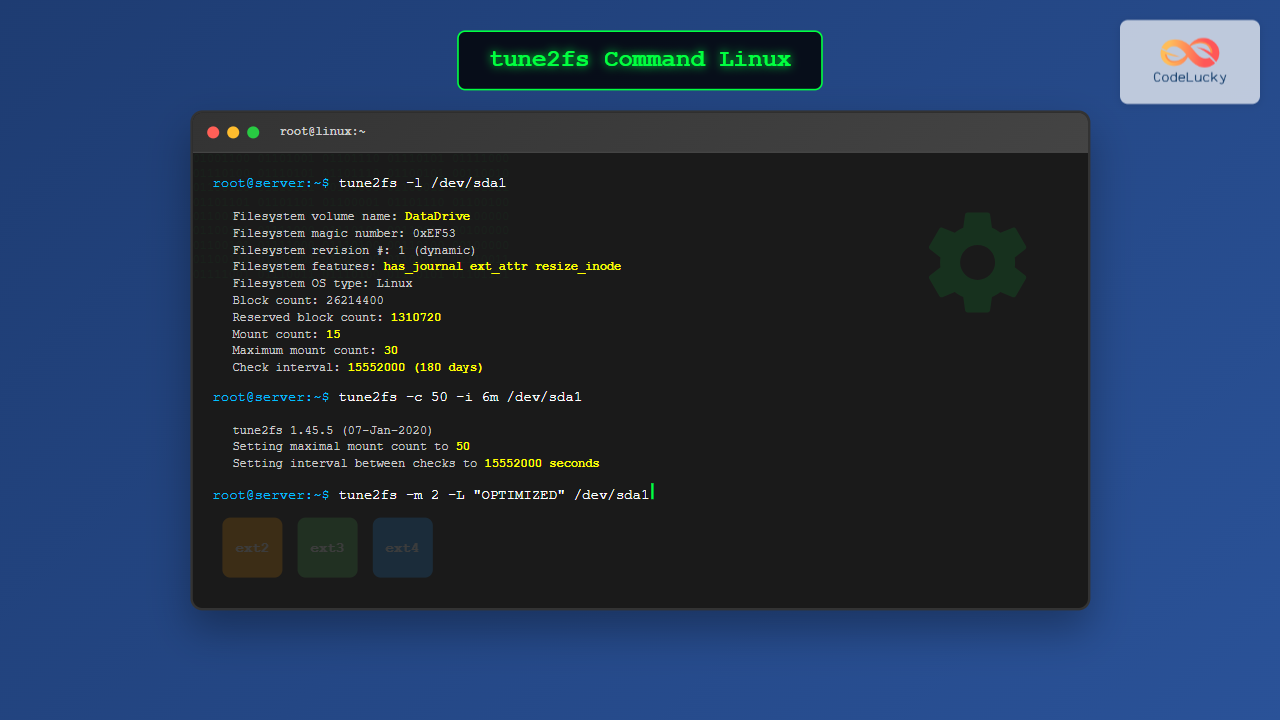
The tune2fs command is a powerful Linux utility that allows system administrators to modify and tune various parameters of ext2, ext3, and ext4 filesystems. This command enables you to change filesystem behavior without unmounting or reformatting, making it an essential tool for Linux system management.
What is tune2fs Command?
The tune2fs (tune filesystem) command is part of the e2fsprogs package and provides the ability to adjust tunable filesystem parameters on ext2, ext3, and ext4 filesystems. It can modify various attributes such as mount counts, check intervals, reserved blocks, and journaling options while the filesystem is mounted or unmounted.
Basic Syntax
tune2fs [options] deviceWhere device is the filesystem device (e.g., /dev/sda1, /dev/hda2).
Essential tune2fs Options
Viewing Filesystem Information
Before making changes, it’s crucial to examine the current filesystem parameters:
# Display filesystem information
tune2fs -l /dev/sda1
This command displays detailed information about the filesystem, including:
- Filesystem features
- Block size and count
- Mount count and maximum mount count
- Last check time and check interval
- Reserved block percentage
Managing Mount Count Checks
One of the most common uses of tune2fs is managing automatic filesystem checks:
# Set maximum mount count to 30
tune2fs -c 30 /dev/sda1

# Disable mount count checking (set to -1)
tune2fs -c -1 /dev/sda1

# Check current mount count
tune2fs -l /dev/sda1 | grep "Mount count"
Example Output:
Mount count:              15
Maximum mount count:      30
Setting Check Intervals
Configure time-based filesystem checking:
# Set check interval to 180 days
tune2fs -i 180d /dev/sda1

# Set check interval to 4 weeks
tune2fs -i 4w /dev/sda1

# Disable time-based checking
tune2fs -i 0 /dev/sda1
Advanced Configuration Options
Reserved Blocks Management
Reserved blocks are space reserved for the root user and system processes:
# Set reserved blocks to 2% of filesystem
tune2fs -m 2 /dev/sda1

# Reserve specific number of blocks (e.g., 1000 blocks)
tune2fs -r 1000 /dev/sda1

# Set reserved blocks for specific user (UID 1000)
tune2fs -u 1000 /dev/sda1
Filesystem Label Management
Set or change the filesystem label:
# Set filesystem label
tune2fs -L "MyDataDrive" /dev/sda1

# Remove filesystem label
tune2fs -L "" /dev/sda1

# View current label
tune2fs -l /dev/sda1 | grep "Filesystem volume name"
UUID Management
Generate or set a new UUID for the filesystem:
# Generate random UUID
tune2fs -U random /dev/sda1

# Set specific UUID
tune2fs -U 12345678-1234-1234-1234-123456789012 /dev/sda1

# Clear UUID
tune2fs -U clear /dev/sda1
Journaling Options (ext3/ext4)
For ext3 and ext4 filesystems, you can modify journaling behavior:
# Set journal size (in MB)
tune2fs -J size=64 /dev/sda1

# Enable specific journal options
tune2fs -o journal_data /dev/sda1

# Set default mount options
tune2fs -o acl,user_xattr /dev/sda1
Error Behavior Configuration
Configure how the filesystem behaves when errors are detected:
# Continue on errors
tune2fs -e continue /dev/sda1

# Remount read-only on errors
tune2fs -e remount-ro /dev/sda1

# Panic on errors
tune2fs -e panic /dev/sda1
Practical Examples and Use Cases
Example 1: Optimizing Boot Partition
# Configure boot partition for minimal maintenance
tune2fs -c -1 -i 0 -m 1 -L "BOOT" /dev/sda1

# Verify changes
tune2fs -l /dev/sda1 | grep -E "(Mount count|Check interval|Reserved|volume name)"
Output:
Filesystem volume name:   BOOT
Maximum mount count:      -1
Check interval:           0 ()
Reserved block count:     102
Example 2: Data Partition Configuration
# Configure large data partition
tune2fs -c 50 -i 6m -m 2 -e remount-ro -L "DATA" /dev/sdb1

# Add extended attributes support
tune2fs -o user_xattr,acl /dev/sdb1
Example 3: Converting ext2 to ext3
# Add journal to convert ext2 to ext3
tune2fs -j /dev/sdc1

# Verify journal creation
tune2fs -l /dev/sdc1 | grep "has_journal"
Interactive Filesystem Monitoring Script
Here’s a useful script to monitor and manage filesystem parameters:
#!/bin/bash
# Filesystem Health Monitor

DEVICE="$1"

if [ -z "$DEVICE" ]; then
    echo "Usage: $0 /dev/devicename"
    exit 1
fi

echo "=== Filesystem Health Report for $DEVICE ==="
echo

# Basic information
echo "Filesystem Type:"
tune2fs -l "$DEVICE" | grep "Filesystem OS type"

echo -e "\nMount Information:"
tune2fs -l "$DEVICE" | grep -E "(Mount count|Maximum mount count)"

echo -e "\nCheck Information:"
tune2fs -l "$DEVICE" | grep -E "(Last checked|Check interval)"

echo -e "\nSpace Information:"
tune2fs -l "$DEVICE" | grep -E "(Block count|Reserved block count|Free blocks)"

echo -e "\nError Behavior:"
tune2fs -l "$DEVICE" | grep "Errors behavior"

# Calculate next check
MOUNT_COUNT=$(tune2fs -l "$DEVICE" | grep "Mount count:" | awk '{print $3}')
MAX_MOUNT=$(tune2fs -l "$DEVICE" | grep "Maximum mount count:" | awk '{print $4}')

if [ "$MAX_MOUNT" -gt 0 ]; then
    REMAINING=$((MAX_MOUNT - MOUNT_COUNT))
    echo -e "\nMounts until next check: $REMAINING"
fi
Best Practices and Safety Guidelines
Safety Precautions
- Backup Important Data: Always backup critical data before making filesystem changes
- Test on Non-Critical Systems: Test commands on development systems first
- Unmount When Possible: Some operations are safer on unmounted filesystems
- Verify Changes: Always use
tune2fs -lto confirm modifications
Recommended Settings
# Root filesystem (/)
tune2fs -c 30 -i 180d -m 5 -e remount-ro /dev/sda1

# Boot partition (/boot)
tune2fs -c -1 -i 0 -m 1 /dev/sda2

# Home partition (/home)
tune2fs -c 50 -i 6m -m 1 -o user_xattr,acl /dev/sda3

# Large data partitions
tune2fs -c -1 -i 1y -m 0.5 /dev/sdb1
Common Error Messages and Solutions
Permission Denied
# Error: tune2fs: Permission denied while trying to open /dev/sda1
# Solution: Run with sudo
sudo tune2fs -l /dev/sda1
Device Busy
# Error: tune2fs: Device or resource busy
# Solution: Unmount the filesystem first
umount /dev/sda1
tune2fs -c 30 /dev/sda1
mount /dev/sda1
Integration with System Maintenance
Incorporate tune2fs into regular system maintenance routines:
# Weekly filesystem health check script
#!/bin/bash
for device in $(df -t ext4 | awk 'NR>1 {print $1}'); do
    echo "Checking $device..."
    tune2fs -l "$device" | grep -E "(Mount count|Last checked|Errors behavior)"
    echo "---"
done
Performance Considerations
Optimize filesystem performance with appropriate tune2fs settings:
- Large Files: Reduce reserved space percentage for data partitions
- SSD Drives: Disable time-based checks to reduce unnecessary writes
- Critical Systems: Set error behavior to remount read-only for data protection
- Development Systems: Extend check intervals to reduce maintenance interruptions
Conclusion
The tune2fs command is an essential tool for Linux system administrators managing ext2, ext3, and ext4 filesystems. It provides fine-grained control over filesystem behavior, maintenance schedules, and error handling. By understanding and properly configuring these parameters, you can optimize system performance, ensure data integrity, and reduce maintenance overhead.
Remember to always test changes in non-production environments and maintain regular backups. The flexibility of tune2fs makes it a powerful ally in maintaining robust and efficient Linux filesystems.
Related Posts

e2fsck Command Linux: Complete Guide to Check and Repair Ext2/3/4 Filesystems
The e2fsck command is a critical system administration tool in Linux designed to check and repair Ext2, Ext3, and Ext4...
dumpe2fs Command Linux: Complete Guide to Display Ext2/3/4 Filesystem Information
The dumpe2fs command is a powerful Linux utility that displays detailed information about ext2, ext3, and ext4 filesystems. This essential...
resize2fs Command Linux: Complete Guide to Resize Ext2/3/4 Filesystems Safely
The resize2fs command is a powerful Linux utility designed to resize ext2, ext3, and ext4 filesystems. Whether you need to...
xfs_info Command Linux: Complete Guide to Display XFS Filesystem Information
The xfs_info command is a powerful utility in Linux systems that provides comprehensive information about XFS filesystems. This command is...
xfs_check Command Linux: Complete Guide to XFS Filesystem Consistency Verification
The xfs_check command is a crucial system administration tool in Linux for verifying the consistency and integrity of XFS filesystems....
debugfs Command Linux: Complete Guide to Debug Ext2/3/4 Filesystems
The debugfs command is a powerful interactive filesystem debugger for ext2, ext3, and ext4 filesystems in Linux. It provides low-level...

xfs_repair Command Linux: Complete Guide to Fix and Repair XFS Filesystems
The xfs_repair command is a powerful utility in Linux designed specifically for checking and repairing XFS filesystems. As XFS is...

File System Types: FAT32, NTFS, ext4 and Modern Linux Filesystems Explained
Understanding File Systems: The Foundation of Data Storage A file system is the method and data structure that an operating...

lsattr Command Linux: Complete Guide to List and Manage File Attributes
The lsattr command is a powerful Linux utility that displays the extended attributes of files and directories on ext2, ext3,...

fsck Command Linux: Complete Guide to Filesystem Check and Repair
The fsck (file system check) command is one of the most crucial system administration tools in Linux, designed to check...
chattr Command Linux: Complete Guide to Change File Attributes with Examples
The chattr command in Linux is a powerful utility that allows system administrators and users to change file attributes on...

stat Command Linux: Complete Guide to Display File and Filesystem Status Information
The stat command is a powerful Linux utility that displays detailed information about files and filesystems. Unlike basic commands like...
- What is tune2fs Command?
- Basic Syntax
- Essential tune2fs Options
- Advanced Configuration Options
- Journaling Options (ext3/ext4)
- Error Behavior Configuration
- Practical Examples and Use Cases
- Interactive Filesystem Monitoring Script
- Best Practices and Safety Guidelines
- Common Error Messages and Solutions
- Integration with System Maintenance
- Performance Considerations
- Conclusion





