
The touch command is one of the most fundamental yet versatile utilities in Linux and Unix-like systems. While its primary purpose is to create empty files and update file timestamps, it offers much more functionality than meets the eye. This comprehensive guide will explore every aspect of the touch command, from basic usage to advanced techniques that can streamline your file management workflow.
What is the touch Command?
The touch command is a standard Unix utility that serves two primary functions:
- Creating empty files: Generate new files with zero bytes of content
- Updating timestamps: Modify access time, modification time, or both for existing files
Originally designed to “touch” files to update their timestamps, the command has evolved to become an essential tool for file creation and timestamp manipulation in shell scripting and system administration.
Basic Syntax and Usage
The basic syntax of the touch command is:
touch [OPTIONS] FILE...Where FILE can be one or more filenames, and OPTIONS are various flags that modify the command’s behavior.
Creating Empty Files
The most common use case is creating empty files:
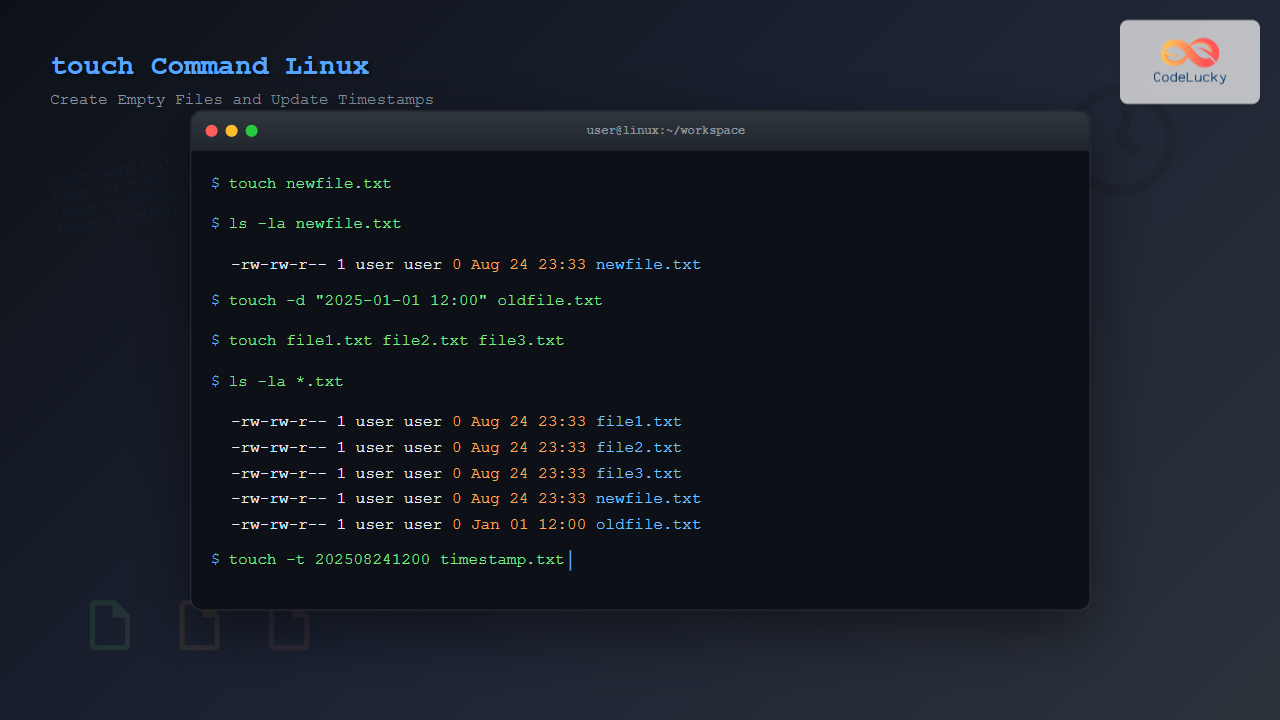
$ touch newfile.txt
$ ls -la newfile.txt
-rw-rw-r-- 1 user user 0 Aug 24 23:33 newfile.txt
As you can see, the file newfile.txt has been created with 0 bytes and current timestamp.
Creating Multiple Files
You can create multiple files in a single command:
$ touch file1.txt file2.txt file3.txt
$ ls -la file*.txt
-rw-rw-r-- 1 user user 0 Aug 24 23:33 file1.txt
-rw-rw-r-- 1 user user 0 Aug 24 23:33 file2.txt
-rw-rw-r-- 1 user user 0 Aug 24 23:33 file3.txt
Understanding File Timestamps
Before diving deeper into touch command options, it’s crucial to understand the three types of timestamps associated with files in Linux:
- Access time (atime): When the file was last accessed or read
- Modification time (mtime): When the file content was last modified
- Change time (ctime): When the file metadata (permissions, ownership) was last changed
You can view these timestamps using the stat command:
$ stat newfile.txt
  File: newfile.txt
  Size: 0               Blocks: 0          IO Block: 4096   regular empty file
Device: 8,1     Inode: 123456      Links: 1
Access: (0664/-rw-rw-r--)  Uid: (1000/   user)   Gid: (1000/   user)
Access: 2025-08-24 23:33:15.123456789 +0530
Modify: 2025-08-24 23:33:15.123456789 +0530
Change: 2025-08-24 23:33:15.123456789 +0530
Essential touch Command Options
-a: Update Access Time Only
The -a option updates only the access time of the file:
$ touch -a existing_file.txt
$ stat existing_file.txt
Access: 2025-08-24 23:35:00.000000000 +0530
Modify: 2025-08-24 23:33:15.123456789 +0530  # Unchanged
Change: 2025-08-24 23:35:00.000000000 +0530
-m: Update Modification Time Only
The -m option updates only the modification time:
$ touch -m existing_file.txt
$ stat existing_file.txt
Access: 2025-08-24 23:35:00.000000000 +0530  # Unchanged
Modify: 2025-08-24 23:36:00.000000000 +0530
Change: 2025-08-24 23:36:00.000000000 +0530
-c: Do Not Create Files
The -c option prevents touch from creating new files if they don’t exist:
$ touch -c nonexistent_file.txt
$ ls nonexistent_file.txt
ls: cannot access 'nonexistent_file.txt': No such file or directory
This is particularly useful in scripts where you only want to update existing files.
-d: Set Specific Date and Time
You can set a specific timestamp using the -d option:
$ touch -d "2025-01-01 12:00:00" dated_file.txt
$ stat dated_file.txt
Access: 2025-01-01 12:00:00.000000000 +0530
Modify: 2025-01-01 12:00:00.000000000 +0530
Change: 2025-08-24 23:37:00.000000000 +0530
The -d option accepts various date formats:
# Different date formats
$ touch -d "yesterday" yesterday_file.txt
$ touch -d "next Monday" monday_file.txt
$ touch -d "2 hours ago" recent_file.txt
$ touch -d "2025-12-25" christmas_file.txt
-t: Set Time Using Timestamp Format
For precise timestamp control, use the -t option with the format [[CC]YY]MMDDhhmm[.ss]:
$ touch -t 202501011200.30 precise_file.txt
$ stat precise_file.txt
Access: 2025-01-01 12:00:30.000000000 +0530
Modify: 2025-01-01 12:00:30.000000000 +0530
Change: 2025-08-24 23:38:00.000000000 +0530
-r: Use Reference File
Copy timestamps from another file using the -r option:
$ touch -r reference_file.txt target_file.txt
$ stat reference_file.txt target_file.txt
  File: reference_file.txt
  Access: 2025-08-24 20:00:00.000000000 +0530
  Modify: 2025-08-24 20:00:00.000000000 +0530

  File: target_file.txt
  Access: 2025-08-24 20:00:00.000000000 +0530
  Modify: 2025-08-24 20:00:00.000000000 +0530
Advanced Usage Examples
Creating Files with Wildcards
Create multiple files using brace expansion:
$ touch file{1..10}.txt
$ touch document_{a,b,c}.doc
$ ls
document_a.doc  document_c.doc  file2.txt  file4.txt  file6.txt  file8.txt
document_b.doc  file1.txt       file3.txt  file5.txt  file7.txt  file9.txt  file10.txt
Creating Directory Structure
While touch cannot create directories, you can combine it with mkdir -p:
$ mkdir -p project/{src,docs,tests}
$ touch project/src/{main.c,utils.c} project/docs/README.md project/tests/test_main.c
$ tree project/
project/
├── docs
│   └── README.md
├── src
│   ├── main.c
│   └── utils.c
└── tests
    └── test_main.c
Conditional File Creation
Create files only if they don’t exist using shell scripting:
#!/bin/bash
files=("config.txt" "log.txt" "data.txt")

for file in "${files[@]}"; do
    if [ ! -f "$file" ]; then
        touch "$file"
        echo "Created: $file"
    else
        echo "Already exists: $file"
    fi
done
Practical Use Cases
Log File Management
Create log files for applications:
$ touch /var/log/myapp/{access.log,error.log,debug.log}
$ chmod 644 /var/log/myapp/*.log
Backup Timestamp Preservation
Preserve original timestamps when copying files:
$ cp important_file.txt backup_file.txt
$ touch -r important_file.txt backup_file.txt
Testing File Modification
Set specific timestamps for testing purposes:
$ touch -d "2025-01-01" old_file.txt
$ touch -d "2025-08-24" new_file.txt
$ find . -newer old_file.txt -name "*.txt"
./new_file.txt
Combining touch with Other Commands
With find Command
Update timestamps of files found by specific criteria:
$ find . -name "*.log" -exec touch {} \;With xargs
Process multiple files efficiently:
$ echo "file1.txt file2.txt file3.txt" | xargs touchPipeline Usage
Create files based on command output:
$ ls /etc/*.conf | sed 's|/etc/||' | xargs -I {} touch backup_{}Error Handling and Troubleshooting
Permission Issues
If you encounter permission errors:
$ touch /root/restricted_file.txt
touch: cannot touch '/root/restricted_file.txt': Permission denied
Solution: Use sudo or ensure proper permissions:
$ sudo touch /root/restricted_file.txtInvalid Date Formats
When using invalid date formats:
$ touch -d "invalid-date" file.txt
touch: invalid date format 'invalid-date'
Always verify date formats using the date command first:
$ date -d "2025-12-25"
Wed Dec 25 00:00:00 IST 2025
Performance Considerations
When working with large numbers of files:
- Use shell built-ins when possible for better performance
- Consider filesystem limitations (maximum files per directory)
- Be aware that updating timestamps triggers filesystem writes
Bulk Operations
For creating thousands of files, consider optimized approaches:
# Efficient for many files
$ seq 1 1000 | xargs -I {} touch file_{}.txt

# Even more efficient with parallel processing
$ seq 1 1000 | xargs -P 4 -I {} touch file_{}.txt
Security Implications
Timestamp Manipulation
Be aware that touch can be used to manipulate timestamps, which might:
- Confuse backup systems that rely on modification times
- Affect log analysis and forensic investigations
- Impact automated systems that process files based on timestamps
Best Practices
- Always document timestamp modifications in system logs
- Use touch responsibly in production environments
- Implement proper access controls for critical files
Alternative Commands and Tools
Creating Files
Other ways to create empty files:
$ > newfile.txt          # Shell redirection
$ echo -n > newfile.txt   # Echo with no newline
$ cat /dev/null > newfile.txt  # Using cat
Timestamp Manipulation
Alternative tools for timestamp operations:
stat: Display file timestampsls -l: Show modification timesfind: Search based on timestampsutime: Programming interface for timestamp modification
Conclusion
The touch command is an indispensable tool in the Linux administrator’s toolkit. From simple file creation to complex timestamp manipulation, it provides the flexibility needed for various system administration and development tasks. By mastering its options and understanding its behavior, you can streamline your workflow and implement more sophisticated file management strategies.
Whether you’re creating placeholder files, preserving timestamps during file operations, or implementing complex backup strategies, the touch command offers the precision and reliability required for professional Linux environments. Practice these examples and incorporate touch into your daily command-line routine to become more efficient in file management tasks.
Remember to always test your touch commands in safe environments before applying them to production systems, especially when dealing with timestamp modifications that could affect other system processes or applications.
Related Posts
inotifywait Command Linux: Complete Guide to Real-Time File System Monitoring
The inotifywait command is a powerful Linux utility that enables real-time monitoring of file system events. Whether you're tracking file...
chattr Command Linux: Complete Guide to Change File Attributes with Examples
The chattr command in Linux is a powerful utility that allows system administrators and users to change file attributes on...

stat Command Linux: Complete Guide to Display File and Filesystem Status Information
The stat command is a powerful Linux utility that displays detailed information about files and filesystems. Unlike basic commands like...

Java Create File: Making New Files
Java, a versatile and powerful programming language, offers robust capabilities for file handling. One of the most fundamental operations in...
xattr Command Linux: Complete Guide to Extended File Attributes Management
Extended file attributes in Linux provide a powerful mechanism to store additional metadata beyond traditional file permissions and ownership. The...
wipe Command Linux: Complete Guide to Secure File Deletion and Data Wiping
The wipe command in Linux is a powerful utility designed for secure file deletion that goes far beyond the standard...

lsattr Command Linux: Complete Guide to List and Manage File Attributes
The lsattr command is a powerful Linux utility that displays the extended attributes of files and directories on ext2, ext3,...

file Command Advanced Linux: Master Detailed File Type Analysis and Detection
The file command is one of the most powerful and underutilized utilities in Linux for determining file types and analyzing...
ntpdate Command Linux: Complete Guide to Network Time Synchronization (Deprecated Tool)
The ntpdate command was once a cornerstone tool for Linux system administrators to synchronize system time with Network Time Protocol...
find Command Advanced Linux: Master Complex Search Patterns and Powerful Operations
The find command is one of the most powerful and versatile tools in the Linux arsenal, capable of performing complex...
ls Command Advanced Linux: Complete Guide to File Listing Mastery
The ls command is one of the most fundamental and frequently used commands in Linux and Unix-like operating systems. While...
date Command Linux: Complete Guide to Display and Set System Date
The date command is one of the most fundamental utilities in Linux systems, allowing users to display and manipulate system...





