
The timedatectl command is a powerful utility in modern Linux distributions that provides a unified interface for managing system time, date, timezone settings, and Network Time Protocol (NTP) synchronization. As part of the systemd ecosystem, it has become the standard tool for time-related system administration tasks.
What is timedatectl?
timedatectl is a command-line utility that allows system administrators to query and change the system clock and its settings. It’s designed to replace older tools like date, hwclock, and various timezone configuration methods with a more consistent and feature-rich interface.
Key Features
- Display current system time and date information
- Set system time and date
- Configure timezone settings
- Manage NTP synchronization
- Control hardware clock settings
- Handle daylight saving time automatically
Basic Syntax and Options
The basic syntax of the timedatectl command follows this pattern:
timedatectl [OPTIONS...] COMMAND [ARGUMENTS...]Common Options
--no-pager: Do not pipe output into a pager--no-ask-password: Do not ask for system passwords--host: Operate on remote host--machine: Operate on local container--help: Show help message
Displaying Current Time Information
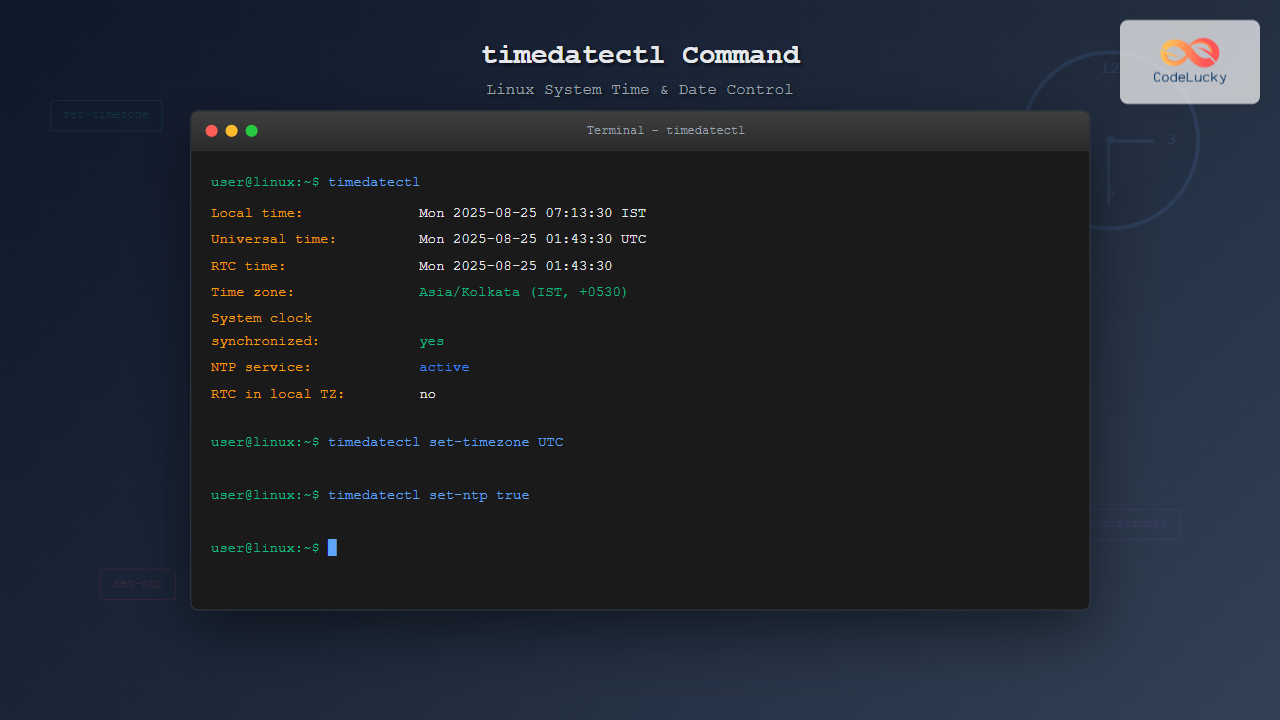
The most basic use of timedatectl is to display the current system time and date information:
timedatectlSample Output:
               Local time: Mon 2025-08-25 07:12:30 IST
           Universal time: Mon 2025-08-25 01:42:30 UTC
                 RTC time: Mon 2025-08-25 01:42:30
                Time zone: Asia/Kolkata (IST, +0530)
System clock synchronized: yes
              NTP service: active
          RTC in local TZ: no
This output provides comprehensive information about:
- Local time: Current time in the system’s timezone
- Universal time: Current UTC time
- RTC time: Real-Time Clock (hardware clock) time
- Time zone: Current timezone setting
- System clock synchronized: Whether NTP synchronization is active
- NTP service: Status of the NTP service
- RTC in local TZ: Whether hardware clock uses local time or UTC
Setting System Date and Time
Setting the Date
To set the system date, use the set-time command:
sudo timedatectl set-time "2025-08-25 10:30:00"You can also set just the date:
sudo timedatectl set-time "2025-08-25"Or just the time:
sudo timedatectl set-time "10:30:00"Alternative Date Formats
The command accepts various date and time formats:
# ISO 8601 format
sudo timedatectl set-time "2025-08-25T10:30:00"

# Different separators
sudo timedatectl set-time "2025/08/25 10:30:00"

# 12-hour format with AM/PM
sudo timedatectl set-time "2025-08-25 10:30:00 AM"
Managing Timezones
Listing Available Timezones
To see all available timezones:
timedatectl list-timezonesThis command displays a long list of timezones. You can filter it using grep:
# Find timezones for India
timedatectl list-timezones | grep India

# Find timezones for America
timedatectl list-timezones | grep America
Setting a Timezone
To change the system timezone:
sudo timedatectl set-timezone America/New_YorkExample Output After Setting Timezone:
               Local time: Mon 2025-08-24 21:42:30 EDT
           Universal time: Mon 2025-08-25 01:42:30 UTC
                 RTC time: Mon 2025-08-25 01:42:30
                Time zone: America/New_York (EDT, -0400)
System clock synchronized: yes
              NTP service: active
          RTC in local TZ: no
Common Timezone Examples
# Set to UTC
sudo timedatectl set-timezone UTC

# Set to London time
sudo timedatectl set-timezone Europe/London

# Set to Tokyo time
sudo timedatectl set-timezone Asia/Tokyo

# Set to Los Angeles time
sudo timedatectl set-timezone America/Los_Angeles
NTP Synchronization Management
Enabling NTP Synchronization
To enable automatic time synchronization with NTP servers:
sudo timedatectl set-ntp trueDisabling NTP Synchronization
To disable NTP synchronization:
sudo timedatectl set-ntp falseChecking NTP Status
You can verify the NTP synchronization status:
timedatectl show-timesync --allSample Output:
LinkNTPServers=
SystemNTPServers=
FallbackNTPServers=0.pool.ntp.org 1.pool.ntp.org 2.pool.ntp.org 3.pool.ntp.org
ServerName=0.pool.ntp.org
ServerAddress=185.255.55.20
RootDistanceMaxUSec=5s
PollIntervalMinUSec=32s
PollIntervalMaxUSec=34min 8s
PollIntervalUSec=2min 8s
NTPMessage={ Leap=0, Version=4, Mode=4, Stratum=2, Precision=-25, RootDelay=22.644ms, RootDispersion=45.776ms, Reference=C342F10A, OriginateTimestamp=Mon 2025-08-25 07:12:28 IST, ReceiveTimestamp=Mon 2025-08-25 07:12:28 IST, TransmitTimestamp=Mon 2025-08-25 07:12:28 IST, DestinationTimestamp=Mon 2025-08-25 07:12:28 IST, Ignored=no, PacketCount=1, Jitter=0 }
Frequency=500000
Hardware Clock Management
Setting Hardware Clock to Local Time
By default, the hardware clock (RTC) uses UTC. To set it to local time:
sudo timedatectl set-local-rtc trueSetting Hardware Clock to UTC
To set the hardware clock back to UTC (recommended):
sudo timedatectl set-local-rtc falseNote: Using UTC for the hardware clock is recommended because it avoids issues with daylight saving time transitions and is the standard practice for most Linux systems.
Advanced Usage Examples
Interactive Timezone Selection
For a more user-friendly timezone selection, you can combine timedatectl with other tools:
# List timezones with line numbers for easy selection
timedatectl list-timezones | nl

# Use fzf for interactive selection (if installed)
timedatectl list-timezones | fzf
Checking Multiple Time Information
Create a script to display time information in multiple timezones:
#!/bin/bash
echo "=== System Time Information ==="
timedatectl

echo -e "\n=== Time in Different Zones ==="
TZ='America/New_York' date '+New York: %Y-%m-%d %H:%M:%S %Z'
TZ='Europe/London' date '+London: %Y-%m-%d %H:%M:%S %Z'
TZ='Asia/Tokyo' date '+Tokyo: %Y-%m-%d %H:%M:%S %Z'
TZ='UTC' date '+UTC: %Y-%m-%d %H:%M:%S %Z'
Automating Time Configuration
You can create scripts to automate time configuration for different environments:
#!/bin/bash
# Configure system time for production server

echo "Configuring system time settings..."

# Set timezone to UTC for servers
sudo timedatectl set-timezone UTC

# Enable NTP synchronization
sudo timedatectl set-ntp true

# Ensure hardware clock uses UTC
sudo timedatectl set-local-rtc false

echo "Time configuration completed!"
timedatectl
Troubleshooting Common Issues
NTP Synchronization Problems
If NTP synchronization isn’t working:
# Check systemd-timesyncd status
systemctl status systemd-timesyncd

# Restart the time synchronization service
sudo systemctl restart systemd-timesyncd

# Check if NTP is blocked by firewall
sudo ufw status | grep ntp
Permission Issues
If you encounter permission errors, ensure you’re using sudo for system-modifying commands:
# This will fail without proper permissions
timedatectl set-time "10:30:00"

# This will work
sudo timedatectl set-time "10:30:00"
Hardware Clock Issues
If the hardware clock seems incorrect:
# Check hardware clock directly
sudo hwclock --show

# Sync hardware clock with system clock
sudo hwclock --systohc

# Sync system clock with hardware clock
sudo hwclock --hctosys
Integration with System Services
The timedatectl command integrates with several systemd services:
systemd-timesyncd
This is the default NTP client:
# Check status
systemctl status systemd-timesyncd

# View logs
journalctl -u systemd-timesyncd
systemd-timedated
This service provides the D-Bus interface for time/date operations:
# Check status
systemctl status systemd-timedated

# View logs
journalctl -u systemd-timedated
Best Practices
- Use UTC for servers: Always configure servers to use UTC timezone to avoid confusion across different locations.
- Enable NTP synchronization: Keep system clocks synchronized with reliable time servers.
- Use hardware clock in UTC: Set
RTC in local TZ: noto avoid daylight saving time issues. - Regular monitoring: Include time synchronization checks in your monitoring scripts.
- Document timezone choices: Document timezone decisions for applications that depend on local time.
Security Considerations
- Limit access: Only authorized users should be able to modify system time settings
- NTP security: Use authenticated NTP when possible for critical systems
- Log monitoring: Monitor time change events in system logs
- Network security: Ensure NTP traffic is properly secured in firewall rules
Conclusion
The timedatectl command is an essential tool for Linux system administrators, providing a comprehensive interface for managing system time and date settings. Its integration with systemd makes it the preferred method for time management on modern Linux distributions. By understanding its various commands and options, you can effectively manage system time, configure timezones, and ensure proper NTP synchronization across your Linux systems.
Whether you’re setting up a new server, troubleshooting time-related issues, or automating system configuration, timedatectl provides the reliability and functionality needed for professional system administration. Regular use of this command will help maintain accurate system time, which is crucial for logging, security, and application functionality.
Related Posts
timedatectl Advanced Linux: Complete Time and Date Management Guide
The timedatectl command is a powerful Linux utility that provides comprehensive control over system time and date settings. As part...
ntpdate Command Linux: Complete Guide to Network Time Synchronization (Deprecated Tool)
The ntpdate command was once a cornerstone tool for Linux system administrators to synchronize system time with Network Time Protocol...
systemd-timesyncd Linux: Complete Guide to Network Time Synchronization
Time synchronization is a critical aspect of system administration that ensures your Linux servers maintain accurate time across distributed networks....
date Command Linux: Complete Guide to Display and Set System Date
The date command is one of the most fundamental utilities in Linux systems, allowing users to display and manipulate system...
ntpd Command Linux: Complete Guide to Network Time Protocol Daemon Management
The ntpd (Network Time Protocol daemon) is a crucial system service in Linux that maintains accurate system time by synchronizing...
hwclock Command Linux: Complete Hardware Clock Management Guide
The hwclock command is a powerful Linux utility for managing your system's hardware clock, also known as the Real-Time Clock...
uptime Command Linux: Complete Guide to System Uptime and Load Average Monitoring
The uptime command is one of the most fundamental system monitoring tools in Linux, providing essential information about how long...

JavaScript Date setTime() Method: Setting Time
JavaScript Date setTime() Method: Setting Time The setTime() method in JavaScript is used to set a Date object to a...

C Time Functions: Date and Time Operations with <time.h>
Time is an essential concept in programming, and C provides a robust set of functions for working with dates and...

JavaScript Date setUTCHours() Method: Setting UTC Hours
JavaScript Date setUTCHours() Method: Setting UTC Hours The setUTCHours() method is a part of the JavaScript Date object, and it...
chrony Linux: Complete Guide to NTP Client and Server Configuration
Network Time Protocol (NTP) synchronization is crucial for maintaining accurate time across Linux systems. chrony is a modern, versatile NTP...

JavaScript Date getTimezoneOffset() Method: Getting Time Zone Offset
JavaScript Date getTimezoneOffset() Method: Getting Time Zone Offset The getTimezoneOffset() method in JavaScript is used to obtain the difference in...





