
The timedatectl command is a powerful Linux utility that provides comprehensive control over system time and date settings. As part of the systemd ecosystem, it offers administrators and users advanced capabilities for managing system clocks, timezones, and network time synchronization. This guide explores every aspect of timedatectl, from basic usage to advanced configuration scenarios.
Understanding timedatectl Architecture
Before diving into commands, it’s crucial to understand how timedatectl operates within the Linux system architecture. The utility interfaces with the systemd-timedated service, which manages three different clocks:
- System Clock (Software Clock): Maintained by the kernel and used by applications
- Hardware Clock (RTC): Battery-powered clock that persists when system is powered off
- Network Time Protocol (NTP): External time synchronization mechanism
Basic timedatectl Commands
Checking Current Time Status
The most fundamental operation is checking the current system time configuration:
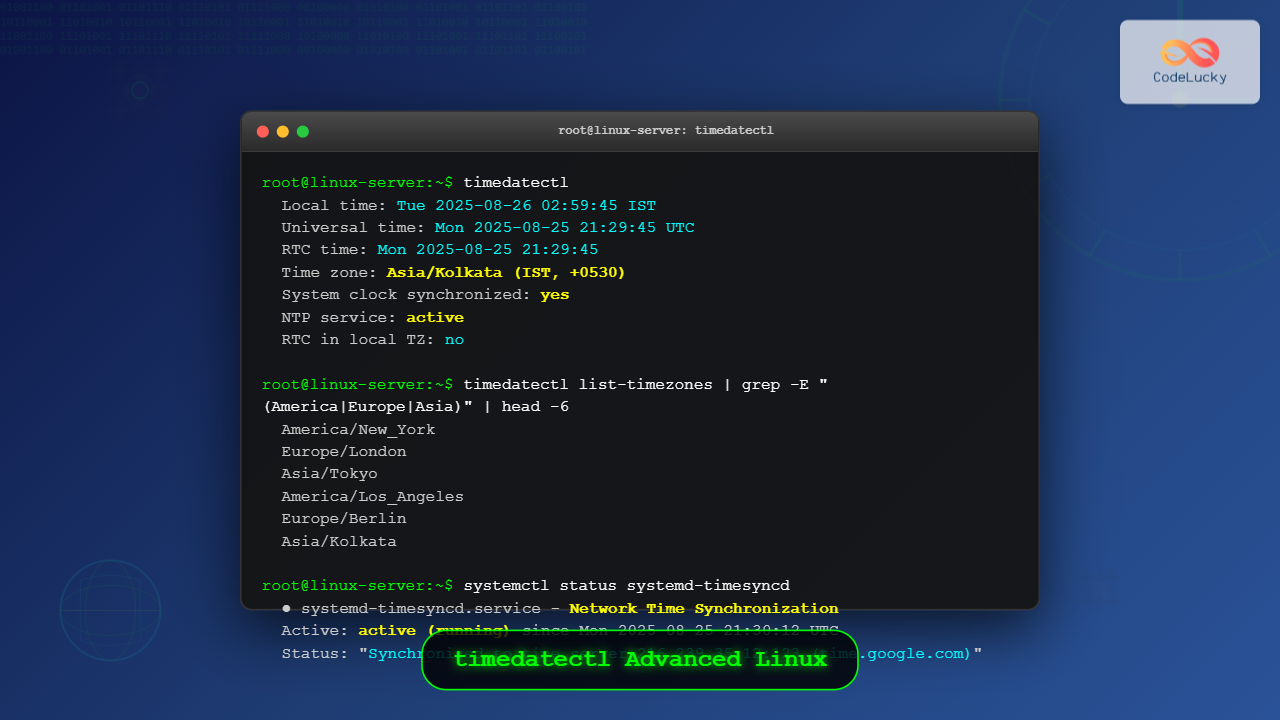
timedatectlThis command displays comprehensive time information:
               Local time: Tue 2025-08-26 02:59:45 IST
           Universal time: Mon 2025-08-25 21:29:45 UTC
                 RTC time: Mon 2025-08-25 21:29:45
                Time zone: Asia/Kolkata (IST, +0530)
System clock synchronized: yes
              NTP service: active
          RTC in local TZ: no
Each field provides critical information about your system’s time configuration:
- Local time: Current time in your configured timezone
- Universal time: UTC time (Coordinated Universal Time)
- RTC time: Hardware clock time
- Time zone: Currently configured timezone with abbreviation and offset
- System clock synchronized: Whether system time is synchronized with external sources
- NTP service: Network Time Protocol synchronization status
- RTC in local TZ: Whether hardware clock uses local time or UTC
Timezone Management
Listing Available Timezones
To view all available timezones on your system:
timedatectl list-timezonesThis command outputs hundreds of timezone identifiers. You can filter the results using grep:
# List all US timezones
timedatectl list-timezones | grep America/

# List European timezones
timedatectl list-timezones | grep Europe/

# Search for specific city
timedatectl list-timezones | grep -i london
Setting Timezone
To change your system timezone, use the set-timezone command:
sudo timedatectl set-timezone America/New_YorkAfter setting a new timezone, verify the change:
timedatectlOutput will show the updated timezone:
               Local time: Mon 2025-08-25 17:59:45 EDT
           Universal time: Mon 2025-08-25 21:59:45 UTC
                 RTC time: Mon 2025-08-25 21:59:45
                Time zone: America/New_York (EDT, -0400)
Manual Time Configuration
Setting System Time
When automatic time synchronization is disabled, you can manually set the system time:
# Set specific date and time
sudo timedatectl set-time "2025-08-26 15:30:00"

# Set only the date
sudo timedatectl set-time "2025-08-26"

# Set only the time
sudo timedatectl set-time "15:30:00"
Note: Manual time setting requires NTP synchronization to be disabled first.
Disabling NTP Synchronization
Before manually setting time, disable automatic synchronization:
sudo timedatectl set-ntp falseVerify NTP is disabled:
timedatectlThe output will show:
System clock synchronized: no
              NTP service: inactive
After manual configuration, you can re-enable NTP:
sudo timedatectl set-ntp trueHardware Clock Management
Understanding RTC Configuration
The Real-Time Clock (RTC) can operate in two modes:
- UTC Mode: Hardware clock stores UTC time (recommended for Linux systems)
- Local Time Mode: Hardware clock stores local time (common on Windows systems)
Configuring RTC Mode
To set RTC to use local time (useful for dual-boot systems):
sudo timedatectl set-local-rtc trueTo set RTC back to UTC (recommended):
sudo timedatectl set-local-rtc falseCheck RTC configuration:
timedatectlLook for the “RTC in local TZ” field in the output.
Advanced NTP Configuration
Understanding NTP Services
Modern Linux systems use either systemd-timesyncd or dedicated NTP services like chronyd or ntpd. Check which service is active:
# Check timesyncd status
systemctl status systemd-timesyncd

# Check chronyd status (if installed)
systemctl status chronyd

# Check ntpd status (if installed)
systemctl status ntp
Configuring Time Synchronization Sources
For systemd-timesyncd, edit the configuration file:
sudo nano /etc/systemd/timesyncd.confExample configuration:
[Time]
NTP=time.nist.gov time.google.com
FallbackNTP=pool.ntp.org
RootDistanceMaxSec=5
PollIntervalMinSec=32
PollIntervalMaxSec=2048
After configuration changes, restart the service:
sudo systemctl restart systemd-timesyncdTroubleshooting Time Issues
Diagnosing Time Drift
Monitor time synchronization status:
# Show detailed timesyncd status
systemctl status systemd-timesyncd -l

# Check time synchronization logs
journalctl -u systemd-timesyncd --since "1 hour ago"
Force Time Synchronization
To force immediate synchronization:
# Restart timesyncd service
sudo systemctl restart systemd-timesyncd

# Or disable/enable NTP
sudo timedatectl set-ntp false
sudo timedatectl set-ntp true
Scripting with timedatectl
Automated Timezone Detection
Create a script for automatic timezone configuration based on location:
#!/bin/bash

# Get current timezone
CURRENT_TZ=$(timedatectl | grep "Time zone" | awk '{print $3}')

# Function to set timezone with validation
set_timezone() {
    local new_tz=$1
    if timedatectl list-timezones | grep -q "^$new_tz$"; then
        sudo timedatectl set-timezone "$new_tz"
        echo "Timezone set to: $new_tz"
    else
        echo "Invalid timezone: $new_tz"
        exit 1
    fi
}

# Example usage
set_timezone "Europe/London"
System Health Monitoring
Monitor time synchronization health:
#!/bin/bash

# Check if NTP is active and synchronized
if timedatectl | grep -q "System clock synchronized: yes"; then
    echo "✓ Time is synchronized"
else
    echo "✗ Time synchronization failed"

    # Attempt to fix
    sudo systemctl restart systemd-timesyncd
    sleep 5

    if timedatectl | grep -q "System clock synchronized: yes"; then
        echo "✓ Time synchronization restored"
    else
        echo "✗ Manual intervention required"
    fi
fi
Security Considerations
NTP Security
Secure NTP configuration is crucial for system security:
- Use trusted NTP servers: Configure reliable, authenticated time sources
- Enable NTP authentication: Use symmetric keys for NTP communication
- Monitor time changes: Log and alert on significant time modifications
- Firewall configuration: Restrict NTP traffic to necessary servers only
Audit Time Changes
Monitor time-related system changes:
# Monitor timedatectl usage
sudo auditctl -w /usr/bin/timedatectl -p x -k time_change

# View time change logs
sudo ausearch -k time_change
Integration with System Services
Service Dependencies
Many services depend on accurate time. Configure proper startup order:
# Create a service that waits for time sync
sudo nano /etc/systemd/system/wait-time-sync.service
[Unit]
Description=Wait for time synchronization
Wants=time-sync.target
After=time-sync.target
[Service]
Type=oneshot
ExecStart=/bin/true
RemainAfterExit=true
[Install]
WantedBy=multi-user.targetPerformance Optimization
Reducing Time Sync Overhead
Optimize NTP polling intervals based on your requirements:
# Configure timesyncd for less frequent polling
sudo nano /etc/systemd/timesyncd.conf
[Time]
PollIntervalMinSec=64
PollIntervalMaxSec=2048Best Practices Summary
- Always use UTC for RTC: Unless dual-booting with Windows
- Enable NTP synchronization: For accurate time keeping
- Use reliable time servers: Choose geographically close, trusted sources
- Monitor synchronization: Regularly check time sync status
- Document timezone changes: Keep records of system modifications
- Test time-dependent applications: Verify compatibility after changes
- Implement monitoring: Alert on synchronization failures
- Regular maintenance: Review and update time server configurations
Conclusion
The timedatectl command provides comprehensive time management capabilities essential for modern Linux system administration. From basic timezone configuration to advanced NTP synchronization, mastering these commands ensures reliable system operation and proper application functionality. Regular monitoring and maintenance of time settings contribute to system security, logging accuracy, and overall system reliability.
Understanding the relationship between system clocks, hardware clocks, and network time synchronization enables administrators to troubleshoot time-related issues effectively and implement robust time management strategies across their infrastructure.
Related Posts
timedatectl Command Linux: Complete Guide to System Time and Date Management
The timedatectl command is a powerful utility in modern Linux distributions that provides a unified interface for managing system time,...
systemd-timesyncd Linux: Complete Guide to Network Time Synchronization
Time synchronization is a critical aspect of system administration that ensures your Linux servers maintain accurate time across distributed networks....
ntpdate Command Linux: Complete Guide to Network Time Synchronization (Deprecated Tool)
The ntpdate command was once a cornerstone tool for Linux system administrators to synchronize system time with Network Time Protocol...
ntpd Command Linux: Complete Guide to Network Time Protocol Daemon Management
The ntpd (Network Time Protocol daemon) is a crucial system service in Linux that maintains accurate system time by synchronizing...
hwclock Command Linux: Complete Hardware Clock Management Guide
The hwclock command is a powerful Linux utility for managing your system's hardware clock, also known as the Real-Time Clock...
chrony Linux: Complete Guide to NTP Client and Server Configuration
Network Time Protocol (NTP) synchronization is crucial for maintaining accurate time across Linux systems. chrony is a modern, versatile NTP...
uptime Command Linux: Complete Guide to System Uptime and Load Average Monitoring
The uptime command is one of the most fundamental system monitoring tools in Linux, providing essential information about how long...
date Command Linux: Complete Guide to Display and Set System Date
The date command is one of the most fundamental utilities in Linux systems, allowing users to display and manipulate system...

C Time Functions: Date and Time Operations with <time.h>
Time is an essential concept in programming, and C provides a robust set of functions for working with dates and...
JavaScript Date setTime() Method: Setting Time
JavaScript Date setTime() Method: Setting Time The setTime() method in JavaScript is used to set a Date object to a...

Java Date: Working with Dates and Times
Java provides robust support for working with dates and times, offering developers powerful tools to handle various temporal operations. Whether...

C++ Date and Time: Working with <chrono> and <ctime>
In the world of C++ programming, handling dates and times is a crucial skill that every developer should master. Whether...
- Understanding timedatectl Architecture
- Basic timedatectl Commands
- Timezone Management
- Manual Time Configuration
- Hardware Clock Management
- Advanced NTP Configuration
- Troubleshooting Time Issues
- Scripting with timedatectl
- Security Considerations
- Integration with System Services
- Performance Optimization
- Best Practices Summary
- Conclusion





