
What is Network Time Protocol (NTP)?
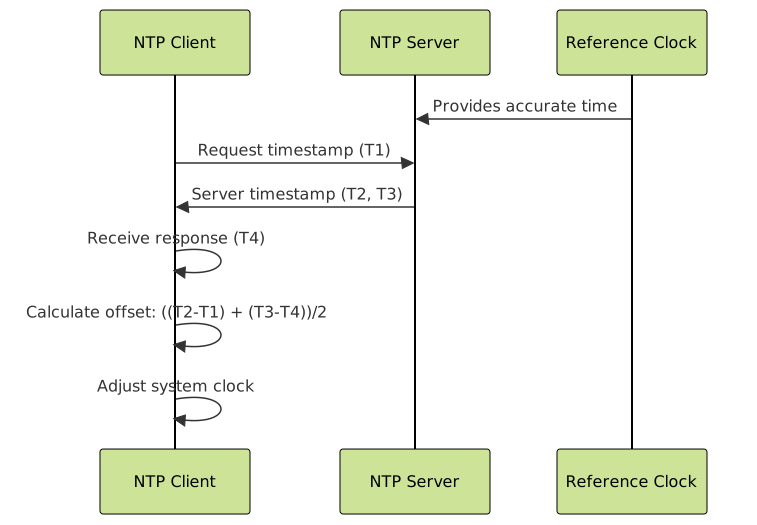
Network Time Protocol (NTP) is a networking protocol designed to synchronize the clocks of computers over a network. NTP is one of the oldest Internet protocols still in use, operating over UDP port 123. It provides accurate time synchronization typically within milliseconds on local area networks and within tens of milliseconds over wide area networks.
Time synchronization is crucial for modern computing systems, especially in distributed environments where:
- Log correlation: Accurate timestamps are essential for debugging and security analysis
- Authentication systems: Kerberos and other time-sensitive protocols require synchronized clocks
- Database transactions: Distributed databases rely on accurate timestamps
- Financial systems: Trading systems require precise time for regulatory compliance

Understanding NTP Hierarchy and Stratum Levels
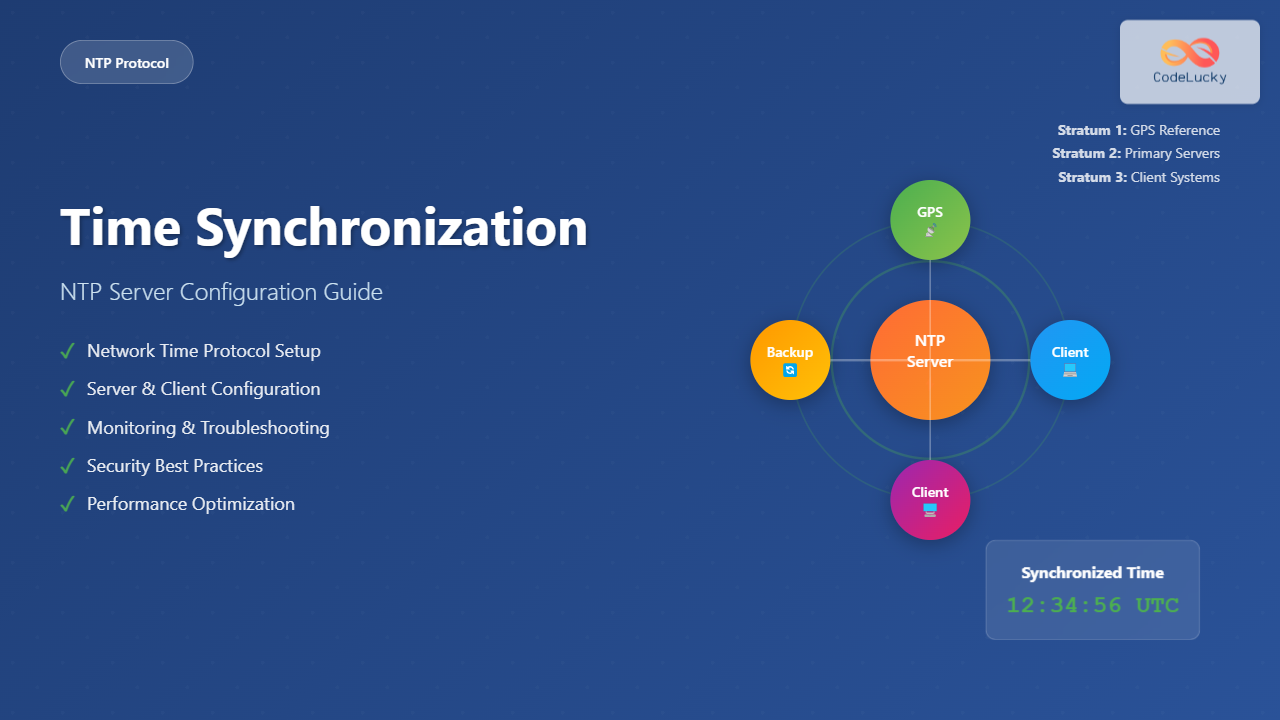
NTP operates on a hierarchical system of time sources called stratum levels:
| Stratum Level | Description | Example Sources |
|---|---|---|
| 0 | Reference clocks (not accessible over network) | GPS, Atomic clocks, Radio clocks |
| 1 | Primary servers directly connected to stratum 0 | pool.ntp.org, time.nist.gov |
| 2 | Secondary servers synchronized to stratum 1 | Local NTP servers in organizations |
| 3-15 | Clients synchronized to higher stratum servers | Workstations, servers, embedded systems |
| 16 | Unsynchronized | Systems with no time source |
Installing NTP on Different Linux Distributions
Ubuntu/Debian Systems
# Update package list
sudo apt update

# Install NTP daemon
sudo apt install ntp

# Start and enable NTP service
sudo systemctl start ntp
sudo systemctl enable ntp

# Check service status
sudo systemctl status ntp
CentOS/RHEL Systems
# Install NTP package
sudo yum install ntp

# For newer versions (CentOS 8+)
sudo dnf install ntp

# Start and enable service
sudo systemctl start ntpd
sudo systemctl enable ntpd

# Check status
sudo systemctl status ntpd
Modern Systems with systemd-timesyncd
Many modern Linux distributions use systemd-timesyncd instead of traditional NTP:
# Check if timesyncd is active
systemctl status systemd-timesyncd

# Configure timesyncd
sudo nano /etc/systemd/timesyncd.conf

# Restart service
sudo systemctl restart systemd-timesyncd
Basic NTP Configuration
The main NTP configuration file is located at /etc/ntp.conf. Here’s a comprehensive configuration example:
# /etc/ntp.conf - Basic NTP Configuration

# Specify NTP servers
server 0.pool.ntp.org iburst
server 1.pool.ntp.org iburst
server 2.pool.ntp.org iburst
server 3.pool.ntp.org iburst

# Fallback to local clock if external servers are unavailable
server 127.127.1.0
fudge 127.127.1.0 stratum 10

# Drift file to store frequency offset
driftfile /var/lib/ntp/drift

# Statistics directory
statsdir /var/log/ntpstats/

# Enable logging
statistics loopstats peerstats clockstats
filegen loopstats file loopstats type day enable
filegen peerstats file peerstats type day enable
filegen clockstats file clockstats type day enable

# Access control - restrict by default
restrict -4 default kod notrap nomodify nopeer noquery limited
restrict -6 default kod notrap nomodify nopeer noquery limited

# Allow localhost full access
restrict 127.0.0.1
restrict ::1

# Allow specific network (adjust for your network)
restrict 192.168.1.0 mask 255.255.255.0 nomodify notrap
Configuration Parameters Explained
- iburst: Sends a burst of packets at startup for faster synchronization
- restrict: Controls access permissions for clients
- driftfile: Stores the measured drift rate for faster startup
- kod: Kiss-of-Death packets to reduce load
- nomodify: Prevents configuration changes
- notrap: Prevents trap messages
- nopeer: Prevents peer associations
Advanced NTP Server Configuration
Setting up a Local NTP Server
For organizations requiring a local time server, configure NTP to serve time to internal clients:
# /etc/ntp.conf - NTP Server Configuration

# Upstream time servers
server 0.pool.ntp.org iburst prefer
server 1.pool.ntp.org iburst
server 2.pool.ntp.org iburst

# Serve time on local network
broadcast 192.168.1.255 key 42
multicastclient 224.0.1.1

# Security keys
keys /etc/ntp.keys
trustedkey 42
requestkey 42
controlkey 42

# Precision and polling intervals
tinker panic 0
minpoll 4
maxpoll 12

# Leap second handling
leapfile /etc/ntp.leapseconds

# Client access restrictions
restrict default kod nomodify notrap nopeer noquery
restrict -6 default kod nomodify notrap nopeer noquery

# Local network access
restrict 192.168.1.0 mask 255.255.255.0 nomodify notrap nopeer
restrict -6 2001:db8:: mask ffff:ffff:: nomodify notrap nopeer
Creating NTP Keys for Authentication
# Create keys file
sudo nano /etc/ntp.keys

# Add authentication keys
1 M mypassword1
42 M mysecretkey
99 M anothersecret

# Secure the keys file
sudo chmod 600 /etc/ntp.keys
sudo chown ntp:ntp /etc/ntp.keys
systemd-timesyncd Configuration
For systems using systemd-timesyncd, configuration is simpler:
# /etc/systemd/timesyncd.conf

[Time]
NTP=0.pool.ntp.org 1.pool.ntp.org 2.pool.ntp.org
FallbackNTP=time.cloudflare.com time.google.com
RootDistanceMaxSec=5
PollIntervalMinSec=32
PollIntervalMaxSec=2048
Managing timesyncd Service
# Restart timesyncd after configuration changes
sudo systemctl restart systemd-timesyncd

# Check synchronization status
timedatectl status

# Show detailed timesync status
timedatectl timesync-status

# Force immediate synchronization
sudo systemctl restart systemd-timesyncd
NTP Client Configuration Examples
Basic Client Configuration
# /etc/ntp.conf - Simple client configuration

# Use local NTP server
server 192.168.1.10 iburst prefer

# Public NTP servers as backup
server pool.ntp.org iburst

# Drift file
driftfile /var/lib/ntp/drift

# Restrict access
restrict -4 default kod notrap nomodify nopeer noquery
restrict -6 default kod notrap nomodify nopeer noquery
restrict 127.0.0.1
restrict ::1
High-Precision Client Configuration
# Configuration for systems requiring high precision

# Multiple servers for redundancy
server ntp1.example.com iburst minpoll 4 maxpoll 6
server ntp2.example.com iburst minpoll 4 maxpoll 6
server ntp3.example.com iburst minpoll 4 maxpoll 6

# Prefer local hardware clock if available
server 127.127.22.0 minpoll 4
fudge 127.127.22.0 refid PPS

# Tight timing constraints
tinker stepout 5
tinker panic 1000
Monitoring and Troubleshooting NTP
Essential NTP Monitoring Commands
# Check NTP peer status
ntpq -p

# Detailed peer information
ntpq -c peers

# Association details
ntpq -c associations

# System variables
ntpq -c sysinfo

# Check synchronization status
ntpstat

# View NTP daemon logs
journalctl -u ntp
tail -f /var/log/ntp.log
Sample ntpq Output
     remote           refid      st t when poll reach   delay   offset  jitter
==============================================================================
*pool-1.ntp.org  .GPS.            1 u   45   64  377    23.123   -2.341   0.876
+pool-2.ntp.org  .GPS.            1 u   52   64  377    45.234    1.234   1.123
-pool-3.ntp.org  .PPS.            1 u   31   64  377    67.345   -5.432   2.345
 LOCAL(0)        .LOCL.          10 l   58   64  377     0.000    0.000   0.000
Symbol meanings:
*– Currently synchronized peer (system peer)+– Peer selected for possible synchronization-– Peer rejected by selection algorithm#– Peer selected for synchronization but distance exceeds maximum.– Peer rejected by selection algorithm

Common NTP Issues and Solutions
Large Time Offset
When the time difference is too large, NTP may refuse to synchronize:
# Force time synchronization with large offset
sudo service ntp stop
sudo ntpdate -s pool.ntp.org
sudo service ntp start

# Alternative: Use ntpd with -g flag
sudo ntpd -g -q
sudo systemctl start ntp
Firewall Configuration
# Allow NTP traffic through firewall
sudo ufw allow 123/udp

# For iptables
sudo iptables -A INPUT -p udp --dport 123 -j ACCEPT
sudo iptables -A OUTPUT -p udp --sport 123 -j ACCEPT
Debugging Connection Issues
# Test connectivity to NTP servers
ntpdate -q pool.ntp.org

# Verbose NTP debugging
sudo ntpd -n -d

# Check if NTP port is listening
sudo netstat -ulnp | grep :123
sudo ss -ulnp | grep :123
Security Considerations
NTP Security Best Practices
- Use authenticated NTP: Configure symmetric key authentication
- Restrict access: Limit queries and modifications from untrusted sources
- Monitor for attacks: Watch for unusual traffic patterns
- Use internal servers: Minimize external dependencies
- Regular updates: Keep NTP software updated
Implementing NTP Authentication
# Server configuration with authentication
server ntp.example.com key 42

# Client must have matching key
echo "42 M sharedsecret" | sudo tee -a /etc/ntp.keys
sudo chmod 600 /etc/ntp.keys

# Enable authentication in ntp.conf
keys /etc/ntp.keys
trustedkey 42
requestkey 42
Performance Optimization
Tuning NTP for Different Use Cases
# High-precision requirements
minpoll 4    # Poll every 16 seconds
maxpoll 6    # Maximum 64 seconds
tinker stepout 5

# Low-bandwidth environments
minpoll 6    # Poll every 64 seconds
maxpoll 10   # Maximum 1024 seconds

# Server with many clients
maxclock 12  # Maximum associations
minclock 3   # Minimum associations
Monitoring NTP Performance
# Create monitoring script
#!/bin/bash
# ntp-monitor.sh

echo "=== NTP Status ==="
ntpstat
echo ""

echo "=== Peer Summary ==="
ntpq -p
echo ""

echo "=== System Variables ==="
ntpq -c "rv 0 offset,frequency,sys_jitter,clk_jitter"
echo ""

echo "=== Log Errors ==="
journalctl -u ntp --since "1 hour ago" | grep -i error
Production Deployment Checklist
Pre-Deployment Verification
- ✅ Configuration validated: Syntax check with
ntpd -n - ✅ Firewall rules: UDP port 123 accessible
- ✅ DNS resolution: NTP servers resolve correctly
- ✅ Time zone set: Correct timezone configured
- ✅ Service enabled: NTP starts automatically
- ✅ Monitoring configured: Alerting for time drift
- ✅ Documentation updated: Server list and contacts
Post-Deployment Monitoring
# Automated monitoring script
#!/bin/bash
# Check NTP sync status every 5 minutes

OFFSET=$(ntpq -c "rv 0 offset" | awk '/offset/ {print $1}' | cut -d= -f2)
OFFSET_ABS=$(echo $OFFSET | tr -d '-')

if (( $(echo "$OFFSET_ABS > 100" | bc -l) )); then
    echo "WARNING: Time offset too large: ${OFFSET}ms"
    # Send alert
fi

# Check peer reachability
UNREACHABLE=$(ntpq -p | awk 'NR>2 {if($7==0) print $1}')
if [[ ! -z "$UNREACHABLE" ]]; then
    echo "WARNING: Unreachable peers: $UNREACHABLE"
fi
Conclusion
Proper NTP configuration is essential for maintaining accurate time synchronization across your infrastructure. Whether you’re setting up a simple client or a complex server hierarchy, the key principles remain the same: use reliable sources, implement proper security measures, and monitor continuously.
Remember to test your configuration thoroughly before deploying to production, and always maintain redundant time sources to ensure continuous synchronization even if individual servers become unavailable.
Regular monitoring and maintenance of your NTP infrastructure will help prevent time-related issues that can affect authentication, logging, and distributed system coordination.





