
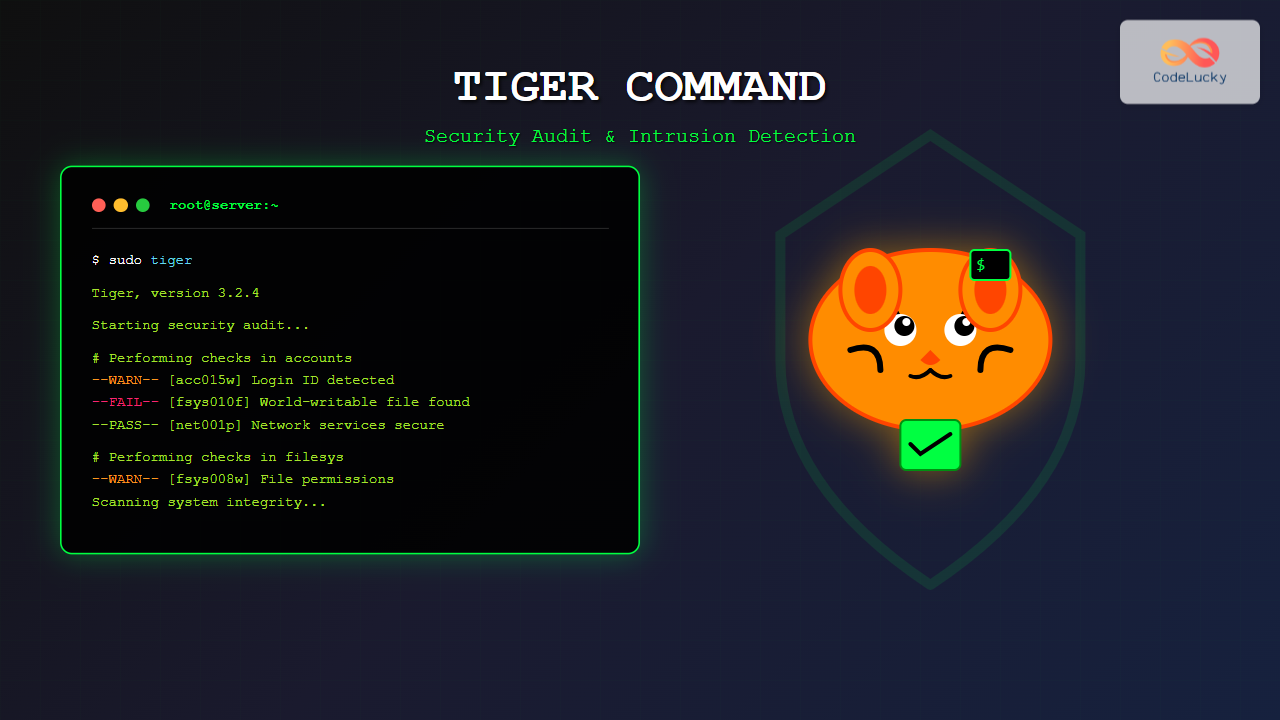
The tiger command is a powerful security auditing tool designed specifically for Unix-like systems, including Linux distributions. This comprehensive security scanner helps system administrators identify vulnerabilities, misconfigurations, and potential security threats in their systems. Unlike basic security tools, tiger provides detailed reports and recommendations for hardening your Linux environment.
What is the tiger Command?
Tiger (short for “TAMU Information Gathering, Evaluation and Reporting”) is an open-source security audit and intrusion detection system originally developed at Texas A&M University. It performs automated security checks on various system components, including:
- File permissions and ownership
- Password policies and user accounts
- Network services and configurations
- System logs and processes
- File system integrity
- Security patches and updates
Installing tiger on Linux
The installation process varies depending on your Linux distribution:
Ubuntu/Debian Systems
sudo apt update
sudo apt install tiger
Red Hat/CentOS/Fedora Systems
# For newer versions with dnf
sudo dnf install tiger

# For older versions with yum
sudo yum install tiger
Arch Linux
sudo pacman -S tigerBasic tiger Command Syntax
The basic syntax for the tiger command is:
tiger [options] [modules]Common options include:
-c: Use specified configuration file-d: Specify working directory-e: Explain security checks-h: Display help information-q: Run in quiet mode-v: Enable verbose output
Running Your First Security Audit
To perform a basic security audit with tiger, simply run:
sudo tigerThis command will produce output similar to:
Tiger, version 3.2.4
Starting security audit at Tue Aug 26 03:35:00 IST 2025

Checking for system integrity...
# Performing checks in accounts
--WARN-- [acc015w] Login ID `guest' is disabled, but has a valid shell.
--WARN-- [acc016w] Login ID `games' is disabled, but has a valid shell.

# Performing checks in aliases
# Performing checks in cron
--WARN-- [cron003w] Root's crontab file has improper permissions (640).

# Performing checks in filesys
--INFO-- [fsys001i] Checking file systems...
--WARN-- [fsys008w] File `/tmp' should be mode 01777.

Security scan completed at Tue Aug 26 03:42:15 IST 2025
Total runtime: 7 minutes, 15 seconds
Understanding tiger Output
Tiger uses a standardized reporting format with different severity levels:
- –FAIL–: Critical security issues requiring immediate attention
- –WARN–: Potential security problems that should be reviewed
- –INFO–: Informational messages about system status
- –PASS–: Security checks that passed successfully
Configuring tiger for Your Environment
Tiger’s configuration files are typically located in /etc/tiger/. The main configuration file is tigerrc:
sudo nano /etc/tiger/tigerrcKey configuration options include:
# Enable/disable specific modules
Tiger_Check_ACCOUNTS=Y
Tiger_Check_CRON=Y
Tiger_Check_FILESYS=Y
Tiger_Check_INETD=Y
Tiger_Check_PASSWD=Y

# Set reporting levels
Tiger_Output_LEVEL=3

# Email reporting
[email protected]
Running Specific Security Modules
Tiger is modular, allowing you to run specific security checks:
Check User Accounts
sudo tiger -m accountsSample output:
# Performing checks in accounts
--WARN-- [acc002w] Login ID `ftp' is disabled, but directory `/var/ftp' is owned by `ftp'.
--WARN-- [acc015w] Login ID `nobody' is disabled, but has a valid shell.
--PASS-- [acc020p] All user accounts have passwords set.
Check File Permissions
sudo tiger -m filesysThis produces detailed file system security analysis:
# Performing checks in filesys
--WARN-- [fsys008w] File `/tmp' should be mode 01777, currently 0755.
--FAIL-- [fsys010f] World-writable file `/etc/passwd.backup' found.
--INFO-- [fsys001i] Filesystem /dev/sda1 is 78% full.
Check Network Services
sudo tiger -m inetdAdvanced tiger Usage
Verbose Mode for Detailed Analysis
Enable verbose output to see detailed information about each check:
sudo tiger -vThis provides comprehensive details about what tiger is examining:
Verbose mode enabled...
Checking /etc/passwd for account anomalies...
  Examining user 'root' (UID: 0)
  Examining user 'daemon' (UID: 1)
  Examining user 'bin' (UID: 2)
--PASS-- [acc001p] No accounts with duplicate UIDs found.

Checking file permissions in /etc/...
  Examining /etc/passwd (permissions: 644)
  Examining /etc/shadow (permissions: 640)
--PASS-- [fsys001p] Critical system files have proper permissions.
Custom Configuration Files
Create custom configuration for specific environments:
sudo cp /etc/tiger/tigerrc /etc/tiger/custom-tigerrc
sudo nano /etc/tiger/custom-tigerrc
Run tiger with custom configuration:
sudo tiger -c /etc/tiger/custom-tigerrcAutomated Security Scanning
Set up automated security scans using cron jobs:
sudo crontab -eAdd the following entry for daily scans at 2 AM:
0 2 * * * /usr/bin/tiger -q -B /var/log/tiger/daily-$(date +\%Y\%m\%d).logEmail Reports
Configure tiger to send email reports:
# In /etc/tiger/tigerrc
Tiger_Mail_RCPT="[email protected]"
Tiger_Mail_FROM="tiger@$(hostname)"
Interpreting Security Reports
Tiger generates comprehensive reports that require careful analysis:
Critical Issues (–FAIL–)
These require immediate attention:
--FAIL-- [fsys010f] World-writable file `/etc/hosts' found.
--FAIL-- [acc003f] Account 'admin' has no password set.
--FAIL-- [net001f] Telnet service is running and accessible.
Warning Issues (–WARN–)
These should be reviewed and potentially addressed:
--WARN-- [pass004w] Password for user 'john' will expire in 2 days.
--WARN-- [cron002w] Cron job for user 'backup' runs with root privileges.
--WARN-- [fsys005w] Directory `/var/log' is 95% full.
Best Practices for Using tiger
Regular Scanning Schedule
Implement a regular scanning schedule:
- Daily quick scans for critical systems
- Weekly comprehensive scans for all systems
- Monthly detailed reports with trending analysis
Baseline Establishment
Create a security baseline after initial system hardening:
sudo tiger -B /var/log/tiger/baseline-$(date +%Y%m%d).logIntegration with Other Tools
Combine tiger with other security tools:
# Run tiger with chkrootkit
sudo tiger && sudo chkrootkit

# Combine with system monitoring
sudo tiger -q | logger -t tiger-audit
Troubleshooting Common Issues
Permission Denied Errors
Always run tiger with appropriate privileges:
sudo tigerMissing Dependencies
Install required dependencies:
sudo apt install binutils coreutils findutilsConfiguration File Issues
Verify configuration file syntax:
tiger -c /etc/tiger/tigerrc -eCustomizing tiger Modules
Create custom security checks by modifying existing modules or creating new ones:
sudo nano /usr/lib/tiger/scripts/custom_checkExample custom module:
#!/bin/bash
# Custom security check for web server configuration

check_apache_config() {
    if [ -f /etc/apache2/apache2.conf ]; then
        if grep -q "ServerTokens Full" /etc/apache2/apache2.conf; then
            message FAIL "Apache server tokens reveal too much information"
        else
            message PASS "Apache server tokens properly configured"
        fi
    fi
}
Security Considerations
When using tiger for security auditing:
- Store reports securely with appropriate permissions
- Review and act on findings promptly
- Keep tiger updated to latest version
- Implement proper log rotation for audit trails
- Test configurations in non-production environments first
Conclusion
The tiger command is an essential tool for Linux system administrators serious about security. Its comprehensive approach to security auditing, combined with detailed reporting and flexible configuration options, makes it invaluable for maintaining secure systems. Regular use of tiger, combined with prompt remediation of identified issues, significantly improves your system’s security posture.
By implementing the techniques and best practices outlined in this guide, you’ll be well-equipped to use tiger effectively for security auditing and intrusion detection in your Linux environment. Remember that security is an ongoing process, and tools like tiger are most effective when used as part of a comprehensive security strategy.
Related Posts
Intrusion Detection System: Complete Guide to OS-Level Security Monitoring
Understanding Intrusion Detection Systems An Intrusion Detection System (IDS) is a critical security tool that monitors network traffic and system...

samhain Linux: Complete Guide to Host-based Intrusion Detection System
Samhain is a powerful host-based intrusion detection system (HIDS) designed specifically for Linux and Unix-like systems. This comprehensive security tool...
rkhunter Command Linux: Complete Guide to Rootkit Detection and System Security
The rkhunter (Rootkit Hunter) is a powerful Unix-based security scanner designed to detect rootkits, backdoors, and local exploits on Linux...
chkrootkit Command Linux: Complete Guide to Rootkit Detection and System Security
System security is paramount in Linux administration, and rootkits pose one of the most serious threats to system integrity. The...
OSSEC Linux: Complete Guide to Host-based Intrusion Detection System for Enterprise Security
What is OSSEC Linux? OSSEC (Open Source Security Event Correlator) is a powerful, open-source Host-based Intrusion Detection System (HIDS) that...
lynis Command Linux: Complete Security Auditing Tool Guide
The lynis command is a powerful, open-source security auditing tool designed specifically for Unix-based systems including Linux, macOS, and BSD....
aide Command Linux: Complete Guide to Advanced Intrusion Detection Environment
The AIDE (Advanced Intrusion Detection Environment) command is a powerful security tool for Linux systems that monitors file and directory...
auditbeat Linux: Complete Guide to Shipping Audit Data to Elasticsearch
Introduction to auditbeat auditbeat is a lightweight shipper from the Elastic Beat family that collects audit data from the Linux...
Spiceworks Linux: Complete Network Monitoring and Management Guide
Spiceworks is a powerful, free IT network monitoring and management platform that has revolutionized how system administrators handle their infrastructure....
tripwire Linux: Complete Guide to File Integrity Monitoring and Security
Tripwire is a powerful file integrity monitoring (FIM) tool that helps system administrators detect unauthorized changes to critical system files,...

ManageEngine Linux: Complete Network Monitoring Solutions Guide
Network monitoring is crucial for maintaining optimal performance and security in Linux environments. ManageEngine provides powerful network monitoring solutions specifically...
ClamAV Command Linux: Complete Antivirus Scanner Guide for System Security
ClamAV (Clam AntiVirus) is a powerful, open-source antivirus engine designed specifically for Unix-like systems, including Linux. As one of the...





