Extracting .tar.gz files is a fundamental skill for UNIX and Linux users, especially when working with software packages, backups, or compressed archives distributed online. This detailed tutorial will guide you through the process of extracting .tar.gz files using command line tools, explaining each step clearly with practical examples and visual aids for better understanding.
What is a .tar.gz File?
A .tar.gz file is a combination of two formats: .tar (Tape Archive) and .gz (gzip compression). The tar tool groups multiple files into one archive, while gzip compresses that archive to reduce size. This combined format is widely used for file distribution in the UNIX/Linux ecosystem.
Why Use the Command Line to Extract .tar.gz Files?
The command line is powerful, efficient, and consistent across various UNIX systems. It allows fine control over extraction options, supports automation in scripts, and is the quickest method for handling compressed archives without relying on GUI tools.
Basic Command to Extract a .tar.gz File
The most commonly used command to extract .tar.gz files is tar with appropriate flags.
tar -xzf archive.tar.gz-x: Extract files from the archive-z: Filter the archive through gzip-f: Use archive file or device ARCHIVE
Example
Suppose you have an archive named project-files.tar.gz in your current directory.
tar -xzf project-files.tar.gzThis command will extract the contents into the current directory.
Visual Output Example
$ tar -xzf project-files.tar.gz
$ ls
README.md  src  docs  project-files.tar.gz
Extract to a Specific Directory
You can specify an extraction destination using the -C option.
tar -xzf archive.tar.gz -C /path/to/destinationExample
tar -xzf project-files.tar.gz -C /home/user/projectsThis extracts the archive into the /home/user/projects directory.
Listing the Contents of a .tar.gz File Without Extracting
Before extraction, you might want to see what’s inside the archive. Use:
tar -tzf archive.tar.gzExample
$ tar -tzf project-files.tar.gz
README.md
src/
src/main.c
docs/
docs/manual.pdf
Extracting Verbosely (Showing Extracted Files)
To see detailed extraction progress, add the -v flag:
tar -xzvf archive.tar.gzExample Output
$ tar -xzvf project-files.tar.gz
README.md
src/
src/main.c
docs/
docs/manual.pdf
Handling .tar.gz Files with Long or Complex Names
If your archive name or paths contain spaces or special characters, enclose the name in quotes or escape spaces:
tar -xzf "my archive.tar.gz"or
tar -xzf my\ archive.tar.gzSummary of Key tar Extraction Flags
| Flag | Description | Example |
|---|---|---|
| -x | Extract files from archive | tar -xzf file.tar.gz |
| -z | Filter archive through gzip (for .gz compression) | tar -xzf file.tar.gz |
| -f | Specify file name of archive | tar -xzf file.tar.gz |
| -v | Verbose output – lists files being extracted | tar -xzvf file.tar.gz |
| -C | Extract files to specified directory | tar -xzf file.tar.gz -C /destination |
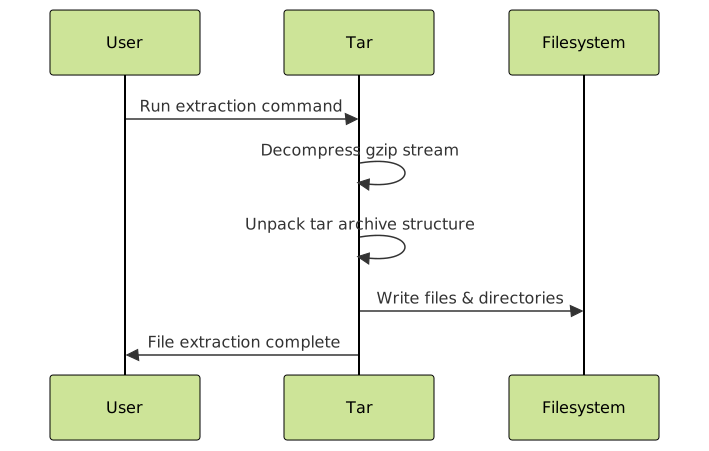
What Happens During Extraction?
The extraction process unpacks the compressed data back into the original directory/file structure. This includes recreating directories and placing each file to its respective path.
Troubleshooting Common Issues
- Permission denied: Use
sudoif extracting to protected directories. - File not found: Ensure the exact path and filename of the archive are correct.
- Corrupt archive: Errors during extraction may indicate a corrupted file.
Interactive Terminal Example
Try this example if you want to practice extraction commands live on your UNIX terminal:
# Create a sample directory with files
mkdir sample_dir
echo "Hello World" > sample_dir/hello.txt
# Create a tar.gz archive
tar -czf sample_archive.tar.gz sample_dir
# List contents of archive
tar -tzf sample_archive.tar.gz
# Extract the archive
tar -xzf sample_archive.tar.gz
# Check extracted directory content
ls sample_dir
Conclusion
Extracting .tar.gz files on UNIX systems using command line tools is straightforward once familiar with the tar command and its options. Whether extracting to the current directory, listing contents first, or specifying target directories, these commands provide flexible, robust handling for compressed archives. Mastery of these will enhance workflow efficiency, especially for developers and system administrators.
Practice using the commands and flags shared here to confidently manage .tar.gz files on any UNIX or Linux platform.