
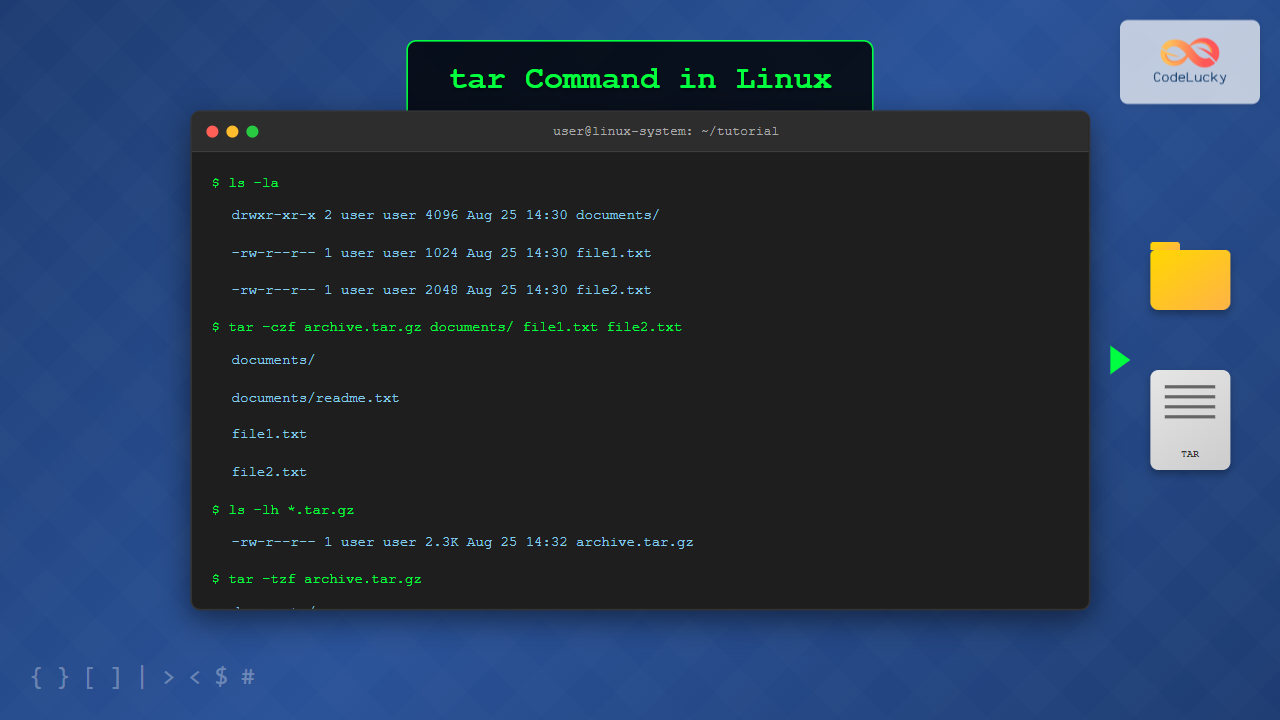
The tar command is one of the most essential utilities in Linux for creating archives and extracting files. Originally designed for tape archives (hence the name “Tape ARchive”), tar has evolved into a powerful tool for bundling files and directories, often combined with compression algorithms for efficient storage and transfer.
What is the tar Command?
The tar command creates archive files by combining multiple files and directories into a single file. Unlike compression tools like gzip or zip, tar doesn’t compress files by default—it simply bundles them together. However, it can be combined with compression tools to create compressed archives.
Key Benefits of Using tar:
- Preserves file permissions, ownership, and directory structure
- Cross-platform compatibility
- Supports various compression algorithms
- Efficient for backup and distribution purposes
- Handles large numbers of files efficiently
Basic tar Syntax
The basic syntax of the tar command follows this pattern:
tar [options] [archive-file] [file/directory-to-archive]Essential tar Options
| Option | Description |
|---|---|
-c |
Create a new archive |
-x |
Extract files from an archive |
-t |
List contents of an archive |
-v |
Verbose output (show progress) |
-f |
Specify archive filename |
-z |
Compress with gzip |
-j |
Compress with bzip2 |
-J |
Compress with xz |
Creating Archives with tar
1. Creating a Basic Archive
To create a simple tar archive without compression:
tar -cf archive.tar file1.txt file2.txt directory1/Example Output:
$ ls -la
total 24
drwxr-xr-x 3 user user 4096 Aug 25 14:30 .
drwxr-xr-x 5 user user 4096 Aug 25 14:29 ..
-rw-r--r-- 1 user user   45 Aug 25 14:30 file1.txt
-rw-r--r-- 1 user user   67 Aug 25 14:30 file2.txt
drwxr-xr-x 2 user user 4096 Aug 25 14:30 directory1

$ tar -cf archive.tar file1.txt file2.txt directory1/

$ ls -la archive.tar
-rw-r--r-- 1 user user 10240 Aug 25 14:32 archive.tar
2. Creating Archives with Verbose Output
Use the -v option to see which files are being added:
tar -cvf archive.tar file1.txt file2.txt directory1/Example Output:
$ tar -cvf archive.tar file1.txt file2.txt directory1/
file1.txt
file2.txt
directory1/
directory1/subfile.txt
3. Creating Compressed Archives
Using gzip compression (.tar.gz or .tgz):
tar -czf archive.tar.gz file1.txt file2.txt directory1/Using bzip2 compression (.tar.bz2):
tar -cjf archive.tar.bz2 file1.txt file2.txt directory1/Using xz compression (.tar.xz):
tar -cJf archive.tar.xz file1.txt file2.txt directory1/Compression Comparison Example:
$ ls -lh *.tar*
-rw-r--r-- 1 user user  10K Aug 25 14:35 archive.tar
-rw-r--r-- 1 user user 2.1K Aug 25 14:36 archive.tar.bz2
-rw-r--r-- 1 user user 2.3K Aug 25 14:35 archive.tar.gz
-rw-r--r-- 1 user user 2.0K Aug 25 14:37 archive.tar.xz
Extracting Archives
1. Basic Extraction
Extract all files from a tar archive:
tar -xf archive.tar2. Extracting with Verbose Output
tar -xvf archive.tarExample Output:
$ tar -xvf archive.tar
file1.txt
file2.txt
directory1/
directory1/subfile.txt
3. Extracting Compressed Archives
tar can automatically detect compression format:
# These commands work automatically
tar -xf archive.tar.gz
tar -xf archive.tar.bz2
tar -xf archive.tar.xz
Or specify compression explicitly:
tar -xzf archive.tar.gz    # gzip
tar -xjf archive.tar.bz2   # bzip2
tar -xJf archive.tar.xz    # xz
4. Extracting to a Specific Directory
tar -xf archive.tar -C /path/to/destination/Example:
$ mkdir extracted_files
$ tar -xvf archive.tar -C extracted_files/
file1.txt
file2.txt
directory1/
directory1/subfile.txt

$ ls extracted_files/
file1.txt  file2.txt  directory1
Listing Archive Contents
View the contents of an archive without extracting:
tar -tf archive.tarWith detailed information:
tar -tvf archive.tarExample Output:
$ tar -tvf archive.tar
-rw-r--r-- user/user        45 2025-08-25 14:30 file1.txt
-rw-r--r-- user/user        67 2025-08-25 14:30 file2.txt
drwxr-xr-x user/user         0 2025-08-25 14:30 directory1/
-rw-r--r-- user/user        23 2025-08-25 14:30 directory1/subfile.txt
Advanced tar Operations
1. Extracting Specific Files
Extract only specific files from an archive:
tar -xf archive.tar file1.txt directory1/subfile.txt2. Adding Files to Existing Archive
Append files to an existing uncompressed archive:
tar -rf archive.tar newfile.txtNote: You cannot append to compressed archives.
3. Excluding Files and Directories
Exclude specific patterns when creating archives:
tar -czf backup.tar.gz --exclude='*.log' --exclude='temp/' /home/user/Example:
$ tar -czf project_backup.tar.gz --exclude='node_modules' --exclude='*.log' project/
$ tar -tzf project_backup.tar.gz | head -10
project/
project/src/
project/src/main.js
project/src/utils.js
project/package.json
project/README.md
4. Creating Archives with Wildcards
tar -czf documents.tar.gz *.txt *.pdfPractical Examples and Use Cases
1. System Backup Example
# Backup home directory excluding cache and temporary files
tar -czf home_backup_$(date +%Y%m%d).tar.gz \
    --exclude='.cache' \
    --exclude='.tmp' \
    --exclude='Downloads' \
    /home/username/
2. Website Backup
# Create compressed backup of website files
tar -czf website_backup.tar.gz -C /var/www/ html/
3. Log File Archiving
# Archive old log files
find /var/log -name "*.log" -mtime +30 -exec tar -czf old_logs.tar.gz {} +
4. Splitting Large Archives
For very large archives, you can split them:
tar -czf - large_directory/ | split -b 1G - archive_part_To reassemble and extract:
cat archive_part_* | tar -xzf -Error Handling and Troubleshooting
Common Issues and Solutions
1. Permission Denied Errors
# Use sudo for system files
sudo tar -czf system_backup.tar.gz /etc/ /var/log/
2. Archive Corruption Check
# Test archive integrity
tar -tzf archive.tar.gz > /dev/null && echo "Archive is good" || echo "Archive is corrupted"
3. Handling Special Characters
# Use quotes for files with spaces
tar -czf "my archive.tar.gz" "file with spaces.txt"
Performance Optimization Tips
1. Compression Level Adjustment
For gzip compression, you can specify compression level:
# Fast compression (less CPU, larger files)
GZIP=-1 tar -czf archive.tar.gz files/

# Best compression (more CPU, smaller files)
GZIP=-9 tar -czf archive.tar.gz files/
2. Multi-threaded Compression
Use pigz for parallel gzip compression:
tar -cf - files/ | pigz > archive.tar.gztar vs Other Archive Tools
| Feature | tar | zip | 7z |
|---|---|---|---|
| Cross-platform | Excellent | Excellent | Good |
| Compression ratio | Good | Good | Excellent |
| Preserves permissions | Yes | Limited | Limited |
| Speed | Fast | Moderate | Slow |
Best Practices
1. Naming Conventions
- Use
.tarfor uncompressed archives - Use
.tar.gzor.tgzfor gzip-compressed archives - Use
.tar.bz2or.tbz2for bzip2-compressed archives - Use
.tar.xzfor xz-compressed archives
2. Include Date in Backup Names
tar -czf backup_$(date +%Y%m%d_%H%M%S).tar.gz /important/data/3. Verify Archives After Creation
tar -czf backup.tar.gz /data/ && tar -tzf backup.tar.gz > /dev/null4. Use Absolute vs Relative Paths Wisely
# Good: Relative paths
tar -czf archive.tar.gz -C /home/user documents/

# Avoid: Absolute paths (can cause issues when extracting)
tar -czf archive.tar.gz /home/user/documents/
Security Considerations
1. Avoid tar Bombs
Always list archive contents before extracting unknown archives:
tar -tzf suspicious_archive.tar.gz | head -202. Extract to Safe Directories
# Create a temporary directory for extraction
mkdir temp_extract
tar -xf unknown_archive.tar -C temp_extract/
3. Preserve Permissions Carefully
# Extract without preserving permissions if needed
tar --no-same-permissions -xf archive.tar
Conclusion
The tar command is an indispensable tool for Linux system administrators and users alike. Its flexibility in creating, extracting, and managing archives makes it perfect for backups, file distribution, and system maintenance tasks. By mastering the various options and techniques covered in this tutorial, you’ll be able to efficiently handle file archiving tasks in any Linux environment.
Remember to practice these commands in a safe environment and always verify your archives after creation. The combination of tar with compression algorithms provides an excellent solution for space-efficient file storage and transfer, making it a cornerstone tool in the Linux ecosystem.
Related Posts

zip Command Linux: Complete Guide to Creating ZIP Archives with Examples
The zip command in Linux is a powerful utility for creating compressed archives and managing files efficiently. Whether you're backing...

unzip Command Linux: Complete Guide to Extract ZIP Archives Efficiently
The unzip command is one of the most essential tools in Linux for extracting ZIP archive files. Whether you're dealing...
7z Command Linux: Complete Guide to 7zip Archives Management
The 7z command is a powerful command-line utility for working with 7zip archives in Linux systems. As one of the...

ar Command Linux: Complete Guide to Archive File Management
The ar command in Linux is a powerful archiving utility primarily used for creating and managing archive files, especially static...
gzip Command Linux: Complete Guide to Compress and Decompress Files
The gzip command is one of the most essential file compression utilities in Linux systems. It provides efficient compression using...
cp Command Linux: Copy Files and Directories with Examples and Best Practices
The cp command is one of the most fundamental and frequently used commands in Linux systems. It allows you to...
gunzip Command Linux: Complete Guide to Decompress Gzip Files
The gunzip command is an essential Linux utility for decompressing files that have been compressed with the gzip compression algorithm....
mkdir Command Linux: Complete Guide to Creating Directories and Subdirectories
The mkdir command is one of the most fundamental and frequently used commands in Linux for creating directories. Whether you're...
ranlib Command Linux: Complete Guide to Generate Archive Index Files
The ranlib command is a crucial utility in Linux systems for managing static library archives. It generates an index for...
make Command Linux: Complete Guide to Building Programs from Source Code
The make command is one of the most essential tools in Linux for building and compiling software from source code....
du Command Linux: Display Directory Size and Disk Usage Explained with Examples
The du (disk usage) command in Linux is a powerful tool that allows users to measure directory size, analyze disk...
hexdump Command Linux: Complete Guide to Display File Contents in Hexadecimal Format
The hexdump command is a powerful Linux utility that displays the contents of files in hexadecimal format, making it an...





