
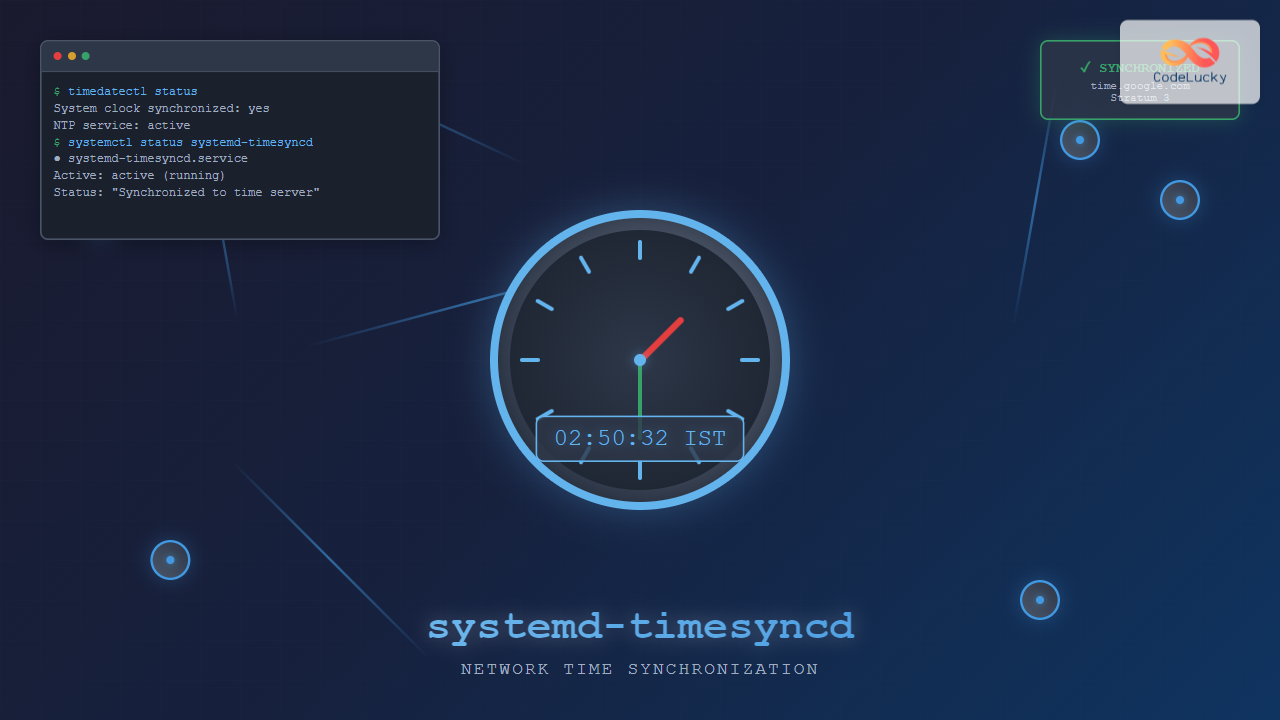
Time synchronization is a critical aspect of system administration that ensures your Linux servers maintain accurate time across distributed networks. The systemd-timesyncd service provides a lightweight, built-in solution for network time synchronization that has become the default time sync mechanism in modern systemd-based Linux distributions.
In this comprehensive guide, we’ll explore everything you need to know about systemd-timesyncd, from basic configuration to advanced troubleshooting techniques.
What is systemd-timesyncd?
systemd-timesyncd is a system service that implements SNTP (Simple Network Time Protocol) client functionality. It’s designed as a minimal NTP client that focuses on querying time from remote NTP servers and gradually adjusting the local system clock to maintain accuracy.
Unlike full-featured NTP implementations like ntpd or chrony, systemd-timesyncd is specifically designed for client-only scenarios and doesn’t provide server functionality. This makes it perfect for desktop systems, laptops, and servers that need to synchronize time but don’t need to serve time to other systems.
Key Features of systemd-timesyncd
- Lightweight implementation – Minimal resource usage
- Automatic fallback – Uses multiple time servers for reliability
- Gradual adjustment – Smoothly adjusts time to prevent system disruption
- IPv4 and IPv6 support – Works with both protocol versions
- Network awareness – Adapts to network connectivity changes
Checking systemd-timesyncd Status
Before diving into configuration, let’s examine how to check the current status of time synchronization on your system.
Basic Status Check
sudo systemctl status systemd-timesyncdExample Output:
● systemd-timesyncd.service - Network Time Synchronization
     Loaded: loaded (/lib/systemd/system/systemd-timesyncd.service; enabled; vendor preset: enabled)
     Active: active (running) since Tue 2025-08-26 02:30:15 IST; 18min ago
       Docs: man:systemd-timesyncd.service(8)
   Main PID: 1247 (systemd-timesyn)
     Status: "Initial synchronization to time server 91.189.91.157:123 (ntp.ubuntu.com)."
      Tasks: 2 (limit: 4915)
     Memory: 1.4M
        CPU: 31ms
     CGroup: /system.slice/systemd-timesyncd.service
             └─1247 /lib/systemd/systemd-timesyncd

Aug 26 02:30:15 ubuntu-server systemd[1]: Starting Network Time Synchronization...
Aug 26 02:30:15 ubuntu-server systemd-timesyncd[1247]: Initial synchronization to time server 91.189.91.157:123 (ntp.ubuntu.com).
Aug 26 02:30:15 ubuntu-server systemd[1]: Started Network Time Synchronization.
Detailed Time Synchronization Status
timedatectl statusExample Output:
               Local time: Tue 2025-08-26 02:48:32 IST
           Universal time: Mon 2025-08-25 21:18:32 UTC
                 RTC time: Mon 2025-08-25 21:18:32
                Time zone: Asia/Kolkata (IST, +0530)
System clock synchronized: yes
              NTP service: active
          RTC in local TZ: no
The key indicators in this output are:
- System clock synchronized: yes – Indicates successful time sync
- NTP service: active – Shows that time synchronization is working
Configuration Files and Settings
systemd-timesyncd uses configuration files to determine its behavior. Understanding these files is crucial for proper time synchronization setup.
Main Configuration File
The primary configuration file is located at /etc/systemd/timesyncd.conf. Let’s examine its structure:
sudo nano /etc/systemd/timesyncd.confDefault Configuration Example:
#  This file is part of systemd.
#
#  systemd is free software; you can redistribute it and/or modify it
#  under the terms of the GNU Lesser General Public License as published by
#  the Free Software Foundation; either version 2.1 of the License, or
#  (at your option) any later version.
#
# Entries in this file show the compile time defaults.
# You can change settings by editing this file.
# Defaults can be restored by simply deleting this file.
#
# See timesyncd.conf(5) for details.

[Time]
#NTP=
#FallbackNTP=0.debian.pool.ntp.org 1.debian.pool.ntp.org 2.debian.pool.ntp.org 3.debian.pool.ntp.org
#RootDistanceMaxSec=5
#PollIntervalMinSec=32
#PollIntervalMaxSec=2048
Key Configuration Parameters
| Parameter | Description | Default Value |
|---|---|---|
NTP |
Primary NTP servers (space-separated list) | Distribution-specific defaults |
FallbackNTP |
Fallback NTP servers when primary servers fail | Pool servers from distribution |
RootDistanceMaxSec |
Maximum root distance to accept | 5 seconds |
PollIntervalMinSec |
Minimum polling interval | 32 seconds |
PollIntervalMaxSec |
Maximum polling interval | 2048 seconds |
Configuring Custom NTP Servers
While the default configuration works well for most scenarios, you might need to configure custom NTP servers for specific requirements such as using internal time servers or regional servers for better accuracy.
Setting Primary NTP Servers
sudo nano /etc/systemd/timesyncd.confCustom Configuration Example:
[Time]
NTP=0.pool.ntp.org 1.pool.ntp.org time.google.com
FallbackNTP=2.pool.ntp.org 3.pool.ntp.org
RootDistanceMaxSec=5
PollIntervalMinSec=32
PollIntervalMaxSec=2048
After making changes, restart the service:
sudo systemctl restart systemd-timesyncdUsing Regional NTP Servers
For better accuracy and reduced network latency, consider using regional NTP servers:
[Time]
# For Asia region
NTP=0.asia.pool.ntp.org 1.asia.pool.ntp.org 2.asia.pool.ntp.org
# For Europe region
#NTP=0.europe.pool.ntp.org 1.europe.pool.ntp.org 2.europe.pool.ntp.org
# For North America region
#NTP=0.north-america.pool.ntp.org 1.north-america.pool.ntp.org 2.north-america.pool.ntp.org
Managing systemd-timesyncd Service
Proper service management ensures reliable time synchronization. Here are the essential commands for managing systemd-timesyncd.
Service Control Commands
# Start the service
sudo systemctl start systemd-timesyncd

# Stop the service
sudo systemctl stop systemd-timesyncd

# Restart the service
sudo systemctl restart systemd-timesyncd

# Enable service at boot
sudo systemctl enable systemd-timesyncd

# Disable service at boot
sudo systemctl disable systemd-timesyncd

# Check service status
sudo systemctl status systemd-timesyncd
Forcing Immediate Synchronization
Sometimes you need to force an immediate time synchronization, especially after system boot or network connectivity restoration:
sudo systemctl restart systemd-timesyncdYou can monitor the synchronization process in real-time:
sudo journalctl -u systemd-timesyncd -fExample Output:
Aug 26 02:48:15 ubuntu-server systemd-timesyncd[1247]: Timed out waiting for reply from 91.189.91.157:123 (ntp.ubuntu.com).
Aug 26 02:48:20 ubuntu-server systemd-timesyncd[1247]: Initial synchronization to time server 162.159.200.123:123 (1.pool.ntp.org).
Aug 26 02:48:20 ubuntu-server systemd-timesyncd[1247]: clock is now synced.
Monitoring and Troubleshooting
Effective monitoring and troubleshooting are essential for maintaining reliable time synchronization. Let’s explore various techniques and tools.
Checking Synchronization Details
timedatectl show-timesyncExample Output:
LinkNTPServers=
SystemNTPServers=
FallbackNTPServers=0.debian.pool.ntp.org 1.debian.pool.ntp.org 2.debian.pool.ntp.org 3.debian.pool.ntp.org
ServerName=1.pool.ntp.org
ServerAddress=162.159.200.123
RootDistanceMaxUSec=5s
PollIntervalMinUSec=32s
PollIntervalMaxUSec=34min 8s
PollIntervalUSec=2min 8s
NTPMessage={ Leap=0, Version=4, Mode=4, Stratum=3, Precision=-25, RootDelay=29.449ms, RootDispersion=45.776ms, Reference=C342F10A, OriginateTimestamp=Mon 2025-08-25 21:18:32 UTC, ReceiveTimestamp=Mon 2025-08-25 21:18:32 UTC, TransmitTimestamp=Mon 2025-08-25 21:18:32 UTC, DestinationTimestamp=Mon 2025-08-25 21:18:32 UTC, Ignored=no, PacketCount=1, Jitter=0 }
Frequency=0
Monitoring Service Logs
Logs provide valuable insights into time synchronization behavior:
# View recent logs
sudo journalctl -u systemd-timesyncd --since "1 hour ago"

# View logs with timestamps
sudo journalctl -u systemd-timesyncd -o short-precise

# Follow logs in real-time
sudo journalctl -u systemd-timesyncd -f
Common Issues and Solutions
Issue 1: Time Synchronization Not Working
Symptoms:
System clock synchronized: noin timedatectl output- Service shows “waiting for reply” messages
Solution:
# Check network connectivity
ping 0.pool.ntp.org

# Verify DNS resolution
nslookup 0.pool.ntp.org

# Check firewall rules
sudo ufw status
sudo iptables -L | grep 123

# Test with different NTP servers
sudo nano /etc/systemd/timesyncd.conf
# Add: NTP=time.google.com time.cloudflare.com
sudo systemctl restart systemd-timesyncd
Issue 2: Large Time Jumps
Symptoms:
- System time suddenly changes by significant amounts
- Applications experiencing timestamp issues
Solution:
# Check RTC (Hardware Clock)
sudo hwclock --show

# Sync RTC with system clock
sudo hwclock --systohc

# Set smaller polling intervals for more frequent sync
[Time]
PollIntervalMinSec=32
PollIntervalMaxSec=1024
Advanced Configuration Scenarios
Let’s explore advanced configuration scenarios that you might encounter in enterprise environments or specialized setups.
Corporate Network Configuration
In corporate environments, you might need to use internal NTP servers:
[Time]
NTP=ntp1.company.com ntp2.company.com
FallbackNTP=0.pool.ntp.org 1.pool.ntp.org
RootDistanceMaxSec=10
PollIntervalMinSec=64
PollIntervalMaxSec=1024
High-Precision Time Requirements
For applications requiring high-precision time synchronization:
[Time]
NTP=time.google.com time.facebook.com time.cloudflare.com
FallbackNTP=0.pool.ntp.org 1.pool.ntp.org
RootDistanceMaxSec=1
PollIntervalMinSec=16
PollIntervalMaxSec=512
Offline or Isolated Networks
For systems that occasionally connect to the internet:
[Time]
NTP=
FallbackNTP=0.pool.ntp.org 1.pool.ntp.org 2.pool.ntp.org 3.pool.ntp.org
RootDistanceMaxSec=10
PollIntervalMinSec=32
PollIntervalMaxSec=2048
Integration with System Services
Understanding how systemd-timesyncd integrates with other system services helps in troubleshooting and optimization.
Dependency Management
Check which services depend on time synchronization:
systemctl list-dependencies systemd-timesyncd
systemctl list-dependencies --reverse systemd-timesyncd
Network Dependency
systemd-timesyncd automatically starts after network connectivity is established:
systemctl show systemd-timesyncd | grep -E "(After|Wants|Requires)"Example Output:
After=systemd-remount-fs.service systemd-tmpfiles-setup.service system.slice sysinit.target systemd-sysusers.service
Wants=network-online.target
Requires=system.slice sysinit.target
Performance Optimization
Optimizing systemd-timesyncd performance ensures efficient resource usage while maintaining accuracy.
Polling Strategy Optimization
[Time]
# Conservative approach for servers
PollIntervalMinSec=64
PollIntervalMaxSec=2048

# Aggressive approach for desktop systems
PollIntervalMinSec=32
PollIntervalMaxSec=1024

# Balanced approach
PollIntervalMinSec=32
PollIntervalMaxSec=2048
Server Selection Strategy
Choose NTP servers based on:
- Geographic proximity – Reduces network latency
- Network path – Fewer hops mean better accuracy
- Server reliability – Use well-maintained time servers
- Load distribution – Avoid overloading single servers
Security Considerations
Time synchronization security is crucial for maintaining system integrity and preventing time-based attacks.
Network Security
# Allow NTP traffic through firewall
sudo ufw allow out 123/udp
sudo ufw allow in 123/udp

# Block unnecessary NTP traffic
sudo iptables -A OUTPUT -p udp --dport 123 -j ACCEPT
sudo iptables -A OUTPUT -p udp -j DROP
Authentication Considerations
While systemd-timesyncd doesn’t support NTP authentication, you can:
- Use trusted NTP server sources
- Implement network-level security
- Monitor time synchronization logs for anomalies
- Consider upgrading to chrony for authentication support if needed
Migration from Other NTP Implementations
If you’re migrating from other NTP implementations, here’s how to ensure a smooth transition.
From ntpd to systemd-timesyncd
# Stop and disable ntpd
sudo systemctl stop ntp
sudo systemctl disable ntp

# Enable systemd-timesyncd
sudo systemctl enable systemd-timesyncd
sudo systemctl start systemd-timesyncd

# Verify transition
timedatectl status
From chrony to systemd-timesyncd
# Stop and disable chrony
sudo systemctl stop chronyd
sudo systemctl disable chronyd

# Enable systemd-timesyncd
sudo systemctl enable systemd-timesyncd
sudo systemctl start systemd-timesyncd

# Check synchronization
timedatectl show-timesync
Best Practices and Recommendations
Follow these best practices to ensure reliable time synchronization:
Configuration Best Practices
- Use multiple time sources – Configure at least 3-4 NTP servers
- Choose reliable servers – Use well-maintained pool servers
- Consider geographic location – Use regional servers for better accuracy
- Set appropriate polling intervals – Balance accuracy with network usage
- Monitor synchronization status – Regularly check time sync health
Monitoring and Maintenance
# Create a monitoring script
#!/bin/bash
# Time sync health check

SYNC_STATUS=$(timedatectl status | grep "System clock synchronized" | awk '{print $4}')
NTP_SERVICE=$(timedatectl status | grep "NTP service" | awk '{print $3}')

if [[ "$SYNC_STATUS" == "yes" && "$NTP_SERVICE" == "active" ]]; then
    echo "Time synchronization is healthy"
    exit 0
else
    echo "Time synchronization issue detected"
    echo "Sync Status: $SYNC_STATUS"
    echo "NTP Service: $NTP_SERVICE"
    exit 1
fi
Conclusion
systemd-timesyncd provides a robust, lightweight solution for network time synchronization in modern Linux environments. Its simplicity and integration with systemd make it an excellent choice for most desktop and server scenarios where client-only time synchronization is sufficient.
Key takeaways from this guide:
- systemd-timesyncd is enabled by default on most systemd-based distributions
- Configuration is straightforward through
/etc/systemd/timesyncd.conf - Monitoring and troubleshooting use familiar systemd tools
- The service handles network connectivity changes gracefully
- For advanced features like authentication, consider alternatives like chrony
Regular monitoring and proper configuration ensure that your systems maintain accurate time, which is essential for logging, security, distributed systems, and compliance requirements. Whether you’re managing a single desktop or a fleet of servers, understanding systemd-timesyncd empowers you to maintain reliable time synchronization across your Linux infrastructure.
Related Posts
ntpd Command Linux: Complete Guide to Network Time Protocol Daemon Management
The ntpd (Network Time Protocol daemon) is a crucial system service in Linux that maintains accurate system time by synchronizing...
timedatectl Advanced Linux: Complete Time and Date Management Guide
The timedatectl command is a powerful Linux utility that provides comprehensive control over system time and date settings. As part...
ntpdate Command Linux: Complete Guide to Network Time Synchronization (Deprecated Tool)
The ntpdate command was once a cornerstone tool for Linux system administrators to synchronize system time with Network Time Protocol...
timedatectl Command Linux: Complete Guide to System Time and Date Management
The timedatectl command is a powerful utility in modern Linux distributions that provides a unified interface for managing system time,...
chrony Linux: Complete Guide to NTP Client and Server Configuration
Network Time Protocol (NTP) synchronization is crucial for maintaining accurate time across Linux systems. chrony is a modern, versatile NTP...
uptime Command Linux: Complete Guide to System Uptime and Load Average Monitoring
The uptime command is one of the most fundamental system monitoring tools in Linux, providing essential information about how long...
hwclock Command Linux: Complete Hardware Clock Management Guide
The hwclock command is a powerful Linux utility for managing your system's hardware clock, also known as the Real-Time Clock...

C Time Functions: Date and Time Operations with <time.h>
Time is an essential concept in programming, and C provides a robust set of functions for working with dates and...
systemd-networkd Linux: Complete Network Configuration Manager Guide
systemd-networkd is a powerful system daemon that manages network configurations on Linux systems. As part of the systemd ecosystem, it...
resolvectl Command Linux: Complete Guide to systemd-resolved DNS Management
The resolvectl command is a powerful utility in modern Linux distributions that provides control over the systemd-resolved service. This command...
date Command Linux: Complete Guide to Display and Set System Date
The date command is one of the most fundamental utilities in Linux systems, allowing users to display and manipulate system...
heartbeat Linux: Complete Guide to System Uptime Monitoring and High Availability
The heartbeat service in Linux is a critical component for maintaining high availability and monitoring system uptime. Originally developed as...





