
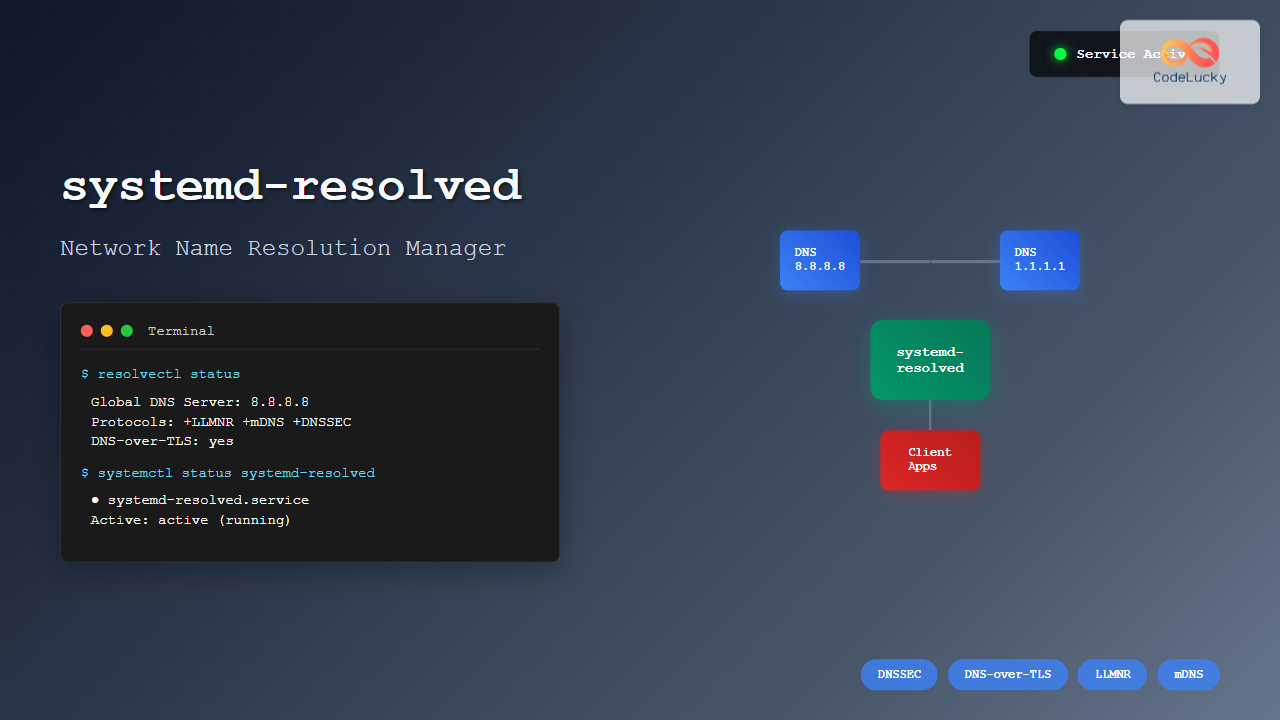
The systemd-resolved service is a fundamental component of modern Linux systems that handles network name resolution, DNS caching, and LLMNR (Link-Local Multicast Name Resolution). As part of the systemd ecosystem, it provides a unified approach to managing DNS queries and network name resolution across different network interfaces and configurations.
What is systemd-resolved?
systemd-resolved is a system service that provides network name resolution to local applications via a D-Bus interface, the resolve NSS service, and a local DNS stub listener on 127.0.0.53. It implements DNS, DNS-over-TLS, and DNSSEC protocols, making it a comprehensive solution for modern network name resolution needs.
Key Features of systemd-resolved
- DNS Caching: Improves performance by caching DNS responses
- DNSSEC Support: Validates DNS responses for security
- DNS-over-TLS: Encrypts DNS queries for privacy
- Multiple Interface Support: Manages DNS settings per network interface
- LLMNR and mDNS: Supports local network name resolution protocols
Understanding systemd-resolved Architecture
The systemd-resolved service operates through several key components:
Core Components
┌─────────────────┐    ┌─────────────────┐    ┌─────────────────┐
│   Applications  │    │  systemd-resolved │   │  DNS Servers    │
│                 │◄──►│                 │◄──►│                 │
│ (glibc, etc.)   │    │  (127.0.0.53)   │    │ (8.8.8.8, etc.) │
└─────────────────┘    └─────────────────┘    └─────────────────┘
Checking systemd-resolved Status
Before diving into configuration, let’s check the current status of systemd-resolved:
# Check service status
sudo systemctl status systemd-resolved

# Check if the service is active
systemctl is-active systemd-resolved

# Check if the service is enabled
systemctl is-enabled systemd-resolved
Expected Output:
● systemd-resolved.service - Network Name Resolution
     Loaded: loaded (/lib/systemd/system/systemd-resolved.service; enabled; vendor preset: enabled)
     Active: active (running) since Tue 2025-08-26 02:44:15 IST; 2h 30min ago
       Docs: man:systemd-resolved.service(8)
             man:org.freedesktop.resolve1(5)
             https://www.freedesktop.org/wiki/Software/systemd/writing-network-configuration-managers
   Main PID: 1234 (systemd-resolve)
     Status: "Processing requests..."
      Tasks: 1 (limit: 9424)
     Memory: 4.2M
        CPU: 45ms
     CGroup: /system.slice/systemd-resolved.service
             └─1234 /lib/systemd/systemd-resolved
Basic systemd-resolved Commands
Using resolvectl Command
The resolvectl command is the primary tool for interacting with systemd-resolved:
# Show current DNS settings
resolvectl status

# Query a domain
resolvectl query google.com

# Query with specific record type
resolvectl query google.com MX

# Show statistics
resolvectl statistics

# Flush DNS cache
resolvectl flush-caches
Detailed Status Information
# Get comprehensive status
resolvectl status
Sample Output:
Global
       Protocols: +LLMNR +mDNS -DNSOverTLS DNSSEC=no/unsupported
resolv.conf mode: stub
Current DNS Server: 8.8.8.8
       DNS Servers: 8.8.8.8 8.8.4.4

Link 2 (enp0s3)
    Current Scopes: DNS LLMNR/IPv4 LLMNR/IPv6 mDNS/IPv4 mDNS/IPv6
         Protocols: +DefaultRoute +LLMNR +mDNS -DNSOverTLS DNSSEC=no/unsupported
Current DNS Server: 192.168.1.1
       DNS Servers: 192.168.1.1
        DNS Domain: localdomain
Configuration Files and Methods
Main Configuration File
The primary configuration file is located at /etc/systemd/resolved.conf:
# View current configuration
cat /etc/systemd/resolved.conf
Default Configuration Example:
[Resolve]
#DNS=
#FallbackDNS=8.8.8.8 8.8.4.4 2001:4860:4860::8888 2001:4860:4860::8844
#Domains=
#LLMNR=yes
#MulticastDNS=yes
#DNSSEC=no
#DNSOverTLS=no
#Cache=yes
#DNSStubListener=yes
#ReadEtcHosts=yes
#ResolveUnicastSingleLabel=no
Key Configuration Parameters
- DNS: Space-separated list of DNS servers
- FallbackDNS: Fallback DNS servers when no others are available
- Domains: Search domains for hostname resolution
- DNSSEC: Enable/disable DNSSEC validation
- DNSOverTLS: Enable DNS-over-TLS for privacy
- Cache: Enable/disable DNS response caching
Configuring DNS Servers
Method 1: Global Configuration
Edit the main configuration file:
# Edit the configuration file
sudo nano /etc/systemd/resolved.conf
Example Configuration:
[Resolve]
DNS=8.8.8.8 8.8.4.4 2001:4860:4860::8888
FallbackDNS=1.1.1.1 1.0.0.1
Domains=example.com localdomain
DNSSEC=yes
DNSOverTLS=opportunistic
Cache=yes
After making changes, restart the service:
# Restart systemd-resolved
sudo systemctl restart systemd-resolved

# Verify the changes
resolvectl status
Method 2: Per-Interface Configuration
Configure DNS for specific network interfaces:
# Set DNS for specific interface
sudo resolvectl dns enp0s3 8.8.8.8 1.1.1.1

# Set search domain for interface
sudo resolvectl domain enp0s3 example.com

# Verify interface-specific settings
resolvectl status enp0s3
DNS Query Examples and Testing
Basic DNS Queries
# Simple A record query
resolvectl query www.google.com

# Query specific record types
resolvectl query google.com MX
resolvectl query google.com AAAA
resolvectl query google.com TXT

# Reverse DNS lookup
resolvectl query 8.8.8.8
Sample Query Output:
$ resolvectl query www.google.com
www.google.com: 142.250.193.164
                2404:6800:4007:815::2004

-- Information acquired via protocol DNS in 45.2ms.
-- Data is authenticated: no; Data was acquired via local or encrypted transport: no
-- Data from: network
Advanced Query Options
# Query with DNSSEC validation
resolvectl query --no-validate=false example.com

# Query using specific protocol
resolvectl query --protocol=dns www.google.com

# Query with caching disabled
resolvectl query --no-cache www.google.com

# Query over specific interface
resolvectl query --interface=enp0s3 www.google.com
DNSSEC Configuration and Validation
Enabling DNSSEC
# Edit configuration to enable DNSSEC
sudo nano /etc/systemd/resolved.conf
Add or modify:
[Resolve]
DNSSEC=yes
Restart and test:
# Restart service
sudo systemctl restart systemd-resolved

# Test DNSSEC validation
resolvectl query --no-validate=false cloudflare.com

# Check DNSSEC status
resolvectl status | grep -i dnssec
DNSSEC Validation Examples
# Query a DNSSEC-signed domain
resolvectl query dnssec-deployment.org

# Expected output shows authentication status
dnssec-deployment.org: 185.49.140.10
-- Information acquired via protocol DNS in 123.4ms.
-- Data is authenticated: yes
DNS-over-TLS Configuration
Enabling DNS-over-TLS
# Configure DNS-over-TLS
sudo nano /etc/systemd/resolved.conf
Configuration:
[Resolve]
DNS=1.1.1.1#cloudflare-dns.com 8.8.8.8#dns.google
DNSOverTLS=yes
The format IP#hostname specifies both the IP address and the TLS server name.
Testing DNS-over-TLS
# Restart and test
sudo systemctl restart systemd-resolved

# Verify TLS is being used
resolvectl status | grep -i tls

# Test query with TLS
resolvectl query www.example.com
Troubleshooting systemd-resolved
Common Issues and Solutions
1. DNS Resolution Not Working
# Check service status
systemctl status systemd-resolved

# Check if stub listener is working
sudo ss -tulpn | grep :53

# Check /etc/resolv.conf symlink
ls -la /etc/resolv.conf

# Expected output should show:
# /etc/resolv.conf -> /run/systemd/resolve/stub-resolv.conf
2. Slow DNS Resolution
# Check DNS statistics
resolvectl statistics

# Clear DNS cache
sudo resolvectl flush-caches

# Monitor DNS queries in real-time
journalctl -u systemd-resolved -f
3. DNSSEC Validation Failures
# Disable DNSSEC temporarily
sudo resolvectl dnssec enp0s3 no

# Test without DNSSEC
resolvectl query --no-validate=true example.com

# Check for DNSSEC-related logs
journalctl -u systemd-resolved | grep -i dnssec
Debugging Commands
# Enable debug logging
sudo systemctl edit systemd-resolved
Add the following override:
[Service]
Environment=SYSTEMD_LOG_LEVEL=debug
# Restart and monitor logs
sudo systemctl restart systemd-resolved
journalctl -u systemd-resolved -f
Performance Monitoring and Statistics
DNS Cache Statistics
# View detailed statistics
resolvectl statistics
Sample Output:
DNSSEC supported by current servers: no

Transactions
Current Transactions: 0
  Total Transactions: 2543

Cache
  Current Cache Size: 142
          Cache Hits: 1687
        Cache Misses: 856

DNSSEC Verdicts
              Secure: 0
            Insecure: 0
               Bogus: 0
       Indeterminate: 0
Interface-Specific Statistics
# Get statistics for specific interface
resolvectl statistics enp0s3

# Reset statistics
sudo resolvectl reset-statistics
Advanced Configuration Examples
Multi-Interface Setup
For systems with multiple network interfaces:
# Configure different DNS servers per interface
sudo resolvectl dns eth0 192.168.1.1
sudo resolvectl dns wlan0 8.8.8.8 1.1.1.1

# Set different search domains
sudo resolvectl domain eth0 corp.local
sudo resolvectl domain wlan0 home.local

# Verify configuration
resolvectl status eth0
resolvectl status wlan0
VPN Configuration
Configure DNS for VPN connections:
# Set VPN DNS servers
sudo resolvectl dns tun0 10.8.0.1

# Configure VPN-specific domains
sudo resolvectl domain tun0 ~vpn.company.com

# Route all DNS through VPN
sudo resolvectl domain tun0 ~.
Integration with NetworkManager
When using NetworkManager, systemd-resolved integrates seamlessly:
# Check NetworkManager DNS configuration
nmcli device show | grep DNS

# Verify NetworkManager is using systemd-resolved
nmcli general status
NetworkManager Configuration
# Edit NetworkManager configuration
sudo nano /etc/NetworkManager/NetworkManager.conf
Ensure the following is set:
[main]
dns=systemd-resolved
Security Best Practices
Recommended Security Configuration
[Resolve]
DNS=1.1.1.1#cloudflare-dns.com 8.8.8.8#dns.google
FallbackDNS=9.9.9.9#dns.quad9.net
DNSSEC=yes
DNSOverTLS=yes
Cache=yes
DNSStubListener=yes
Monitoring DNS Security
# Monitor DNSSEC validation
journalctl -u systemd-resolved | grep -E "(DNSSEC|validation)"

# Check for DNS-over-TLS usage
journalctl -u systemd-resolved | grep -i tls

# Monitor suspicious DNS queries
journalctl -u systemd-resolved | grep -E "(refused|timeout|error)"
Backup and Restore Configuration
Backing Up Configuration
# Backup main configuration
sudo cp /etc/systemd/resolved.conf /etc/systemd/resolved.conf.backup

# Export current runtime configuration
resolvectl status > dns-config-backup.txt

# Backup NetworkManager integration
sudo cp /etc/NetworkManager/NetworkManager.conf /etc/NetworkManager/NetworkManager.conf.backup
Restoring Configuration
# Restore from backup
sudo cp /etc/systemd/resolved.conf.backup /etc/systemd/resolved.conf

# Restart services
sudo systemctl restart systemd-resolved
sudo systemctl restart NetworkManager
Conclusion
systemd-resolved is a powerful and flexible DNS resolution manager that provides modern features like DNSSEC, DNS-over-TLS, and intelligent caching. By understanding its configuration options and management commands, system administrators can optimize network name resolution, improve security, and troubleshoot DNS-related issues effectively.
Key takeaways include:
- Use
resolvectlfor all management operations - Configure DNS servers globally or per-interface as needed
- Enable DNSSEC and DNS-over-TLS for enhanced security
- Monitor statistics and logs for performance optimization
- Test thoroughly after configuration changes
Regular monitoring and proper configuration of systemd-resolved ensure reliable and secure network name resolution across your Linux systems.
Related Posts
resolvectl Command Linux: Complete Guide to systemd-resolved DNS Management
The resolvectl command is a powerful utility in modern Linux distributions that provides control over the systemd-resolved service. This command...
hostnamectl Command Linux: Complete Guide to System Hostname Management
The hostnamectl command is a powerful systemd utility that allows Linux administrators to query and change the system hostname and...
systemd-networkd Linux: Complete Network Configuration Manager Guide
systemd-networkd is a powerful system daemon that manages network configurations on Linux systems. As part of the systemd ecosystem, it...

systemd-timesyncd Linux: Complete Guide to Network Time Synchronization
Time synchronization is a critical aspect of system administration that ensures your Linux servers maintain accurate time across distributed networks....
SNMP Command Linux: Complete Guide to Simple Network Management Protocol Configuration and Usage
Introduction to SNMP Command in Linux Simple Network Management Protocol (SNMP) is a fundamental protocol used for monitoring and managing...

intermapper Linux: Complete Network Monitoring and Mapping Guide
What is InterMapper for Linux? InterMapper is a powerful network monitoring and mapping tool that provides real-time visibility into network...

whatsup Linux: Complete Network Monitoring and System Administration Guide
whatsup is a powerful network monitoring and system administration tool for Linux that provides real-time insights into network connectivity, system...
NetworkManager Linux: Complete Guide to Network Management Service
NetworkManager is a powerful network management service that provides automatic network detection and configuration for Linux systems. It simplifies network...

serf Linux: Complete Guide to Decentralized Cluster Membership and Service Discovery
Serf is a powerful decentralized solution for cluster membership, failure detection, and orchestration that runs on Linux systems. Unlike traditional...

Zookeeper Linux: Complete Guide to Centralized Service Configuration Management
Apache Zookeeper is a centralized service for maintaining configuration information, naming, providing distributed synchronization, and providing group services in distributed...
net-snmp Linux: Complete Guide to SNMP Implementation and Management
Simple Network Management Protocol (SNMP) is a cornerstone of network management, and net-snmp is the most widely used open-source implementation...

Consul Linux: Complete Guide to Service Mesh and Service Discovery
Consul is a powerful service mesh and service discovery tool developed by HashiCorp that enables organizations to connect, secure, and...
- What is systemd-resolved?
- Understanding systemd-resolved Architecture
- Checking systemd-resolved Status
- Basic systemd-resolved Commands
- Configuration Files and Methods
- Configuring DNS Servers
- DNS Query Examples and Testing
- DNSSEC Configuration and Validation
- DNS-over-TLS Configuration
- Troubleshooting systemd-resolved
- Performance Monitoring and Statistics
- Advanced Configuration Examples
- Integration with NetworkManager
- Security Best Practices
- Backup and Restore Configuration
- Conclusion





