
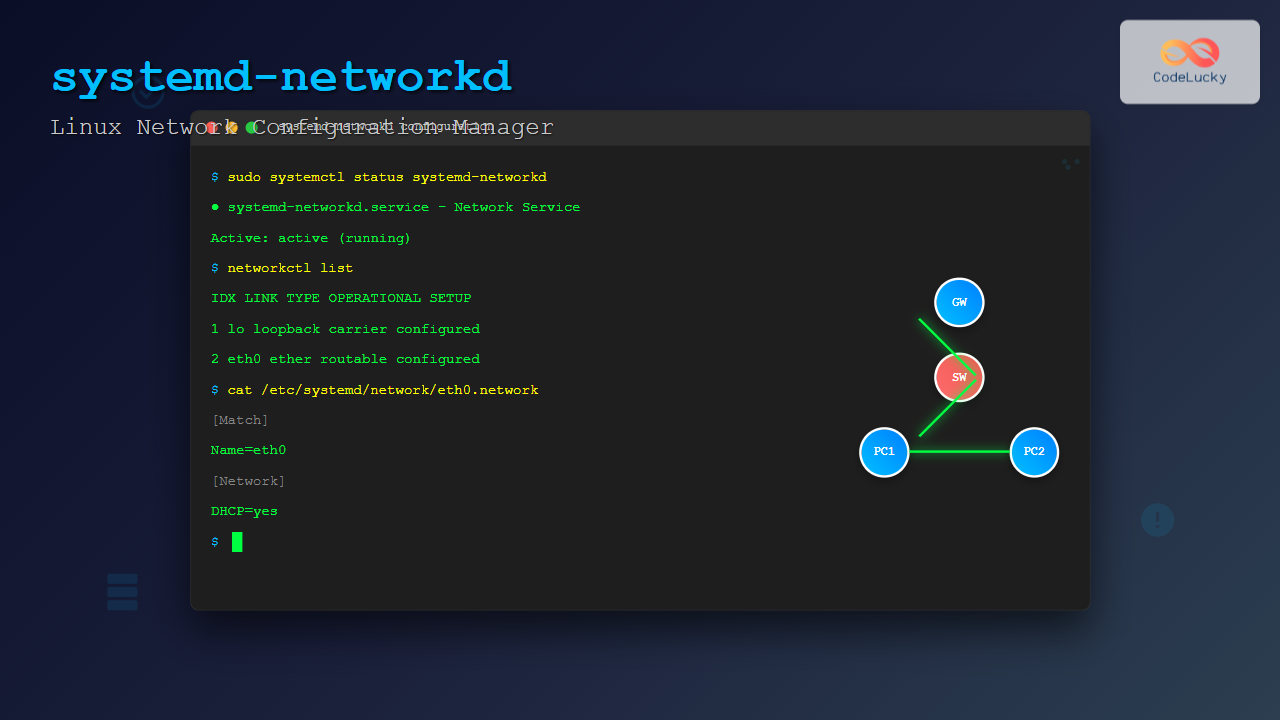
systemd-networkd is a powerful system daemon that manages network configurations on Linux systems. As part of the systemd ecosystem, it provides a declarative approach to network configuration, making it easier to manage complex network setups with consistent and predictable behavior.
What is systemd-networkd?
systemd-networkd is a system service that manages network configurations through configuration files. Unlike traditional network management tools, it integrates seamlessly with systemd, providing better integration with other system services and improved boot-time network setup.
Key Features
- Declarative Configuration: Define network settings in simple configuration files
- Dynamic Reconfiguration: Apply changes without system restart
- DHCP Support: Built-in DHCP client and server capabilities
- Link Aggregation: Support for bonding and bridging
- VLAN Support: Easy VLAN configuration and management
- IPv6 Ready: Full IPv6 support including auto-configuration
Installation and Setup
Most modern Linux distributions include systemd-networkd by default. Here’s how to enable and start the service:
# Enable systemd-networkd
sudo systemctl enable systemd-networkd

# Start the service
sudo systemctl start systemd-networkd

# Check service status
sudo systemctl status systemd-networkd
Expected output:
● systemd-networkd.service - Network Service
     Loaded: loaded (/lib/systemd/system/systemd-networkd.service; enabled; vendor preset: enabled)
     Active: active (running) since Tue 2025-08-26 02:41:15 IST; 2min 34s ago
       Docs: man:systemd-networkd.service(8)
   Main PID: 1234 (systemd-network)
     Status: "Processing requests..."
      Tasks: 1 (limit: 4915)
     Memory: 2.1M
        CPU: 15ms
     CGroup: /system.slice/systemd-networkd.service
             └─1234 /lib/systemd/systemd-networkd
Configuration File Structure
systemd-networkd uses three types of configuration files:
- .netdev files: Define virtual network devices
- .network files: Configure network interfaces
- .link files: Configure physical link properties
Configuration Directories
Configuration files are stored in these directories (in order of precedence):
/etc/systemd/network/          # System administrator files
/run/systemd/network/          # Runtime files
/lib/systemd/network/          # Distribution provided files
Basic Network Configuration
Static IP Configuration
Create a network configuration file for static IP assignment:
# Create configuration file
sudo nano /etc/systemd/network/20-wired.network
Add the following configuration:
[Match]
Name=eth0

[Network]
DHCP=no
Address=192.168.1.100/24
Gateway=192.168.1.1
DNS=8.8.8.8
DNS=8.8.4.4
DHCP Configuration
For dynamic IP assignment using DHCP:
[Match]
Name=eth0

[Network]
DHCP=ipv4

[DHCP]
UseDNS=yes
UseRoutes=yes
Dual Stack (IPv4 + IPv6) Configuration
[Match]
Name=eth0

[Network]
DHCP=yes
IPv6AcceptRA=yes

[DHCP]
UseDNS=yes
UseRoutes=yes
Advanced Configuration Examples
VLAN Configuration
First, create a VLAN netdev file:
# /etc/systemd/network/vlan10.netdev
[NetDev]
Name=vlan10
Kind=vlan

[VLAN]
Id=10
Then configure the VLAN network:
# /etc/systemd/network/vlan10.network
[Match]
Name=vlan10

[Network]
DHCP=no
Address=192.168.10.100/24
Gateway=192.168.10.1
Configure the physical interface to support VLAN:
# /etc/systemd/network/20-eth0.network
[Match]
Name=eth0

[Network]
VLAN=vlan10
Bridge Configuration
Create a bridge netdev:
# /etc/systemd/network/br0.netdev
[NetDev]
Name=br0
Kind=bridge
Configure the bridge network:
# /etc/systemd/network/br0.network
[Match]
Name=br0

[Network]
DHCP=yes
Bind physical interfaces to the bridge:
# /etc/systemd/network/20-eth0.network
[Match]
Name=eth0

[Network]
Bridge=br0
Bond Configuration
Create a bond netdev:
# /etc/systemd/network/bond0.netdev
[NetDev]
Name=bond0
Kind=bond

[Bond]
Mode=active-backup
MIIMonitorSec=1s
Configure bond network:
# /etc/systemd/network/bond0.network
[Match]
Name=bond0

[Network]
DHCP=yes
Bind interfaces to the bond:
# /etc/systemd/network/20-eth0.network
[Match]
Name=eth0

[Network]
Bond=bond0

# /etc/systemd/network/21-eth1.network
[Match]
Name=eth1

[Network]
Bond=bond0
Managing systemd-networkd
Applying Configuration Changes
After creating or modifying configuration files, reload the service:
# Reload configuration
sudo systemctl reload systemd-networkd

# Or restart the service
sudo systemctl restart systemd-networkd
Viewing Network Status
Use networkctl command to view network status:
# List all network interfaces
networkctl list
Sample output:
IDX LINK   TYPE     OPERATIONAL SETUP
  1 lo     loopback carrier     unmanaged
  2 eth0   ether    routable    configured
  3 wlan0  wlan     off         unmanaged
Get detailed status of a specific interface:
networkctl status eth0Sample output:
● 2: eth0
                     Link File: /lib/systemd/network/99-default.link
                  Network File: /etc/systemd/network/20-wired.network
                          Type: ether
                         State: routable (configured)
                  Online state: online
                      HW Address: 52:54:00:12:34:56 (QEMU virtual NIC)
                           MTU: 1500
                         QDisc: fq_codel
  IPv4 Address Generation Mode: none
  IPv6 Address Generation Mode: eui64
          Number of Addresses: 2
                       Address: 192.168.1.100/24
                                fe80::5054:ff:fe12:3456/64
                       Gateway: 192.168.1.1
                           DNS: 8.8.8.8
                                8.8.4.4
Troubleshooting Common Issues
Configuration Validation
Check configuration file syntax:
# Validate network configuration
sudo systemd-analyze verify /etc/systemd/network/*.network
Debug Mode
Enable debug logging for detailed troubleshooting:
# Enable debug logging
sudo systemctl edit systemd-networkd
Add the following content:
[Service]
Environment=SYSTEMD_LOG_LEVEL=debug
Restart the service and check logs:
sudo systemctl restart systemd-networkd
sudo journalctl -u systemd-networkd -f
Common Configuration Issues
Interface Not Managed
If an interface shows as “unmanaged”, ensure:
- Configuration file exists with correct [Match] section
- Interface name matches exactly
- No conflicting network managers are running
DHCP Not Working
Check DHCP configuration:
# Verify DHCP settings
networkctl status eth0 | grep -A 5 -B 5 DHCP
DNS Resolution Issues
Ensure systemd-resolved is running and properly configured:
sudo systemctl status systemd-resolved
resolvectl status
Integration with systemd-resolved
systemd-networkd works seamlessly with systemd-resolved for DNS management:
# Enable systemd-resolved
sudo systemctl enable systemd-resolved
sudo systemctl start systemd-resolved

# Check DNS configuration
resolvectl dns
Custom DNS Configuration
Configure DNS settings in network files:
[Network]
DNS=1.1.1.1
DNS=1.0.0.1
Domains=example.com
DNSDefaultRoute=yes
Performance and Best Practices
Configuration Best Practices
- Naming Convention: Use descriptive filenames with proper prefixes (10-, 20-, etc.)
- Match Specificity: Use specific match criteria to avoid conflicts
- Documentation: Add comments to configuration files for clarity
- Testing: Test configurations in non-production environments first
Performance Considerations
# Monitor network performance
networkctl status --all
ss -tuln
ip route show
File Organization Example
/etc/systemd/network/
├── 10-eth0.link          # Physical link properties
├── 20-eth0.network       # Main network configuration
├── 30-br0.netdev         # Bridge device definition
├── 30-br0.network        # Bridge network configuration
├── 40-vlan10.netdev      # VLAN device definition
└── 40-vlan10.network     # VLAN network configuration
Migration from Other Network Managers
From NetworkManager
Disable NetworkManager and enable systemd-networkd:
# Disable NetworkManager
sudo systemctl disable NetworkManager
sudo systemctl stop NetworkManager

# Enable systemd-networkd
sudo systemctl enable systemd-networkd
sudo systemctl start systemd-networkd
From ifupdown (Debian/Ubuntu)
Convert /etc/network/interfaces configuration to systemd-networkd format:
# Traditional ifupdown configuration
# auto eth0
# iface eth0 inet static
#   address 192.168.1.100/24
#   gateway 192.168.1.1

# Equivalent systemd-networkd configuration
[Match]
Name=eth0

[Network]
Address=192.168.1.100/24
Gateway=192.168.1.1
Security Considerations
File Permissions
Ensure proper permissions on configuration files:
# Set appropriate permissions
sudo chmod 644 /etc/systemd/network/*.network
sudo chown root:root /etc/systemd/network/*.network
Network Security
Configure secure network settings:
[Network]
# Disable IPv6 router advertisements if not needed
IPv6AcceptRA=no

# Enable privacy extensions for IPv6
IPv6PrivacyExtensions=yes

# Configure link-local addressing
LinkLocalAddressing=ipv4
Conclusion
systemd-networkd provides a robust and flexible approach to network configuration management in Linux systems. Its declarative configuration model, integration with systemd ecosystem, and powerful features make it an excellent choice for both simple and complex network setups.
Key advantages include:
- Consistent configuration across different systems
- Better integration with systemd services
- Powerful features for advanced networking scenarios
- Improved boot-time network initialization
- Extensive logging and debugging capabilities
Whether you’re managing a simple desktop system or complex server infrastructure, systemd-networkd provides the tools and flexibility needed for effective network management. Start with basic configurations and gradually explore advanced features as your networking requirements grow.
Related Posts
NetworkManager Linux: Complete Guide to Network Management Service
NetworkManager is a powerful network management service that provides automatic network detection and configuration for Linux systems. It simplifies network...
dhcpcd Command Linux: Complete Guide to DHCP Client Daemon Management
The dhcpcd (DHCP Client Daemon) is a powerful network configuration tool in Linux that automatically obtains IP addresses and network...
nmcli Command Linux: Complete Guide to NetworkManager Command Line Tool
The nmcli (NetworkManager Command Line Interface) is a powerful command-line tool that allows you to control NetworkManager and configure network...
dhclient Command Linux: Complete Guide to Dynamic Host Configuration Protocol Client
The dhclient command is a powerful Linux utility that serves as a Dynamic Host Configuration Protocol (DHCP) client. It automatically...

systemd Linux: Complete Guide to System and Service Manager
systemd is a powerful system and service manager that has become the default init system for most modern Linux distributions....
ip Command Linux: Complete Guide to Advanced Network Configuration and Management
The ip command is one of the most powerful and versatile networking tools in Linux, serving as the modern replacement...
resolvectl Command Linux: Complete Guide to systemd-resolved DNS Management
The resolvectl command is a powerful utility in modern Linux distributions that provides control over the systemd-resolved service. This command...
nmtui Command Linux: Complete Guide to NetworkManager Text User Interface
The nmtui (NetworkManager Text User Interface) command is a powerful, menu-driven tool that provides an intuitive way to configure network...
intermapper Linux: Complete Network Monitoring and Mapping Guide
What is InterMapper for Linux? InterMapper is a powerful network monitoring and mapping tool that provides real-time visibility into network...
systemd-resolved Linux: Complete Guide to Network Name Resolution Management
The systemd-resolved service is a fundamental component of modern Linux systems that handles network name resolution, DNS caching, and LLMNR...

ManageEngine Linux: Complete Network Monitoring Solutions Guide
Network monitoring is crucial for maintaining optimal performance and security in Linux environments. ManageEngine provides powerful network monitoring solutions specifically...
SNMP Command Linux: Complete Guide to Simple Network Management Protocol Configuration and Usage
Introduction to SNMP Command in Linux Simple Network Management Protocol (SNMP) is a fundamental protocol used for monitoring and managing...





