
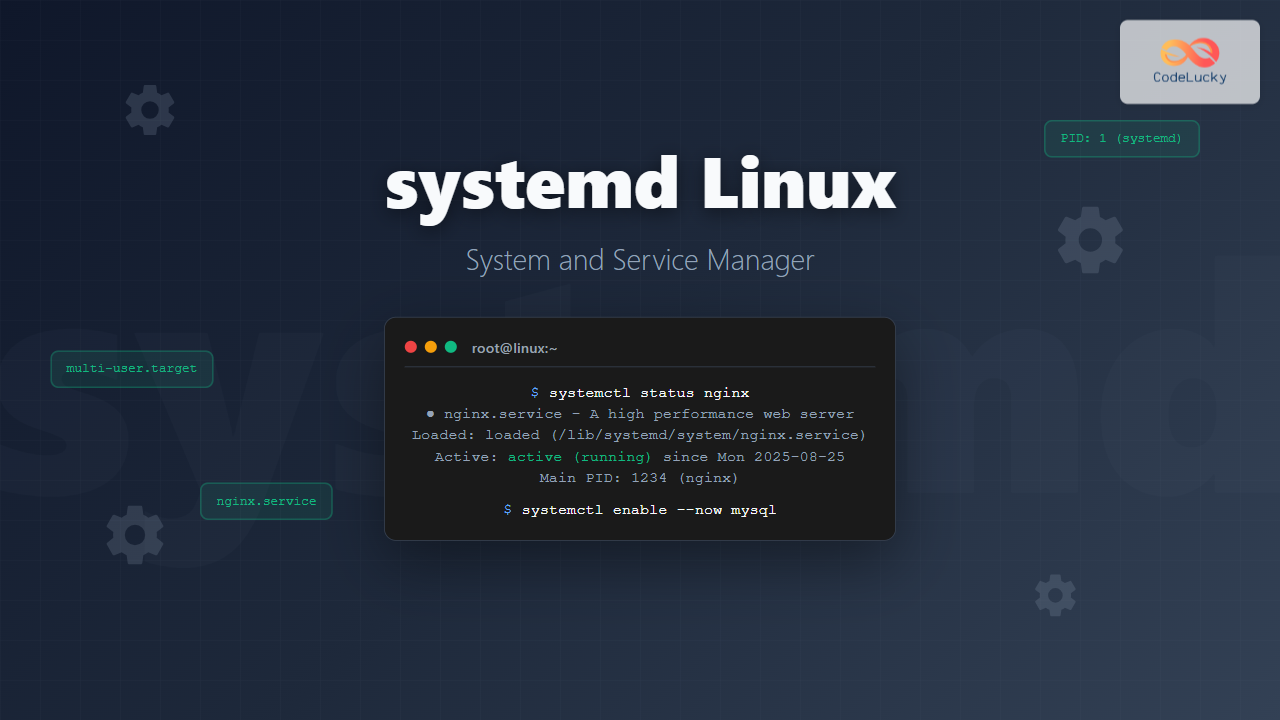
systemd is a powerful system and service manager that has become the default init system for most modern Linux distributions. It replaces traditional SysV init scripts and provides advanced features for managing system processes, services, and resources. This comprehensive guide will help you master systemd from basic concepts to advanced configurations.
What is systemd?
systemd is a suite of system management daemons, libraries, and utilities designed as a central management and configuration platform for Linux operating systems. It serves as the first process (PID 1) that starts during boot and manages all other system processes.
Key Features of systemd
- Parallel startup: Speeds up boot times by starting services concurrently
- On-demand activation: Services start only when needed
- Dependency management: Handles complex service dependencies
- Socket activation: Services can be started via socket connections
- Transactional dependency-based service control logic
- Comprehensive logging with journald
Basic systemctl Commands
The systemctl command is the primary interface for controlling systemd services. Here are the essential commands every system administrator should know:
Service Status Management
# Check service status
systemctl status nginx

# Start a service
sudo systemctl start nginx

# Stop a service
sudo systemctl stop nginx

# Restart a service
sudo systemctl restart nginx

# Reload service configuration without stopping
sudo systemctl reload nginx
Example output for checking nginx status:
● nginx.service - A high performance web server and a reverse proxy server
   Loaded: loaded (/lib/systemd/system/nginx.service; enabled; vendor preset: enabled)
   Active: active (running) since Mon 2025-08-25 11:30:15 IST; 2h 23min ago
     Docs: man:nginx(8)
  Process: 1234 ExecStartPre=/usr/sbin/nginx -t -q -g daemon on; master_process on; (code=exited, status=0/SUCCESS)
  Process: 1235 ExecStart=/usr/sbin/nginx -g daemon on; master_process on; (code=exited, status=0/SUCCESS)
 Main PID: 1236 (nginx)
    Tasks: 2 (limit: 4915)
   Memory: 6.2M
   CGroup: /system.slice/nginx.service
           ├─1236 nginx: master process /usr/sbin/nginx -g daemon on; master_process on;
           └─1237 nginx: worker process
Enable and Disable Services
# Enable service to start at boot
sudo systemctl enable nginx

# Disable service from starting at boot
sudo systemctl disable nginx

# Enable and start service immediately
sudo systemctl enable --now nginx

# Check if service is enabled
systemctl is-enabled nginx
Understanding systemd Units
systemd manages different types of units, each serving specific purposes:
| Unit Type | Extension | Purpose |
|---|---|---|
| Service | .service | System services and daemons |
| Socket | .socket | Network sockets and IPC |
| Target | .target | Group of units (like runlevels) |
| Timer | .timer | Scheduled tasks (cron-like) |
| Mount | .mount | Filesystem mount points |
| Device | .device | Hardware devices |
Listing Units
# List all active units
systemctl list-units

# List all service units
systemctl list-units --type=service

# List all units (including inactive)
systemctl list-units --all

# List unit files
systemctl list-unit-files
Creating Custom Service Units
Creating custom systemd service files allows you to manage your own applications as system services. Here’s how to create a basic service file:
Basic Service File Structure
Create a service file at /etc/systemd/system/myapp.service:
[Unit]
Description=My Custom Application
After=network.target
Wants=network.target

[Service]
Type=simple
ExecStart=/usr/local/bin/myapp
ExecReload=/bin/kill -HUP $MAINPID
User=myappuser
Group=myappgroup
Restart=always
RestartSec=10

[Install]
WantedBy=multi-user.target
Service File Sections Explained
[Unit] Section:
Description: Human-readable descriptionAfter: Services to start afterBefore: Services to start before this oneWants: Weak dependenciesRequires: Strong dependencies
[Service] Section:
Type: Service type (simple, forking, oneshot, notify)ExecStart: Command to start the serviceExecStop: Command to stop the serviceUser/Group: Run service as specific user/groupRestart: Restart policy
[Install] Section:
WantedBy: Target that should include this service
Activating Custom Service
# Reload systemd configuration
sudo systemctl daemon-reload

# Enable and start the service
sudo systemctl enable --now myapp.service

# Check service status
systemctl status myapp.service
systemd Targets and Runlevels
systemd uses targets instead of traditional runlevels. Targets are groups of units that represent different system states:
| Target | Traditional Runlevel | Description |
|---|---|---|
| poweroff.target | 0 | System shutdown |
| rescue.target | 1, s, single | Single-user mode |
| multi-user.target | 2, 3, 4 | Multi-user, non-graphical |
| graphical.target | 5 | Multi-user, graphical |
| reboot.target | 6 | System reboot |
Managing Targets
# Check current target
systemctl get-default

# Change default target
sudo systemctl set-default multi-user.target

# Switch to different target immediately
sudo systemctl isolate graphical.target

# List available targets
systemctl list-units --type=target
Working with systemd Timers
systemd timers provide a modern replacement for cron jobs with better integration and logging capabilities.
Creating a Timer Unit
First, create a service file /etc/systemd/system/backup.service:
[Unit]
Description=Daily Backup Service

[Service]
Type=oneshot
ExecStart=/usr/local/bin/backup-script.sh
Then create a timer file /etc/systemd/system/backup.timer:
[Unit]
Description=Daily Backup Timer
Requires=backup.service

[Timer]
OnCalendar=daily
Persistent=true

[Install]
WantedBy=timers.target
Timer Options
OnCalendar: Calendar-based scheduling (daily, weekly, monthly)OnBootSec: Time after bootOnUnitActiveSec: Time after unit was last activatedPersistent: Run missed schedules on next boot
Managing Timers
# Enable and start timer
sudo systemctl enable --now backup.timer

# List active timers
systemctl list-timers

# Check timer status
systemctl status backup.timer
systemd Logging with journald
systemd includes journald, a centralized logging system that collects and stores log data from all system components.
Using journalctl
# View all logs
journalctl

# View logs for specific service
journalctl -u nginx.service

# Follow logs in real-time
journalctl -f -u nginx.service

# View logs from last boot
journalctl -b

# View logs from specific time
journalctl --since "2025-08-25 10:00:00"

# View logs with priority levels
journalctl -p err

# View kernel messages
journalctl -k
Log Filtering Options
# Show last 50 entries
journalctl -n 50

# Show logs in reverse order (newest first)
journalctl -r

# Show logs for specific user
journalctl _UID=1000

# Show logs for specific process
journalctl _PID=1234
Advanced systemd Features
Socket Activation
Socket activation allows services to start on-demand when a connection is made to their socket:
Create /etc/systemd/system/myapp.socket:
[Unit]
Description=MyApp Socket

[Socket]
ListenStream=8080
Accept=no

[Install]
WantedBy=sockets.target
Resource Control with Cgroups
systemd integrates with Linux control groups to manage resource allocation:
[Service]
# Limit memory usage
MemoryLimit=512M

# Limit CPU usage
CPUQuota=50%

# Set IO weight
IOWeight=100
Environment Variables
[Service]
# Set environment variables
Environment="APP_ENV=production"
Environment="LOG_LEVEL=info"

# Load from file
EnvironmentFile=/etc/myapp/config
Troubleshooting systemd Services
Common Debugging Commands
# Check service dependencies
systemctl list-dependencies nginx.service

# Analyze service startup time
systemd-analyze blame

# Check system boot time
systemd-analyze time

# Verify service file syntax
systemd-analyze verify /etc/systemd/system/myapp.service

# Show service properties
systemctl show nginx.service
Service States and Troubleshooting
| State | Description | Troubleshooting |
|---|---|---|
| active (running) | Service is running normally | No action needed |
| active (exited) | Oneshot service completed | Check logs for errors |
| inactive (dead) | Service is stopped | Check why service stopped |
| failed | Service failed to start | Check logs and configuration |
systemd Best Practices
Security Considerations
- Run services with minimal privileges using
UserandGroup - Use
PrivateTmp=yesfor temporary file isolation - Set
NoNewPrivileges=yesto prevent privilege escalation - Use
ProtectSystem=strictfor filesystem protection
Performance Optimization
- Use appropriate service types (simple vs forking)
- Configure proper restart policies
- Set resource limits to prevent system overload
- Use socket activation for infrequently used services
Maintenance Tips
- Regularly clean journal logs:
sudo journalctl --vacuum-time=30d - Monitor failed services:
systemctl --failed - Keep service files documented and version controlled
- Test service configurations in development environments
Migration from SysV Init
When migrating from traditional SysV init scripts to systemd, consider these key differences:
| SysV Init | systemd Equivalent | Notes |
|---|---|---|
| service nginx start | systemctl start nginx | Direct replacement |
| chkconfig nginx on | systemctl enable nginx | Enable at boot |
| /etc/init.d/nginx | /etc/systemd/system/nginx.service | Service definition location |
| runlevel | systemctl get-default | Current system state |
Conclusion
systemd has revolutionized Linux system management with its comprehensive approach to service management, logging, and system control. By mastering systemctl commands, understanding unit files, and leveraging advanced features like timers and socket activation, you can efficiently manage modern Linux systems.
The key to successful systemd administration lies in understanding its declarative approach to system configuration and taking advantage of its powerful features for monitoring, logging, and resource management. Whether you’re managing a single server or a complex infrastructure, systemd provides the tools and flexibility needed for robust system administration.
Start with basic service management commands, gradually explore advanced features, and always test configurations in non-production environments before deploying to critical systems. With practice and understanding of systemd’s principles, you’ll find it to be an indispensable tool for Linux system administration.
Related Posts

init Command Linux: Complete Guide to Process Control and System Initialization
The init command in Linux serves as the cornerstone of system initialization and process control. As the first process started...

sysvinit Linux: Complete Guide to System V Initialization System
The System V initialization system (sysvinit) is a traditional init system that has been the backbone of Unix and Linux...
systemctl Command Linux: Complete Guide to Control Systemd Services
The systemctl command is the primary tool for controlling systemd services in modern Linux distributions. As the central management utility...
service Command Linux: Complete Guide to Managing System Services
The service command is a fundamental tool in Linux system administration that allows you to manage system services and daemons...

launchd Linux: Understanding the Service Management Framework for System Administrators
The launchd service management framework has become an essential tool for Linux system administrators who need robust process and service...
runit Linux: Complete Guide to Unix Init Scheme with Service Supervision
runit is a lightweight, cross-platform Unix init scheme with service supervision that provides a reliable alternative to traditional init systems....
upstart Linux: Complete Guide to Event-Based System Initialization
The upstart initialization system revolutionized Linux system startup processes by introducing event-based service management. Unlike traditional SysV init systems that...
openrc Linux: Complete Guide to Dependency-based Init System Management
OpenRC is a lightweight, dependency-based init system that serves as an alternative to systemd and SysV init. Originally developed for...

sv Command Linux: Master Runit Service Control and Management
The sv command is a powerful utility in Linux systems that serves as the primary interface for controlling services managed...
s6 Linux: Complete Guide to Small and Secure Service Manager
The s6 service manager represents a revolutionary approach to Linux process supervision, offering a lightweight and secure alternative to traditional...

shepherd Linux: Complete Guide to GNU Guix Service Manager
The shepherd is GNU Guix's native service manager, designed to provide a robust and flexible alternative to traditional init systems...
systemd-networkd Linux: Complete Network Configuration Manager Guide
systemd-networkd is a powerful system daemon that manages network configurations on Linux systems. As part of the systemd ecosystem, it...





