
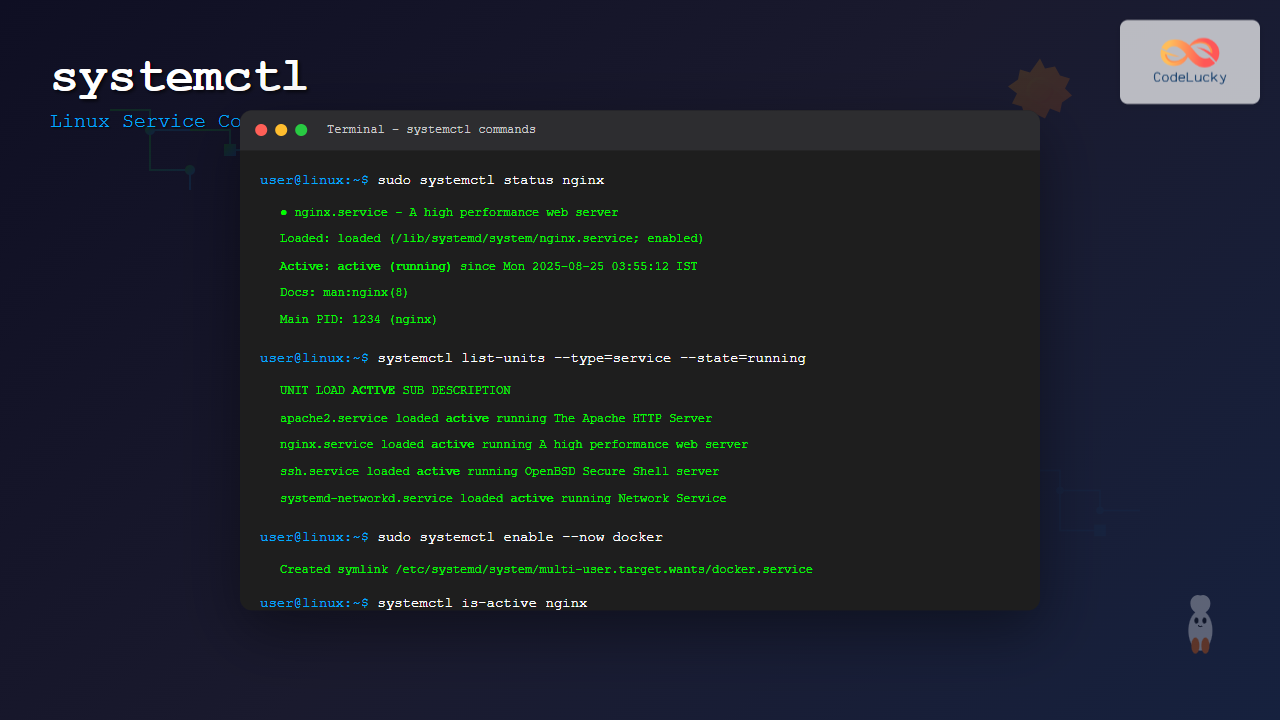
The systemctl command is the primary tool for controlling systemd services in modern Linux distributions. As the central management utility for the systemd init system, it allows system administrators to start, stop, restart, enable, disable, and monitor services with precision and ease.
What is systemctl?
systemctl (system control) is a command-line utility that interfaces with systemd, the default init system and service manager for most modern Linux distributions including Ubuntu 16.04+, CentOS 7+, Fedora, and RHEL 7+. It replaces older service management tools like service and chkconfig.
Basic systemctl Syntax
The general syntax for systemctl follows this pattern:
systemctl [OPTIONS] COMMAND [SERVICE-NAME]Essential systemctl Commands
Starting Services
To start a service immediately, use the start command:
sudo systemctl start nginxExample output:
# No output indicates successful start
# Check status to verify
$ systemctl status nginx
● nginx.service - A high performance web server and a reverse proxy server
   Loaded: loaded (/lib/systemd/system/nginx.service; enabled; vendor preset: enabled)
   Active: active (running) since Mon 2025-08-25 03:55:12 IST; 5s ago
     Docs: man:nginx(8)
 Main PID: 12345 (nginx)
    Tasks: 2 (limit: 4915)
   Memory: 6.5M
   CGroup: /system.slice/nginx.service
           ├─12345 nginx: master process /usr/sbin/nginx -g daemon on; master_process on;
           └─12346 nginx: worker process
Stopping Services
To stop a running service:
sudo systemctl stop nginxRestarting Services
Restart completely stops and starts a service:
sudo systemctl restart nginxReloading Services
Reload configuration without stopping the service (if supported):
sudo systemctl reload nginxService Status and Information
Checking Service Status
The status command provides detailed information about a service:
systemctl status apache2Example output:
● apache2.service - The Apache HTTP Server
   Loaded: loaded (/lib/systemd/system/apache2.service; enabled; vendor preset: enabled)
   Active: active (running) since Mon 2025-08-25 03:50:00 IST; 10min ago
     Docs: https://httpd.apache.org/docs/2.4/
  Process: 8901 ExecStart=/usr/sbin/apachectl start (code=exited, status=0/SUCCESS)
 Main PID: 8920 (apache2)
    Tasks: 55 (limit: 4915)
   Memory: 12.1M
   CGroup: /system.slice/apache2.service
           ├─8920 /usr/sbin/apache2 -k start
           ├─8921 /usr/sbin/apache2 -k start
           └─8922 /usr/sbin/apache2 -k start
Listing All Services
View all available services:
# List all services
systemctl list-units --type=service

# List only running services
systemctl list-units --type=service --state=running

# List failed services
systemctl list-units --type=service --state=failed
Service Persistence (Enable/Disable)
Enabling Services
Enable a service to start automatically at boot:
sudo systemctl enable nginxExample output:
Created symlink /etc/systemd/system/multi-user.target.wants/nginx.service → /lib/systemd/system/nginx.service.Disabling Services
Prevent a service from starting at boot:
sudo systemctl disable nginxEnable and Start Simultaneously
Enable and start a service in one command:
sudo systemctl enable --now nginxAdvanced systemctl Operations
Masking and Unmasking Services
Masking prevents a service from being started manually or automatically:
# Mask a service
sudo systemctl mask apache2

# Unmask a service
sudo systemctl unmask apache2
Checking if Service is Enabled
systemctl is-enabled nginxPossible outputs:
enabled– Service will start at bootdisabled– Service won’t start at bootmasked– Service is maskedstatic– Service has no install section
Checking if Service is Active
systemctl is-active nginxReturns active or inactive.
Working with Service Dependencies
Viewing Service Dependencies
# Show what services depend on this service
systemctl list-dependencies nginx

# Show reverse dependencies
systemctl list-dependencies nginx --reverse
Example dependency output:
$ systemctl list-dependencies nginx
nginx.service
● ├─system.slice
● └─basic.target
●   ├─microcode.service
●   ├─selinux-autorelabel-mark.service
●   ├─systemd-ask-password-console.path
●   └─timers.target
●     └─systemd-tmpfiles-clean.timer
Log Management with systemctl
Viewing Service Logs
systemctl integrates with journalctl for log viewing:
# View recent logs for a service
journalctl -u nginx

# Follow logs in real-time
journalctl -u nginx -f

# View logs since last boot
journalctl -u nginx -b
Service Configuration Files
Editing Service Files
Use systemctl to safely edit service configurations:
sudo systemctl edit nginxThis creates an override file at /etc/systemd/system/nginx.service.d/override.conf.
Viewing Service Files
# View the main service file
systemctl cat nginx

# Show file paths
systemctl show nginx -p FragmentPath
System State Management
Reloading systemd Configuration
After modifying service files, reload systemd:
sudo systemctl daemon-reloadSystem Targets (Runlevels)
# Check current target
systemctl get-default

# Change default target
sudo systemctl set-default multi-user.target

# Switch to different target
sudo systemctl isolate graphical.target
Practical Examples and Use Cases
Web Server Management
# Complete Apache setup
sudo systemctl enable apache2
sudo systemctl start apache2
sudo systemctl status apache2

# Graceful configuration reload
sudo systemctl reload apache2
Database Service Management
# MySQL service operations
sudo systemctl start mysql
sudo systemctl enable mysql
systemctl is-active mysql

# View MySQL logs
journalctl -u mysql -n 50
Troubleshooting Failed Services
# Find failed services
systemctl --failed

# Reset failed state
sudo systemctl reset-failed service-name

# Restart with verbose output
sudo systemctl restart service-name -l
Common systemctl Options
| Option | Description |
|---|---|
--now |
Enable/disable and start/stop simultaneously |
--user |
Operate on user services instead of system services |
--global |
Enable/disable user services globally |
-l |
Don’t truncate lines in status output |
--no-pager |
Don’t pipe output into a pager |
Best Practices
Service Management Guidelines
- Always check status after starting or stopping services
- Use enable –now for new services you want running immediately
- Reload systemd after editing service files with
daemon-reload - Monitor logs regularly using
journalctl - Test configurations in non-production environments first
Security Considerations
- Only enable services you actually need
- Regularly audit enabled services with
systemctl list-unit-files --state=enabled - Use service-specific users rather than root when possible
- Monitor failed services for potential security issues
Troubleshooting Common Issues
Service Won’t Start
# Check detailed status
systemctl status service-name -l

# Check logs
journalctl -u service-name -n 20

# Verify configuration
systemctl cat service-name
Service Starts but Stops Immediately
# Check exit codes and signals
systemctl show service-name -p ExecMainStatus -p Result

# Follow logs in real-time
journalctl -u service-name -f
Conclusion
The systemctl command is an essential tool for Linux system administration, providing comprehensive control over systemd services. From basic operations like starting and stopping services to advanced features like dependency management and log integration, mastering systemctl enables efficient system management.
Regular practice with these commands and understanding of systemd concepts will significantly improve your Linux administration skills. Remember to always verify service status after making changes and maintain awareness of service dependencies when making system modifications.
Whether you’re managing web servers, databases, or custom applications, systemctl provides the reliable service management capabilities needed for robust Linux system administration.
Related Posts
service Command Linux: Complete Guide to Managing System Services
The service command is a fundamental tool in Linux system administration that allows you to manage system services and daemons...

systemd Linux: Complete Guide to System and Service Manager
systemd is a powerful system and service manager that has become the default init system for most modern Linux distributions....
loginctl Command Linux: Master Session Management with Practical Examples
The loginctl command is a powerful systemd utility that allows system administrators to introspect and control the systemd login manager...

sv Command Linux: Master Runit Service Control and Management
The sv command is a powerful utility in Linux systems that serves as the primary interface for controlling services managed...

machinectl Command Linux: Complete Guide to Managing systemd Containers and VMs
The machinectl command is a powerful utility in Linux systems that provides comprehensive management capabilities for systemd containers and virtual...

init Command Linux: Complete Guide to Process Control and System Initialization
The init command in Linux serves as the cornerstone of system initialization and process control. As the first process started...

launchd Linux: Understanding the Service Management Framework for System Administrators
The launchd service management framework has become an essential tool for Linux system administrators who need robust process and service...
hostnamectl Command Linux: Complete Guide to System Hostname Management
The hostnamectl command is a powerful systemd utility that allows Linux administrators to query and change the system hostname and...

sysvinit Linux: Complete Guide to System V Initialization System
The System V initialization system (sysvinit) is a traditional init system that has been the backbone of Unix and Linux...
runit Linux: Complete Guide to Unix Init Scheme with Service Supervision
runit is a lightweight, cross-platform Unix init scheme with service supervision that provides a reliable alternative to traditional init systems....

shepherd Linux: Complete Guide to GNU Guix Service Manager
The shepherd is GNU Guix's native service manager, designed to provide a robust and flexible alternative to traditional init systems...

s6-svc Command Linux: Complete Guide to Managing s6 Services
The s6-svc command is a powerful utility in the s6 process supervision suite that allows system administrators to control and...





