System hardening is the process of securing a computer system by reducing its attack surface and eliminating potential vulnerabilities. This comprehensive guide covers essential security configuration practices that every system administrator should implement to protect their infrastructure from cyber threats.
What is System Hardening?
System hardening involves configuring operating systems, applications, and network devices to minimize security vulnerabilities. The goal is to reduce the number of potential entry points that attackers could exploit while maintaining system functionality and performance.

Core Principles of System Hardening
Principle of Least Privilege
Grant users and processes only the minimum permissions necessary to perform their required functions. This limits the potential damage from compromised accounts or applications.
Defense in Depth
Implement multiple layers of security controls to create redundancy. If one layer fails, others remain to protect the system.
Fail Securely
Configure systems to fail into a secure state rather than an open state when errors occur.
Operating System Hardening Techniques
Linux System Hardening
User Account Security
Disable Unnecessary User Accounts:
# List all user accounts
cat /etc/passwd

# Lock unused accounts
sudo usermod -L username

# Remove unnecessary accounts
sudo userdel username
Configure Password Policies:
# Edit /etc/login.defs
PASS_MAX_DAYS 90
PASS_MIN_DAYS 1
PASS_MIN_LEN 12
PASS_WARN_AGE 7

# Install and configure libpam-pwquality
sudo apt install libpam-pwquality

# Edit /etc/pam.d/common-password
password requisite pam_pwquality.so retry=3 minlen=12 difok=3 ucredit=-1 lcredit=-1 dcredit=-1 ocredit=-1
Service Management
Disable Unnecessary Services:
# List all running services
systemctl list-unit-files --type=service --state=enabled

# Disable unnecessary services
sudo systemctl disable service-name
sudo systemctl stop service-name

# Example: Disable Bluetooth if not needed
sudo systemctl disable bluetooth
sudo systemctl stop bluetooth
File System Security
Set Proper Permissions:
# Secure critical system files
sudo chmod 644 /etc/passwd
sudo chmod 640 /etc/shadow
sudo chmod 644 /etc/group

# Set umask for secure default permissions
echo "umask 027" >> /etc/profile

# Find and fix world-writable files
find / -type f -perm -o+w -exec chmod o-w {} \;

Windows System Hardening
Local Security Policy Configuration
Account Lockout Policy:
# Configure account lockout via PowerShell
secedit /export /cfg C:\temp\current_policy.inf

# Edit the policy file to include:
# LockoutBadCount = 5
# LockoutDuration = 30
# ResetLockoutCount = 30

secedit /configure /db C:\temp\secedit.sdb /cfg C:\temp\current_policy.inf
User Rights Assignment:
# Remove unnecessary user rights
# Use Local Security Policy (secpol.msc) or Group Policy

# Example PowerShell commands for user rights
Add-LocalGroupMember -Group "Remote Desktop Users" -Member "SpecificUser"
Remove-LocalGroupMember -Group "Users" -Member "Guest"
Windows Firewall Configuration
# Enable Windows Firewall for all profiles
netsh advfirewall set allprofiles state on

# Block all inbound connections by default
netsh advfirewall set allprofiles firewallpolicy blockinbound,allowoutbound

# Create specific rules for required services
netsh advfirewall firewall add rule name="Allow SSH" dir=in action=allow protocol=TCP localport=22

# View current firewall rules
netsh advfirewall firewall show rule name=all
Network Hardening Strategies
Firewall Configuration
Linux iptables Example:
# Basic iptables rules
#!/bin/bash

# Flush existing rules
iptables -F
iptables -X
iptables -Z

# Default policies
iptables -P INPUT DROP
iptables -P FORWARD DROP
iptables -P OUTPUT ACCEPT

# Allow loopback
iptables -A INPUT -i lo -j ACCEPT
iptables -A OUTPUT -o lo -j ACCEPT

# Allow established connections
iptables -A INPUT -m state --state ESTABLISHED,RELATED -j ACCEPT

# Allow SSH (change port if needed)
iptables -A INPUT -p tcp --dport 22 -j ACCEPT

# Allow HTTP and HTTPS
iptables -A INPUT -p tcp --dport 80 -j ACCEPT
iptables -A INPUT -p tcp --dport 443 -j ACCEPT

# Save rules
iptables-save > /etc/iptables/rules.v4
SSH Hardening
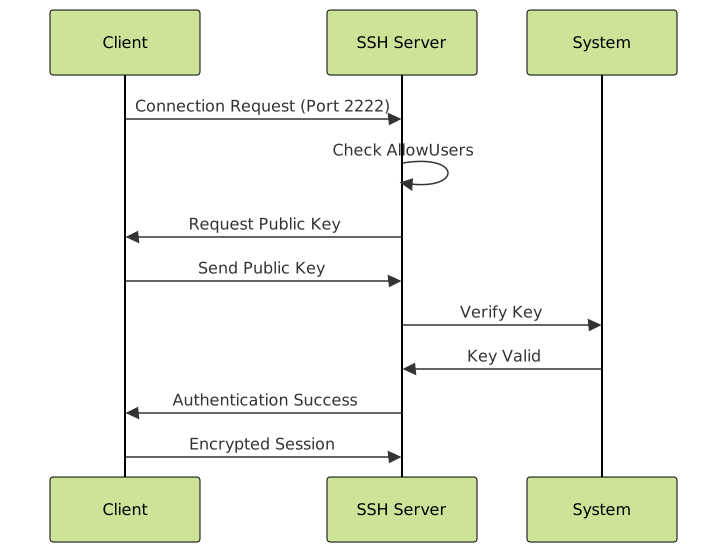
Secure SSH Configuration (/etc/ssh/sshd_config):
# Change default port
Port 2222

# Disable root login
PermitRootLogin no

# Use key-based authentication
PasswordAuthentication no
PubkeyAuthentication yes

# Limit user access
AllowUsers specific-user

# Set connection limits
MaxAuthTries 3
MaxSessions 2

# Disable unused features
X11Forwarding no
AllowTcpForwarding no
GatewayPorts no

# Use strong ciphers
Ciphers [email protected],[email protected],aes256-ctr,aes192-ctr,aes128-ctr
Application Hardening Best Practices
Web Server Hardening (Apache)
# Hide server information
ServerTokens Prod
ServerSignature Off

# Disable unnecessary modules
# Comment out unused LoadModule directives

# Set security headers
Header always set X-Content-Type-Options nosniff
Header always set X-Frame-Options DENY
Header always set X-XSS-Protection "1; mode=block"
Header always set Strict-Transport-Security "max-age=31536000; includeSubDomains"

# Disable directory browsing
Options -Indexes

# Limit file uploads
LimitRequestBody 10485760  # 10MB limit

# Hide .htaccess files
<Files ".ht*">
    Require all denied
</Files>
Database Hardening (MySQL/MariaDB)
-- Run mysql_secure_installation first, then:

-- Remove anonymous users
DELETE FROM mysql.user WHERE User='';

-- Remove test database
DROP DATABASE IF EXISTS test;
DELETE FROM mysql.db WHERE Db='test' OR Db='test\\_%';

-- Create dedicated user accounts
CREATE USER 'appuser'@'localhost' IDENTIFIED BY 'strong_password_here';
GRANT SELECT, INSERT, UPDATE, DELETE ON app_database.* TO 'appuser'@'localhost';

-- Configure my.cnf security settings
-- [mysqld]
-- bind-address = 127.0.0.1
-- skip-networking
-- local-infile = 0
-- log-bin = mysql-bin
-- expire_logs_days = 7

FLUSH PRIVILEGES;
Monitoring and Auditing
Log Configuration
rsyslog Configuration (/etc/rsyslog.conf):
# Separate log files for different services
auth,authpriv.*         /var/log/auth.log
*.*;auth,authpriv.none  -/var/log/syslog
daemon.*                -/var/log/daemon.log
kern.*                  -/var/log/kern.log
mail.*                  -/var/log/mail.log
user.*                  -/var/log/user.log

# Log failed login attempts
$template failed_logins,"/var/log/failed_logins.log"
:msg, contains, "authentication failure" ?failed_logins
Intrusion Detection with fail2ban
# Install fail2ban
sudo apt install fail2ban

# Configure /etc/fail2ban/jail.local
[DEFAULT]
bantime = 3600
findtime = 600
maxretry = 3
ignoreip = 127.0.0.1/8

[ssh]
enabled = true
port = 2222
filter = sshd
logpath = /var/log/auth.log
maxretry = 3

[apache-auth]
enabled = true
filter = apache-auth
logpath = /var/log/apache2/*error.log
maxretry = 3

# Start and enable fail2ban
sudo systemctl enable fail2ban
sudo systemctl start fail2ban

Patch Management and Updates
Automated Updates (Ubuntu/Debian)
# Install unattended-upgrades
sudo apt install unattended-upgrades

# Configure /etc/apt/apt.conf.d/50unattended-upgrades
Unattended-Upgrade::Allowed-Origins {
    "${distro_id}:${distro_codename}-security";
    "${distro_id}ESMApps:${distro_codename}-apps-security";
};

Unattended-Upgrade::AutoFixInterruptedDpkg "true";
Unattended-Upgrade::MinimalSteps "true";
Unattended-Upgrade::Remove-Unused-Dependencies "true";
Unattended-Upgrade::Automatic-Reboot "false";

# Enable automatic updates
sudo dpkg-reconfigure -plow unattended-upgrades
Windows Update Automation
# PowerShell script for Windows Updates
Install-Module PSWindowsUpdate -Force
Import-Module PSWindowsUpdate

# Get available updates
Get-WindowsUpdate

# Install updates automatically
Get-WindowsUpdate -AcceptAll -AutoReboot

# Schedule updates via Task Scheduler
$action = New-ScheduledTaskAction -Execute 'PowerShell.exe' -Argument '-File C:\Scripts\WindowsUpdate.ps1'
$trigger = New-ScheduledTaskTrigger -Weekly -DaysOfWeek Sunday -At 2AM
Register-ScheduledTask -Action $action -Trigger $trigger -TaskName "Weekly Windows Updates"
Security Assessment and Validation
Vulnerability Scanning with Lynis
# Install Lynis
sudo apt install lynis

# Run comprehensive system audit
sudo lynis audit system

# Generate detailed report
sudo lynis audit system --verbose

# Check specific categories
sudo lynis audit system --tests-from-group malware,authentication
Network Security Testing
# Port scanning with nmap (from external machine)
nmap -sS -O -p- target_ip

# Check for open ports locally
netstat -tuln
ss -tuln

# Test firewall rules
sudo iptables -L -n -v

Compliance and Industry Standards
CIS Benchmarks Implementation
The Center for Internet Security (CIS) provides detailed benchmarks for hardening various systems:
- CIS Controls: Framework for cyber defense best practices
- Operating System Benchmarks: Specific guidance for Linux, Windows, macOS
- Application Benchmarks: Web servers, databases, cloud services
- Network Device Benchmarks: Routers, switches, firewalls
NIST Cybersecurity Framework Alignment
Map hardening activities to NIST framework functions:
- Identify: Asset inventory and risk assessment
- Protect: Access controls and protective technology
- Detect: Security monitoring and anomaly detection
- Respond: Incident response procedures
- Recover: Recovery planning and improvements
Advanced Hardening Techniques
SELinux/AppArmor Implementation
SELinux Configuration:
# Check SELinux status
sestatus

# Set enforcing mode
sudo setenforce 1

# Make permanent in /etc/selinux/config
SELINUX=enforcing

# View security contexts
ls -Z /etc/passwd

# Create custom policy
setsebool -P httpd_can_network_connect 1
Container Security Hardening
Docker Security Configuration:
# Run container with limited privileges
docker run --user 1000:1000 --read-only --tmpfs /tmp --cap-drop ALL --cap-add NET_BIND_SERVICE my-app

# Use security scanning
docker scan my-image:latest

# Configure Docker daemon securely (/etc/docker/daemon.json)
{
  "icc": false,
  "userns-remap": "default",
  "log-driver": "json-file",
  "log-opts": {
    "max-size": "10m",
    "max-file": "3"
  }
}
Incident Response Integration
System hardening should integrate with incident response procedures:
- Automated Response: Configure systems to automatically respond to threats
- Forensic Readiness: Ensure logging captures necessary evidence
- Recovery Procedures: Document steps to restore hardened configurations
- Lessons Learned: Update hardening based on incident findings
Conclusion
System hardening is an ongoing process that requires continuous attention and updates. By implementing these security configuration best practices, organizations can significantly reduce their attack surface and improve their overall security posture. Remember to regularly review and update your hardening procedures as new threats emerge and technologies evolve.
The key to successful system hardening lies in balancing security with functionality, maintaining detailed documentation, and continuously monitoring for new vulnerabilities and attack vectors. Start with the fundamentals covered in this guide, then gradually implement more advanced techniques based on your specific environment and risk tolerance.