
System backup is the cornerstone of data protection in modern computing environments. As digital assets become increasingly valuable and cyber threats evolve, implementing robust backup strategies is not just recommended—it’s essential for business continuity and personal data security.
Understanding System Backup Fundamentals
System backup involves creating copies of data, applications, and system configurations to ensure recovery in case of hardware failure, data corruption, cyber attacks, or accidental deletion. A well-designed backup strategy protects against various failure scenarios while maintaining data integrity and accessibility.

Key Components of Backup Systems
Every effective backup system consists of several critical components:
- Source Data: Files, databases, applications, and system configurations requiring protection
- Backup Software: Tools that automate the backup process and manage data transfers
- Storage Media: Physical or cloud-based destinations for backup data
- Recovery Mechanisms: Procedures and tools for restoring data when needed
- Monitoring Systems: Tools that track backup success and alert administrators to issues
Types of System Backups
Different backup types serve specific purposes and offer varying levels of data protection and recovery speed:
Full Backup
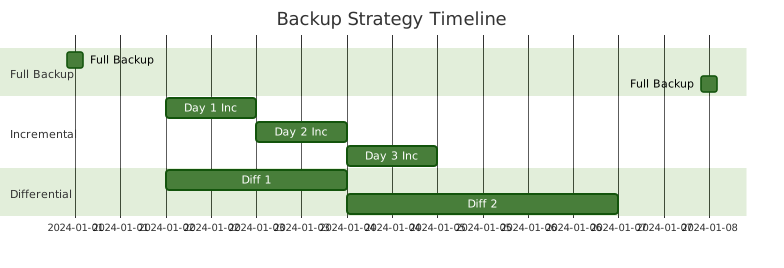
A full backup creates a complete copy of all selected data. This comprehensive approach provides the fastest recovery time but requires the most storage space and time to complete.
# Example: Creating a full system backup using tar in Linux
sudo tar -czf /backup/full_backup_$(date +%Y%m%d).tar.gz \
  --exclude=/proc \
  --exclude=/tmp \
  --exclude=/mnt \
  --exclude=/dev \
  --exclude=/sys \
  --exclude=/run \
  --exclude=/media \
  --exclude=/backup \
  /
Incremental Backup
Incremental backups only save changes made since the last backup of any type. This method minimizes storage requirements and backup time but requires all incremental backups for complete restoration.
# Example: Incremental backup using rsync
rsync -av --link-dest=/backup/previous_backup/ \
  /home/user/ /backup/incremental_$(date +%Y%m%d)/
Differential Backup
Differential backups capture all changes since the last full backup. They balance storage efficiency with recovery simplicity, requiring only the full backup and the latest differential backup for restoration.
Backup Storage Solutions
Local Storage Options
Local storage provides immediate access and control over backup data:
- External Hard Drives: Portable and cost-effective for personal use
- Network Attached Storage (NAS): Centralized storage accessible across networks
- Tape Storage: High-capacity, long-term storage for enterprise environments
Cloud Backup Services
Cloud storage offers scalability and off-site protection:
# Example: AWS S3 backup using AWS CLI
aws s3 sync /local/data/ s3://my-backup-bucket/data/ \
  --exclude "*.tmp" \
  --delete \
  --storage-class STANDARD_IA
Hybrid Approaches
Combining local and cloud storage provides optimal protection and accessibility. The 3-2-1 backup rule exemplifies this approach: maintain 3 copies of data, on 2 different media types, with 1 copy stored off-site.
Backup Scheduling and Automation
Automated backup scheduling ensures consistent data protection without manual intervention:
Windows Task Scheduler Example
# PowerShell script for automated backup
$source = "C:\ImportantData"
$destination = "D:\Backups\$(Get-Date -Format 'yyyyMMdd')"
$logFile = "D:\Backups\backup.log"

try {
    New-Item -ItemType Directory -Path $destination -Force
    robocopy $source $destination /MIR /R:3 /W:10 /LOG:$logFile
    Write-Host "Backup completed successfully at $(Get-Date)" |
        Add-Content $logFile
} catch {
    Write-Host "Backup failed: $($_.Exception.Message)" |
        Add-Content $logFile
}
Linux Cron Jobs
# Add to crontab for daily backups at 2 AM
0 2 * * * /usr/local/bin/backup_script.sh >> /var/log/backup.log 2>&1

# Weekly full backup on Sundays
0 1 * * 0 /usr/local/bin/full_backup.sh

# Daily incremental backup Monday-Saturday
0 1 * * 1-6 /usr/local/bin/incremental_backup.sh
Advanced Backup Strategies

Hot, Warm, and Cold Backups
Hot Backups: Created while systems are running and accessible. Ideal for 24/7 operations but may have consistency challenges.
Warm Backups: Systems remain online but with limited user access during backup. Balances availability with data consistency.
Cold Backups: Systems are completely shut down during backup. Ensures data consistency but requires downtime.
Snapshot-Based Backups
Snapshots capture system state at specific points in time, enabling rapid recovery:
# LVM snapshot creation in Linux
sudo lvcreate -L 10G -s -n backup_snap /dev/vg0/data_lv

# Mount snapshot for backup
sudo mkdir /mnt/backup_snap
sudo mount /dev/vg0/backup_snap /mnt/backup_snap

# Create backup from snapshot
tar -czf /backup/snapshot_backup.tar.gz /mnt/backup_snap/

# Remove snapshot after backup
sudo umount /mnt/backup_snap
sudo lvremove /dev/vg0/backup_snap
Data Deduplication and Compression
Modern backup systems employ deduplication and compression to optimize storage usage:
Deduplication Benefits
- Reduced storage requirements by eliminating duplicate data blocks
- Faster backup completion times
- Lower network bandwidth usage for remote backups
- Cost savings on storage infrastructure
Implementation Example
# Using borg backup with deduplication
borg init --encryption=repokey /backup/repository

# Create backup with automatic deduplication
borg create /backup/repository::backup-{now:%Y-%m-%d-%H%M%S} \
  /home/user \
  --compression zstd,9 \
  --exclude '*/.cache/*'

# List archives
borg list /backup/repository

# Show repository statistics
borg info /backup/repository
Backup Verification and Testing
Regular verification ensures backup integrity and recoverability:
Automated Verification Scripts
#!/bin/bash
# Backup verification script

BACKUP_PATH="/backup/latest"
LOG_FILE="/var/log/backup_verify.log"
TEST_FILES=("config.txt" "database.sql" "application.log")

echo "Starting backup verification at $(date)" >> $LOG_FILE

for file in "${TEST_FILES[@]}"; do
    if [ -f "$BACKUP_PATH/$file" ]; then
        # Verify file integrity
        if sha256sum -c "$BACKUP_PATH/$file.sha256" > /dev/null 2>&1; then
            echo "✓ $file verified successfully" >> $LOG_FILE
        else
            echo "✗ $file failed integrity check" >> $LOG_FILE
            exit 1
        fi
    else
        echo "✗ $file missing from backup" >> $LOG_FILE
        exit 1
    fi
done

echo "Backup verification completed successfully" >> $LOG_FILE
Disaster Recovery Planning

Recovery Time Objectives (RTO) and Recovery Point Objectives (RPO)
RTO: Maximum acceptable time to restore services after a disaster
RPO: Maximum acceptable data loss measured in time
These metrics drive backup frequency and recovery strategy decisions:
- Critical systems: RTO < 1 hour, RPO < 15 minutes
- Important systems: RTO < 4 hours, RPO < 1 hour
- Standard systems: RTO < 24 hours, RPO < 8 hours
Security Considerations for Backups
Encryption Best Practices
Protect backup data with strong encryption both in transit and at rest:
# GPG encryption for backup files
gpg --symmetric --cipher-algo AES256 --compress-algo 1 \
  --output backup_encrypted.gpg backup_file.tar.gz

# Decrypt when needed
gpg --decrypt backup_encrypted.gpg > restored_backup.tar.gz
Access Control
Implement strict access controls for backup systems:
- Role-based access permissions
- Multi-factor authentication for backup administrators
- Regular access review and audit procedures
- Separation of duties between backup and restore operations
Monitoring and Alerting
Proactive monitoring ensures backup system reliability:
Key Metrics to Monitor
- Backup completion status and duration
- Storage utilization and growth trends
- Network bandwidth usage during backups
- Backup verification results
- System resource consumption during backup operations
Alert Configuration Example
# Nagios check for backup status
define service {
    service_description     Daily Backup Check
    host_name               backup-server
    check_command           check_backup_age!/backup/latest!86400
    max_check_attempts      3
    check_interval          60
    notification_interval   120
    notification_options    w,c,r
}
Best Practices and Recommendations
Backup Strategy Guidelines
- Follow the 3-2-1 Rule: Maintain three copies of data on two different media types with one stored off-site
- Regular Testing: Perform quarterly restore tests to verify backup integrity
- Documentation: Maintain detailed backup and recovery procedures
- Automation: Minimize manual intervention to reduce human error
- Monitoring: Implement comprehensive monitoring and alerting systems
Common Pitfalls to Avoid
- Neglecting to test restore procedures
- Insufficient backup retention policies
- Storing all backups in the same location
- Inadequate security measures for backup data
- Failing to update backup strategies as systems evolve
Future Trends in Backup Technology
The backup landscape continues to evolve with emerging technologies:
AI-Powered Backup Optimization
Artificial intelligence enhances backup systems through:
- Predictive analytics for storage capacity planning
- Intelligent data classification and tiering
- Automated backup schedule optimization
- Anomaly detection for backup failures
Immutable Backups
Ransomware protection through write-once, read-many (WORM) storage technologies ensures backup data remains unalterable for specified retention periods.
Conclusion
System backup strategies form the foundation of comprehensive data protection. By understanding different backup types, implementing proper scheduling and automation, and following security best practices, organizations can ensure business continuity and protect valuable digital assets against various threats.
The key to successful backup implementation lies in balancing protection requirements with available resources while maintaining simplicity in recovery procedures. Regular testing, monitoring, and strategy updates ensure that backup systems remain effective as technology and business needs evolve.
Remember that backups are only as good as their ability to restore data when needed. Invest time in testing recovery procedures and documenting processes to ensure your backup strategy delivers when it matters most.
- Understanding System Backup Fundamentals
- Types of System Backups
- Backup Storage Solutions
- Backup Scheduling and Automation
- Advanced Backup Strategies
- Data Deduplication and Compression
- Backup Verification and Testing
- Disaster Recovery Planning
- Security Considerations for Backups
- Monitoring and Alerting
- Best Practices and Recommendations
- Future Trends in Backup Technology
- Conclusion





