
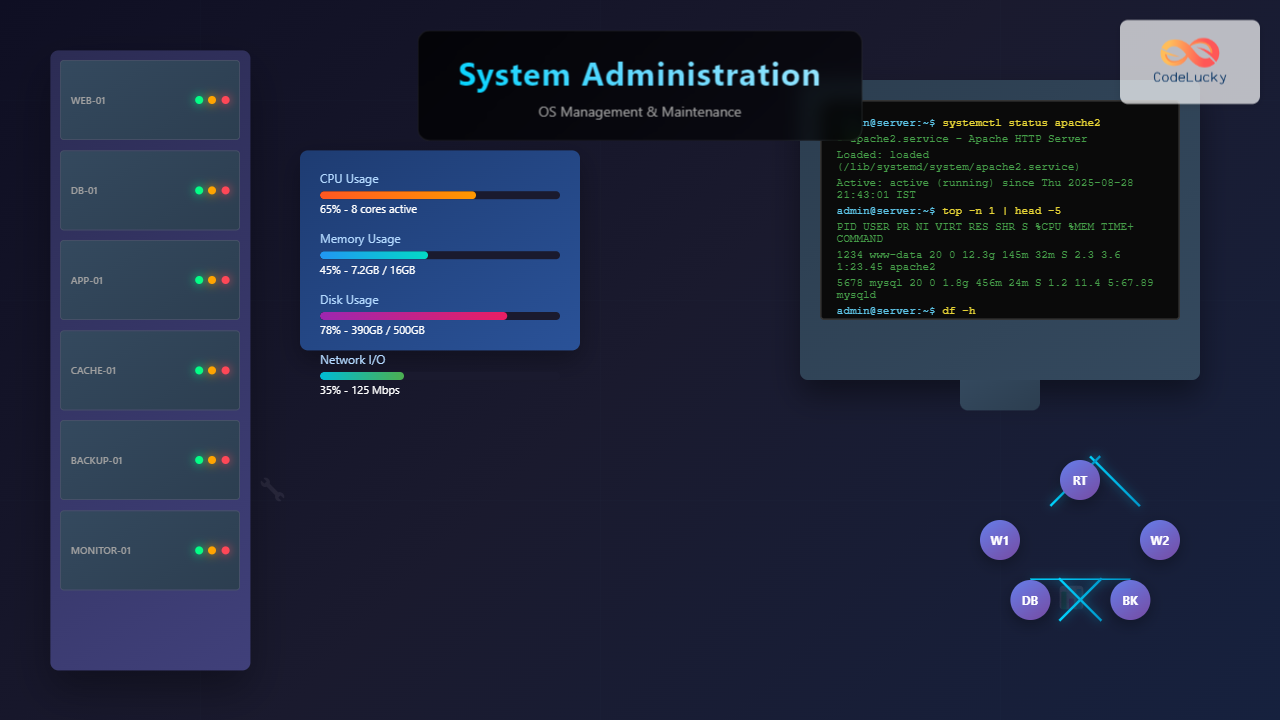
Introduction to System Administration
System administration is the backbone of modern IT infrastructure, encompassing the comprehensive management, configuration, and maintenance of operating systems across enterprise environments. As organizations increasingly rely on digital infrastructure, the role of system administrators has evolved from simple server maintenance to complex orchestration of distributed systems, cloud environments, and hybrid infrastructures.
Effective system administration ensures optimal performance, security, and reliability of computing resources while minimizing downtime and operational costs. This discipline combines technical expertise with strategic planning to maintain the digital foundation that supports business operations.
Core Components of OS Management
User and Group Management
User and group management forms the foundation of system security and access control. Administrators must implement robust identity management systems that ensure appropriate access levels while maintaining security protocols.

Linux User Management Examples:
# Create a new user
sudo useradd -m -s /bin/bash john

# Add user to multiple groups
sudo usermod -a -G sudo,developers john

# Set password
sudo passwd john

# View user information
id john
groups john

# Lock user account
sudo usermod -L john

# Delete user and home directory
sudo userdel -r john
Windows User Management via PowerShell:
# Create new local user
New-LocalUser -Name "JohnDoe" -Password (ConvertTo-SecureString "SecurePass123!" -AsPlainText -Force) -Description "Development Team Member"

# Add to local group
Add-LocalGroupMember -Group "Users" -Member "JohnDoe"

# View user properties
Get-LocalUser -Name "JohnDoe"

# Disable user account
Disable-LocalUser -Name "JohnDoe"
File System Management
File system management involves organizing, securing, and maintaining data storage across various storage devices and network locations. Administrators must implement appropriate file permissions, backup strategies, and storage optimization techniques.
Linux File Permissions Example:
# Set file permissions using chmod
chmod 755 /path/to/script.sh

# Set ownership
chown user:group /path/to/file

# Recursive permission change
chmod -R 644 /var/www/html/

# View detailed permissions
ls -la /path/to/directory

# Set special permissions (sticky bit)
chmod +t /tmp/shared_directory

# Access Control Lists (ACL)
setfacl -m u:john:rwx /secure/directory
getfacl /secure/directory
Process and Service Management
Managing system processes and services ensures optimal resource utilization and system stability. This includes monitoring running processes, managing service dependencies, and implementing resource limits.
Linux Process Management:
# View running processes
ps aux | grep apache

# Monitor real-time processes
htop

# Kill process by PID
kill -9 1234

# Kill process by name
killall firefox

# Background process management
nohup long_running_script.sh &

# View process tree
pstree -p

# Set process priority
nice -n 10 cpu_intensive_task
renice -n 5 -p 1234
Service Management with systemd:
# Start service
sudo systemctl start apache2

# Enable service at boot
sudo systemctl enable apache2

# Check service status
sudo systemctl status apache2

# View service logs
sudo journalctl -u apache2 -f

# Create custom service
sudo tee /etc/systemd/system/myapp.service << EOF
[Unit]
Description=My Application
After=network.target

[Service]
Type=simple
User=myapp
ExecStart=/opt/myapp/start.sh
Restart=always

[Install]
WantedBy=multi-user.target
EOF

# Reload systemd configuration
sudo systemctl daemon-reload
System Monitoring and Performance Optimization
Performance Monitoring Tools
Comprehensive monitoring provides insights into system performance, resource utilization, and potential bottlenecks. Administrators must implement both real-time and historical monitoring solutions.

Linux Monitoring Commands:
# System overview
top
htop

# Memory usage
free -h
cat /proc/meminfo

# Disk usage
df -h
du -sh /var/log/*

# CPU information
lscpu
cat /proc/cpuinfo

# Network monitoring
netstat -tuln
ss -tuln
iftop

# I/O statistics
iostat -x 1
iotop

# System load
uptime
w
Advanced Monitoring with sar:
# CPU utilization over time
sar -u 1 5

# Memory statistics
sar -r 1 5

# Disk activity
sar -d 1 5

# Network statistics
sar -n DEV 1 5

# Generate daily report
sar -A -f /var/log/sa/sa$(date +%d)
Log Management and Analysis
Log management is crucial for troubleshooting, security monitoring, and compliance. Administrators must implement centralized logging, log rotation, and automated analysis systems.
Log Analysis Examples:
# View system logs
tail -f /var/log/syslog
journalctl -f

# Search for specific patterns
grep "Failed password" /var/log/auth.log
grep -i error /var/log/apache2/error.log

# Log rotation configuration
sudo tee /etc/logrotate.d/myapp << EOF
/var/log/myapp/*.log {
    daily
    missingok
    rotate 30
    compress
    delaycompress
    notifempty
    postrotate
        systemctl reload myapp
    endscript
}
EOF

# Analyze web server logs
awk '{print $1}' /var/log/apache2/access.log | sort | uniq -c | sort -nr | head -10

# Monitor real-time log analysis
tail -f /var/log/nginx/access.log | grep "404"
Security Management and Hardening
System Security Framework
Security management encompasses multiple layers of protection, from basic access controls to advanced threat detection and response mechanisms. System administrators must implement comprehensive security policies that balance usability with protection.

Linux Security Hardening:
# Update system packages
sudo apt update && sudo apt upgrade -y

# Configure firewall
sudo ufw enable
sudo ufw default deny incoming
sudo ufw default allow outgoing
sudo ufw allow ssh
sudo ufw allow 80/tcp
sudo ufw allow 443/tcp

# Secure SSH configuration
sudo tee -a /etc/ssh/sshd_config << EOF
PermitRootLogin no
PasswordAuthentication no
PubkeyAuthentication yes
Port 2222
MaxAuthTries 3
ClientAliveInterval 300
ClientAliveCountMax 2
EOF

# Restart SSH service
sudo systemctl restart sshd

# Set password policies
sudo tee /etc/security/pwquality.conf << EOF
minlen = 12
minclass = 3
maxrepeat = 2
maxclasserepeat = 2
EOF

# Configure fail2ban
sudo apt install fail2ban
sudo cp /etc/fail2ban/jail.conf /etc/fail2ban/jail.local
sudo systemctl enable fail2ban
sudo systemctl start fail2ban
File System Security:
# Find world-writable files
find / -type f -perm -002 -exec ls -l {} \; 2>/dev/null

# Find SUID files
find / -type f -perm -4000 -exec ls -l {} \; 2>/dev/null

# Secure file permissions
chmod 700 /root
chmod 755 /usr/local/bin
chmod 644 /etc/passwd
chmod 640 /etc/shadow

# Set immutable bit on critical files
chattr +i /etc/passwd
chattr +i /etc/group

# Enable audit logging
sudo apt install auditd
sudo systemctl enable auditd
sudo auditctl -w /etc/passwd -p wa -k passwd_changes
sudo auditctl -w /etc/group -p wa -k group_changes
Backup and Disaster Recovery
Backup Strategy Implementation
A comprehensive backup strategy ensures business continuity and data protection against various failure scenarios. Administrators must implement automated, tested, and recoverable backup solutions.

Linux Backup Scripts:
# Full system backup with rsync
#!/bin/bash
BACKUP_DIR="/mnt/backup/$(date +%Y-%m-%d)"
SOURCE_DIRS="/home /etc /var/www /opt"

mkdir -p "$BACKUP_DIR"

for dir in $SOURCE_DIRS; do
    rsync -avz --delete "$dir" "$BACKUP_DIR/"
done

# Database backup
mysqldump --all-databases --single-transaction --routines --triggers > "$BACKUP_DIR/mysql_backup.sql"

# Compress backup
tar -czf "/mnt/backup/full_backup_$(date +%Y-%m-%d).tar.gz" -C "$BACKUP_DIR" .

# Remove old backups (keep 30 days)
find /mnt/backup -name "full_backup_*.tar.gz" -mtime +30 -delete

echo "Backup completed: $(date)" >> /var/log/backup.log
Incremental Backup with rsnapshot:
# Install rsnapshot
sudo apt install rsnapshot

# Configure rsnapshot
sudo tee /etc/rsnapshot.conf << EOF
config_version	1.2
snapshot_root	/backup/
cmd_cp		/bin/cp
cmd_rm		/bin/rm
cmd_rsync	/usr/bin/rsync
cmd_ssh	/usr/bin/ssh
cmd_logger	/usr/bin/logger
cmd_du		/usr/bin/du
cmd_rsnapshot_diff	/usr/bin/rsnapshot-diff

retain	hourly	6
retain	daily	7
retain	weekly	4
retain	monthly	12

verbose		2
loglevel	3
logfile	/var/log/rsnapshot.log

backup	/home/		localhost/
backup	/etc/		localhost/
backup	/var/www/	localhost/
EOF

# Set up cron jobs
sudo tee /etc/cron.d/rsnapshot << EOF
0 */4 * * *     root    /usr/bin/rsnapshot hourly
30 3 * * *      root    /usr/bin/rsnapshot daily
0 3 * * 1       root    /usr/bin/rsnapshot weekly
30 2 1 * *      root    /usr/bin/rsnapshot monthly
EOF
Automation and Scripting
System Automation Framework
Automation reduces manual errors, improves consistency, and enables administrators to manage complex environments efficiently. Modern system administration relies heavily on infrastructure as code and automated deployment pipelines.
Bash Automation Scripts:
# System health check script
#!/bin/bash

# Function definitions
check_disk_space() {
    echo "=== Disk Space Check ==="
    df -h | awk '$5 > 80 { print $0 " - WARNING: High disk usage" }'
}

check_memory_usage() {
    echo "=== Memory Usage Check ==="
    free -h
    MEMORY_USAGE=$(free | grep Mem | awk '{printf("%.2f\n", $3/$2 * 100.0)}')
    echo "Memory usage: ${MEMORY_USAGE}%"

    if (( $(echo "$MEMORY_USAGE > 90" | bc -l) )); then
        echo "WARNING: High memory usage detected"
    fi
}

check_system_load() {
    echo "=== System Load Check ==="
    uptime
    LOAD=$(uptime | awk -F'load average:' '{print $2}' | awk -F',' '{print $1}' | xargs)
    echo "Current load: $LOAD"
}

check_failed_services() {
    echo "=== Failed Services Check ==="
    systemctl --failed --no-legend | while read -r service; do
        echo "FAILED: $service"
    done
}

# Main execution
echo "System Health Check - $(date)"
echo "========================================"

check_disk_space
echo
check_memory_usage
echo
check_system_load
echo
check_failed_services

echo "========================================"
echo "Health check completed - $(date)"
PowerShell Automation for Windows:
# Windows system maintenance script
function Get-SystemHealth {
    Write-Host "=== Windows System Health Check ===" -ForegroundColor Green

    # Check disk space
    Write-Host "Disk Space:" -ForegroundColor Yellow
    Get-WmiObject -Class Win32_LogicalDisk |
    Where-Object {$_.DriveType -eq 3} |
    ForEach-Object {
        $percentFree = [math]::Round(($_.FreeSpace / $_.Size) * 100, 2)
        Write-Host "$($_.DeviceID) - $percentFree% free" -ForegroundColor $(if ($percentFree -lt 20) {"Red"} else {"Green"})
    }

    # Check memory usage
    Write-Host "`nMemory Usage:" -ForegroundColor Yellow
    $memory = Get-WmiObject -Class Win32_OperatingSystem
    $memoryUsage = [math]::Round((($memory.TotalVisibleMemorySize - $memory.FreePhysicalMemory) / $memory.TotalVisibleMemorySize) * 100, 2)
    Write-Host "Memory usage: $memoryUsage%" -ForegroundColor $(if ($memoryUsage -gt 80) {"Red"} else {"Green"})

    # Check Windows services
    Write-Host "`nStopped Critical Services:" -ForegroundColor Yellow
    Get-Service | Where-Object {$_.Status -eq "Stopped" -and $_.StartType -eq "Automatic"} |
    ForEach-Object {
        Write-Host "$($_.Name) - $($_.Status)" -ForegroundColor Red
    }

    # Check event logs for errors
    Write-Host "`nRecent System Errors:" -ForegroundColor Yellow
    Get-EventLog -LogName System -EntryType Error -Newest 5 |
    ForEach-Object {
        Write-Host "$($_.TimeGenerated) - $($_.Message.Substring(0,50))..." -ForegroundColor Red
    }
}

# Execute health check
Get-SystemHealth

# Schedule task creation
$action = New-ScheduledTaskAction -Execute "PowerShell.exe" -Argument "-File C:\Scripts\SystemHealth.ps1"
$trigger = New-ScheduledTaskTrigger -Daily -At "06:00"
Register-ScheduledTask -TaskName "SystemHealthCheck" -Action $action -Trigger $trigger -Description "Daily system health monitoring"
Cloud Integration and Hybrid Environments
Multi-Cloud Management
Modern system administration extends beyond traditional on-premises infrastructure to encompass cloud platforms, containerized environments, and hybrid architectures. Administrators must develop skills in cloud-native tools and services while maintaining traditional system management capabilities.
AWS CLI Management Examples:
# EC2 instance management
aws ec2 describe-instances --query 'Reservations[].Instances[].[InstanceId,State.Name,InstanceType]' --output table

# Start/stop instances
aws ec2 start-instances --instance-ids i-1234567890abcdef0
aws ec2 stop-instances --instance-ids i-1234567890abcdef0

# S3 backup automation
aws s3 sync /local/backup/ s3://my-backup-bucket/$(date +%Y-%m-%d)/ --delete

# CloudWatch monitoring
aws cloudwatch get-metric-statistics --namespace AWS/EC2 --metric-name CPUUtilization --dimensions Name=InstanceId,Value=i-1234567890abcdef0 --start-time 2023-01-01T00:00:00Z --end-time 2023-01-01T23:59:59Z --period 3600 --statistics Average

# Auto Scaling configuration
aws autoscaling create-auto-scaling-group --auto-scaling-group-name my-asg --launch-template LaunchTemplateName=my-template,Version=1 --min-size 1 --max-size 5 --desired-capacity 2 --vpc-zone-identifier subnet-12345678,subnet-87654321
Docker Container Management:
# Container lifecycle management
docker run -d --name nginx-server --restart unless-stopped -p 80:80 nginx:latest

# Monitor container resources
docker stats --no-stream

# Container backup
docker commit my-container my-container-backup
docker save my-container-backup > my-container-backup.tar

# Docker Compose for multi-container applications
tee docker-compose.yml << EOF
version: '3.8'
services:
  web:
    image: nginx:latest
    ports:
      - "80:80"
    volumes:
      - ./html:/usr/share/nginx/html:ro
    depends_on:
      - db
  db:
    image: mysql:8.0
    environment:
      MYSQL_ROOT_PASSWORD: secretpassword
      MYSQL_DATABASE: myapp
    volumes:
      - mysql_data:/var/lib/mysql

volumes:
  mysql_data:
EOF

# Deploy and manage services
docker-compose up -d
docker-compose logs -f web
docker-compose scale web=3
Performance Tuning and Optimization
System Performance Analysis
Performance optimization requires systematic analysis of system bottlenecks, resource utilization patterns, and application behavior. Administrators must implement both reactive and proactive optimization strategies.
Linux Performance Tuning:
# Kernel parameter tuning
sudo tee -a /etc/sysctl.conf << EOF
# Network performance
net.core.rmem_max = 16777216
net.core.wmem_max = 16777216
net.ipv4.tcp_rmem = 4096 87380 16777216
net.ipv4.tcp_wmem = 4096 65536 16777216

# File system performance
vm.dirty_ratio = 15
vm.dirty_background_ratio = 5
vm.swappiness = 10

# Security settings
net.ipv4.tcp_syncookies = 1
net.ipv4.ip_forward = 0
EOF

# Apply changes
sudo sysctl -p

# CPU frequency scaling
sudo apt install cpufrequtils
sudo cpufreq-set -g performance

# I/O scheduler optimization
echo deadline | sudo tee /sys/block/sda/queue/scheduler

# Memory optimization
echo 3 | sudo tee /proc/sys/vm/drop_caches  # Clear caches

# Network interface tuning
sudo ethtool -K eth0 tso off gso off gro off
sudo ifconfig eth0 mtu 9000  # Jumbo frames for gigabit networks
Database Performance Monitoring:
# MySQL performance analysis
mysql -u root -p << EOF
SHOW PROCESSLIST;
SHOW ENGINE INNODB STATUS\G
SELECT table_schema, table_name, engine, table_rows,
       ROUND(((data_length + index_length) / 1024 / 1024), 2) AS 'Size (MB)'
FROM information_schema.tables
WHERE table_schema NOT IN ('information_schema', 'mysql', 'performance_schema')
ORDER BY (data_length + index_length) DESC;

-- Slow query analysis
SET GLOBAL slow_query_log = 'ON';
SET GLOBAL long_query_time = 2;
EOF

# PostgreSQL monitoring
psql -c "SELECT pid, now() - pg_stat_activity.query_start AS duration, query FROM pg_stat_activity WHERE (now() - pg_stat_activity.query_start) > interval '5 minutes';"

# Database backup with performance considerations
mysqldump --single-transaction --routines --triggers --all-databases | gzip > backup_$(date +%Y%m%d_%H%M%S).sql.gz
Best Practices and Industry Standards
System Administration Excellence Framework
Implementing industry best practices ensures reliable, secure, and maintainable systems. This framework encompasses documentation standards, change management procedures, and continuous improvement methodologies.

Configuration Management with Ansible:
# ansible-playbook.yml - Server hardening playbook
---
- name: Server Hardening Playbook
  hosts: all
  become: yes

  vars:
    allowed_ssh_users: ["admin", "deploy"]
    ssh_port: 2222

  tasks:
    - name: Update system packages
      apt:
        update_cache: yes
        upgrade: dist

    - name: Install security packages
      apt:
        name:
          - fail2ban
          - ufw
          - unattended-upgrades
          - logwatch
        state: present

    - name: Configure SSH security
      lineinfile:
        path: /etc/ssh/sshd_config
        regexp: "{{ item.regexp }}"
        line: "{{ item.line }}"
      with_items:
        - { regexp: '^PermitRootLogin', line: 'PermitRootLogin no' }
        - { regexp: '^Port', line: 'Port {{ ssh_port }}' }
        - { regexp: '^PasswordAuthentication', line: 'PasswordAuthentication no' }
      notify: restart ssh

    - name: Configure firewall
      ufw:
        rule: allow
        port: "{{ ssh_port }}"
        proto: tcp

    - name: Enable firewall
      ufw:
        state: enabled
        policy: deny
        direction: incoming

    - name: Configure automatic security updates
      template:
        src: 20auto-upgrades.j2
        dest: /etc/apt/apt.conf.d/20auto-upgrades

  handlers:
    - name: restart ssh
      service:
        name: sshd
        state: restarted
Monitoring and Alerting Setup:
# Prometheus configuration for system monitoring
sudo tee /etc/prometheus/prometheus.yml << EOF
global:
  scrape_interval: 15s

scrape_configs:
  - job_name: 'node'
    static_configs:
      - targets: ['localhost:9100']

  - job_name: 'application'
    static_configs:
      - targets: ['localhost:8080']

rule_files:
  - "alert_rules.yml"

alerting:
  alertmanagers:
    - static_configs:
        - targets:
          - localhost:9093
EOF

# Alert rules configuration
sudo tee /etc/prometheus/alert_rules.yml << EOF
groups:
- name: system
  rules:
  - alert: HighCPUUsage
    expr: 100 - (avg by(instance) (rate(node_cpu_seconds_total{mode="idle"}[5m])) * 100) > 80
    for: 5m
    labels:
      severity: warning
    annotations:
      summary: "High CPU usage detected"

  - alert: HighMemoryUsage
    expr: (1 - (node_memory_MemAvailable_bytes / node_memory_MemTotal_bytes)) * 100 > 85
    for: 5m
    labels:
      severity: warning
    annotations:
      summary: "High memory usage detected"

  - alert: DiskSpaceLow
    expr: (1 - (node_filesystem_avail_bytes{fstype!="tmpfs"} / node_filesystem_size_bytes{fstype!="tmpfs"})) * 100 > 90
    for: 5m
    labels:
      severity: critical
    annotations:
      summary: "Disk space is running low"
EOF

# Install and configure Grafana for visualization
sudo apt install grafana
sudo systemctl enable grafana-server
sudo systemctl start grafana-server
Conclusion
System administration has evolved into a multifaceted discipline that requires deep technical knowledge, strategic thinking, and continuous learning. Modern administrators must balance traditional system management skills with cloud-native technologies, automation frameworks, and security best practices.
The key to successful system administration lies in implementing robust monitoring, maintaining comprehensive documentation, and fostering a culture of continuous improvement. By following the practices and techniques outlined in this guide, administrators can build resilient, secure, and highly available systems that support business objectives while minimizing operational overhead.
As technology continues to advance, system administrators must remain adaptable, embracing new tools and methodologies while maintaining the fundamental principles of reliability, security, and performance that underpin effective system management.
- Introduction to System Administration
- Core Components of OS Management
- System Monitoring and Performance Optimization
- Security Management and Hardening
- Backup and Disaster Recovery
- Automation and Scripting
- Cloud Integration and Hybrid Environments
- Performance Tuning and Optimization
- Best Practices and Industry Standards
- Conclusion





