
The sysfs filesystem is one of Linux’s most powerful yet underutilized features, providing a window into the kernel’s internal operations and hardware management. This virtual filesystem, mounted at /sys, exposes kernel objects, attributes, and relationships in a hierarchical directory structure that system administrators and developers can interact with directly.
What is sysfs?
sysfs is a virtual filesystem that provides an interface to kernel data structures. Unlike traditional filesystems that store data on physical storage devices, sysfs exists entirely in memory and represents the kernel’s view of the system’s hardware and software components. It was introduced in Linux kernel 2.6 as a more organized replacement for parts of the /proc filesystem.
Key Characteristics of sysfs
- Virtual filesystem: No physical storage required
- Kernel interface: Direct access to kernel objects
- Hierarchical structure: Organized directory tree
- Real-time data: Reflects current system state
- Read/write capabilities: Some attributes can be modified
Understanding the /sys Directory Structure
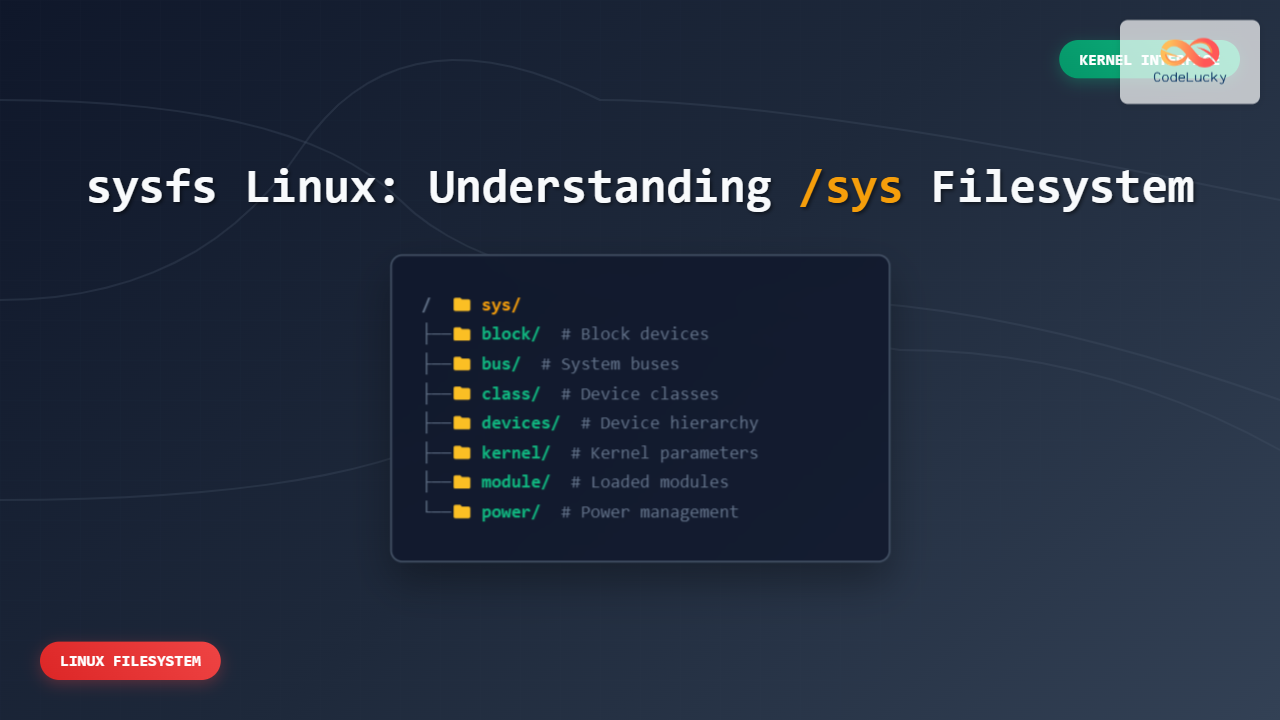
The sysfs filesystem is organized into several main directories, each serving specific purposes:
/sys/
├── block/          # Block devices (hard drives, SSDs, etc.)
├── bus/            # System buses (PCI, USB, I2C, etc.)
├── class/          # Device classes (network, graphics, etc.)
├── dev/            # Device nodes organized by major:minor numbers
├── devices/        # Device hierarchy as seen by kernel
├── firmware/       # Firmware-specific information
├── fs/             # Filesystem-specific information
├── hypervisor/     # Hypervisor-specific information (if running in VM)
├── kernel/         # Kernel-specific information and tunables
├── module/         # Loaded kernel modules
└── power/          # System power management
Exploring the Main Directories
Let’s examine each major directory and understand its purpose:
/sys/block – Block Devices
This directory contains information about block devices like hard drives, SSDs, and optical drives.
$ ls -la /sys/block/
drwxr-xr-x  2 root root 0 Aug 25 09:19 sda
drwxr-xr-x  2 root root 0 Aug 25 09:19 sdb
drwxr-xr-x  2 root root 0 Aug 25 09:19 sr0
Each block device has its own subdirectory with various attributes:
$ ls /sys/block/sda/
alignment_offset  holders       removable   stat
bdi               inflight      ro          subsystem
capability        queue         size        trace
dev               range         slaves      uevent
You can read specific information about a device:
$ cat /sys/block/sda/size
1953525168

$ cat /sys/block/sda/queue/scheduler
mq-deadline kyber [bfq] none
/sys/bus – System Buses
This directory organizes devices by the bus they’re connected to:
$ ls /sys/bus/
acpi      cpu       hid       mdio_bus  platform  sdio      usb
clocksource   event_source  i2c       memory    pnp       serio     workqueue
container     gpio          machinecheck  pci      scsi      spi
Each bus directory contains devices and drivers subdirectories:
$ ls /sys/bus/pci/
devices  drivers  drivers_autoprobe  drivers_probe  rescan  resource_alignment  uevent
/sys/class – Device Classes
Devices are grouped by functionality rather than physical connection:
$ ls /sys/class/
backlight    gpio         net          rtc          uwb
block        graphics     pci_bus      scsi_device  vc
bluetooth    hidraw       power_supply scsi_disk    vtconsole
bsg          hwmon        ppp          scsi_host    watchdog
dma          i2c-adapter  printer      sound        wmi
For example, network interfaces:
$ ls /sys/class/net/
enp0s3  lo  wlan0

$ cat /sys/class/net/enp0s3/address
08:00:27:8d:c0:4d

$ cat /sys/class/net/enp0s3/mtu
1500
Practical Examples and Use Cases
1. Monitoring System Temperature
sysfs provides access to hardware monitoring information:
$ find /sys/class/hwmon -name "temp*_input" | head -5
/sys/class/hwmon/hwmon0/temp1_input
/sys/class/hwmon/hwmon1/temp1_input
/sys/class/hwmon/hwmon1/temp2_input

$ cat /sys/class/hwmon/hwmon0/temp1_input
45000
The temperature is typically in millidegrees Celsius (45000 = 45°C).
2. Managing Network Interface Settings
You can modify network interface parameters through sysfs:
# View current MTU
$ cat /sys/class/net/eth0/mtu
1500

# Change MTU (requires root privileges)
$ echo 9000 > /sys/class/net/eth0/mtu

# Verify change
$ cat /sys/class/net/eth0/mtu
9000
3. CPU Information and Control
Access detailed CPU information and control features:
$ ls /sys/devices/system/cpu/
cpu0  cpu1  cpu2  cpu3  cpufreq  cpuidle  hotplug  isolated  kernel_max  microcode  modalias  offline  online  possible  power  present  uevent

# Check CPU frequency scaling governor
$ cat /sys/devices/system/cpu/cpu0/cpufreq/scaling_governor
powersave

# List available governors
$ cat /sys/devices/system/cpu/cpu0/cpufreq/scaling_available_governors
conservative ondemand userspace powersave performance schedutil
4. Power Management
Control system power management features:
$ cat /sys/power/state
freeze mem disk

# Check current suspend state
$ cat /sys/power/mem_sleep
s2idle [deep]
5. USB Device Information
Explore connected USB devices:
$ ls /sys/bus/usb/devices/
1-0:1.0  1-1  1-1.1  1-1:1.0  2-0:1.0  usb1  usb2

$ cat /sys/bus/usb/devices/1-1/product
USB2.0 Hub

$ cat /sys/bus/usb/devices/1-1/manufacturer
GenesysLogic
Advanced sysfs Operations
Writing Scripts to Monitor System Health
Here’s a practical shell script that uses sysfs to monitor system health:
#!/bin/bash
# System health monitor using sysfs

echo "=== System Health Report ==="
echo "Date: $(date)"
echo

# CPU Temperature
echo "CPU Temperatures:"
for temp_file in /sys/class/hwmon/hwmon*/temp*_input; do
    if [ -r "$temp_file" ]; then
        temp=$(cat "$temp_file")
        temp_c=$((temp / 1000))
        echo "  $(basename "$temp_file"): ${temp_c}°C"
    fi
done

# Network Interface Status
echo -e "\nNetwork Interfaces:"
for iface in /sys/class/net/*; do
    if [ -d "$iface" ]; then
        name=$(basename "$iface")
        if [ "$name" != "lo" ]; then
            operstate=$(cat "$iface/operstate" 2>/dev/null || echo "unknown")
            echo "  $name: $operstate"
        fi
    fi
done

# Disk Usage from block devices
echo -e "\nBlock Devices:"
for device in /sys/block/sd*; do
    if [ -d "$device" ]; then
        name=$(basename "$device")
        size=$(cat "$device/size")
        size_gb=$((size * 512 / 1024 / 1024 / 1024))
        echo "  $name: ${size_gb}GB"
    fi
done
Kernel Module Management
sysfs provides information about loaded kernel modules:
$ ls /sys/module/ | head -10
8250
8250_base
8250_pci
acpi
acpi_cpufreq
aesni_intel
ahci
ata_generic
ata_piix
backlight

# Check module parameters
$ ls /sys/module/bluetooth/parameters/
disable_esco  disable_sco

$ cat /sys/module/bluetooth/parameters/disable_esco
N
Security Considerations
When working with sysfs, keep these security considerations in mind:
- Write permissions: Many sysfs files require root privileges to modify
- System stability: Incorrect modifications can affect system stability
- Hardware damage: Some parameters can potentially damage hardware if set incorrectly
- Access control: Use proper permissions when creating scripts that modify sysfs
Best Practices
- Read before write: Always check current values before making changes
- Backup configurations: Note original values before modifications
- Test incrementally: Make small changes and verify effects
- Use appropriate tools: Prefer dedicated utilities when available
- Monitor logs: Check system logs after making changes
Troubleshooting Common Issues
Permission Denied Errors
$ echo "performance" > /sys/devices/system/cpu/cpu0/cpufreq/scaling_governor
bash: /sys/devices/system/cpu/cpu0/cpufreq/scaling_governor: Permission denied

# Solution: Use sudo
$ sudo echo "performance" > /sys/devices/system/cpu/cpu0/cpufreq/scaling_governor
File Not Found
Some sysfs entries may not exist depending on hardware or kernel configuration:
$ cat /sys/class/hwmon/hwmon0/temp1_input
cat: /sys/class/hwmon/hwmon0/temp1_input: No such file or directory

# Check what's available
$ find /sys/class/hwmon -name "*temp*" -type f
Integration with System Tools
Many Linux utilities leverage sysfs behind the scenes:
- lscpu: Reads from /sys/devices/system/cpu/
- lsblk: Uses /sys/block/ and /sys/class/block/
- lsusb: Accesses /sys/bus/usb/
- sensors: Reads from /sys/class/hwmon/
- ethtool: Interacts with /sys/class/net/
Creating Custom Monitoring Solutions
You can create sophisticated monitoring solutions by combining sysfs with other tools:
#!/bin/bash
# Advanced system monitor using sysfs

monitor_thermal() {
    echo "Thermal Status:"
    for zone in /sys/class/thermal/thermal_zone*; do
        if [ -d "$zone" ]; then
            temp=$(cat "$zone/temp" 2>/dev/null)
            type=$(cat "$zone/type" 2>/dev/null)
            if [ -n "$temp" ] && [ -n "$type" ]; then
                temp_c=$((temp / 1000))
                echo "  $type: ${temp_c}°C"
            fi
        fi
    done
}

monitor_power() {
    echo "Power Management:"
    if [ -f /sys/class/power_supply/BAT0/capacity ]; then
        battery=$(cat /sys/class/power_supply/BAT0/capacity)
        status=$(cat /sys/class/power_supply/BAT0/status)
        echo "  Battery: $battery% ($status)"
    fi
}

monitor_thermal
monitor_power
Future of sysfs
The sysfs filesystem continues to evolve with the Linux kernel, providing new interfaces for emerging hardware and technologies. Understanding sysfs gives you deeper insights into Linux system internals and enables more effective system administration and troubleshooting.
As containerization and cloud computing grow, sysfs remains crucial for understanding the underlying hardware and kernel behavior, making it an essential skill for modern system administrators and DevOps professionals.
Conclusion
The sysfs filesystem is a powerful tool that provides direct access to kernel information and hardware control. By mastering sysfs, you gain the ability to monitor, configure, and troubleshoot Linux systems at a deeper level. Whether you’re optimizing performance, debugging hardware issues, or creating custom monitoring solutions, sysfs offers the low-level access needed for advanced system administration.
Remember to always exercise caution when modifying sysfs attributes, as changes can have immediate effects on system behavior. With proper understanding and careful application, sysfs becomes an invaluable tool in your Linux administration toolkit.
Related Posts
proc filesystem Linux: Complete Guide to Understanding /proc Directory Structure and Commands
What is the Linux /proc Filesystem? The /proc filesystem is a virtual filesystem in Linux that provides a window into...

File System Implementation: Boot Block, Super Block and Inodes Explained
Understanding File System Implementation File system implementation is a critical component of operating systems that manages how data is stored,...
sysctl Command Linux: Complete Guide to Kernel Parameter Configuration
The sysctl command is a powerful Linux utility that allows system administrators to view, modify, and configure kernel parameters at...

File System Types: FAT32, NTFS, ext4 and Modern Linux Filesystems Explained
Understanding File Systems: The Foundation of Data Storage A file system is the method and data structure that an operating...
File System in Operating System: Complete Guide to Structure and Organization
Introduction to File Systems A file system is a fundamental component of any operating system that provides a structured way...

devtmpfs Linux: Complete Guide to Device Temporary Filesystem Management
The devtmpfs (Device Temporary Filesystem) is a crucial component of modern Linux systems that revolutionizes how device nodes are managed...
devfs Linux: Complete Guide to Device Filesystem Management
The Device Filesystem (devfs) represents a revolutionary approach to device management in Linux systems, providing dynamic creation and removal of...

Directory Structure: Single-level, Two-level, and Tree Structure in Operating Systems
Understanding Directory Structures in Operating Systems Directory structures are fundamental components of file systems that organize and manage files in...
Kernel in Operating System: Core Functions and Memory Management
The kernel stands as the fundamental cornerstone of any operating system, serving as the critical bridge between hardware components and...
tmpfs Linux: Complete Guide to Temporary Filesystem in Memory for Better Performance
tmpfs (temporary file system) is a powerful Linux feature that creates a virtual filesystem stored entirely in RAM and swap...
xfs_info Command Linux: Complete Guide to Display XFS Filesystem Information
The xfs_info command is a powerful utility in Linux systems that provides comprehensive information about XFS filesystems. This command is...
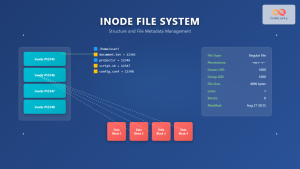
Inode in File System: Complete Guide to Structure and File Metadata
What is an Inode? An inode (index node) is a fundamental data structure in Unix-like file systems that stores metadata...





