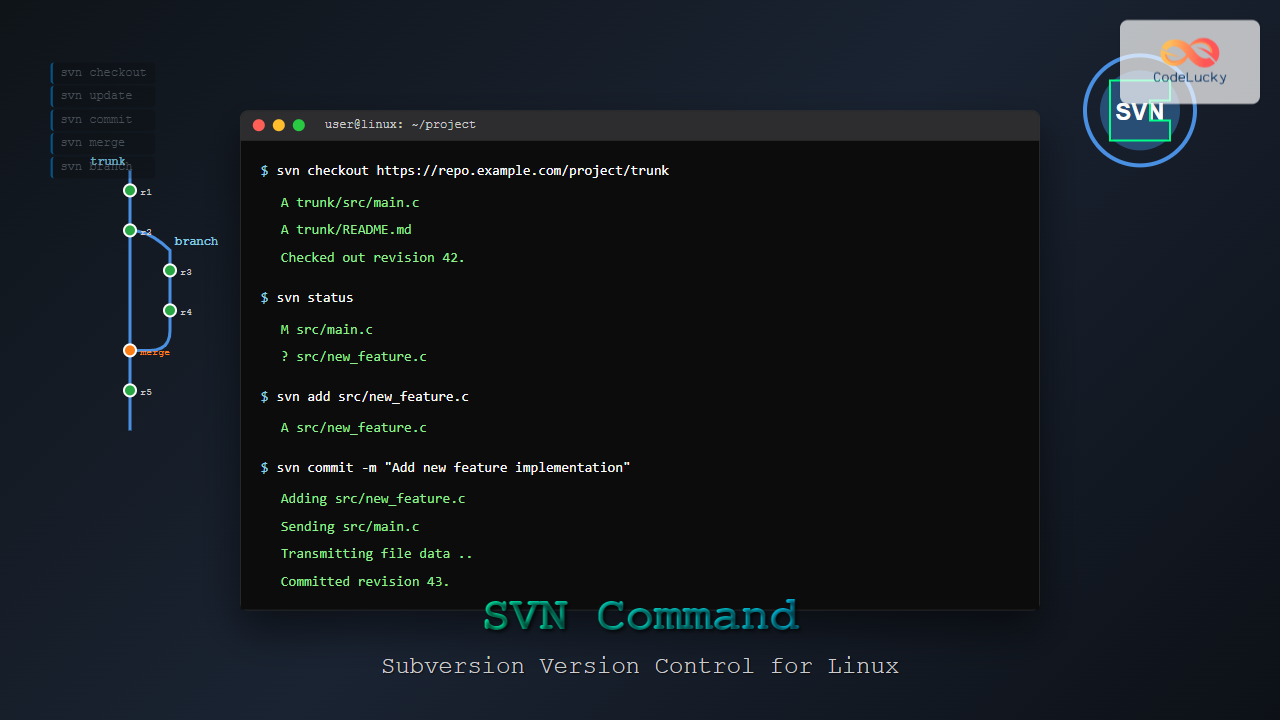
What is SVN (Subversion)?
SVN (Subversion) is a centralized version control system that helps developers track changes in files and directories over time. Unlike distributed systems like Git, SVN follows a client-server model where a central repository stores all versions of your project files. The svn command is the primary interface for interacting with Subversion repositories on Linux systems.
Subversion excels in environments where centralized control is preferred, making it popular in enterprise settings and projects requiring strict access controls and linear development workflows.
Installing SVN on Linux
Before using SVN commands, you need to install the Subversion client on your Linux system:
Ubuntu/Debian:
sudo apt update
sudo apt install subversion
CentOS/RHEL/Fedora:
sudo yum install subversion
# or for newer versions
sudo dnf install subversion
Arch Linux:
sudo pacman -S subversionVerify the installation:
svn --versionOutput:
svn, version 1.14.2 (r1899510)
   compiled Aug 27 2021, 17:26:15 on x86_64-pc-linux-gnu
Basic SVN Commands and Operations
1. Creating a Repository (svnadmin)
To create a new SVN repository locally:
svnadmin create /path/to/repositoryExample:
svnadmin create ~/myproject-repo
ls -la ~/myproject-repo/
Output:
total 24
drwxr-xr-x 6 user user 4096 Aug 25 10:30 .
drwxr-xr-x 3 user user 4096 Aug 25 10:30 ..
drwxr-xr-x 2 user user 4096 Aug 25 10:30 conf
drwxr-xr-x 6 user user 4096 Aug 25 10:30 db
-r--r--r-- 1 user user    2 Aug 25 10:30 format
drwxr-xr-x 2 user user 4096 Aug 25 10:30 hooks
drwxr-xr-x 2 user user 4096 Aug 25 10:30 locks
-rw-r--r-- 1 user user  246 Aug 25 10:30 README.txt
2. Checking Out a Repository (svn checkout)
To create a working copy from a repository:
svn checkout [URL] [LOCAL_PATH]Examples:
# Local repository
svn checkout file:///home/user/myproject-repo myproject

# Remote repository
svn checkout https://svn.example.com/project/trunk project-trunk
Output:
Checked out revision 0.
A    myproject
3. Adding Files (svn add)
To add new files to version control:
cd myproject
echo "Hello World" > hello.txt
echo "# My Project" > README.md

svn add hello.txt README.md
Output:
A         hello.txt
A         README.md
Add all unversioned files:
svn add --force *4. Committing Changes (svn commit)
To save changes to the repository:
svn commit -m "Initial commit with hello.txt and README.md"Output:
Adding         README.md
Adding         hello.txt
Transmitting file data ..
Committed revision 1.
5. Checking Status (svn status)
To see the status of files in your working copy:
echo "Modified content" >> hello.txt
echo "new file" > newfile.txt

svn status
Output:
M       hello.txt
?       newfile.txt
Status codes explained:
A– AddedD– DeletedM– ModifiedC– Conflicted?– Not under version control!– Missing
6. Updating Working Copy (svn update)
To get the latest changes from the repository:
svn updateOutput:
At revision 1.Viewing Changes and History
1. Viewing Differences (svn diff)
To see changes in your working copy:
svn diff hello.txtOutput:
Index: hello.txt
===================================================================
--- hello.txt   (revision 1)
+++ hello.txt   (working copy)
@@ -1 +1,2 @@
 Hello World
+Modified content
Compare specific revisions:
svn diff -r 1:2 hello.txt2. Viewing Log History (svn log)
To see commit history:
svn logOutput:
------------------------------------------------------------------------
r1 | user | 2025-08-25 10:45:30 +0530 (Mon, 25 Aug 2025) | 1 line

Initial commit with hello.txt and README.md
------------------------------------------------------------------------
View detailed log with affected paths:
svn log -vView log for specific revisions:
svn log -r 1:53. Viewing File Information (svn info)
svn info hello.txtOutput:
Path: hello.txt
Name: hello.txt
URL: file:///home/user/myproject-repo/hello.txt
Relative URL: ^/hello.txt
Repository Root: file:///home/user/myproject-repo
Revision: 1
Node Kind: file
Last Changed Author: user
Last Changed Rev: 1
Last Changed Date: 2025-08-25 10:45:30 +0530 (Mon, 25 Aug 2025)
Branching and Merging
1. Creating Branches
SVN uses directory structure for branching. Create the standard layout:
svn mkdir -m "Create standard layout" \
  file:///home/user/myproject-repo/trunk \
  file:///home/user/myproject-repo/branches \
  file:///home/user/myproject-repo/tags
Move existing files to trunk:
svn move hello.txt README.md trunk/
svn commit -m "Move files to trunk"
Create a new branch:
svn copy file:///home/user/myproject-repo/trunk \
         file:///home/user/myproject-repo/branches/feature-branch \
         -m "Create feature branch"
Check out the branch:
svn checkout file:///home/user/myproject-repo/branches/feature-branch feature-work2. Merging Branches
To merge changes from a branch back to trunk:
cd trunk-working-copy
svn merge file:///home/user/myproject-repo/branches/feature-branch
Output:
--- Merging r3 through r5 into '.':
U    hello.txt
--- Recording mergeinfo for merge of r3 through r5 into '.':
Commit the merge:
svn commit -m "Merge feature-branch into trunk"File and Directory Operations
1. Moving and Renaming (svn move)
svn move oldname.txt newname.txt
svn commit -m "Rename oldname.txt to newname.txt"
2. Deleting Files (svn delete)
svn delete unwanted.txt
svn commit -m "Remove unwanted file"
3. Creating Directories (svn mkdir)
svn mkdir src docs
svn commit -m "Add src and docs directories"
Advanced SVN Operations
1. Reverting Changes (svn revert)
Undo local changes:
svn revert hello.txtRevert all changes recursively:
svn revert -R .2. Resolving Conflicts
When conflicts occur during update or merge:
svn updateConflict output:
C    hello.txt
Updated to revision 3.
Conflict discovered in file 'hello.txt'.
Select: (p) postpone, (df) show diff, (e) edit, (mc) my version, (tc) their version, (s) show all options:
After resolving manually:
svn resolve --accept working hello.txt3. Tagging Releases (svn copy)
svn copy file:///home/user/myproject-repo/trunk \
         file:///home/user/myproject-repo/tags/v1.0.0 \
         -m "Tag version 1.0.0 release"
4. Working with Properties (svn propset/propget)
Set file properties:
svn propset svn:ignore "*.log" .
svn propset svn:executable "*" script.sh
View properties:
svn propget svn:ignore .List all properties:
svn proplist -v hello.txtSVN Configuration and Optimization
1. Global Configuration
SVN configuration files are located in ~/.subversion/:
ls ~/.subversion/Output:
auth config README.txt servers2. Setting Default Editor
Edit ~/.subversion/config:
editor-cmd = nano3. Ignoring Files
Create global ignores in config file:
global-ignores = *.o *.so *.a *.la *.tmp *~Working with Remote Repositories
1. Authentication
For HTTPS repositories with authentication:
svn checkout https://svn.example.com/repo/trunk --username myuserStore credentials:
svn checkout https://svn.example.com/repo/trunk --username myuser --password mypass --no-auth-cache2. Repository Information (svn info)
svn info https://svn.example.com/repo/trunkTroubleshooting Common SVN Issues
1. Corrupted Working Copy
Clean up locked working copy:
svn cleanup2. Repository URL Changes
Relocate working copy to new URL:
svn relocate https://old-server.com/repo https://new-server.com/repo3. Checking Repository Health
svnadmin verify /path/to/repositorySVN Best Practices
1. Repository Structure
- Use standard
trunk/,branches/,tags/layout - Keep trunk stable and development-ready
- Use descriptive branch names
2. Commit Guidelines
- Make atomic commits (related changes together)
- Write meaningful commit messages
- Test before committing
- Update before committing
3. Branching Strategy
- Create feature branches for new development
- Use tags for releases
- Merge branches back to trunk regularly
Conclusion
The SVN command-line interface provides powerful version control capabilities for managing source code and project files. While Git has gained popularity in recent years, SVN remains valuable in environments requiring centralized control, linear history, and fine-grained access permissions.
Key takeaways for effective SVN usage:
- Master basic commands: checkout, add, commit, update, status
- Understand branching and merging workflows
- Use proper repository structure and naming conventions
- Configure SVN properly for your development environment
- Handle conflicts and repository issues confidently
With this comprehensive guide, you now have the knowledge to effectively use SVN for version control in your Linux development workflow. Practice these commands regularly to build proficiency and adapt them to your specific project requirements.
Related Posts
git Command Linux: Complete Guide to Version Control with Git
Git is the most widely used distributed version control system that helps developers track changes, collaborate on projects, and manage...

sv Command Linux: Master Runit Service Control and Management
The sv command is a powerful utility in Linux systems that serves as the primary interface for controlling services managed...
tightvncserver Linux: Complete Guide to TightVNC Server Setup and Configuration
TightVNC Server is a powerful remote desktop solution that allows you to access and control Linux systems remotely over a...
Mastering Git: The Cornerstone of DevOps Collaboration
Welcome back to our "DevOps from Scratch" series! In our previous post, we explored the fundamentals of DevOps and its...
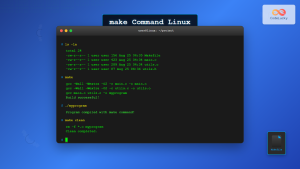
make Command Linux: Complete Guide to Building Programs from Source Code
The make command is one of the most essential tools in Linux for building and compiling software from source code....

Spacewalk Linux: Complete Systems Management Solution Guide
Spacewalk is a powerful open-source systems management solution that enables administrators to efficiently manage multiple Linux systems from a centralized...
Katello Linux: Complete Guide to Enterprise Content and Configuration Management
Introduction to Katello Linux Katello is a powerful open-source content and configuration management platform that serves as the upstream project...

s6-svc Command Linux: Complete Guide to Managing s6 Services
The s6-svc command is a powerful utility in the s6 process supervision suite that allows system administrators to control and...
vncserver Command Linux: Complete Guide to VNC Server Setup and Management
The vncserver command is a powerful tool in Linux that enables remote desktop access by starting a Virtual Network Computing...

Zookeeper Linux: Complete Guide to Centralized Service Configuration Management
Apache Zookeeper is a centralized service for maintaining configuration information, naming, providing distributed synchronization, and providing group services in distributed...
source Command Linux: Execute Scripts and Load Functions Efficiently
The source command in Linux is a powerful built-in shell command that executes commands from a file within the current...
Groundwork Linux: Complete Guide to IT Infrastructure Monitoring and System Health Management
What is Groundwork Linux? Groundwork Linux is a comprehensive open-source IT infrastructure monitoring platform built specifically for Linux environments. It...